
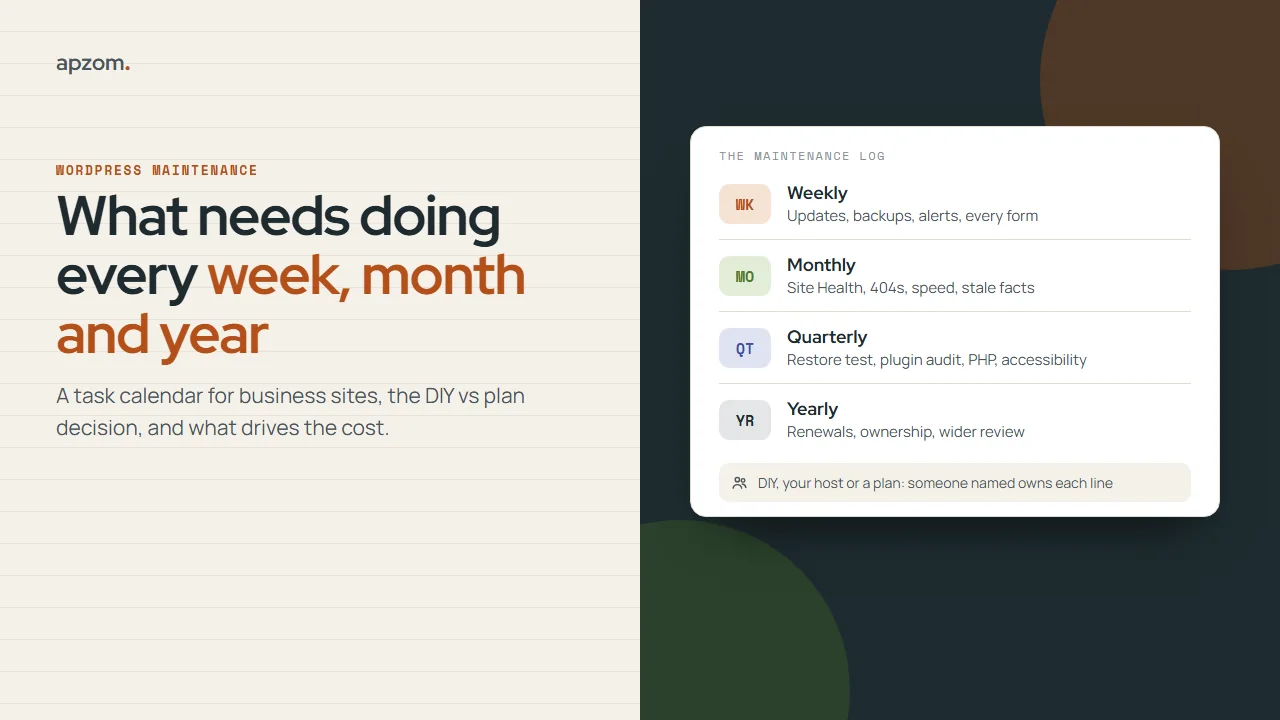
The short answer: Every week, confirm that updates and backups ran, read the alert emails and submit each form once. Every month, work through Tools > Site Health, fix broken links and 404s, check speed and correct out-of-date facts. Every quarter, test-restore a backup, audit plugins, check the PHP version and spot-check accessibility. Every year, review licence, domain and hosting renewals and who has access. You can do this yourself if someone has a few protected hours a month; a maintenance plan makes sense when nobody does, or when downtime costs more than the plan. The cost depends on the site’s complexity and how fast someone must respond, not on a standard price.
This guide is for owners and marketing or office managers anywhere in the world whose business site runs on self-hosted WordPress. It covers why WordPress needs regular care, the task calendar, where WordPress.org’s own maintenance advice has aged, DIY vs your host vs a plan, what a plan should include and what drives the cost. We checked the release, update, PHP, backup and certificate facts against official sources on 21 November 2026.
What WordPress maintenance covers, and what it does not
Maintenance keeps a working site working: software current, backups restorable, forms delivering, pages fast, links resolving, facts true and renewals on time. It is not the same as security hardening, the one-off controls such as roles, two-factor authentication and firewalls covered in our WordPress security checklist; security appears here only where a recurring task belongs in the calendar. Nor is it a redesign, which is what you need when maintenance no longer fixes the problem (see the signs your website needs a redesign). If you are still choosing a platform, our WordPress vs website builders guide compares who does the upkeep.
Why WordPress needs regular care: how often things change
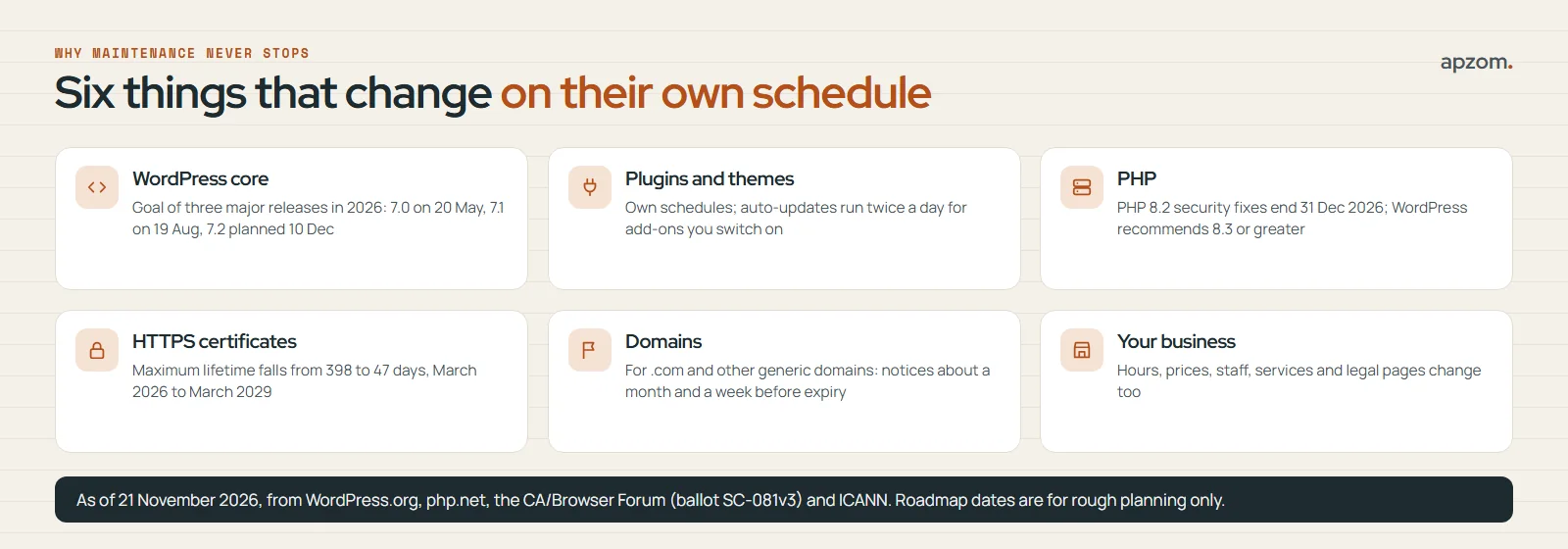
A WordPress site is several products from different makers that change on different schedules. As of 21 November 2026:
- WordPress core. WordPress.org’s roadmap set a goal to “Deliver three major releases in 2026”: 7.0 came out on 20 May, 7.1 on 19 August, and 7.2 is planned for 10 December, a projected date the roadmap gives “for rough planning purposes only”. Maintenance and security releases come in between: 7.1.1 to 7.1.5 shipped from 17 September to 18 November. WordPress’s security page says “only the latest version of WordPress is officially supported”.
- Plugins and themes. Each has its own schedule; WordPress runs plugin and theme auto-updates “twice per day” for add-ons you have switched them on for.
- PHP, the language WordPress runs on. On php.net’s support table, PHP 8.2 stops receiving security fixes on 31 December 2026. WordPress recommends “PHP version 8.3 or greater”; the full version table is in our security checklist.
- Certificates. The CA/Browser Forum, which sets the rules for public HTTPS certificates, passed ballot SC-081v3 in April 2025, cutting the maximum certificate lifetime from 398 days to 47 days in stages from March 2026 to March 2029. As lifetimes shrink, renewing by hand stops being practical, so make sure renewal is automatic.
- Domains. For generic domains such as .com, ICANN’s Expired Registration Recovery Policy requires registrars to send renewal notices about one month and one week before expiry, to the registrant’s contact details. Country domains such as .co.uk, .in, .ae or .com.au follow their own registry’s rules.
- Your business. Hours, prices, staff, services and legal pages change, and the website is often the last place anyone updates.
What WordPress does automatically, and what it leaves to you
Some of this updates itself. According to WordPress’s Upgrading documentation, minor core releases and translations update automatically on most sites. Sites first installed on WordPress 5.6 or later also get major core releases automatically by default, while older installs stay on minor releases only unless an administrator changes the setting. Plugin and theme auto-updates are opt-in, one add-on at a time; our security checklist explains which add-ons to auto-update and which to update by hand.
Automatic does not mean checked. WordPress says these auto-updates “rely on WordPress Cron tasks”, so if scheduled tasks stop, updates quietly stop too, and it emails the site owner after every attempt, successful or failed. Since version 5.2, Recovery Mode emails the administrator’s address with a login link when a plugin or theme causes a fatal error; WordPress warns this email may be sent from your server and land in spam. Make sure the Administration Email Address in Settings > General is a monitored inbox the business controls.
The built-in health check is Tools > Site Health. Its Status tab sorts findings into critical issues, recommended improvements and passed tests. Its Info tab lists the WordPress, PHP, database, theme and plugin versions, and has a button that copies the full report to the clipboard, which is useful to paste into a support ticket.
The WordPress maintenance calendar
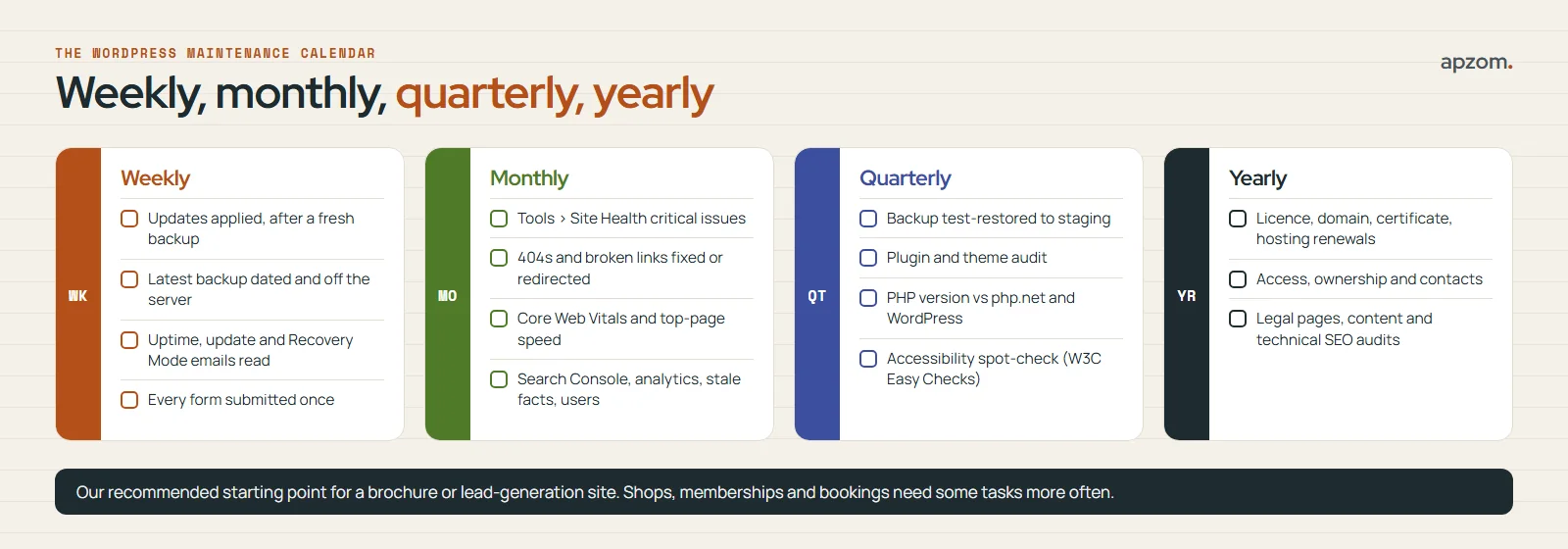
Below is our recommended calendar for a typical brochure or lead-generation site: a starting point, not a record of how any particular site is run. Shops, membership and booking sites need some tasks more often. Security tasks appear as single lines; the detail is in our security checklist.
| When | Task | Done when |
|---|---|---|
| Weekly | Updates applied or confirmed, after a fresh backup | Nothing left pending without a written reason to wait |
| Weekly | Backups ran and a copy exists off the server | The newest off-server copy is no older than your schedule allows |
| Weekly | Uptime, auto-update and Recovery Mode emails read | Every failure explained or ticketed |
| Weekly | Every form submitted once | Each test entry reached its inbox and CRM |
| Monthly | Tools > Site Health reviewed | No critical issues left unexplained |
| Monthly | Broken links and 404 errors checked | Links you control fixed or redirected |
| Monthly | Speed and Core Web Vitals checked | No new poor URL groups, or a fix planned |
| Monthly | Search Console and analytics checked | Indexing, enquiries and tracking look normal |
| Monthly | Key facts on top pages checked | Hours, prices, staff and offers are current |
| Monthly | Users and roles reviewed | Leavers removed, no shared or unknown logins |
| Quarterly | A backup test-restored to staging | Time taken and outcome recorded |
| Quarterly | Plugin and theme audit | Unused add-ons removed, abandoned ones replaced |
| Quarterly | PHP version against php.net and WordPress | Version supported, upgrade date set if needed |
| Quarterly | Accessibility spot-check | Issues logged with owners |
| Yearly | Licences, domain, certificate and hosting renewals | Renewal dates listed, payment cards current, auto-renew decided |
| Yearly | Access, ownership and contacts reviewed | Logins, admin email and registrar contacts belong to the business |
| Yearly | Legal pages, content audit and technical SEO audit | Findings scheduled |
Every week: confirm, read, submit
Updates. Apply anything not set to auto-update, after a fresh backup. WordPress’s Upgrading documentation says: “Verify the backups you created are there and usable. This is essential.” On a shop or booking site, update outside busy hours and click through checkout or booking afterwards.
Backups. Check the date and location of the latest backup. WordPress’s Backups page says a full backup has two parts, database and files, recommends weekly backups for smaller sites and daily for busy ones, and advises keeping “at least 3–5 recent WordPress backups” in different places. Shops and sites with daily form entries belong in the daily group.
Alerts. Read the uptime monitor’s alerts, the auto-update emails and any Recovery Mode email. If nobody owns this inbox, problems pile up unseen.
Forms. Submit every contact, quote and booking form and follow the entry to the inbox, the CRM and the auto-reply. A form can look fine while its emails go to spam or an update breaks a field. If test entries land in spam, check your email authentication with our SPF, DKIM and DMARC guide; our contact form best practices cover what the form should ask.
Every month: health, links, speed and facts
Site Health. Deal with every critical issue on the Status tab. Examples WordPress lists include an outdated PHP version, plugins waiting to be updated and background updates that are not working.
Broken links and 404s. Search Console’s Page indexing report lists URLs under “Not found (404)”. Google says “404 responses are not necessarily a problem, if the page has been removed without any replacement”, so fix the 404s you link to yourself, pages that used to bring enquiries and URLs that moved. Our guide to 301 vs 302 redirects explains which redirect to use.
Speed. Search Console’s Core Web Vitals report uses “real world usage data” from visitors over the last 28 days, so it shows what a heavy plugin or script added recently did to real visits, with a delay. Low-traffic pages are left out, so on a small site also test your top pages in PageSpeed Insights. Our Core Web Vitals guide covers the usual WordPress fixes.
Search and tracking. Check Search Console for new indexing or security issues and sudden drops in clicks, and check analytics still records enquiries, because a form or tag change can quietly break conversion tracking. Our Search Console guide shows where each report sits.
Facts that go stale. On the pages that bring the most visits and enquiries, check the details people act on: hours, prices, staff, service areas, offers and phone numbers. Then review users and roles, removing anyone who has left.
Every quarter: test, prune and spot-check
Restore test. Restore the latest backup to staging, never over the live site, and confirm the home page, a form and the newest content are there. The step-by-step version is in our security checklist. A backup that has never been restored is an assumption.
Plugin and theme audit. For each add-on, ask whether you still use it, whether it is still updated and whether another plugin already does the job. WordPress’s Housekeeping article walks through deleting old plugins and themes.
PHP. Check your version (Tools > Site Health > Info > Server) against php.net and WordPress’s PHP compatibility table. On 21 November 2026 that table listed PHP 7.4 to 8.5 for WordPress 7.1, and not yet PHP 8.6, released on 19 November 2026. On PHP 8.2, plan the move before 31 December 2026 and test it on staging first.
Accessibility spot-check. The W3C’s “Easy Checks” give non-specialists a first review: page titles, image text alternatives, headings, contrast, text resizing, keyboard access and visible focus, form labels and errors, moving content, and alternatives for video and audio. W3C says they are “designed to be quick and easy, rather than definitive”, so they catch regressions but do not replace an audit. Check pages you edited and every form; see our guides to alt text and accessibility requirements by country.
Every year: renewals, ownership and a wider review
Renewals. List every paid item with its renewal date, cost, billing card and account: domain, hosting, premium theme and plugin licences, backup or monitoring services and any CDN. Check each vendor’s terms for what happens to updates and support if a licence lapses, decide what renews automatically, and confirm the HTTPS certificate renews by itself.
Ownership. Check the domain, hosting, licences and admin email are in the business’s name, not a former freelancer’s account; our guide to choosing a web design company has the handover checklist.
Wider review. Review privacy and cookie pages, run a content audit and a technical SEO audit, and decide whether the site still fits the business.
Event-driven tasks: before and after big changes
Some work follows events, not dates. Back up and use staging before a major WordPress release, a PHP change or a new theme. After a campaign launch, test its landing page form. When someone leaves, remove their access the same day. After a hosting or DNS change, check email delivery, HTTPS and every form.
Not sure which of these tasks anyone is actually doing on your site? Ask for a Free Growth Audit of your WordPress maintenance. We check update settings, backup dates and storage, Site Health, forms, 404s, PHP version and renewals, and tell you which tasks are covered, which are missing and who should own each one.
Where WordPress.org’s own maintenance advice is out of date
WordPress.org has a “WordPress site maintenance” documentation article with a sample month-by-month calendar, last updated on 9 June 2024. It is worth reading, but parts of it no longer match WordPress’s own newer guidance:
| Task | The 2024 article says | Newer guidance, and our view |
|---|---|---|
| Backups | “three to twelve times a year” | The Backups page (updated 28 October 2026) says weekly for small sites and daily for busy ones |
| Updates | Check “at least every three months, six months at the most” | Only the latest version is officially supported, and security releases arrive between major versions; check weekly |
| Dead links | “every six months to a year” | Search Console reports 404s continuously; our view is to check monthly |
| Site statistics | “at least monthly” on an active site | Still sensible: check Search Console and analytics monthly |
| Submitting the site to search engines | Once or twice a year | An older practice; submit a sitemap in Search Console and Bing Webmaster Tools instead (see our Bing Webmaster Tools guide) |
DIY, your host, or a maintenance plan?
The work is the same whoever does it. What changes is who is accountable when something breaks at the wrong moment.
| Option | Usually suits | What to watch |
|---|---|---|
| DIY (you or a staff member) | Small brochure sites with few plugins, and someone with protected time every month | Tasks slip when the person is busy or leaves; restore tests are the first to go |
| Your host’s managed WordPress features | Sites that mainly need automatic backups, core updates and server-level caching | Scope varies widely by host; check in writing whether forms, plugins and content are covered |
| A maintenance plan (developer or agency) | Sites that earn enquiries or sales every day, sites with custom code, teams with no technical owner | Vague scope, hours that vanish, and accounts held in the provider’s name |
Answer four questions to choose:
- What does an hour of downtime or a broken form cost you? If a lot, you need someone accountable who gets alerts and responds quickly.
- Is there a named person with protected time? If maintenance is everyone’s job, it is no one’s.
- How complex is the site? A shop, membership area, booking system or custom code carries more update risk than a ten-page brochure site.
- What does your host already do? Ask in writing what it updates, how often it backs up, where backups are kept and for how long, and who restores one.
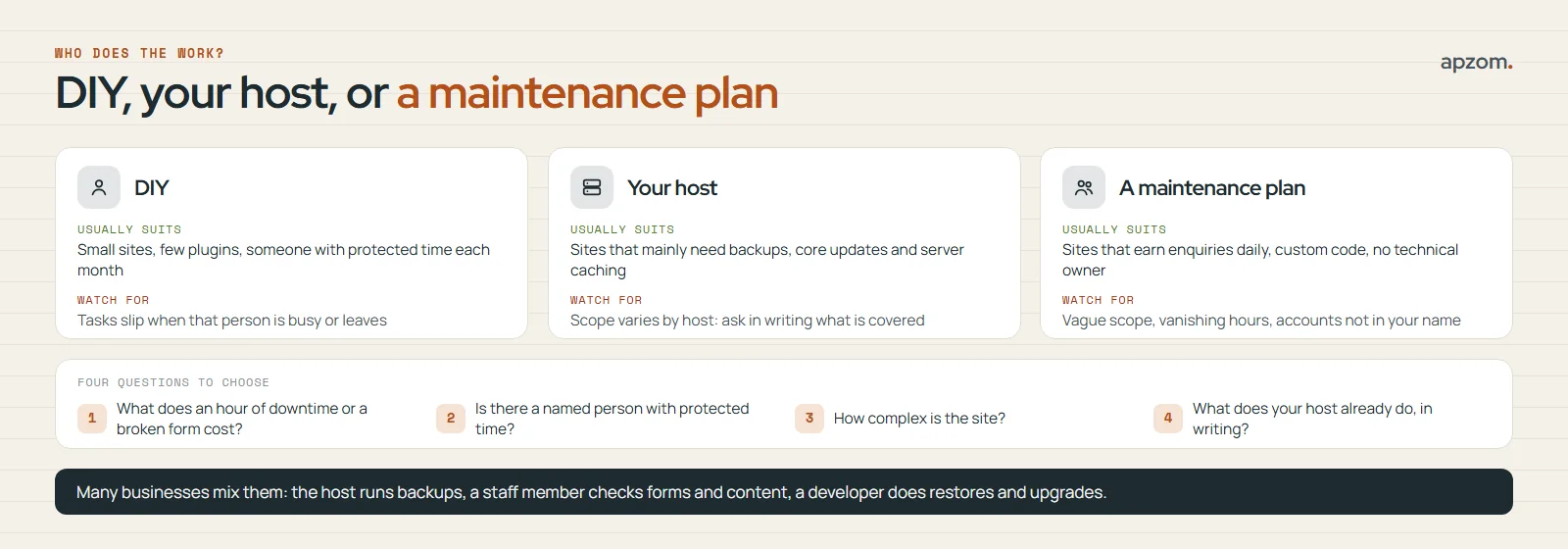
Many businesses mix the options: the host runs backups and server updates, a staff member does the weekly form and content checks, and a developer does the quarterly restore test, plugin audit and PHP upgrades.
What a WordPress maintenance plan should include
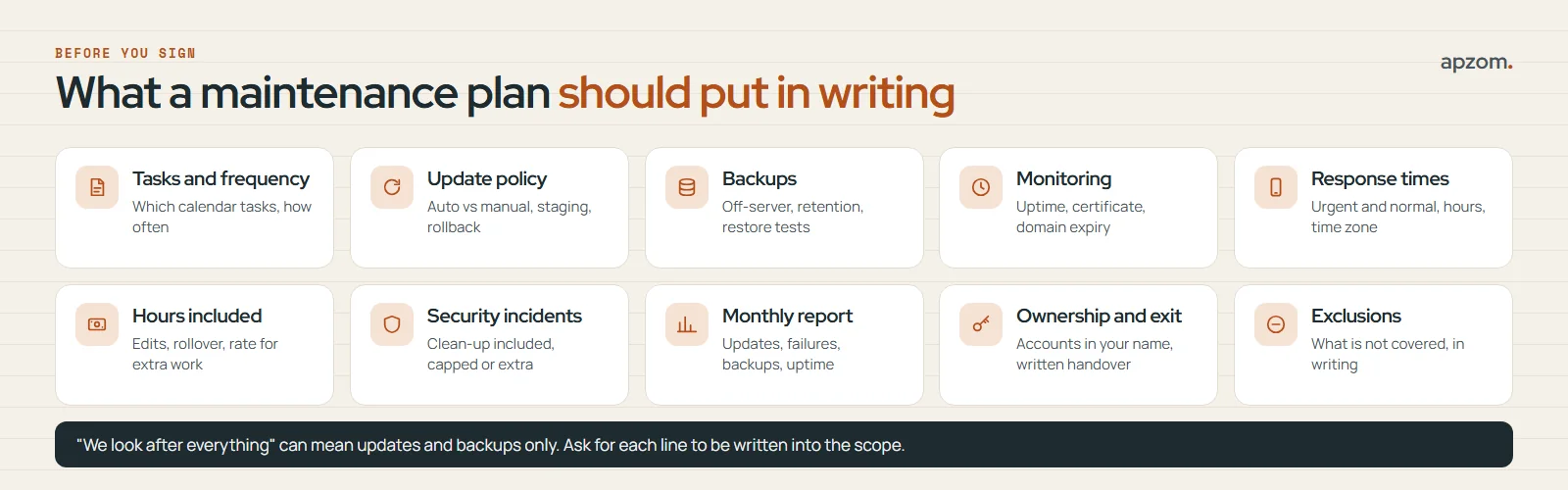
A plan is only as good as its written scope. Whoever you hire, the agreement should cover:
- Tasks and frequency. Which calendar tasks are included, and how often.
- Update policy. What auto-updates, what is tested on staging first, and what happens when an update breaks something.
- Backups. Frequency, off-server storage, retention, how often a restore is tested and how fast one can be done on request.
- Monitoring. Uptime, certificate and domain expiry: how often, and who gets the alert.
- Response times. For urgent and normal issues, with the hours and time zone they apply in, which matters when your provider is in another country.
- Hours included. Content edits and small changes, whether unused hours roll over, and the rate for extra work.
- Security incidents. Whether a hack clean-up is included, capped or charged separately.
- Reporting. A short monthly report: what was updated, what failed, backup and restore status, uptime and decisions needed.
- Ownership and exit. Domain, hosting, licences and admin accounts stay in your name, the provider has its own removable login, and the handover on leaving is written down.
- Exclusions. Often new features, redesigns, third-party outages and bugs in other people’s plugins.
Questions to ask before you sign
- Which add-ons will you auto-update, and which will you test on staging first?
- When did you last restore a client site from backup, and how long did it take?
- Where are backups stored, and can I download one myself?
- Who gets the uptime alert at 2 a.m. in my time zone, and what happens next?
- What is your response time for a broken form or checkout?
- Is a hack clean-up included, and what is excluded?
- Whose name are the premium licences in, and what happens to them if we part ways?
- What happens when a PHP or WordPress upgrade breaks our theme?
What drives the cost of WordPress maintenance
There is no standard price for a WordPress maintenance plan, and we will not quote “typical” agency rates we cannot verify. Compare quotes on these drivers:
- Size and complexity. More plugins, custom code, WooCommerce, memberships, bookings or languages mean more to update and test.
- How updates are done. Staging tests and clicking through key flows take longer than “update all”, and are safer.
- Backup frequency and retention. Daily off-site backups kept for months cost more than weekly ones.
- Monitoring and response promise. One-minute checks with someone on call out of hours cost more than a daily email.
- Hours included. Content edits, small changes and reports all take time.
- Exclusions. A plan that includes hack clean-ups or emergency fixes is pricing in risk; one that excludes them charges separately.
- Licences, services and hosting. Bundled or billed to you directly; compare like with like.
The tools have published prices, which set a floor for DIY costs. Examples from the vendors’ own pricing pages, checked on 21 November 2026, in USD:
| Tool | Published price | What it covers |
|---|---|---|
| UptimeRobot Free | $0 a month | 50 monitors at a 5-minute interval; the vendor says it suits “personal and commercial projects” |
| UptimeRobot Solo | $9 a month billed annually, or $10 monthly | 10 monitors at a 60-second interval, plus SSL and DNS monitoring |
| UpdraftPlus Premium Personal | $70.00 a year | Premium backup plugin for up to 2 sites; subscriptions renew automatically unless cancelled |
Prices change, and UpdraftPlus offers a view without VAT, so check the vendor’s page and local tax before budgeting. These illustrate how tool costs are structured; they are not recommendations over other tools.
Our DIY cost worksheet
List each calendar task, how often it runs, the minutes it takes (time it for a month rather than guess) and any tool or licence cost. Multiply the time by the hourly value of the person doing it, then add a line for risk: what a day without enquiries, or a lost backup, would cost. That is our rule of thumb for an honest comparison, because the cheapest option on paper is often the one with nobody accountable when the site breaks.
For the wider running costs of a website over three years, see how much a website costs.
Common mistakes
- Treating auto-updates as maintenance. Updates nobody reads, with forms untested and backups never restored, are half the job.
- Never submitting your own forms. Nobody complains about a message they could not send.
- Renewals on a former employee’s card or email. The domain or licence lapses and nobody hears.
- Buying a plan without a written scope. “We look after everything” can mean updates and backups only.
- Upgrading PHP or WordPress straight on the live site. Test on staging first, with a fresh backup.
How Apzom can help
Apzom Digital builds and looks after business websites, including WordPress sites. Our Justwebworld case study describes that engagement’s scope as: “Built and maintain the WordPress magazine, its custom plugins and a library of more than 500 free online tools.” It does not publish maintenance metrics such as uptime or response times, and we have not published a WordPress maintenance case study with results yet, so we quote none. We can review your site against this calendar, show which tasks your host already covers, and give you a written scope: what you can keep doing yourself and what you might hand over. If your host’s own service is enough, we will say so. See our website development services. We work with clients worldwide, remotely, from our base in Ahmedabad, India.
Get a Free Growth Audit and Quote for your WordPress maintenance. Send us your website address and what your host already does. We send back a written maintenance scope based on the calendar in this guide: the tasks you can keep doing yourself, the tasks worth handing over, and a quote if you want us to run them.
No obligation, and no promise that any site never breaks. Prefer to talk first? Contact us or see our website development services.
Frequently asked questions
How often should I update WordPress?
Check weekly. Minor and security releases update themselves on most sites, and WordPress only officially supports the latest version, so do not leave pending updates for months. Take a backup before updating plugins that run forms, checkout or page layouts, and test them afterwards.
Is WordPress maintenance the same as WordPress security?
No, but they overlap. Maintenance is the recurring work that keeps the site current and working, and security is the set of controls that makes it harder to break into. Our WordPress security checklist covers the controls; this guide covers the routine.
Does managed WordPress hosting include maintenance?
Partly, and it varies by host. Ask the host to list in writing what it updates, how often it backs up, where backups are stored and who restores one. Checking your forms, content, links and accessibility is usually your job unless the plan says otherwise.
How much does WordPress maintenance cost?
It depends on the size and complexity of the site, the backup and monitoring standard, the response times and the hours included. Compare written scopes rather than headline prices, and use the DIY worksheet above to see what doing it yourself really costs.