
The short answer: Google Search Console is a free tool from Google that shows how your website does in Google Search: which searches show your pages, how often people click, which pages Google has indexed and what is stopping the rest. To use it, add your site as a property, verify that you own it, submit a sitemap, then check four things once a month: the Performance report, the Page indexing report, Core Web Vitals, and any messages about manual actions or security issues.
This guide is for small business owners and marketing managers anywhere in the world who want to use Search Console themselves, without a technical background. It covers setting it up, reading the four main numbers, a simple way to find quick wins in your search data, fixing pages that are not indexed, and a 15-minute monthly routine.
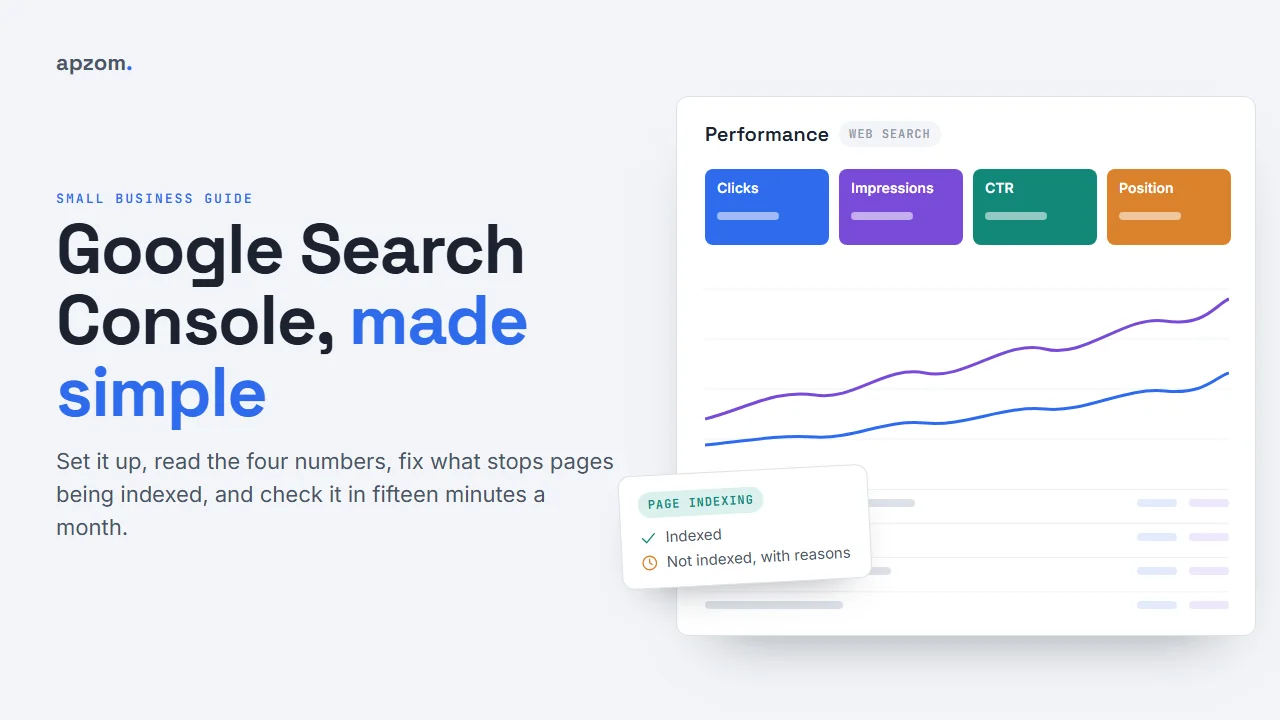
Search Console does not make your site rank. Google says using it does not affect your rankings, and you do not need it to appear in Search. What it does is show you, from Google’s own data, what is working and what is broken, so you can spend your time on the right things.
What Search Console shows you (and what it does not)
Search Console answers questions that no other free tool answers with Google’s own data:
- Which searches show your site, how many times (impressions), how many clicks you got, and your average position.
- Which pages Google has indexed, and the reason for every page it has not.
- How fast and stable your pages feel to real visitors, from the Core Web Vitals report.
- Whether Google has found a problem, such as a manual action for spam or a hacked page.
- Which other sites link to you, and how your own pages link to each other.
It does not show what people do after they arrive on your site. That is the job of an analytics tool such as Google Analytics. It also does not show your competitors’ data, and it does not show every single search: Google leaves out very rare queries to protect searchers’ privacy, so the query table will never add up to your total clicks.
Step 1: Set up Search Console and verify your site
Go to Search Console, sign in with a Google account the business controls (not a staff member’s personal account), and add a property. You will be asked to choose between two property types.
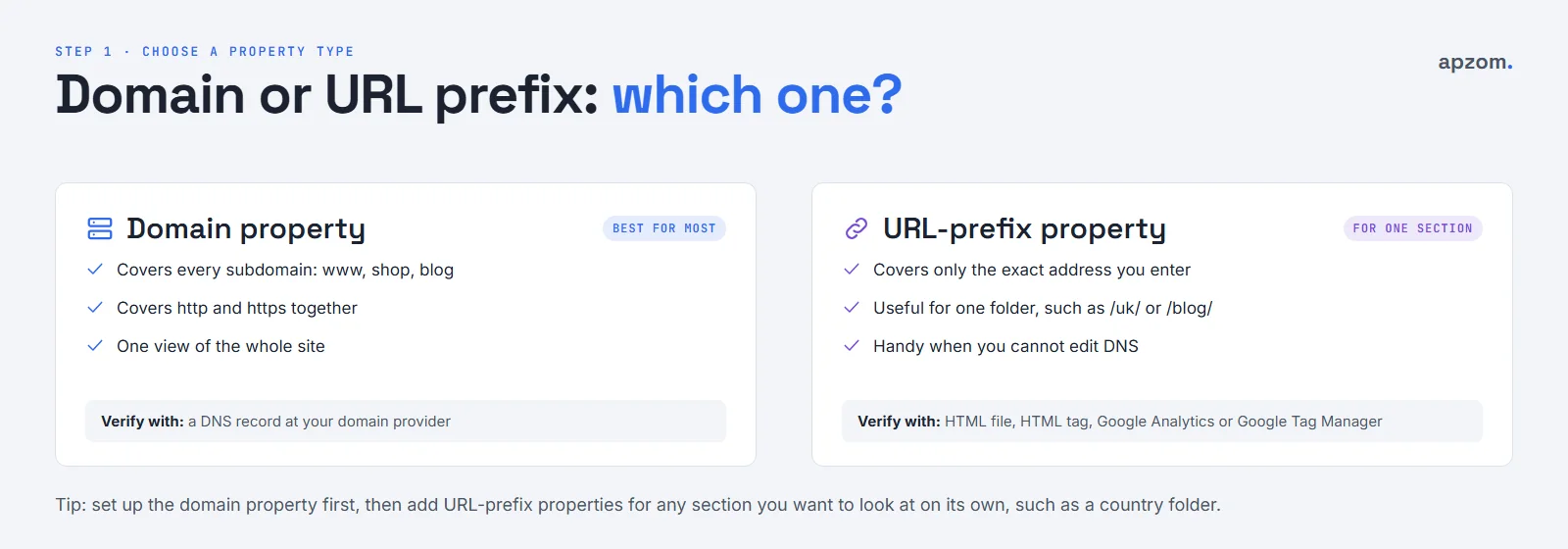
- Domain property: covers the whole domain, including every subdomain (such as www, shop or blog) and both http and https. You verify it by adding a DNS record at the company where you bought the domain. This is the best choice for most businesses.
- URL-prefix property: covers only addresses that start with exactly what you type, such as https://www.example.com/uk/. You can verify it by uploading an HTML file, adding an HTML tag, or using your Google Analytics or Google Tag Manager account.
Many businesses use both: one domain property for the whole site, plus URL-prefix properties for sections they want to look at on their own, such as a country folder or a blog.
Users and access. Search Console has owners, full users and restricted users. Keep at least two owners from inside the business, and give agencies and freelancers full or restricted access instead of ownership. When someone leaves, remove them. If an agency verified the site with its own account, ask to be added as an owner so you never lose access to your own data.
Step 2: Submit a sitemap
A sitemap is a file that lists the pages you want Google to know about. Most website platforms create one for you: WordPress SEO plugins, Shopify, Wix and Squarespace all do. Find its address (often /sitemap.xml or /sitemap_index.xml), then add it in the Sitemaps report.
A sitemap is a hint, not an order. Google uses it to find pages, but it still decides which ones to crawl and index. After you submit it, the report shows whether Google could read the file and how many pages it found.
Step 3: Read the Performance report
The Performance report is where most of the value is. Open it and you will see four numbers for Google Search (Discover and Google News get their own reports if your site has enough traffic from them):
- Clicks: how many times someone clicked through to your site from Google Search.
- Impressions: how many times a link to your site appeared in search results that someone saw or could have seen, even without scrolling to it.
- CTR (click-through rate): clicks divided by impressions.
- Average position: the average of your highest position in results, across all the searches shown. Position 1 is the top.
The search type filter lets you choose Web (split into text-based and multimodal searches, such as Google Lens), Image, Video or News. Under the chart, the tabs let you break the data down by query, page, country, device, search appearance and date. You can compare two date ranges, and filter, for example, to see only the queries for one page or one country. Search Console keeps 16 months of data, so save or export anything you want to keep for longer.
Three things trip people up:
- Average position is an average. A page that ranks 3rd for one search and 40th for another shows a position around 21. Look at position for a single query, not for a whole page or site.
- The query table does not add up. Rare and private queries are left out, so the sum of your query clicks is lower than the total.
- Data arrives late. Google says data is usually available in 2 to 3 days. A “24 hours” view shows the most recent hours, but the newest numbers can still change.
The query opportunity map
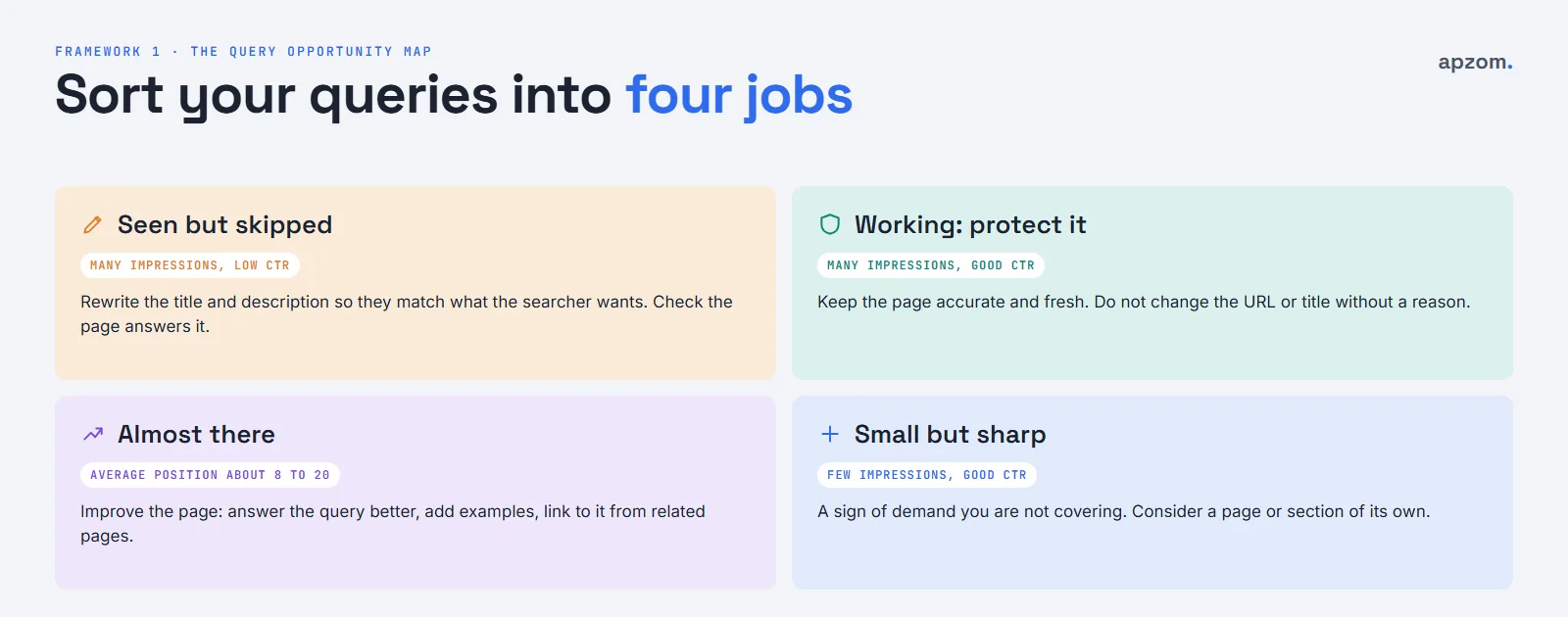
The first framework we use with clients turns the query table into a to-do list. Look at your top queries for the last three months, and put each one in one of four boxes.
| Box | What you see | What to do |
|---|---|---|
| Seen but skipped | Many impressions, low CTR for the position | Rewrite the page title and meta description to match what the searcher wants, and check the page really answers it. |
| Almost there | Average position about 8 to 20 for a query you want | Improve the page: answer the question better, add real examples, and link to it from related pages on your site. |
| Small but sharp | Few impressions, good CTR | A sign of demand you do not fully cover yet. Consider a section or a new page about it. |
| Working: protect it | Many impressions, good CTR | Keep the page accurate and up to date. Do not change its URL or rewrite its title without a reason. |
“Low CTR” depends on the position and the kind of search. A query where Google shows a map, ads and a box of answers above you will have a lower CTR than a plain list of links, so compare a page with itself over time rather than with a target number from somewhere else.
Not sure what your Search Console data is telling you? A Search Console Review turns your queries and indexing reports into a short list of fixes, in order.
Step 4: Fix pages that are not indexed
The Page indexing report shows how many of your pages are indexed and lists every page that is not, grouped by reason. Two things to know first:
- Not every page should be indexed. Redirects, duplicate versions and pages you have set to noindex are meant to stay out.
- Google does not index every page it finds, even on a healthy site. A page that is not indexed is only a problem if it is a page you want people to find.
The second framework is a simple triage: fix, watch or leave.
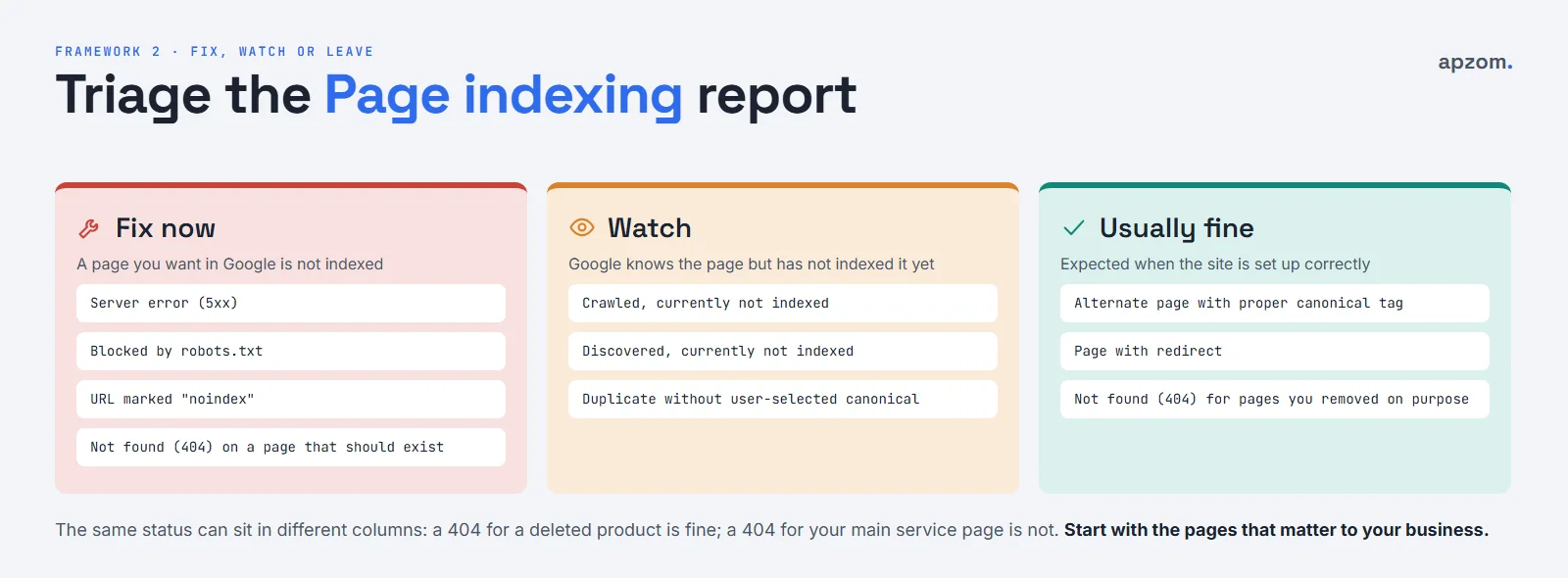
- Fix now: a page that matters is blocked. Common reasons are “Server error (5xx)”, “Blocked by robots.txt”, “URL marked ‘noindex'” on a page that should be public, or “Not found (404)” for a page that should exist. These are usually settings or technical problems that your developer can fix quickly.
- Watch: “Crawled – currently not indexed” means Google visited the page and chose not to index it for now. “Discovered – currently not indexed” means Google knows about the page but has not crawled it yet. “Duplicate without user-selected canonical” means Google thinks the page copies another one. Improve the page so it clearly offers something its neighbours do not, link to it from your important pages, and check again in a few weeks.
- Usually fine: “Alternate page with proper canonical tag” and “Page with redirect” are normally signs that your site is set up correctly. A 404 for a page you deleted on purpose is fine too.
When you have fixed a problem, click “Validate fix” in the report. Google will recheck the affected pages over the following days or weeks.
Inspect one page at a time
The URL Inspection tool, in the search bar at the top of Search Console, tells you everything Google knows about one URL: whether it is indexed, when it was last crawled, which canonical Google chose, and whether the page can be indexed now (“Test live URL”). If you have just published or fixed an important page, you can click “Request indexing”. Use it for the pages that matter. Requesting the same page again and again does not make it faster.
Step 5: Check page experience and security
- Core Web Vitals: this report groups your pages as Good, Needs improvement or Poor for loading (Largest Contentful Paint), responsiveness (Interaction to Next Paint) and visual stability (Cumulative Layout Shift), separately for mobile and desktop. It uses data from real Chrome users, so small sites may see “Not enough data”. Pass any Poor groups to your developer.
- HTTPS: shows whether your pages are served securely.
- Manual actions: shows if a person at Google has found that part of your site breaks Google’s spam policies. Most sites will never see one. If you do, fix the cause and request a review in the report.
- Security issues: shows if Google has found hacked content, malware or deceptive pages. Act on this the same day.
Search Console sends emails for serious problems like these to owners and users, so make sure the right people are on the property.
Step 6: Links and other useful reports
- Links: your most-linked pages, the sites linking to you and the text they use, and your internal links. Use it to see which pages your own site treats as important. A key service page with very few internal links is an easy fix.
- Removals: lets you hide a URL from Google Search for about six months while you remove or protect the page for good. It is not a way to remove a page permanently.
- Enhancements: reports for the structured data on your site, such as breadcrumbs, products or videos, with errors to fix. Google has retired several rich result types in the last two years, so you may see fewer reports here than older guides describe.
Search Console and AI search
Google shows AI Overviews and AI Mode answers in Search, and Search Console now reports on them in two ways:
- In the Performance report, clicks and impressions from AI Overviews and AI Mode are counted under Web search, mixed in with normal results.
- In the Generative AI performance reports, which Google rolled out worldwide on 31 August 2026, you can see how often your pages were shown in Google’s AI features in Search and Discover. These reports show impressions only, by page, country, device and date. They do not show clicks or the searches people made.
There is also a new setting, under Settings, that lets a site owner include or exclude the site from Google’s generative AI features in Search and Discover. Sites are included by default. Excluding your site may keep your content out of AI answers that your competitors appear in, so think carefully before you change it.
Use the AI report like the rest of Search Console: look for pages that are shown often in AI features, keep them accurate and easy to quote, and track enquiries in your analytics. Our guide on what GEO is explains how AI search engines choose what to cite.
Use Search Console with your other tools
- Google Analytics 4: you can link Search Console to a GA4 web data stream. This adds Search Console reports to GA4, so you can see search queries next to what visitors did on the landing page.
- Bing Webmaster Tools: Bing’s free equivalent covers Bing search. You can import your verified sites from Search Console, and they are verified automatically. Since 2026 it also has an AI Performance report that counts how often your pages are cited in Copilot and Bing’s AI answers.
- Your keyword list: Search Console shows the words people really used to find you. Our guide to keyword research for small businesses shows how to turn them into a page plan.
Search Console for different kinds of business
| Business | Watch most closely | One tip |
|---|---|---|
| Local service business (plumber, clinic, salon) | Queries with your town or “near me”, and your service pages | Most of your local visibility comes from your Google Business Profile, which Search Console does not report on. Check its own Performance view too. |
| Online shop | Product and category pages in Page indexing; the product and shopping reports, if Google shows them for your site | Filter Performance by page to see which categories bring searches, and fix out-of-stock pages that turn into 404s. |
| B2B or professional services | Queries about problems and services, not just your company name | Use the branded queries filter (available for eligible sites) to compare branded and non-branded searches: growth in non-branded searches shows new people are finding you. |
| Multi-country site (US, UK, EU, Australia, UAE, India) | Performance filtered by country; a URL-prefix property per country folder | Make sure each country version has its own pages and hreflang links, and check that people in each country land on their own version. |
The 15-minute monthly check
The third framework is a routine. Search Console is most useful when you look at it a little, often, rather than a lot, once a year.
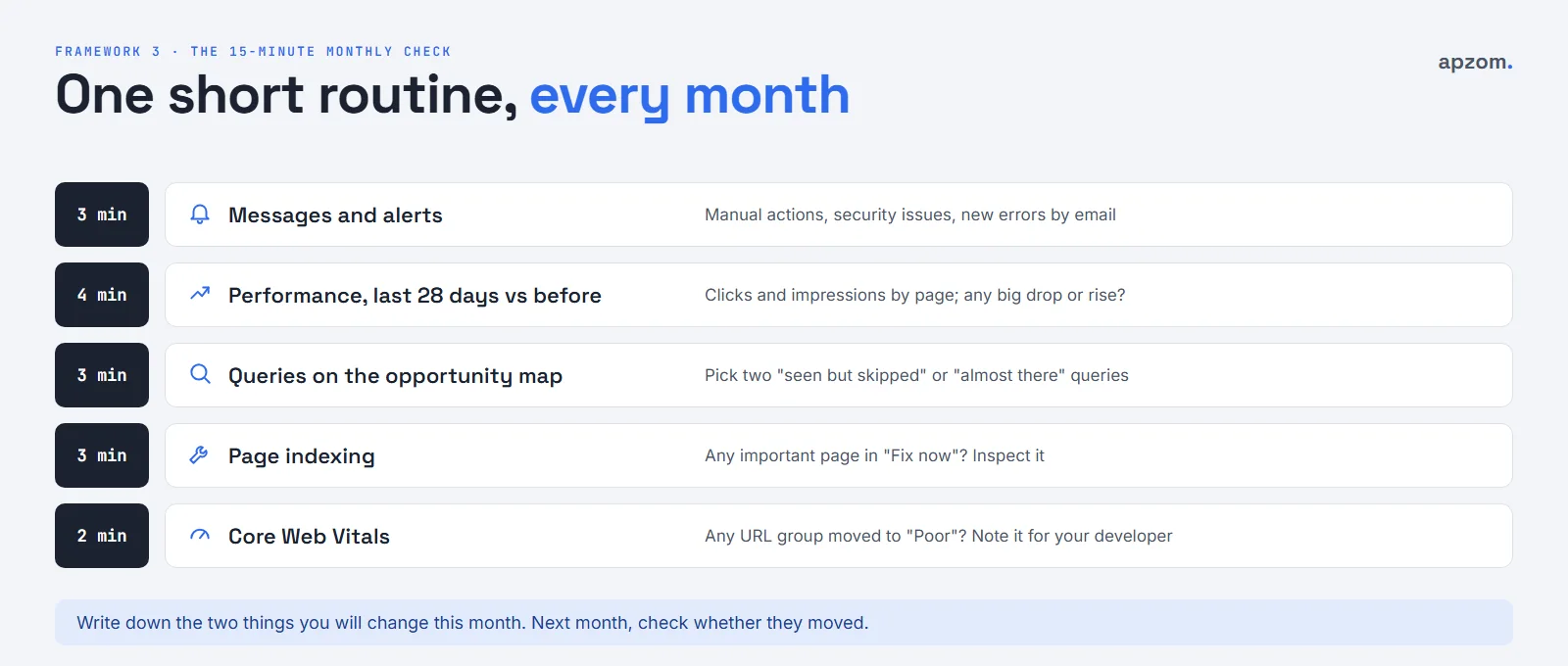
- Messages and alerts (3 minutes): any manual actions, security issues or new problems?
- Performance (4 minutes): compare the last 28 days with the 28 days before, by page. Look for big rises and drops, and check the date of any drop against changes you made to the site.
- Query opportunity map (3 minutes): pick two queries from “seen but skipped” or “almost there” to work on this month.
- Page indexing (3 minutes): is any important page in the “fix now” group? Inspect it.
- Core Web Vitals (2 minutes): has any group of URLs moved to Poor? Pass it to your developer.
Write down the two things you will change, and add a note on the Performance chart with the custom annotations feature on the day you change them. Next month, check whether they moved. That is the whole habit.
Common mistakes
- Panicking about every “not indexed” page. Many are meant to be left out. Start with the pages that bring you business.
- Reading average position for a whole site. It mixes good and bad rankings. Look at single queries.
- Letting an agency or ex-employee own the property. Your business should always own its own Search Console.
- Changing many things at once, then not knowing what worked. Change a few things and note the date.
- Using “Request indexing” as a ranking tool. It asks Google to look at a page; it does not move it up.
- Never exporting data. After 16 months it is gone. Export the Performance data once a quarter if you want a long history.
How Apzom can help
Apzom Digital sets up and audits Search Console as part of our SEO services, and uses it to plan content, local SEO and website changes. If you are planning a new website, our website redesign SEO checklist shows how to use Search Console before and after the move so you do not lose rankings. We work with clients worldwide, remotely, from our base in Ahmedabad, India.
We will not promise rankings. We will set up Search Console properly, read it with you, and give you a short, prioritised list of what to fix first. If you are wondering about budgets, see how much SEO costs.
Request a Search Console Review. We check your property set-up and access, sitemaps, Performance data by query, page and country, Page indexing problems, Core Web Vitals, links, structured data reports and your Bing Webmaster Tools set-up. You get a prioritised list of what to fix first.
No obligation and no ranking promises. Prefer to talk first? Contact us or see all our services.
Frequently asked questions
Is Google Search Console free?
Yes. Search Console is free for anyone who can prove they own or manage a website. It does not affect your rankings and it is not required to appear in Google Search, but it shows you Google’s own data about your site.
What is the difference between Google Search Console and Google Analytics?
Search Console shows what happens in Google Search before someone visits: the searches, impressions, clicks and indexing. Google Analytics shows what visitors do on your site after they arrive, from any source. Most businesses use both, and you can link them.
How long does Search Console take to show data?
Google says performance data is usually available in 2 to 3 days. Search Console keeps 16 months of performance data, so export anything you want to keep for longer.
Why does Search Console say my page is not indexed?
The Page indexing report gives the reason. Some reasons need a fix, such as a noindex tag, a robots.txt block or a server error. Others, such as “Crawled – currently not indexed”, mean Google chose not to index the page yet, often because it adds little that other pages do not already cover.
Should I use “Request indexing” for every new page?
No. A sitemap and good internal links are enough for most pages. Use “Request indexing” for important new or updated pages. Asking repeatedly for the same page does not speed it up.
Does Search Console show AI Overviews traffic?
Partly. Clicks and impressions from AI Overviews and AI Mode are included in the Performance report’s Web search data, mixed in with normal results. Since 2026, the Generative AI performance reports also show how often your pages appeared in Google’s AI features, but only as impressions, without clicks or search terms.
What is a good CTR in Search Console?
There is no single good number. CTR depends on your position, whether the query is a brand search and what else Google shows on the page, such as ads, maps or AI answers. Compare a page with its own past CTR, and work on pages whose CTR is low for their position.
Can Apzom set up Search Console for a business outside India?
Yes. We work with clients worldwide, remotely, from our base in Ahmedabad, India. We can set up and audit Search Console and Bing Webmaster Tools for sites in any country, including multi-country sites.