
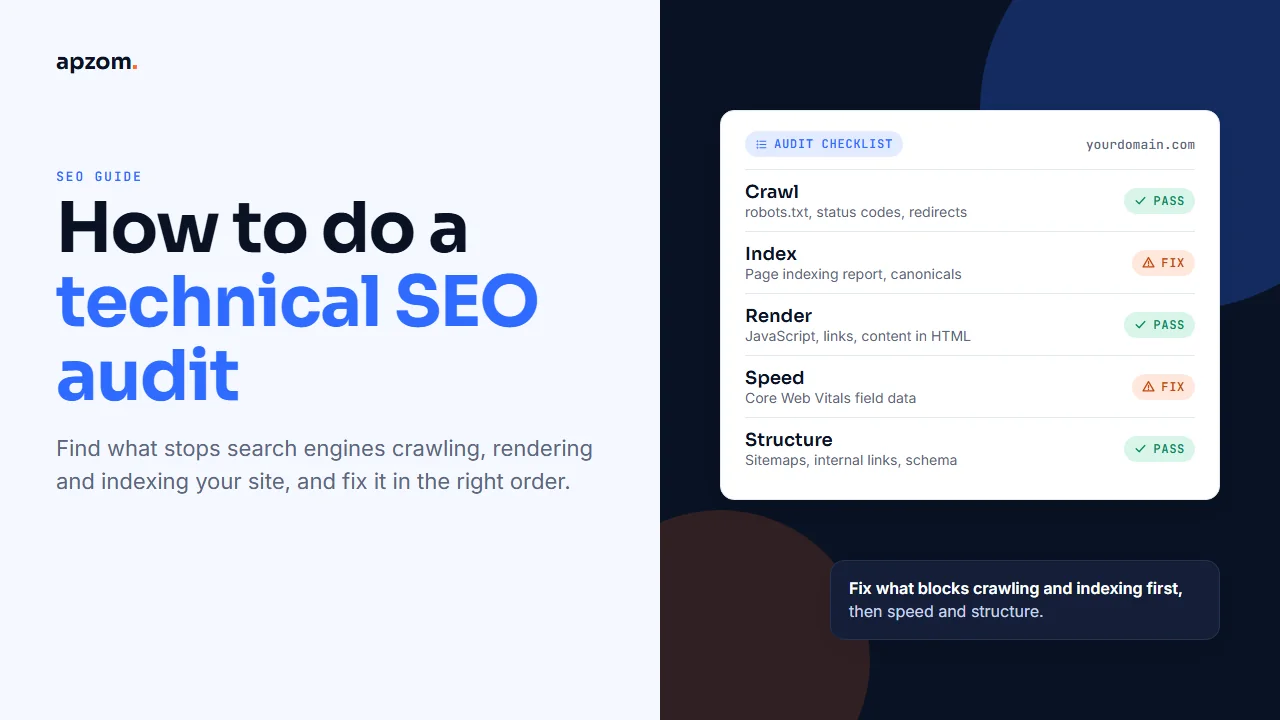
The short answer: A technical SEO audit checks whether search engines can find, crawl, render and index your pages, and whether those pages load well for real users. Work in the order search engines work. Start by setting up Google Search Console (a Domain property) and Bing Webmaster Tools and crawling the site. Then check, in turn: robots.txt, status codes, the Page indexing report, canonicals and duplicates, redirects, sitemaps, rendering and links, Core Web Vitals field data, and finally structured data, hreflang and logs. Fix whatever stops important pages being crawled or indexed first. Speed and structure come after. Then re-check in Search Console.
This guide is for business owners, marketers and developers who look after a website of any size, in any country. It explains each check in plain English, what “good” looks like according to Google’s and Bing’s own documentation, how to decide which problems matter, and what to do after the audit. It does not assume you have paid tools: everything here can be done with free tools from Google and Microsoft plus a crawler.
What a technical SEO audit is, and is not
A technical audit looks at the plumbing: whether search engines can reach your pages, understand them and store them. It is different from a content audit (whether your pages answer searchers’ questions well) and from a backlink audit (who links to you). Most sites need all three, but technical problems come first, because a page that cannot be crawled or indexed cannot rank, however good it is.
Two things it is not:
- It is not a score. Audit tools give sites a “health score” out of 100. These are the tool makers’ own measures. Google’s page on third-party SEO tools says they don’t have access to Google’s internal ranking data. Use the score to find issues, not to judge success.
- It is not a one-off. Templates change, plugins update and pages get added. Most sites benefit from a light check every month and a full audit every few months, and after any redesign or migration. Our website redesign SEO checklist covers what to check when you rebuild a site.
Framework 1: audit in the order Google works
Search engines handle every page in stages. The first framework uses those stages as the audit’s backbone, because a problem at an early stage hides everything after it.
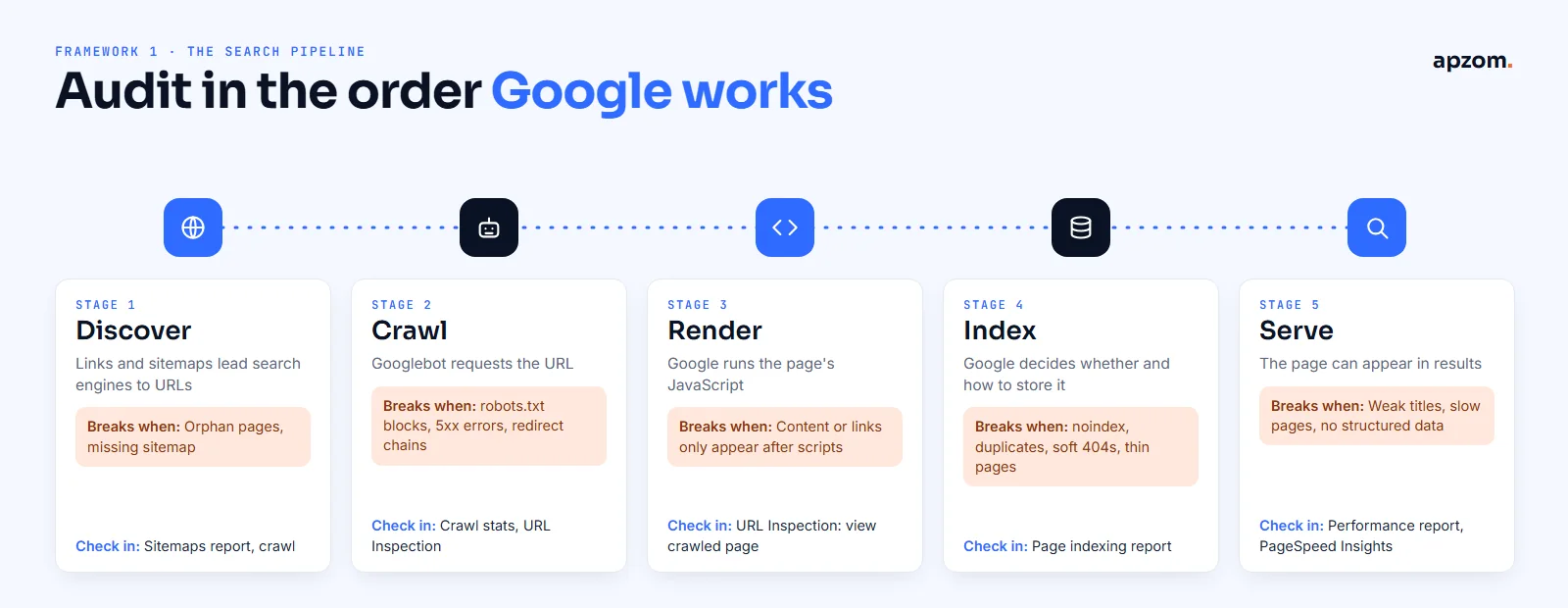
| Stage | What happens | What breaks it | Where to check |
|---|---|---|---|
| 1. Discover | Search engines find URLs through links and sitemaps | Orphan pages with no internal links, a missing or broken sitemap | Sitemaps report, your crawler |
| 2. Crawl | Googlebot requests the page | robots.txt blocks, server errors, long redirect chains | robots.txt report, Crawl stats, URL Inspection |
| 3. Render | Google runs the page’s JavaScript | Content or links that only appear after scripts run | URL Inspection (view the crawled page) |
| 4. Index | Google decides whether and how to store the page | noindex, duplicates, soft 404s, thin pages | Page indexing report |
| 5. Serve | The page can appear in results | Slow pages, unclear titles, broken structured data | Performance report, PageSpeed Insights |
Before you start: the tools you need
- Google Search Console, set up as a Domain property if you can. The robots.txt report only works for domain-level properties. Our guide on how to use Google Search Console walks through the set-up and the main reports.
- Bing Webmaster Tools. Free, and its Site Scan feature crawls your site and lists common technical issues.
- A crawler that lists every URL, its status code, title, canonical and links. Several desktop crawlers have free tiers for smaller sites.
- PageSpeed Insights, which shows real-user Core Web Vitals data (when Google has enough of it) alongside a lab test.
- Access to server logs, if your host provides them. Optional, but useful on larger sites.
Export the crawl into a spreadsheet. You will use it at almost every step.
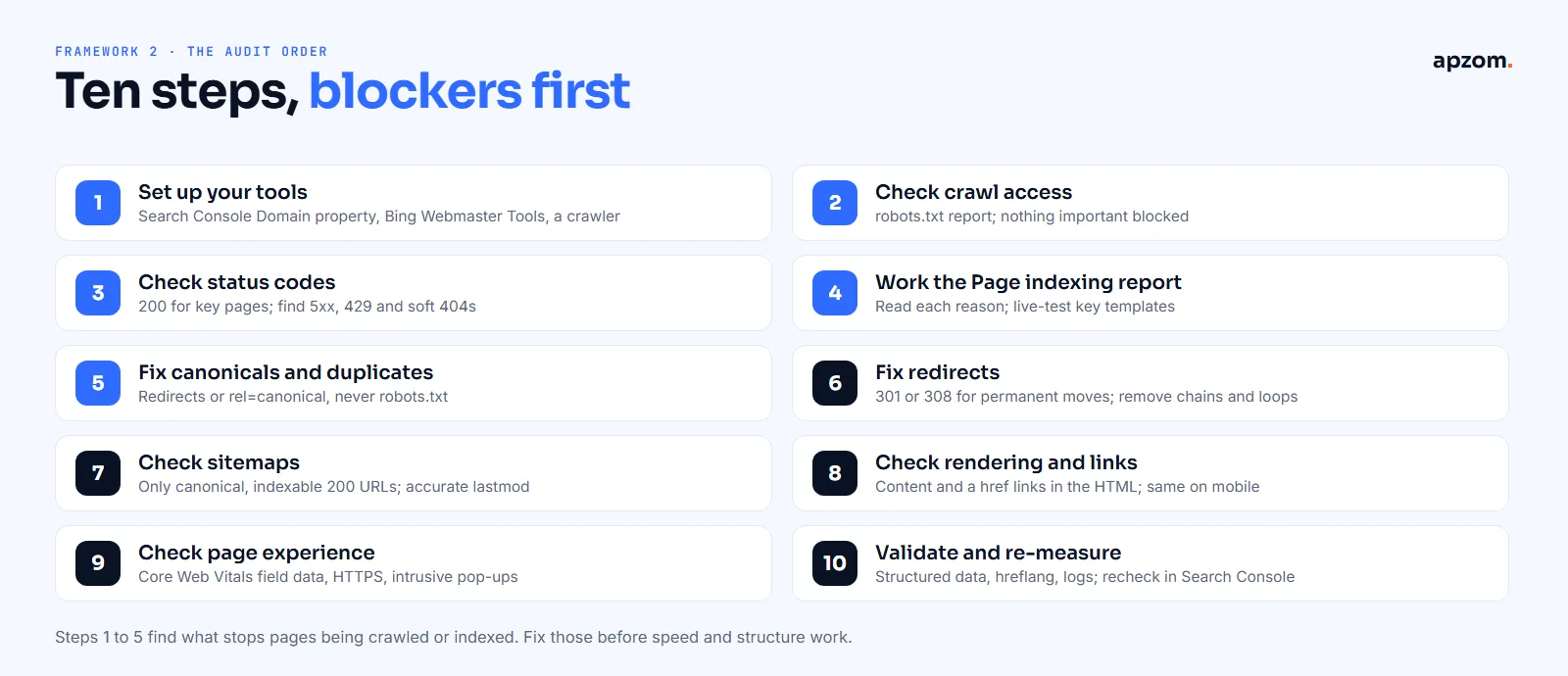
Framework 2: ten steps, blockers first
The second framework is the audit order. Steps 1 to 5 find what stops pages being crawled or indexed. Fix those before you spend time on speed and structure.
Step 1: set up your tools and crawl the site
Verify Search Console and Bing Webmaster Tools, then run a full crawl. Compare three lists: the URLs your crawler found, the URLs in your sitemaps, and the URLs Search Console reports as indexed. Pages that appear in one list but not the others are where problems hide. An important page in the sitemap that the crawler never reached usually has no internal links pointing to it.
Step 2: check crawl access (robots.txt)
robots.txt tells crawlers which parts of a site they may request. Its rules are now an internet standard (RFC 9309, published in September 2022), and Google reads up to 500 KiB of the file.
Check the robots.txt report in Search Console for fetch errors, then read the rules yourself:
- Nothing important should be blocked: pages, CSS, JavaScript or images that pages need to render.
- robots.txt does not remove pages from Google. A blocked page can still be indexed if other pages link to it; Google just cannot see its content. To keep a page out of the index, use a noindex tag and let Google crawl the page so it can see that tag.
- Do not block pages you want removed for the same reason.
Step 3: check status codes and server health
Every important page should return a 200 status. From your crawl, list everything else:
- 5xx server errors and 429 (too many requests) tell Google to slow down crawling. Repeated errors on important pages need fixing at the server or host.
- 404 and 410 are the right responses for pages that are gone for good. Google treats them similarly.
- Soft 404s are pages that say “not found” or are nearly empty but return a 200. Search Console reports them. Return a real 404 or 410, or give the page real content.
On larger sites, the Crawl stats report in Search Console shows how often Google crawls and whether your host is responding well. Google’s help says sites with fewer than about 1,000 pages should not need this report.
Step 4: work through the Page indexing report
Search Console’s Page indexing report lists which of your pages are indexed and why others are not. Work through each reason, starting with the pages that matter most. The labels you will meet most often:
| Reason in Search Console | What it usually means | What to do |
|---|---|---|
| Crawled – currently not indexed | Google fetched the page but chose not to index it yet | Improve the page or its internal links; not every page will be indexed |
| Discovered – currently not indexed | Google knows the URL but has not crawled it yet | Check internal links and server capacity; on large sites, crawl budget |
| Duplicate without user-selected canonical | Google sees the page as a copy and picked another URL | Set a canonical or consolidate the duplicates |
| Alternate page with proper canonical tag | The page points to another canonical, as intended | Usually nothing |
| URL marked ‘noindex’ | The page tells Google not to index it | Remove noindex if the page should rank |
| URL blocked by robots.txt | Google is not allowed to crawl it | Change robots.txt if the page should be crawled |
| Soft 404 | The page looks like an error page | Return a real 404 or 410, or add real content |
Use the URL Inspection tool to test an important URL live and see what Google sees. You can request indexing there too. Google says there is a daily limit but does not publish the number in its help.
Remember that Google does not promise to index every page. A small number of low-value URLs not indexed is normal. Important pages not indexed is not.
Step 5: fix canonicals and duplicates
Many sites have the same content at several URLs: with and without trailing slashes, with tracking parameters, through filters, or under several categories. Tell Google which version you prefer:
- Redirect duplicates to the main version where you can.
- Use rel=canonical on pages that must stay reachable. Google treats a canonical as a strong signal, but still a hint, not a rule.
- List only canonical URLs in your sitemap and link to them internally.
- Do not use robots.txt or noindex for canonicalisation. Blocking a duplicate hides the signal Google needs.
Duplicate content is not a penalty. Google’s SEO Starter Guide says it is not a violation of its spam policies and not something that will cause a manual action. It does waste crawling and can split signals between URLs, which is why it is worth fixing.
Step 6: fix redirects
- Use 301 or 308 for permanent moves and 302 or 307 for temporary ones.
- Remove chains and loops. Googlebot follows up to 10 redirect hops, but every hop slows users and crawling. Point internal links and redirects straight to the final URL.
- Avoid meta refresh and JavaScript redirects where a server redirect is possible. Google treats JavaScript redirects as a last resort.
Step 7: check your sitemaps
- Each sitemap file can hold up to 50,000 URLs and 50 MB uncompressed. Larger sites use a sitemap index.
- List only canonical, indexable URLs that return 200. A sitemap full of redirects, noindexed pages or errors makes it less useful as a signal.
- Keep lastmod accurate. Google uses it when it is consistently accurate, and ignores the priority and changefreq fields.
- Submit sitemaps in Search Console and list them in robots.txt. Google has retired its old sitemap “ping” endpoint, so those two methods are what remains.
- For Bing and several other engines, IndexNow lets your site notify them when pages change. Bing, Naver, Seznam.cz, Yandex and Yep take part, and a URL sent to one is shared with the others. Google does not use IndexNow.
Step 8: check rendering and links
- Put main content and links in the HTML where you can. Google can render JavaScript, but it takes extra work and things go wrong. Its documentation calls dynamic rendering a workaround and not a recommended solution.
- Links must be real links: anchor elements with an href attribute pointing to a URL. Buttons and scripts that change the page are not followed as links.
- Check the mobile version. Google indexes the mobile version of pages; content that is not available on mobile is not indexed.
- Check page weight. For Google Search, Googlebot reads the first 2 MB of an HTML file (uncompressed). Very large pages can be cut off.
- Paginated lists: Google no longer uses rel=next and rel=prev. Link pages to each other with normal links and give each page its own canonical URL, not page 1’s.
- Filters and internal search: filter combinations can create thousands of near-identical URLs. Google’s guidance on faceted navigation prefers stopping their crawl with robots.txt or by using URL fragments. Internal search results pages rarely deserve crawling either.
Step 9: check page experience and Core Web Vitals
Core Web Vitals measure loading, responsiveness and visual stability. A page passes when at least 75% of real visits meet these thresholds:
| Metric | Measures | Good |
|---|---|---|
| Largest Contentful Paint (LCP) | Loading of the main content | 2.5 seconds or less |
| Interaction to Next Paint (INP) | Responsiveness to clicks and taps (replaced FID in March 2024) | 200 milliseconds or less |
| Cumulative Layout Shift (CLS) | Visual stability | 0.1 or less |
Judge them with field data from real users: the Core Web Vitals report in Search Console, PageSpeed Insights or the Chrome UX Report. Lab tools such as Lighthouse are for finding causes, not for judging success. Google’s page experience guidance says there is no single page experience signal, and good Core Web Vitals do not guarantee top rankings. They matter because slow, unstable pages lose visitors and enquiries. Also check that every page uses HTTPS and that pop-ups do not block content on mobile.
Step 10: validate structured data, hreflang and logs, then re-measure
- Structured data: test key templates in Google’s Rich Results Test and the Schema Markup Validator. Our schema markup guide explains what to add and how to check it.
- Hreflang (for sites in several languages or countries): every page must link back to the pages that link to it, and include a self-reference. Add x-default for a fallback page.
- Server logs (optional): check that Googlebot is crawling the pages you care about. Verify that a visitor claiming to be Googlebot really is, using a reverse DNS lookup followed by a forward lookup, or Google’s published IP ranges.
- Re-measure: use the Validate fix button in Search Console after fixing an issue, and compare reports over time. Search Console keeps 16 months of data.
Pages not getting indexed, or not sure where to start? A Technical SEO Audit from Apzom crawls your site, reviews Search Console and Core Web Vitals field data, and gives you a prioritised fix list.
Framework 3: fix the issues that actually matter
An audit tool can flag hundreds of issues. The third framework is a simple triage matrix: sort every issue by its impact on crawling, indexing or users, and by how many important pages it touches.
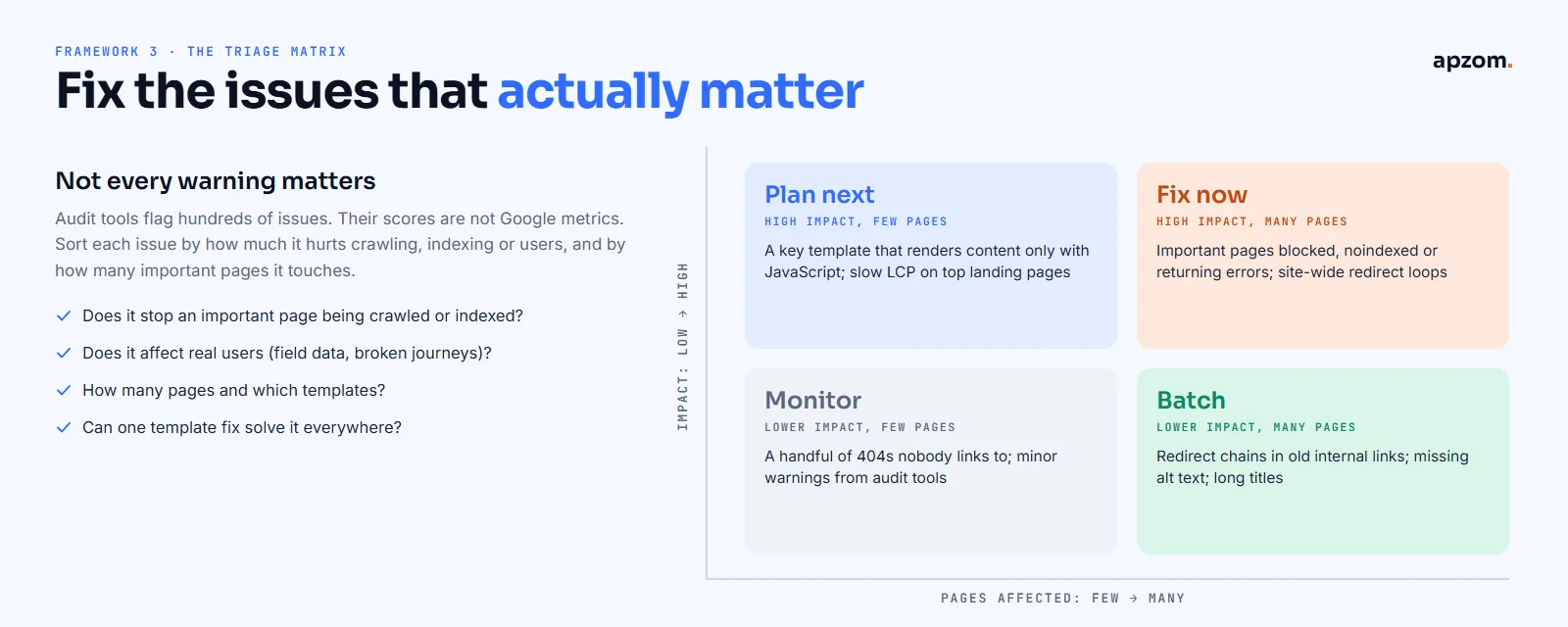
| Group | What goes here | Example |
|---|---|---|
| Fix now | High impact, many pages | Important pages blocked, noindexed or returning errors; site-wide redirect loops |
| Plan next | High impact, few pages | A key template that only shows content with JavaScript; slow LCP on top landing pages |
| Batch | Lower impact, many pages | Old internal links that go through redirect chains; missing image alt text; long titles |
| Monitor | Lower impact, few pages | A few 404s that nobody links to; minor tool warnings |
Four questions help place each issue:
- Does it stop an important page being crawled or indexed?
- Does it affect real users, according to field data or broken journeys?
- How many pages does it affect, and which templates?
- Can one template or plugin fix solve it everywhere?
Most of the impact usually sits in a handful of template-level problems. One fix to a template can repair thousands of pages.
Crawl budget: does it matter for your site?
Crawl budget is how many pages Google is willing and able to crawl on your site. Google’s crawl budget guide is written for three kinds of site: very large sites (around a million or more unique pages that change moderately often), medium or large sites (around 10,000 or more pages that change daily), and sites with a large share of URLs reported as “Discovered – currently not indexed”. If your site is smaller than that, focus on quality and internal links rather than crawl budget.
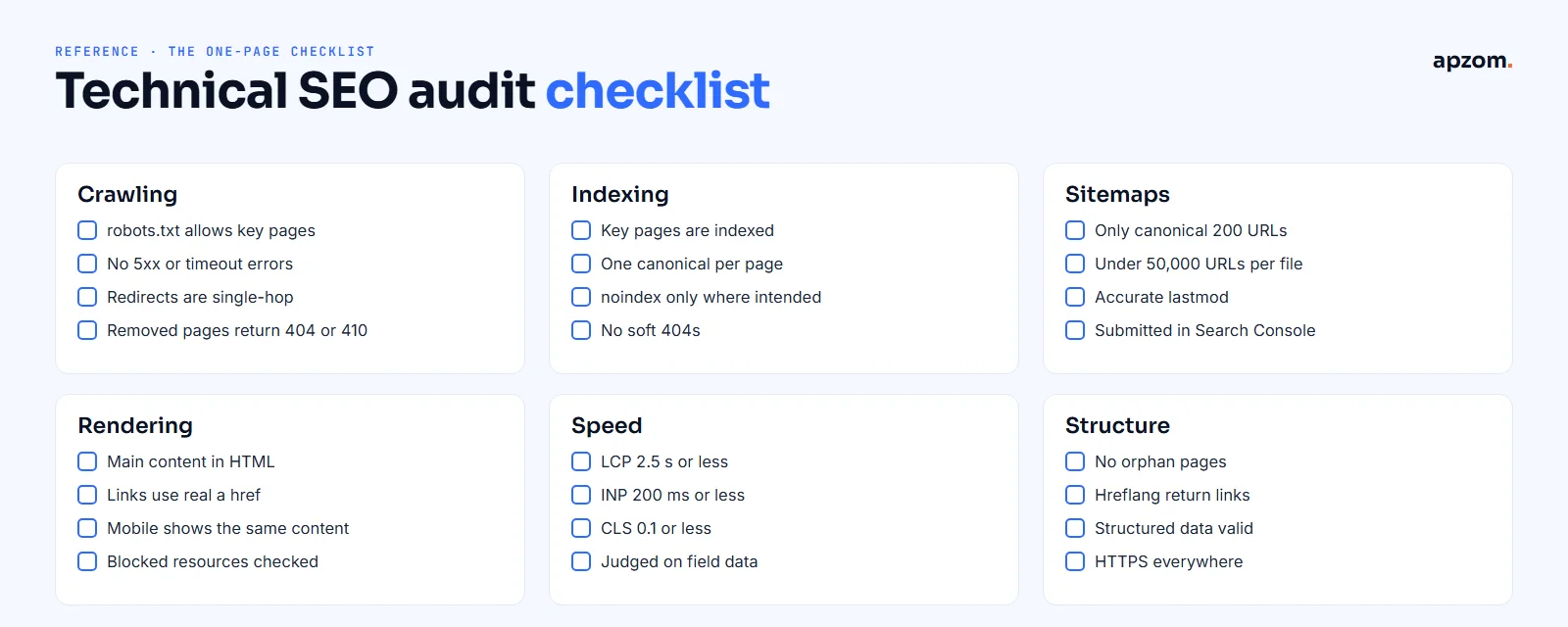
The one-page checklist
Use this as a reference when you run your own audit, or to check the work of whoever runs it for you.
Common mistakes
- Treating an audit tool’s score as the goal.
- Blocking pages in robots.txt to remove them from Google.
- Using noindex or robots.txt to handle duplicates instead of redirects or canonicals.
- Listing redirected, noindexed or broken URLs in sitemaps.
- Judging Core Web Vitals from a single lab test.
- Redirecting every removed page to the home page instead of returning a 404 or 410.
- Fixing hundreds of minor warnings while one template blocks indexing.
- Not re-checking after fixes.
Doing it yourself, or getting help
A small site can be audited in a day with free tools and this guide. Larger sites, JavaScript-heavy sites, international sites and migrations are where specialist help usually saves time and avoids costly mistakes. If you are budgeting, our guide on how much SEO costs explains how agencies price this work.
How Apzom can help
Our SEO services start with a technical audit like this one: a full crawl, Search Console and Bing Webmaster Tools review, Core Web Vitals field data, structured data, and a prioritised list of fixes using the triage matrix above. Where the fixes are in the site itself, our website development team can make them, and our SEO methodology explains how we work. For search visibility beyond Google’s classic results, see our GEO services and our guide on what GEO is. We work with clients worldwide, remotely, from our base in Ahmedabad, India.
We will not promise rankings. We will show you what is stopping your pages being crawled and indexed, and what to fix first.
Request a Technical SEO Audit. We crawl every URL, review your robots.txt, status codes, Page indexing report, canonicals, redirects, sitemaps, rendering, Core Web Vitals field data, structured data and hreflang, and sort every issue into fix now, plan next, batch or monitor.
No obligation and no promised rankings. Prefer to talk first? Contact us or see all our services.
Frequently asked questions
How long does a technical SEO audit take?
A small site of a few dozen pages can be checked in a few hours with free tools. A site with thousands of pages, JavaScript templates or several languages can take several days, mostly in analysing the crawl and the Search Console reports.
How often should I do a technical SEO audit?
A light monthly check of the Page indexing and Core Web Vitals reports, a full audit every few months, and always before and after a redesign, migration or platform change.
Do I need paid tools for a technical SEO audit?
No. Google Search Console, Bing Webmaster Tools, PageSpeed Insights, Google’s Rich Results Test and a crawler with a free tier cover most checks for small and medium sites. Paid crawlers help with very large sites and scheduled monitoring.
Why is my page “crawled – currently not indexed”?
Google fetched the page but decided not to index it, at least for now. Common causes are thin or duplicate content and weak internal links. Improve the page, link to it from relevant pages, and remember that Google does not promise to index every URL.
Does a technical SEO audit improve rankings?
It removes obstacles. If important pages could not be crawled or indexed, fixing that can make a large difference. If the site was already technically sound, the gains come from content and authority instead.
What is the difference between robots.txt and noindex?
robots.txt controls crawling: whether a crawler may request a URL. noindex controls indexing: whether a page may appear in search results. To keep a page out of results, use noindex and allow crawling so Google can see it.
Is duplicate content a penalty?
No. Google says duplicate content is not a violation of its spam policies and will not cause a manual action. It can still waste crawling and split signals, so consolidate duplicates with redirects or canonicals.
Can Apzom audit websites outside India?
Yes. We work with clients worldwide, remotely, from our base in Ahmedabad, India, and audit sites in any language, on WordPress, Shopify, custom platforms and JavaScript frameworks.