
The short answer: Google Merchant Center is Google’s free tool for sending your product data to Google, so your products can show in free listings on Search, the Shopping tab, Images, Lens, YouTube and other Google surfaces. To set it up, create an account, add your business information, verify and claim your website, set your shipping and return policies, add products (through the Shopify or WooCommerce integration, a file, Google Sheets, the API or your website’s structured data), fix everything on the Needs attention tab, and check that free listings are on under Marketing methods. Free listings cost nothing. Shopping ads use the same data, but you pay per click through Google Ads.
This guide is for owners and marketers of online stores anywhere in the world, from a first Shopify shop to a large WooCommerce catalogue. It covers each setup step in the current Merchant Center, the product data Google requires, free listings vs Shopping ads, country availability, disapprovals and misrepresentation suspensions, and measurement. We checked every step and requirement against official sources (Google’s Merchant Center, Google Ads and Analytics help pages, Shopify’s Help Center and Woo’s extension page) on 23 November 2026.
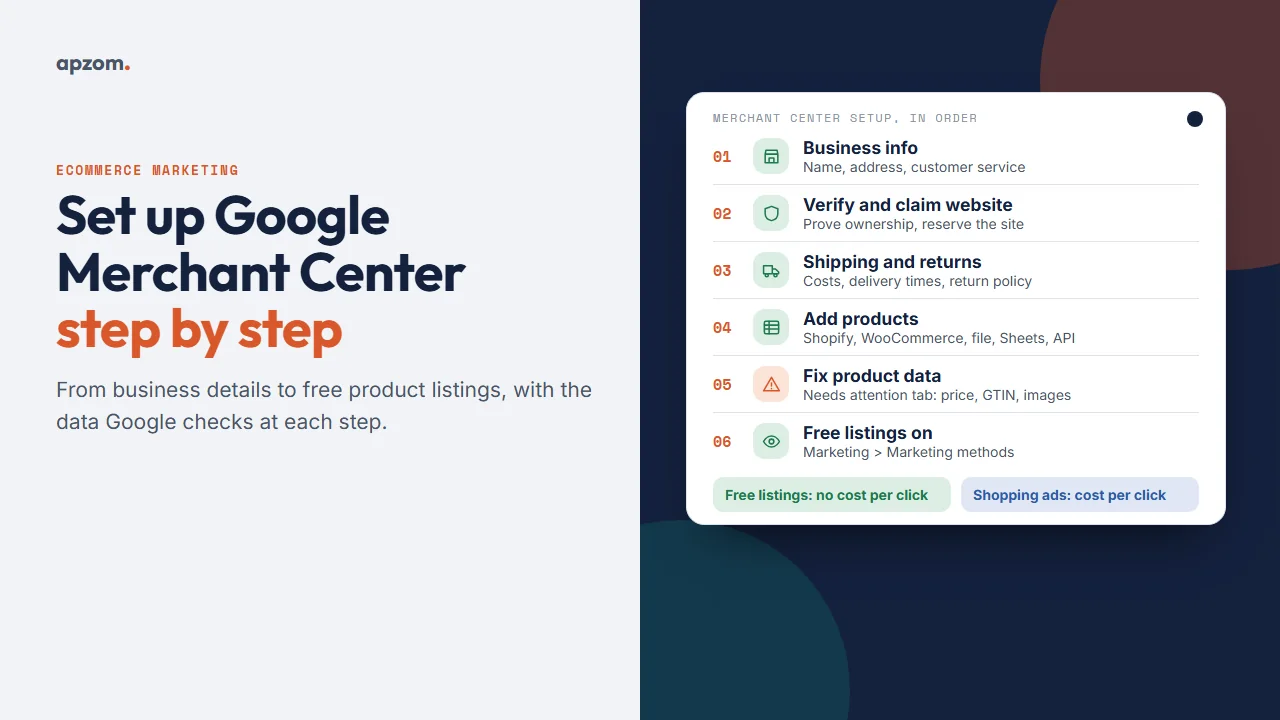
What Merchant Center is, and which version you are using
Merchant Center is where you describe your store and products to Google: business details, website, shipping, returns and a listing for every item. Google uses that data to show your products for free and, if you link Google Ads, in Shopping ads and Performance Max campaigns. It is not a store and does not take payments; shoppers still buy on your website. That is why most of the setup is about making your website and your product data agree.
Older tutorials may not match your screens. In August 2024 Google said “all retailers will be upgraded to Merchant Center Next” by September, replacing the classic interface. In July 2026 Google dropped the “Next” branding: the platform “will simply be referred to as Google Merchant Center”. Its current help pages use the labels in this guide: Data sources for product sources, Marketing methods for where products appear, and Needs attention for problems to fix.
Before you start: what your website needs
Most Merchant Center problems start on the website. Google’s page “Follow Merchant Center guidelines to keep your account approved”, with its checkout requirements, sets out what a store needs. Check these first, because a review will look for them.
- Products people can buy on your site. Promoted products must be “available for purchase through your online store”, and shoppers must be able to add in-stock products to the cart and finish the purchase.
- A visible return and refund policy, even if you accept no returns, readable without logging in or entering personal details.
- Contact information. Google says you “must provide customers with a way to contact you on your website”, such as a form, email address or phone number.
- A secure checkout with “a valid SSL certificate”, and HTTPS-secure third-party payment options.
- At least one conventional payment method.
- Consistent prices and stock. The price “must not increase at checkout”, and availability in your data must match your product and checkout pages.
- A supported language used in both your website and your product data.
Shopify’s requirements for the Google & YouTube channel add that your store “can’t be in private mode”, needs a payment provider, a Refund Policy and Terms of Service in the footer menu, a contact method, shipping to a supported country in a matching currency, and a verified domain “that isn’t associated with another account”.
If your product pages are thin, fix them first. Our guide to ecommerce SEO covers product and category pages, and our ecommerce marketing guide covers what a product page needs to sell.
Step 1: Create the account and add your business information
Sign up with a Google account your business controls, not one tied to a single employee or an agency. Google’s “Get started with Merchant Center” page lists the sign-up questions: your business and where you sell, your checkout options (online, in store or both), how Google should get your product information, and whether you use a platform such as Shopify.
Then go to Settings, Business info, Edit business details.
| Field | What Google asks for | Tip |
|---|---|---|
| Business name | A short name, up to 40 characters | Leave out Inc. or GmbH, sale messages, phone numbers, emoji and all capitals |
| Business address | Address line 1, city and postal or ZIP code | Use the address you really operate from |
| Customer service | Email, phone and other contact details | Use an email on your own domain and a phone that is answered |
Google’s page “About adding a business name” says all-capital names “won’t be approved”. A shopper comparing your Merchant Center details with your website footer and contact page should find the same business.
Step 2: Verify and claim your website
Two separate actions are needed. Verifying shows Google you own the store; Google says you are the owner “if you can make edits to your online store content”. Claiming reserves the website for your Merchant Center account, and only one account can claim a website.
Go to Settings, Business info, Edit online store, and enter the full address starting with http:// or https://. Google’s page “Verify and claim your online store” lists these methods:
| Method | Use it when |
|---|---|
| Ecommerce platform | Your platform, such as Shopify or WooCommerce, offers a built-in option |
| HTML tag or HTML file | You or your developer can add a meta tag to the home page or a file to the server |
| Google Tag Manager | You are an account-level administrator in Tag Manager |
| Google Analytics | You are an administrator of an Analytics account already linked to the store |
| You can receive a code at an email address associated with the store |
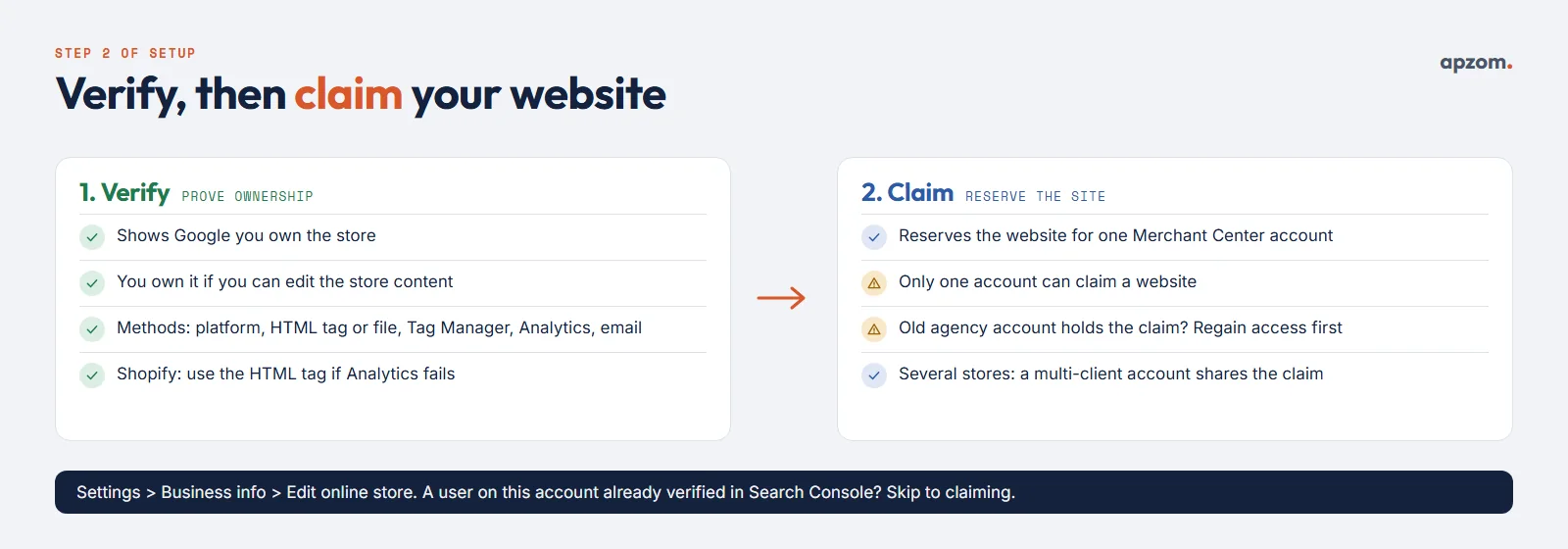
Google notes the Analytics method may not work on platforms such as Shopify and suggests the HTML tag instead. If verification fails, try removing “www” from the address. If a user on your Merchant Center account is already a verified owner of the site in Search Console, Google says you can skip to the claiming step; our guide to Google Search Console explains that verification.
If another Merchant Center account already claimed your website, perhaps one an old agency created, you cannot claim it in a second account; regain access to that account first. Businesses running several stores can use a multi-client account, whose sub-accounts inherit the claim from the parent, although Shopify says multi-client accounts cannot be connected directly to Shopify.
Step 3: Set your shipping and return policies
Shipping
Google’s free listings page says shipping settings (or shipping costs in your data) are required for free listings in 30 countries, including the US, the UK, Canada, Australia, New Zealand, India, Japan, South Korea, Brazil, Israel and most EU countries. Set them up everywhere you sell, even where they are not required.
Go to Shipping and returns under Products & store, open Shipping policies and select Add shipping policy. You can create up to 20 per country. Each asks for:
- Countries that share the same costs and options.
- Products: all, or specific ones marked with shipping labels in your data.
- Delivery time: order cut-off, handling time (days to prepare an order) and transit time (days the carrier needs).
- Cost: free, flat rate, carrier-calculated (Australia, Germany, the UK and the US only), rates by price, weight, destination or quantity, a percentage of price, or an advanced table.
Google wants costs “as close as possible to the costs on your online store” and, where you cannot match them exactly, asks you to “slightly overestimate them”.
Returns
Google’s return policies page describes adding a return policy in Merchant Center as optional, but its account rules require clear return and refund information on your website, so set both. Go to Shipping and returns under Products & store, Return policies, Add return policy. The flow asks for your return policy URL, countries, whether you accept returns (of any product, defective only, or none), exchanges, product condition, return window, return method and label, currency, restocking fee and refund time. Products with different terms get an extra policy with its own label in your data.
Keep the Merchant Center policy identical to your website’s, including footer links and banners. Policies you set up in Search Console “will not be migrated”, Google says, so recreate them in Merchant Center. Our ecommerce SEO guide explains how these settings relate to shipping and returns markup.
Step 4: Add your products
Choose one main route, based on where your product information already lives. Google’s page “How to upload your products to Merchant Center” lists these.
| Method | Best for | What to know |
|---|---|---|
| Shopify: Google & YouTube channel | Shopify stores | Products available to your online store sync automatically |
| WooCommerce: Google for WooCommerce | WooCommerce stores | Syncs products and can run Performance Max campaigns |
| Automatically from your website | Sites with complete product structured data | Google checks for new products at least once every 24 hours |
| File, scheduled fetch or Google Sheets | Small catalogues or exports | Scheduled fetches and Sheets sync every 24 hours |
| Merchant API | Large catalogues or frequent changes | Google strongly recommends it for many or frequently updated sources |
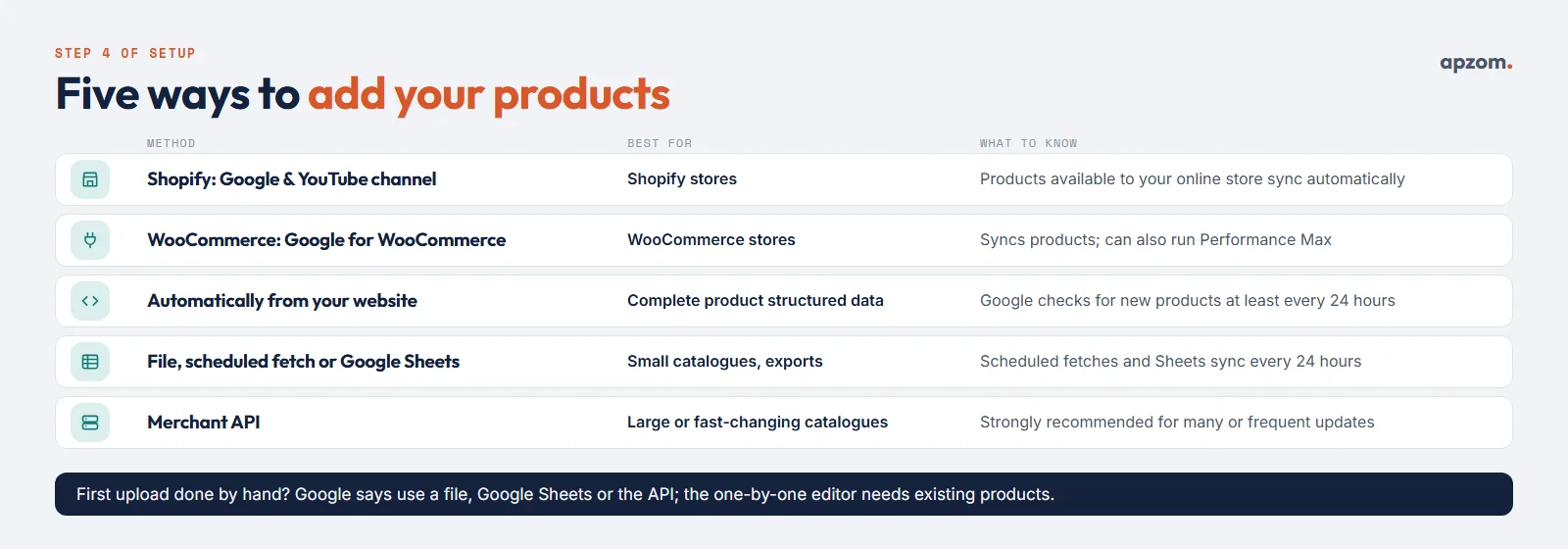
For a first upload of products yourself, Google says you must use a file, Google Sheets or the API; the one-by-one product editor is only for accounts that already have products.
Shopify
In Shopify admin, go to Sales channels, Google & YouTube, select Connect Google Account, then choose or create a Merchant Center account and confirm with a 6-digit code sent by text message. Import shipping rates automatically (only from your General shipping profile) or set them in Merchant Center. Shopify says the first sync “can take up to 24 hours” and that the channel is managed by Google, so suspensions go to Google support. If your account is missing from the list, check the connected email has Admin (not Standard) access, and that your primary domain, not a subdomain, is verified and claimed.
WooCommerce
Google for WooCommerce is the official extension by Woo. It syncs products to Merchant Center through a server-to-server connection, keeps prices and stock updated, and can create Performance Max campaigns. Woo describes the Merchant Center sync as free; you pay only when someone clicks an ad. When we checked on 23 November 2026, the page listed WordPress 6.9, WooCommerce 11.1 and PHP 7.4 as minimums, so check before installing. Woo adds that target countries must be eligible for both Merchant Center and Google Ads. Still choosing a platform? See our Shopify vs WooCommerce comparison.
Other platforms and structured data
Look for an official Google integration first; otherwise a scheduled fetch or Google Sheets suits smaller catalogues. Google can also add products straight from your website when your product pages carry structured data, you allow Google to collect it, and the site is verified and claimed. They appear under Data sources as “Found by Google”.
Markup helps even with a feed. Google’s automations, on by default, use your landing pages to correct price, availability and condition, though Google says they “aren’t a replacement for regular updates”. Our guide to schema markup for small businesses covers markup and testing.
Merchant Center showing warnings, or not sure your store is ready? Ask for a Free Growth Audit. We check your business details, website verification and claim, shipping and return policies, product data and the issues on your Needs attention tab, and tell you what to fix first.
Step 5: Get the product data right
Shopping ads and free listings run on your product data, not on keywords you choose, so the data decides when products show. These attributes from Google’s product data specification are the ones that block or limit most new stores.
| Attribute | Required? | What Google asks |
|---|---|---|
| id | Always | A unique value per product, up to 50 characters |
| title | Always | The product’s name, up to 150 characters |
| description | Always | Up to 5,000 characters, about the product only |
| link | Always | The product page URL, starting with http or https |
| image_link | Always | The main product image (rules below) |
| availability | Always | in_stock, out_of_stock, preorder or backorder |
| price | Always | Price and currency matching the product page; not 0 |
| brand | New products (not films, books or music) | The brand shoppers recognise; never “N/A” or “Generic” |
| gtin | When the manufacturer assigned one | The barcode number, without dashes or spaces |
| mpn | Only if there is no GTIN | The manufacturer’s part number |
| condition | If used or refurbished | new, refurbished or used |
Some categories and countries need more, such as colour, size, gender and age group for clothing, and an item group ID for variants. Check the specification for your category.
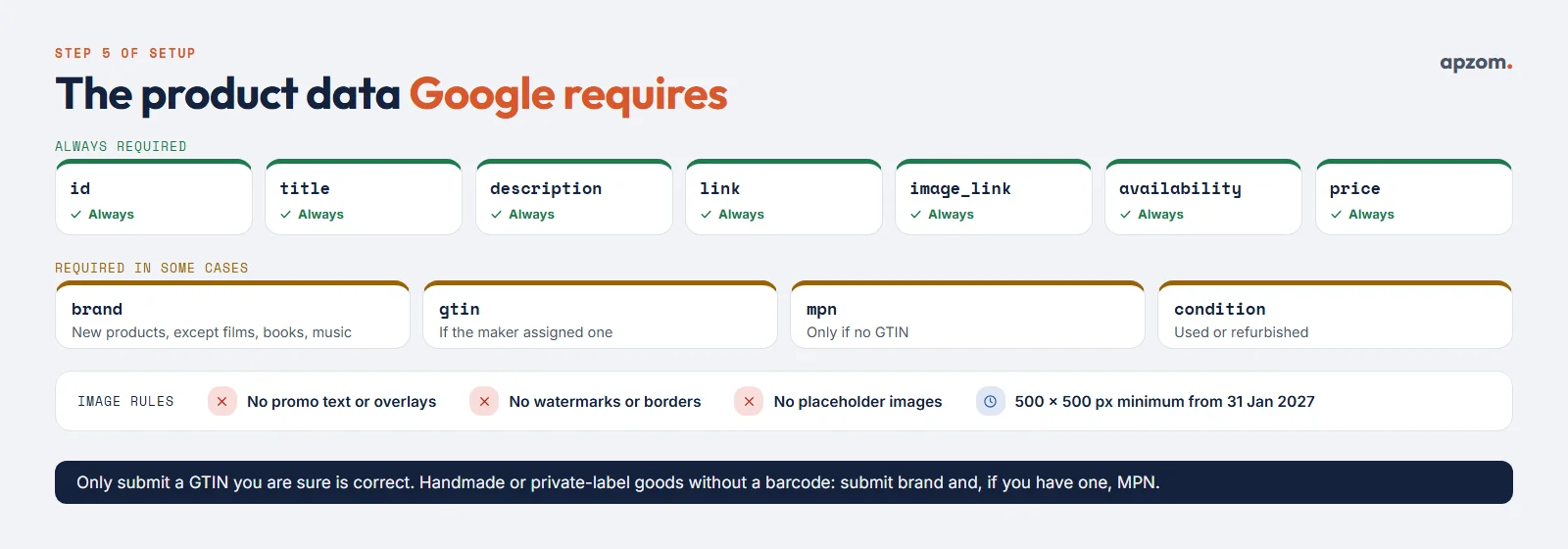
GTINs. Google says to “only provide a GTIN if you’re sure it is correct”: an incorrect GTIN gets the product disapproved, and leaving out a GTIN a product has “may have limited visibility”. Handmade, custom and private-label goods without a barcode do not need one; submit the brand and, if you have one, an MPN.
Images. No promotional overlays, watermarks, borders or placeholder images; formats include JPEG, WebP and PNG up to 16 MB. Google has announced a 500 x 500 pixel minimum for all product images, enforced from 31 January 2027, and recommends 1,500 x 1,500 or more.
Titles. Google’s title guidance says to put the most important details first, because shoppers usually see only the first 70 characters or fewer, include the product name and brand, and add size and colour for variants, with no promotional text, prices, shipping details or capitals for emphasis. As an illustrative example, “Brand X Merino Running Socks, Men’s, Size 9-11, Navy” says far more than “Everyday Comfort Sock”.
Step 6: Check that free listings are on
Google says free listings are on by default for most accounts. To check, go to Marketing, Marketing methods, and look at the Free listings card; only Admin users can change it.
Products can appear in Search (including product rich results), the Shopping tab, Images and Lens, YouTube, Gemini, Google Maps and a Business Profile’s products section. Some surfaces are limited: Popular Products is US-only on mobile, and YouTube is available in limited countries. An active status “doesn’t guarantee” your products will be shown, and Google says that if you are new to online selling, it might take time before products appear in relevant results.
Which countries free listings reach
Google’s help page on showing Shopify products for free lists 48 supported countries and regions, including the US, Canada, the UK, Ireland, most large EU markets such as Germany, France, Spain, Italy and the Netherlands, Australia, New Zealand, the UAE, Saudi Arabia, India, Japan, Singapore, South Africa, Brazil and Mexico. Lists change, so check Merchant Center Help before planning a market, and set shipping, currency and language for each country you target.
Free listings vs Shopping ads
Both use the same Merchant Center data. The difference is payment and control.
| What differs | Free listings | Shopping ads |
|---|---|---|
| Cost | No charge for clicks | Cost per click, through Google Ads |
| What you control | Product data quality only | Budget, bids, products and countries |
| Accounts needed | Merchant Center | Merchant Center linked to Google Ads |
| Placement | Not guaranteed | Competes in the ad auction |
Google Ads Help says Shopping ads “use your existing Merchant Center product data (not keywords)”, and Performance Max campaigns can use a Merchant Center feed too. Our guides to Performance Max vs Search and Google Ads for small businesses cover the next step.
Our rule of thumb for a new store: get the data clean and free listings running, see which products earn clicks, then decide whether to pay to promote those. Ads do not fix a feed full of warnings.
Disapprovals and misrepresentation suspensions
The Needs attention tab under Products shows two kinds of problem: product issues, which affect single items, and account issues, which can stop every product showing.
| Issue | Usual cause | Fix |
|---|---|---|
| Mismatched value (page crawl) [price] | Feed and page prices differ, often around a sale, or tax settings are wrong | Update page and data together; check tax settings by country |
| Inaccurate availability | Data says in stock, page says sold out, or the reverse | Sync stock more often |
| Missing or incorrect GTIN | Barcode left out, mistyped or invented | Add the real GTIN, or brand and MPN |
| Image issues | Promotional text, watermark, border or placeholder | Use a clean product photo |
| Missing shipping costs | No shipping policy for that country | Add one, or the shipping attribute |
What the misrepresentation policy covers
A misrepresentation suspension stops the whole account. Google’s policy covers unacceptable business practices (“Scamming people by hiding or misrepresenting info about your business, products or services isn’t allowed”), dishonest pricing and transaction conditions (such as not clearly disclosing the full expense), unavailable offers (“Promising products or promotional offers that aren’t available for users”), unreliable claims and other categories.
For unacceptable business practices, coordinated deceptive practices and dishonest pricing and transaction conditions, Google says accounts “will be suspended upon detection and without prior warning” and are “only reinstated in compelling circumstances”. For unavailable offers, manipulated media and unreliable claims, Google issues a warning at least 7 days before any suspension.
Google asks you to check your store and account for consistency with its policies before requesting a review. Our rule of thumb: go back through the “Before you start” list and look for missing contact details or address, a returns page that differs from Merchant Center, shipping costs that appear only at checkout, prices that change at checkout, and business claims you cannot support.
How to request a review
- Find the issue under Products, Needs attention (on Shopify, the channel’s Overview page).
- Fix the cause on the website and in the data, across the whole site.
- Request the review. Select View setup and policy issues, choose “I fixed the issue” or “I disagree with the issue”, then Request review. Shopify stores can also use Sales channels, Google & YouTube, Settings.
- Wait. Google’s help pages give review times from about 3 to 7 business days, and up to two weeks in some cases.
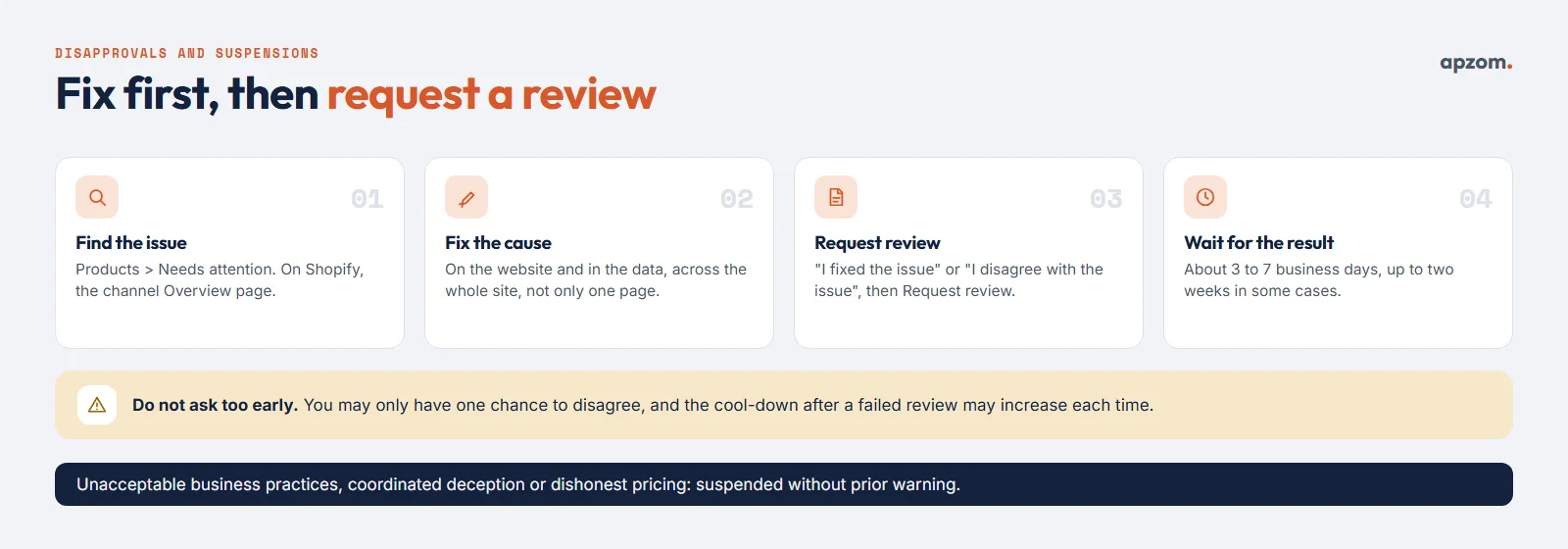
Google warns that “you may only have one chance to disagree with the issue”, and that the cool-down before you can ask again “may increase with each unsuccessful review”. Support cannot shorten it, so do not ask until everything is fixed. If the review buttons are greyed out, Google says to complete merchant verification and have at least one product in your data source. Ad-level reviews in Google Ads work differently; see our guide to disapproved Google Ads.
How to measure results
Free listings are worth the work only if they bring orders, so measure orders, not just clicks.
- Merchant Center reports. Google reports free listings “under ‘Organic’ traffic”, separately from ads. Check clicks and impressions by product.
- Auto-tagging. Merchant Center adds a srsltid parameter to product URLs, on by default for new accounts. Click one of your own listings: Google warns some sites reject extra URL parameters and show an error page. The switch is under Settings, General, Key event setup.
- Google Analytics 4. Link Merchant Center in Analytics Admin, Product links, Merchant Center Links (you need the Analytics Editor role or Merchant Center Admin access). Free listings traffic then appears with the source platform “Shopping Free Listings” and the default channel group “Organic Shopping”. Our guide to setting up GA4 covers purchase tracking.
- Review monthly by product. Impressions but no clicks usually points to the title, image or price; no impressions usually points to a data issue. Visitors who add to cart but do not buy are a checkout and follow-up problem, not a feed problem; our guide to abandoned cart emails covers that part.
We will not quote a typical uplift from free listings. Google does not publish one, results depend on your products, prices and competitors, and we have not published an ecommerce case study.
Common mistakes
- Prices or stock that differ from the website. Google even has a separate troubleshooter for price mismatches.
- Shipping costs that appear only at checkout. Match your site, or slightly overestimate.
- A missing or contradictory returns page. State the policy, even “no returns”, and keep Merchant Center identical.
- Invented GTINs. Use real ones, or brand and MPN.
- Promotional text on product images. Use clean product photos.
- Requesting a review too early. You may get one chance to disagree, and cool-downs grow.
- Letting an agency or developer own the account. Own it yourself and grant access.
- Set and forget. Check Needs attention weekly, especially after sales and new launches.
How Apzom can help
Apzom Digital sets up and repairs Merchant Center accounts for online stores: business information, website verification and claiming, shipping and returns, the Shopify or WooCommerce connection, product data and titles, structured data that matches your pages, issue clean-up before a review request, and GA4 measurement. We have not published an ecommerce case study yet, so we will not quote results we cannot prove. See our ecommerce marketing services. We work with clients worldwide, remotely, from our base in Ahmedabad, India.
Get a Free Growth Audit and Quote for your Merchant Center setup. Send us your store URL and, if you have one, read access to Merchant Center. We send back a written list of what blocks or limits your free listings, in the order to fix it, and a quote if you want us to do the work.
No obligation, and no promised sales or placements. Prefer to talk first? Contact us or read our ecommerce SEO guide.
Frequently asked questions
Is Google Merchant Center free?
Yes. Creating an account, adding products and appearing in free listings cost nothing. You pay only if you advertise through Google Ads, for example with Shopping ads, which are charged per click.
How long does it take for products to appear?
Shopify says the first sync can take up to 24 hours, and products must be approved before they show. Google says new online sellers might wait longer before products appear in relevant results, and showing is never guaranteed.
Can I use free listings if I only sell in a physical shop?
Free listings for online products need products people can buy on your website. Shops that sell in store can look at Google’s free local listings, a separate programme with its own requirements and country list.
Do I need structured data if I use a feed or an app?
It is not required, but it helps: Google uses product markup on your pages to correct price, availability and condition automatically, and it lets Google find products directly on your website.