
The short answer: To set up Google Analytics 4 (GA4) for a small business website, sign in at analytics.google.com, create an account, create a property with your reporting time zone and currency, and add a web data stream for your site address. Then install the Google tag once, using one method (Site Kit on WordPress, the tag pasted into every page, or Google Tag Manager). Before you trust the numbers, change four settings that are easy to miss: data retention, internal traffic, the Search Console link and key events. Finally, check that data arrives in the Realtime report and DebugView.
This guide is for small business owners and marketers anywhere in the world who want GA4 set up properly the first time, or who already have it and are not sure the numbers are right. It follows Google’s own Analytics Help documentation, uses the menu names as they appear in GA4 at the time of writing, and assumes no technical background. Google changes menu names from time to time, so if a label differs slightly, look for the nearest match in the same section.
Before you start
You need three things:
- A Google account the business controls. Use a business account, not a personal one belonging to a staff member or an agency, so that access stays with the business. You can add other people later.
- Access to your website. That means an administrator login for WordPress or your website builder, or someone who can edit the site’s code.
- Ten quiet minutes and your list of “what counts”. Write down the actions that matter for your business: an enquiry form sent, a phone number clicked, a booking made, a purchase. These become your key events.
If someone already set up GA4 for you, do not create a second property. Ask for administrator access to the existing one, then skip to the section on the settings people miss.
How GA4 is organised: account, property, data stream
GA4 has three levels. Understanding them prevents most setup mistakes.
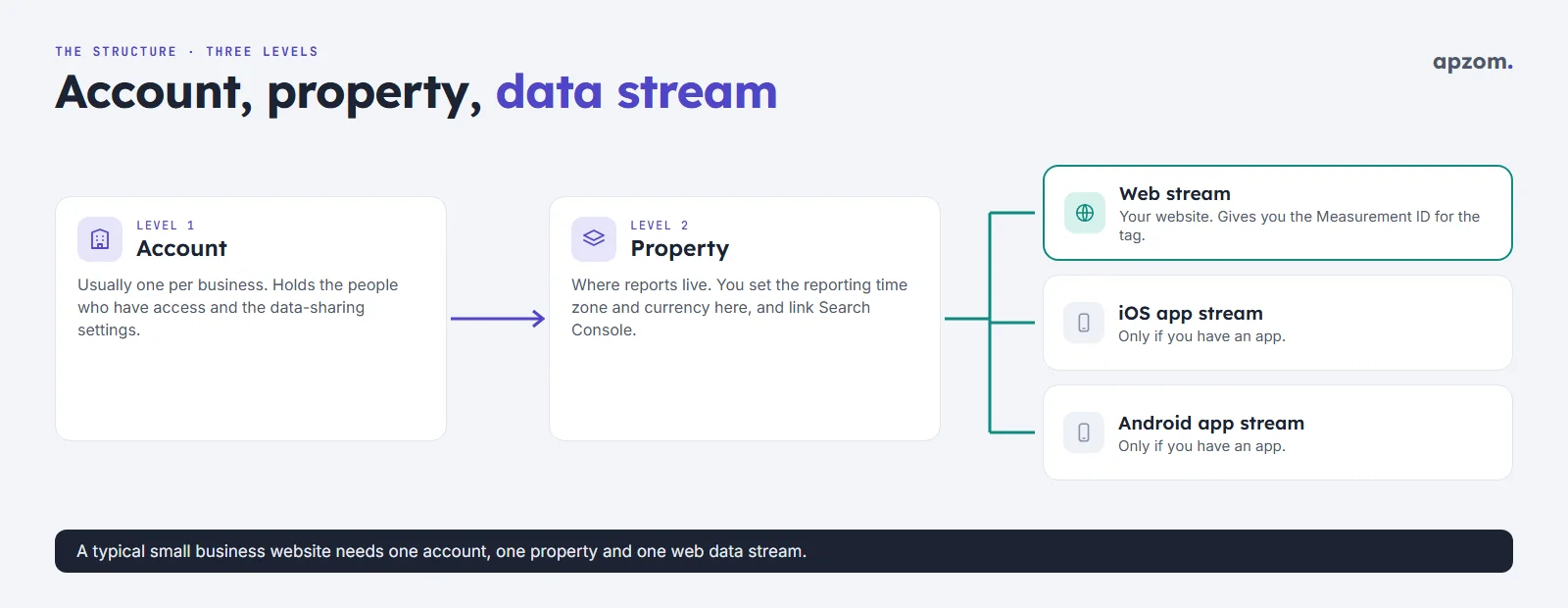
- Account. The top level, usually one per business. It holds who has access and the data-sharing settings.
- Property. Where your reports live. You set the reporting time zone and currency here, and this is what you link to Search Console and Google Ads.
- Data stream. The source of data flowing into the property. A website has one web data stream. If you also have a mobile app, it gets its own iOS or Android stream in the same property.
A typical small business website needs one account, one property and one web data stream. Creating a separate property for every page, campaign or staff member is a common mistake that splits your data.
Step 1: create the account and property
- Go to analytics.google.com and sign in with the business’s Google account.
- Choose Start measuring (or, if you already have an account, go to Admin and choose Create, then Account).
- Account name: use your business name. Review the data-sharing settings and choose the ones you are comfortable with.
- Property name: for example “Business name website”. Set the reporting time zone and currency you use for your accounts. These matter more than they look: the time zone decides where each day starts and ends in your reports. Google’s Help notes that changing the time zone later only affects data going forward, and can leave a flat spot or spike on the day you change it, while changing the currency converts historical data as well.
- Add your business details (industry and size) and choose your business objectives. These shape which reports appear by default; you can change the reports later.
- Accept the Terms of Service for your country and the Data Processing Amendment.
Step 2: add a web data stream
- When asked to choose a platform, select Web.
- Enter your website URL (for example yourbusiness.com) and a stream name, such as “Website”.
- Leave Enhanced measurement on. It collects common interactions such as scrolls (when someone reaches 90% of a page), outbound clicks, site search, form interactions, file downloads and engagement with embedded YouTube videos (those with JS API support enabled) without extra code. You can switch individual items off in the stream settings later.
- Choose Create stream. GA4 shows your Measurement ID, which usually starts with “G-“. Keep this page open; you need it in the next step.
Step 3: install the Google tag, using one method
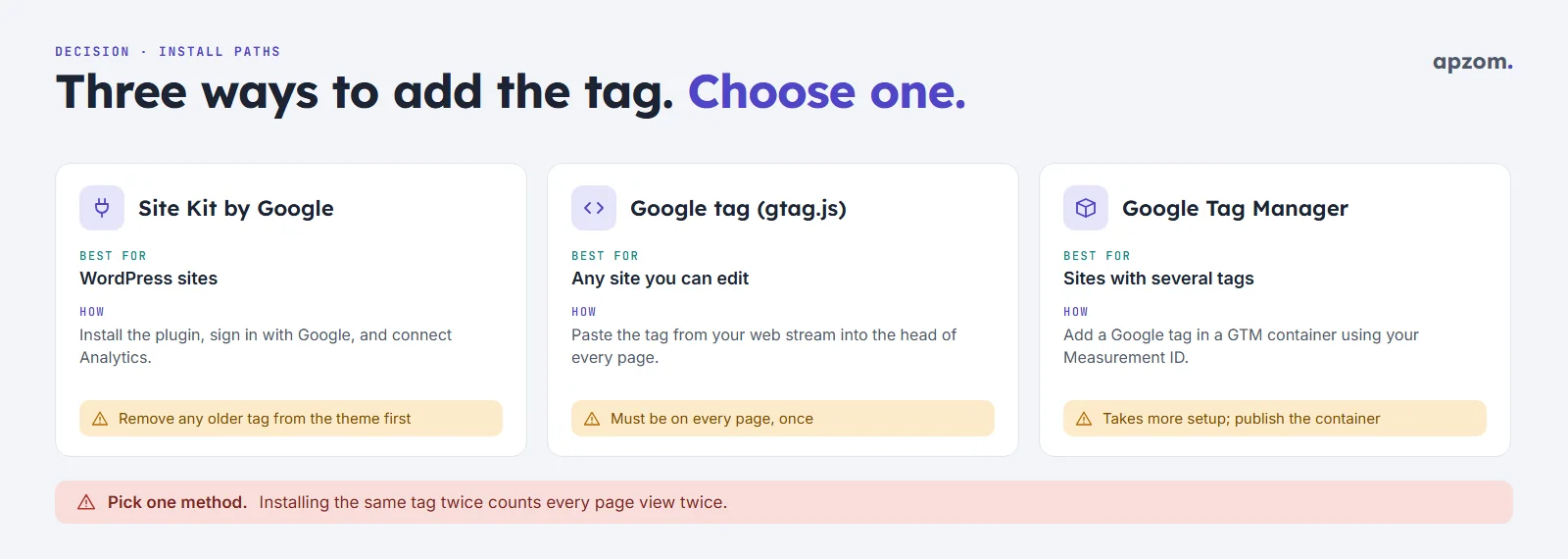
The Google tag is the small piece of code that sends data from your website to GA4. There are three common ways to install it. Choose one, and only one.
| Method | Best for | How | Watch out for |
|---|---|---|---|
| Site Kit by Google (WordPress plugin) | WordPress sites | Install Site Kit, sign in with the business’s Google account and connect Analytics; it can place the tag for you | Remove any older Analytics code your theme or another plugin added |
| Google tag (gtag.js) | Any site where you can edit the page header | Copy the tag from your web stream’s installation instructions and paste it into the head of every page, or into your website builder’s Google Analytics field | It must appear on every page, once |
| Google Tag Manager | Sites with several tracking tags, or a developer managing them | Create a Google tag in your Tag Manager container using your Measurement ID, use the “Initialization – All Initialization Events” trigger, then publish the container | More setup; nothing goes live until you publish |
Many website builders and ecommerce platforms also have a field where you paste the Measurement ID. That counts as one method too.
A common GA4 mistake is installing the tag twice, for example through a plugin and by hand. Google’s Help is direct about this: use either the Google tag or Tag Manager, not both, because using both overcounts your data (Google Analytics Help, “Troubleshoot tag setup”). Page views and other events can then be counted more than once, which inflates your figures. If you are unsure, use Google’s Tag Assistant (tagassistant.google.com), which can find missing or duplicated tags, or view your homepage’s source and check that your “G-” ID is not loaded by two separate snippets. Site Kit’s documentation does not say it skips an existing tag, so remove older Analytics code before connecting it.
If you use Google Ads, link it later through Admin › Product links › Google Ads links. You do not need a second tag for that.
Step 4: fix the settings people miss
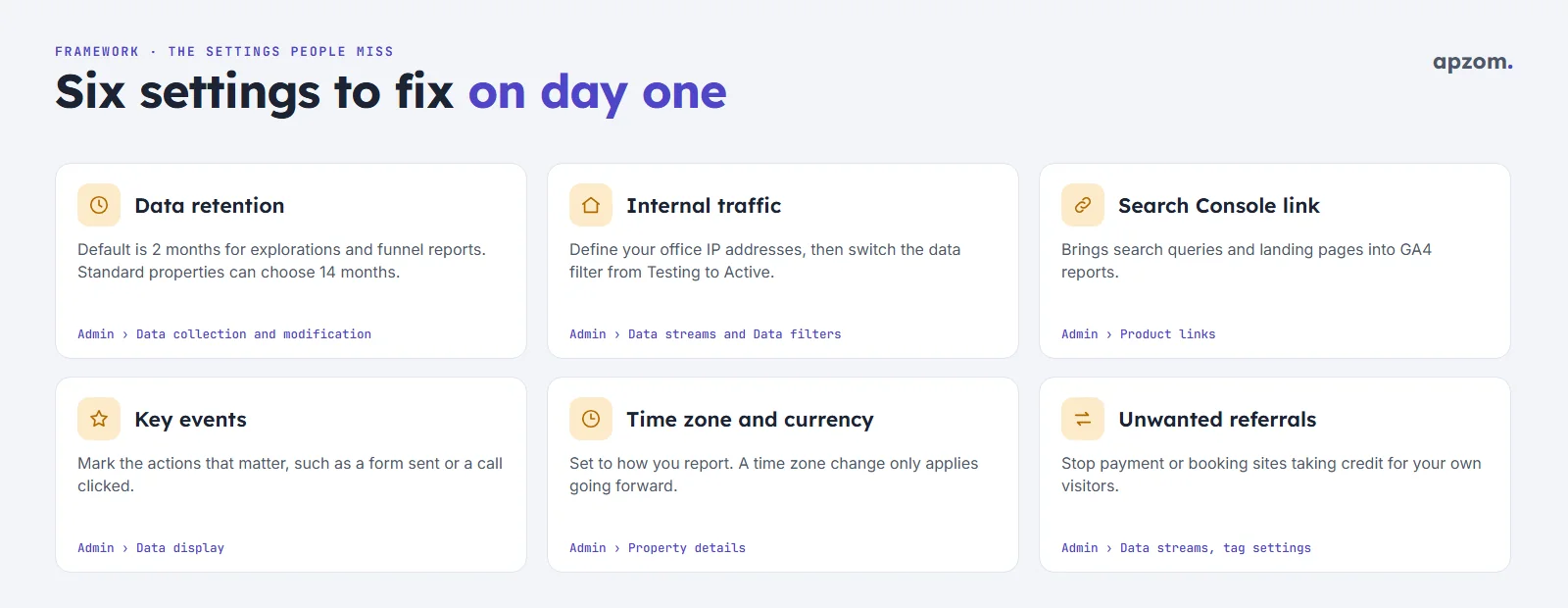
GA4 works with its default settings, but four of them quietly cost small businesses useful data. Change these on day one.
Data retention
By default, GA4 keeps user-level and event-level data for two months. This affects explorations and funnel reports, not the standard reports. In a standard property you can choose 14 months instead, which lets you compare this month with the same month last year in explorations. (Age, gender and interest data stay at two months whatever you choose.)
Go to Admin › Data collection and modification › Data retention (you need the Editor role), choose 14 months and save. According to Google Analytics Help (“Data retention”), a longer setting also applies to data you still hold, but data already deleted under the old setting cannot be brought back, so do this early. Never shorten it without thinking: a shorter setting deletes older data at the next monthly process.
Internal traffic
Your own visits, and your team’s, can make up a large share of traffic on a small site. GA4 can exclude them, but it takes two steps:
- Define the rule. Go to Admin › Data streams, open your web stream, choose Configure tag settings, then Define internal traffic. Add your office’s public IP address (or range); searching “what is my IP” from the office network shows it. Leave the traffic_type value as “internal”. Depending on your screen, the option may sit under Show more or Show all.
- Activate the filter. Go to Admin › Data collection and modification › Data filters. If an “Internal Traffic” filter is already listed, open it; otherwise choose Create Filter › Internal Traffic, set it to Exclude and choose the Testing state. Testing labels the traffic but does not remove it. Google suggests waiting 24 to 36 hours in Testing before you check the results (Google Analytics Help, “Data filters”). When you are happy, change it to Active.
Be careful with Active filters: they apply from the moment they are active onwards, and data they exclude is not processed and cannot be recovered later. Finish testing your setup (Step 5) before you activate this filter, or your own test visits will disappear from the reports. This only works for IP addresses that do not change; staff on changing home IPs or mobile data will still be counted.
Search Console link
Linking Search Console brings the search queries and landing pages people use to find you in Google Search into GA4. Go to Admin › Product links › Search Console links and choose Link. You must be a verified owner of the Search Console property and have the editor role (or higher) on the GA4 property. One web data stream links to one Search Console property. After linking, the Search Console reports are not shown by default: publish the Search Console collection from the Library in the Reports section to add them to the menu. Search Console data reaches GA4 about 48 hours after Search Console collects it.
If you have not set up Search Console yet, our guide to how to use Google Search Console covers it step by step.
Key events
Key events are the actions that matter to your business. Google renamed “conversions” in GA4 to “key events” on 27 March 2024 (GA4 What’s new); “conversion” now means an action used for Google Ads and bidding.
Go to Admin › Data display › Events. When an event you care about appears there (for example a form submission event), click the star icon next to it to mark it as a key event. If the action is not yet tracked as its own event, you can create a new event from an existing one, for example a page_view on your thank-you page, under Admin › Data display › Events › Create event; Google’s own example names it generate_lead. Keep the list short: three to five key events that reflect real enquiries or sales, not every click (a standard property allows up to 30). Key events count only from the moment you mark or create them; they do not change past data.
Two more worth checking
- Unwanted referrals. If customers leave your site to pay or book on another domain and then come back, GA4 may credit that domain with the visit. List those domains under your web stream’s Configure tag settings: expand the settings list (Show all), then choose List unwanted referrals.
- Consent. If you have visitors in the European Economic Area, privacy law generally requires consent before analytics cookies are set. UK rules are similar but have been changing, and rules in the US, Canada, Australia, the UAE and India differ, so check the law where your visitors are. Google’s own GA4 Help adds that you must collect consent for use of personal data from end users based in the EEA, and personalised ads and remarketing need affirmative consent signals. Use a consent banner that supports Google’s consent mode, review the options under Admin › Data collection and modification › Consent settings, and check your setup with your legal adviser.
Already have GA4 but not sure the numbers are right? A GA4 Setup Check from Apzom reviews your property settings, tag installation, key events and Search Console link, and gives you a short fix list.
Step 5: check that it works
Do not wait a week to find out the tag is missing. Check it the same day.
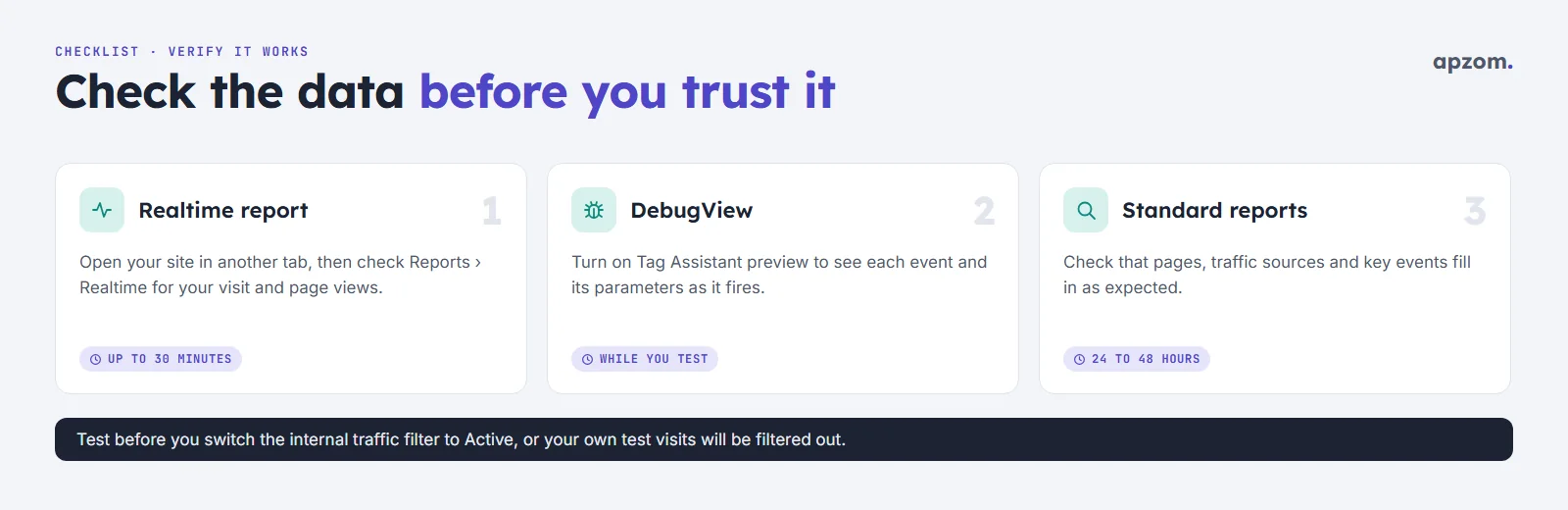
- Realtime report. Open your website in another browser tab and click through a couple of pages. In GA4, open Reports › Realtime. It shows active users in the last 30 minutes. Google says data collection may take up to 30 minutes to begin after you install the tag, so if nothing appears at once, wait and try again.
- DebugView. For a closer look, use Google’s Tag Assistant (tagassistant.google.com): enter your website address to start a debug session, then open Admin › Data display › DebugView in GA4. You will see each event as it fires, with its parameters. Submit a test form and check that the event appears. If you use a consent banner, accept analytics cookies first, because events may not show in DebugView without consent.
- Standard reports. Data takes time to process. Google says first-time processing can take up to 24 hours and data processing generally 24 to 48 hours (Google Analytics Help, “Data freshness”), so check your acquisition and engagement reports over the next two days (the exact menu depends on the business objectives you chose in Step 1).
When all three look right, go back and switch the internal traffic filter from Testing to Active.
A simple monthly routine
Once GA4 is running, a small business does not need to live in it. Once a month, look at the following (report names can vary with the business objectives you chose; use the Library or search if one is missing):
- Reports › Acquisition › Traffic acquisition: which channels bring visitors and key events.
- Reports › Engagement › Pages and screens: which pages people actually use.
- Key events by channel: which sources lead to enquiries, not just visits.
- Search Console reports in GA4: which searches bring people to which landing pages.
- Google Business Profile data, if you are a local business: Google’s What’s new page announced a Business Profile integration in June 2026 that adds metrics such as calls and direction requests; check whether it is available in your property.
If you want to separate visits from ChatGPT, Perplexity and other AI assistants, our guide to tracking AI search traffic in GA4 shows how. To turn these numbers into a view of what your marketing returns, see how to measure marketing ROI, and to act on pages that get visits but no enquiries, read what conversion rate optimisation is.
Common problems and fixes
| Problem | Likely cause | Fix |
|---|---|---|
| No data at all after a day | Tag not installed, wrong Measurement ID, or not firing because of the consent setup | Test with Tag Assistant and check the Measurement ID |
| Page views look doubled | Two tags installed (plugin plus manual code) | Remove one method |
| Your own visits fill the reports | Internal traffic filter still in Testing, or staff on changing IP addresses | Activate the filter after testing; accept that home and mobile visits will still count |
| Payment or booking site shows as a top referrer | Visitors return from a third-party checkout | Add the domain to the unwanted referrals list |
| Search Console reports missing | Link not made, reports not published from the Library, or data still arriving (about 48 hours) | Check Product links, then publish the Search Console collection |
| Explorations only go back two months | Data retention left at the default | Change to 14 months; older data cannot be recovered |
Who should have access
Add people through Admin › Account access management or Property access management. Give each person the lowest role they need. GA4’s roles range from Administrator (full control, including managing users) through Editor, Marketer and Analyst down to Viewer. An agency usually needs Editor or Marketer on the property, not Administrator on the account. Keep at least two Administrators from inside the business, so you are never locked out if one person leaves.
How Apzom can help
Apzom Digital sets up and checks GA4 for small and mid-sized businesses as part of our performance marketing service. We install the tag once, set retention, internal traffic and unwanted referrals, define key events that match your real enquiries, and link Search Console and Google Ads, all in accounts your business owns. If you already have GA4, our setup check gives you a short, plain-English fix list.
We work with clients worldwide, remotely, from our base in Ahmedabad, India.
Frequently asked questions
Is Google Analytics 4 free?
Yes, the standard version of GA4 is free to use. Google Analytics 360 is the paid version for large organisations, with higher limits such as longer data retention and more key events. A small business does not need it.
Do I need Google Tag Manager to use GA4?
No. Tag Manager is useful if you manage several tracking tags, but most small business websites can install GA4 with Site Kit, a website builder’s built-in field, or the Google tag pasted into the page header.
What is the difference between a Measurement ID and a property ID?
The Measurement ID starts with “G-” and belongs to a web data stream; it goes into the tag on your website. The property ID is a number that identifies the property itself; you need it for some integrations and support requests, not for the website tag.
Why does GA4 show different numbers from Search Console?
They measure different things. Search Console counts clicks from Google Search results; GA4 counts sessions on your site from all sources, and only for visitors whose browsers run the tag and, where required, give consent. Expect the figures to differ.
Can I see data from before I installed GA4?
No. GA4 only collects data from the moment the tag is working. That is the main reason to set it up properly now rather than later.
How long until GA4 shows useful data?
Realtime data usually appears within minutes, though Google says collection can take up to 30 minutes to begin. Standard reports can take 24 to 48 hours. For trends you can act on, a small site usually needs a few weeks of data.
Request a GA4 Setup Check. We check that the tag is installed once on every page, data retention, internal traffic and unwanted referrals are set, key events match your real enquiries, and Search Console and Google Ads are linked, then send a plain-English fix list.
No obligation. Prefer to talk first? Contact us or see our performance marketing service.