
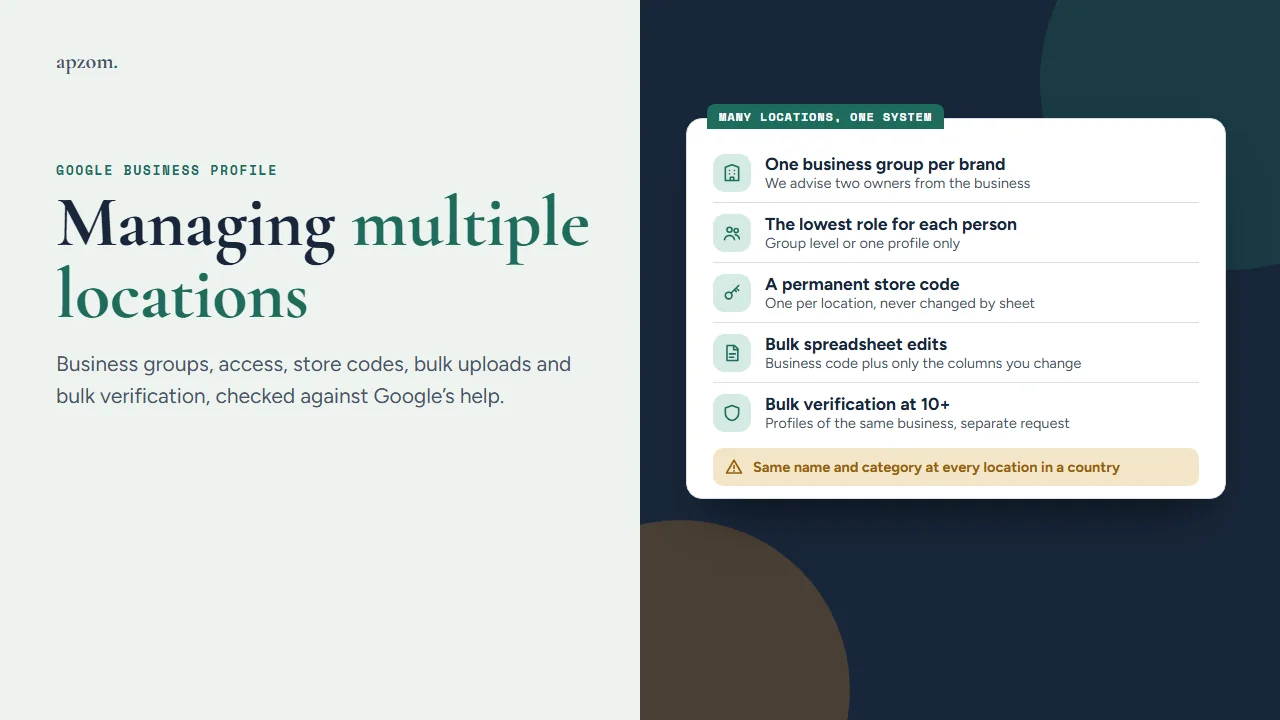
The short answer: To manage multiple locations on Google Business Profile, put every profile for one brand into a single business group in Business Profile Manager; we recommend at least two owners who work for the business. Give staff and agencies the lowest role they need, at group level or on individual profiles. Give every location a permanent store code, and add or edit locations in bulk with Google’s spreadsheet, including only the columns you are changing. Once you have 10 or more eligible profiles of the same business, apply for bulk verification. Use the same name and category at every location unless a location’s real-world name is different, and link each profile to its own page on your website.
This guide is for operations managers, marketers and agency teams anywhere in the world who look after a chain, franchise, clinic group or branch network. It covers business groups and access, adding locations singly or by spreadsheet, store codes, labels, bulk verification, bulk edits, openings, closures, moves and Google’s naming rules. We checked every rule and menu name against Google Business Profile Help on 23 November 2026. Where Google’s own pages name a button differently, we say so.
Start with the structure: one business group per brand
Many multi-location problems start with where the profiles live: some in personal Gmail accounts, some created by a former agency, the rest behind a shared password. Fix that first.
Google’s answer is the business group, which its help describes as “like a shared folder for your profiles” and a safer alternative to sharing one account’s password. Older Google pages called them business accounts, and some pages and the Business Profile API still say location groups. They are the same thing.
How to create a group and move profiles into it
- Sign in to Business Profile Manager at business.google.com with a Google account the business controls. Google’s bulk overview recommends an account on your own email domain (for example ops@yourbrand.com) and says an address outside your domain takes longer to verify.
- Once the account holds two or more profiles, select Create group at the top right, enter a name and select Create.
- To move profiles in, select them in the list, then Actions, then Transfer businesses, choose the group and select Transfer. You can only transfer profiles into a group you own or manage.
If you are starting from scratch, Google recommends creating the group first and adding and verifying profiles inside it.
One group or several?
Google suggests one business group per business or brand.
| Set-up | What you gain | What you give up |
|---|---|---|
| One group for the whole brand | Every location in one dashboard and one spreadsheet | Everyone added to the group can see and edit every location in it |
| Several groups (for example one per brand or division) | Each team sees only its own locations | A separate spreadsheet import for each group, and no single dashboard |
You cannot import or download one spreadsheet across several groups. If a regional manager needs only their own branches, keep one group and add that person to those profiles instead.
Only a group owner can delete a group, every profile must be moved out first, and Google says deletion cannot be undone. To hand locations to someone else, transfer ownership of the group instead.
Who gets access: group roles and profile roles
Access works at two levels, and mixing them up gives people more access than they need.
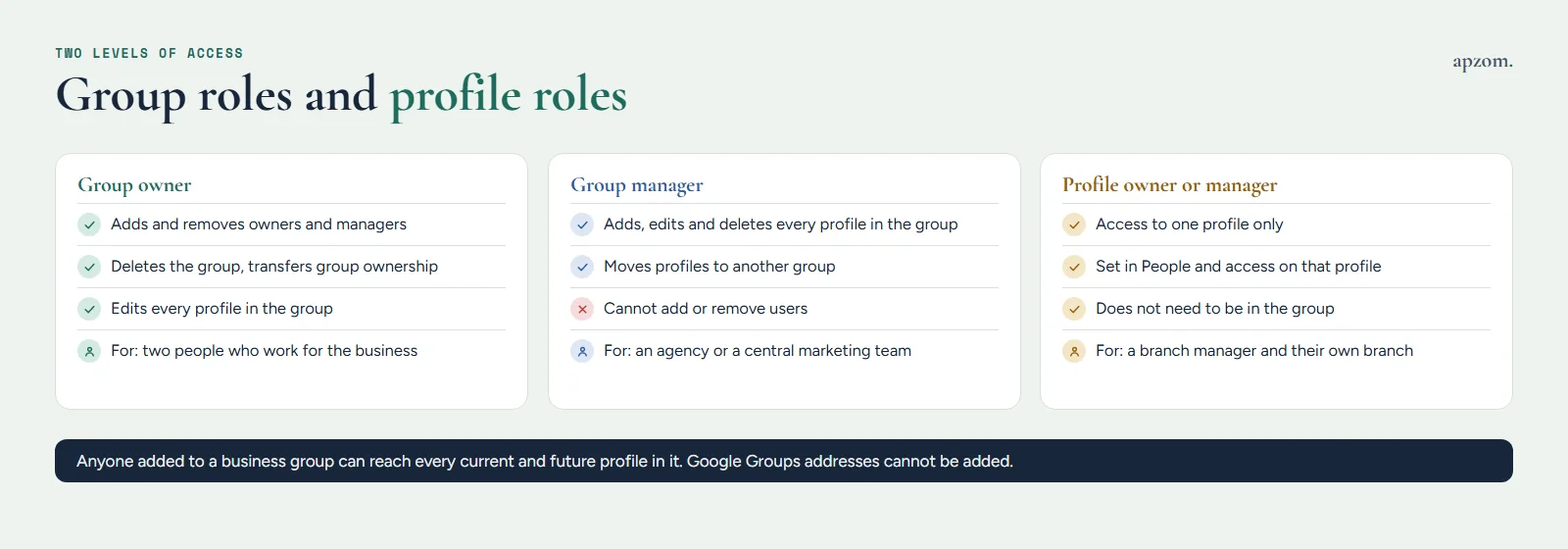
Group level. Group owners can add and remove owners and managers, delete the group and transfer group ownership. Group managers can add, edit and delete every profile in the group, and move profiles to another group, but cannot add or remove users. There can be several owners but only one primary owner, who cannot leave until primary ownership has passed to someone else. Anyone added to the group gets access to all current and future profiles in it.
Profile level. Each profile also has its own owners and managers, set under More, then Business Profile settings, then People and access. Google says you can invite someone to a specific profile even if they are not in the business group: the right tool for a branch manager who should edit only their own branch.
To change a role in a group, select the group at the top left of Business Profile Manager, then Group settings, then Manage users, and pick the new role next to the person’s name. Google Groups (shared mailing-list addresses) cannot be owners or managers, so every person needs their own Google account.
For agencies, manager is normally enough: it covers the profile work but not adding people or removing your owners. Our guide to giving an agency access to your Google accounts covers primary ownership and offboarding.
Adding locations: one at a time or by spreadsheet
The right method depends on how many locations you have.
A few locations. Add each profile on its own (on Google Search, Google’s help describes the path as More, then Add a new Business Profile) and verify each one individually. Our guide to verifying a Google Business Profile covers video verification and the other methods Google may offer.
Ten or more locations. Google’s bulk location management overview is written for businesses with 10 or more locations. In Business Profile Manager, open the add menu at the top right and choose the import option. Google’s pages label these differently: one says Add profile, then Import profiles, another Add business, then Import businesses. There you can download a blank template in your dashboard language, a sample spreadsheet and an attributes reference.
Put every location you manage in the first upload. Google says it needs them all to find evidence of the size of your business when you apply for bulk verification.
The columns Google requires
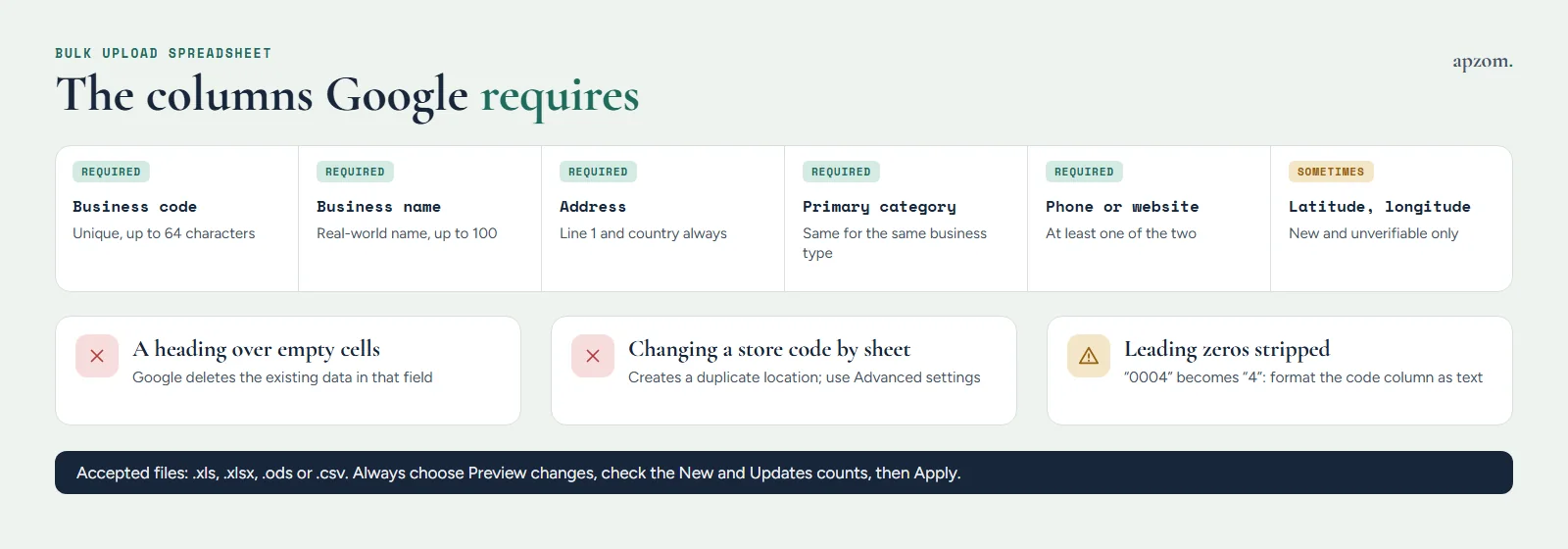
| Column | Required? | Rules from Google’s help |
|---|---|---|
| Business code (store code) | Always | Unique for each location, 64 characters or fewer, no spaces at the start or end, no characters such as < or > and no URLs |
| Business name | Always | Up to 100 characters, written as it appears in the real world, not in capitals, without the name of a mall or host store |
| Address | Always | Address line 1 and country/region are always required; other address fields depend on the country’s postal format |
| Primary category | Always | What the business is, not what it has, and the same for every location of the same type |
| Primary phone or Website | At least one | Phone must be valid in the location’s country; website must be the full URL, including http:// or https:// |
| Latitude and Longitude | Only for a new location whose address cannot be verified | At least six digits after the decimal point; ignored on later uploads for existing locations |
Optional columns include up to two additional phones, up to nine additional categories, hours for each day, a description (“From the business”, up to 750 characters), an opening date, photo URLs, labels, a Google Ads phone number and attributes. Hotel attributes cannot be updated by spreadsheet.
Across countries, use each country’s official postal format. Google’s address help gives the example that the administrative area is required in Australia, optional in Portugal and not used in France.
Upload, preview, then apply
Google accepts .xls, .xlsx, .ods and .csv files. After selecting the file, choose Preview changes. The preview sorts rows into New, Updates, No updates or Errors, with a downloadable details file. Select Apply only when the numbers make sense, or Cancel.
If the preview shows more New locations than you are opening, stop: Google’s help says the store codes probably do not match, often because spreadsheet software removed leading zeros (“0004” became “4”). Many unintended Updates can mean a deleted cell shifted values into the wrong rows.
The pages we checked give no maximum rows per file, but there is a daily limit (Google does not state the number). If you hit it, Google’s help says to try again later and contact support through its form, quoting the error.
Store codes: the key that keeps every row matched
A store code (the spreadsheet calls it a business code) tells Google which location each row belongs to. It is not shown on Google. Any unique identifier works, “from the name of a place to a random number”, as long as it stays the same, and Google suggests adding your brand, for example GOOG1, GOOG2.
Four rules prevent most bulk-upload damage.
- Set the code once and keep it. Every location needs a unique code before you can import a spreadsheet.
- Never change a code by spreadsheet. Google says adding or changing a store code for an existing location by spreadsheet “will create a duplicate location”. To add or change one, open the profile, select More, then Business Profile settings, then Advanced settings, select the pencil next to Store code, enter it and select Save.
- Format the code column as text in your spreadsheet software so leading zeros survive.
- Keep codes out of the business name. Google’s guidelines list store codes among the things a name must not include: “The UPS Store – 2872” is not acceptable, “The UPS Store” is.
Store codes also separate two locations at the same address, which Google’s status help says need a unique address or a unique store code.
Our rule of thumb: keep a master register outside Google, one row per location with its store code, Business Profile ID, group, labels, manager and status, and check it before every upload.
Labels: sort locations by region, format or manager
Labels are private tags for finding and filtering locations: up to 10 per location, each up to 50 characters, without < or >. You can search the dashboard by label and use labels to filter Google Ads location assets. For a comma inside a label, Google says to write “%2c”.
Our working label scheme uses one label per dimension, with a prefix so a search returns a clean list (Google notes that a dashboard search also matches other fields, such as address lines):
- Region: for example “region-uk-north” or “region-uae”.
- Format: for example “flagship”, “kiosk” or “service-centre”.
- Owner: the person or team responsible for keeping that location accurate.
- Status: for example “opening-2027-03” or “relocating”.
Running five, fifty or five hundred locations? Ask for a Free Growth Audit. We check where your profiles live, who has access, your store codes, names and categories against Google’s chain rules, and whether you are ready to apply for bulk verification, and tell you what we would fix first.
Bulk verification: who qualifies and how to apply
Bulk verification verifies the account rather than each location: Google says that when an account is verified, all its eligible profiles not claimed by someone else are verified too, and for a business group it is the group’s main owner who is verified. Uploading a spreadsheet does not request it. You apply separately.
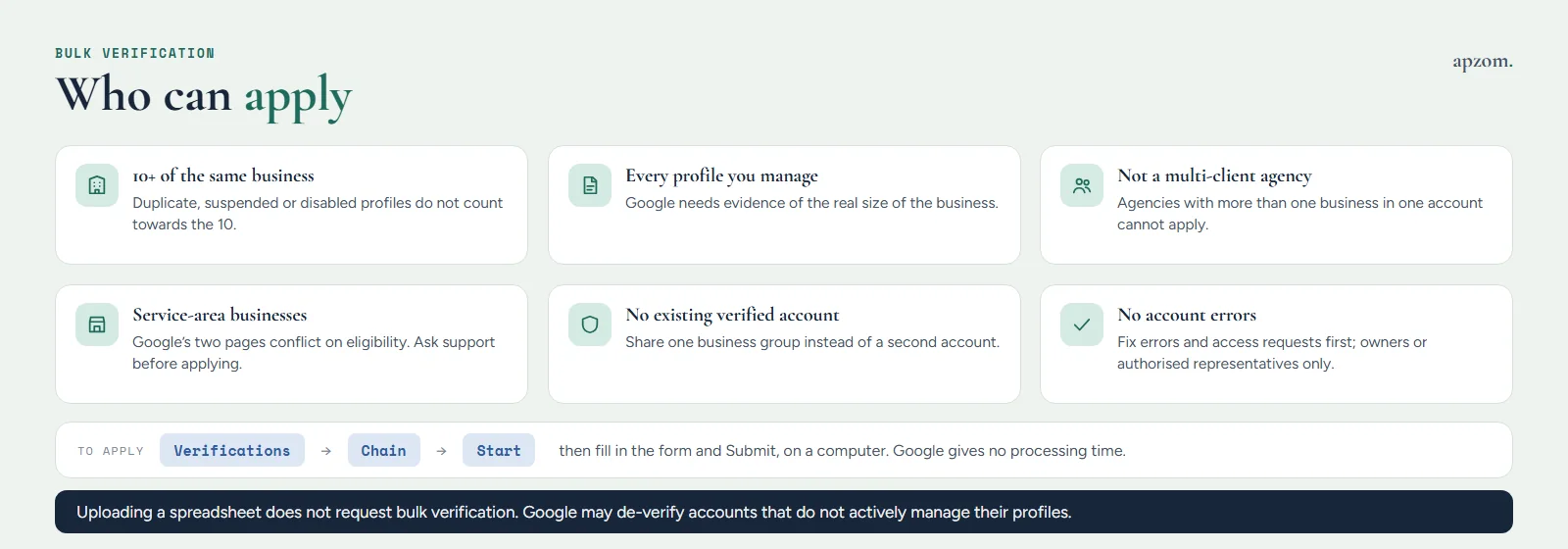
Google’s bulk verification page says you can apply when:
- Your spreadsheet has 10 or more profiles of the same business. Duplicate, suspended or disabled profiles do not count towards the 10.
- The spreadsheet includes every profile you manage. Google says it needs evidence of the size of your business and may ask for proof if your chain size differs from the number of profiles in your account.
- The account is not an agency holding several different businesses. Google says agencies “with more than one business in one account can’t bulk verify”.
- The business is not a service-area business. Google’s two pages conflict here: the bulk verification page says service-area businesses are not eligible, while its delays page says they may bulk verify only if their locations are also customer-facing during regular hours, cannot set service areas in the bulk tool, and otherwise should verify each location individually. If this is you, ask Business Profile support before applying.
- A verified account does not already exist for the business. Google says organisations should share one business group instead.
- Profiles already verified by someone else are requested through access requests first, and the account has no errors.
- Only the business owner or an authorised representative applies.
To apply, sign in to Business Profile Manager on a computer, select Verifications, then Chain, then Start, fill in the form and select Submit. If there is no Verifications tab, Google says you may not have enough eligible profiles, so verify each profile on its own instead. Google reviews the account, may ask for more information or for video verification with an authorised representative at a location, and emails a confirmation if it succeeds. It gives no processing time.
Once verified, new locations you add that nobody else owns will show on Google. It is not permanent: Google says it may de-verify accounts that do not actively manage their profiles, and revokes it for abuse.
Before you submit, check two things Google’s delays page flags: an email address on the business’s own domain, and names that contain only the business name.
Editing many locations at once
There are two bulk tools in Business Profile Manager: the spreadsheet for field changes and the Actions menu for status changes.
Field changes by spreadsheet. Download the latest data from your account rather than reusing an old file. Delete the columns you are not changing but keep the business code. Never leave a heading over empty cells: Google warns this deletes the existing information in that field. Upload, read the preview, then apply.
Status changes with Actions. Select the locations in the list, then Actions. From there you can mark them temporarily closed or permanently closed, transfer them to another group, or remove them (Remove businesses). Removing is not closing: Google says removal of a profile’s content and managers is permanent for all owners and managers, and the business may still show on Search and Maps afterwards. If a branch has shut, mark it closed instead. Our rule of thumb: download your current data from the account before any bulk change, so you have a copy of what was there.
For hours and holiday hours across branches, see our guide to changing business hours on Google. Large networks can also use Google’s Business Profile APIs.
After any bulk change, check the Status column. Errors, Duplicate locations, Access needed (another verified owner holds it) and Missing store codes each need action.
Openings, closures and moves
New openings
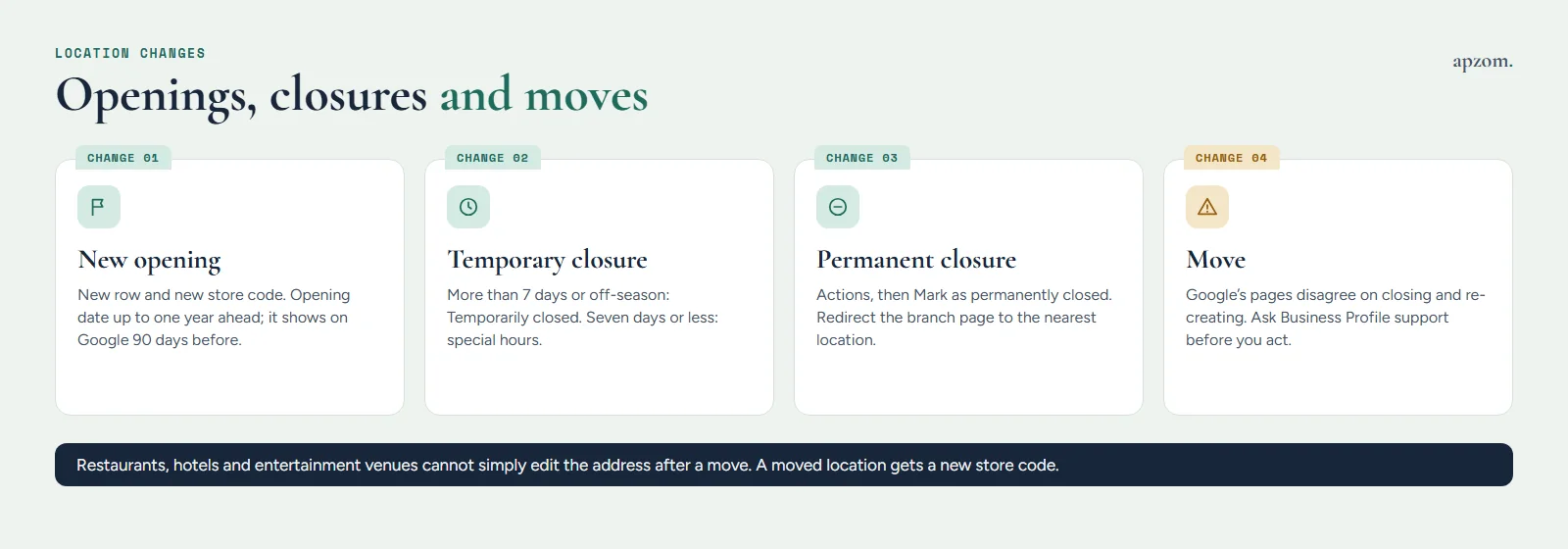
Add the location as a new row with a new store code. The spreadsheet’s opening date column takes a date up to one year ahead, written as YYYY-MM-DD or YYYY-MM, and Google says the date does not show on Google until 90 days before. Outside a bulk-verified account, verify the new profile on its own.
Temporary and permanent closures
Google says to use Temporarily closed when a location will be closed for more than 7 days, for the off-season or indefinitely, and special hours for shorter closures. For several locations, select them, then Actions, then Mark as temporarily closed or Mark as permanently closed, and confirm. A permanently closed profile may still appear when people search for it, clearly marked as closed. If a location was marked closed by mistake, it can be reopened.
On your website, redirect the closed branch’s page to the nearest location or your locations hub.
Moves
This is where Google’s own pages disagree, so check before you act. Google’s policy overview says that if a business has relocated, you “must mark the existing profile as permanently closed and create a new Business Profile at the new location”, and that address edits are rejected for businesses whose physical identity is tied to the customer experience, such as restaurants, hotels and entertainment venues. Google’s page on moving reviews says the opposite: “Do not create a new Business Profile because of a change in a physical location”, and if you move and keep the same name, reviews transfer automatically (although not always for categories such as hotels, golf courses and scenic attractions).
Our advice is to ask Business Profile support which route applies to your category before changing anything, and keep a note of the answer. If you do end up with a new profile, ask Google to move the reviews from the old one. Google’s spreadsheet help also says a location that moves should get a new store code; update your register to match.
Names, departments and practitioners across a chain
Google’s guidelines have a section for chains and brands.
- One name per country. Google says all locations in the same country must use the same name. Its example: “The Home Depot”, not “Home Depot” or “The Home Depot at Springfield”.
- Two exceptions. Sub-brands, departments or different types of operation (such as retail and wholesale) may use a distinct name if it is applied consistently to every location of that type. Locations that consistently use a different name on their storefront, website or stationery can use that name.
- One category per business type. All locations providing the same service share the one category that best represents the business; the rule applies within each sub-group if you run several types of location.
- No keywords or extras in names. No taglines, store codes, locations, opening hours, phone numbers or service descriptions. Google says unnecessary information in a name “could result in the suspension” of the profile. Our Business Profile optimization checklist lists the name rules for a single profile.
- One profile per location. Google says not to create more than one page for each location, “either in a single account or multiple accounts”.
Departments and practitioners. Public-facing departments that operate as distinct entities may have their own profiles, with a name and category different from the main business. Public-facing practitioners such as doctors and lawyers may too; support staff should not, and a solo practitioner at a branded location shares one profile named “[brand/company]: [practitioner name]”. Our guide to removing duplicate Business Profiles has a table of what Google allows.
Service-area businesses with several bases. Google allows one profile per location when each has its own service area and staff, not extra profiles to cover more towns, and says a service area should not extend farther than about two hours’ drive from the base. Hide the address if customers do not visit.
Give each location its own landing page
Google’s guidelines ask for “a website that represents your individual business location”, so each profile should link to that branch’s own page with matching name, address, phone and hours, not the home page. Our location pages guide explains what each page needs.
Add UTM parameters to each website link (utm_source=google, utm_medium=organic and a campaign per branch) so each location’s visits show separately in analytics; the spreadsheet’s Website column sets them all at once. Our guide to creating UTM links has a naming template.
Permissions hygiene: a quarterly access review
Access drifts as people and agencies change. Our rule of thumb is a short review every quarter.
- Two owners from the business on every business group, using business email addresses, so no single person can lock the company out.
- Agencies as managers, never as primary owners, added either to the group or only to the profiles they work on.
- Branch staff on their own profiles only, through People and access, rather than on the whole group.
- No shared logins. Google’s help says each user needs their own Google account, and Google Groups addresses cannot be added.
- Remove leavers the same week from Group settings, then Manage users, and from each profile’s People and access list.
- Compare with your register: same locations, same store codes, and a reason for every user.
Common mistakes
- Profiles spread across personal accounts. Move them into one business group owned by the business.
- Changing store codes in a spreadsheet. It creates duplicate locations; change them in Advanced settings instead.
- Uploading columns with empty cells. Google deletes the existing data in those fields.
- Letting spreadsheet software strip leading zeros. “0004” becomes “4” and Google sees a new location.
- Adding the city or a keyword to each name. Google’s chain rules say one name per country, and extra words risk suspension.
- Expecting a spreadsheet upload to verify locations. Bulk verification is a separate request with its own conditions.
- Sending every profile to the home page. Each location should link to its own page.
If a whole set of profiles has already been suspended, our guide to a suspended Google Business Profile covers appeals, including Google’s bulk reinstatement route.
How Apzom can help
Apzom Digital sets up and runs Business Profiles for multi-location businesses: moving scattered profiles into business groups, setting owner and manager roles, building the bulk spreadsheet with store codes and labels, preparing for bulk verification, aligning names and categories with Google’s chain rules, and connecting each profile to its own location page. We have not published a multi-location Business Profile case study yet, so we will not quote results we cannot show. See our local SEO services. We work with clients worldwide, remotely, from our base in Ahmedabad, India.
Get a Free Growth Audit of your Business Profile set-up. Send us your brand name, the number of locations and the countries you operate in. We send back a written plan: the group and access structure, a store-code and label scheme, the spreadsheet fixes and the order to apply them, with a quote if you want us to do the work.
No obligation, and no promised rankings or verification outcome: Google makes those decisions. Prefer to talk first? Contact us or read our location pages guide.
Frequently asked questions
How many locations do you need for bulk verification?
Google’s bulk verification page says 10 or more profiles of the same business, and duplicate, suspended or disabled profiles do not count towards the 10. With fewer, verify each location on its own.
Can I add the city name to each location’s business name?
Not if it is not part of your real-world name. Google says all locations in one country must use the same name, and gives “The Home Depot at Springfield” as an example of what not to do. Put the location in the address and on the location page instead.
Can an agency bulk verify locations for its clients?
Not for several different businesses in one account: Google says agencies with more than one business in one account cannot bulk verify. The business applies from an account holding only its own locations, and the agency can be added as a manager.