The short answer: A disapproved Google ad cannot show anywhere until the problem is fixed and the ad is reviewed again. To fix it, find the reason by hovering over the “Disapproved” status or adding the Policy details column. Then either edit the ad or landing page so it complies and save it, which resubmits it for review, or appeal if you believe the decision was wrong. Google says most ads are reviewed within one business day. The most common causes are a landing page that does not work, a mismatched URL, and editorial issues such as unusual capitalisation or punctuation.
This guide is for business owners and marketers running Google Ads who have an ad, asset or campaign marked “Disapproved” or “Eligible (limited)”. It follows Google Ads Help as checked in November 2026. Apzom Digital manages Google Ads, so read this knowing we have an interest. Most fixes take minutes once you know the reason.
What to take from this guide
- Read the policy reason first. Every disapproval names a policy, and the fix follows from it.
- Editing and saving resubmits the ad. You do not always need to appeal.
- Check the landing page as well as the ad. Many disapprovals are about the destination.
- Do not keep resubmitting the same thing. Google limits appeals, and repeated violations can lead to strikes.
What the statuses mean
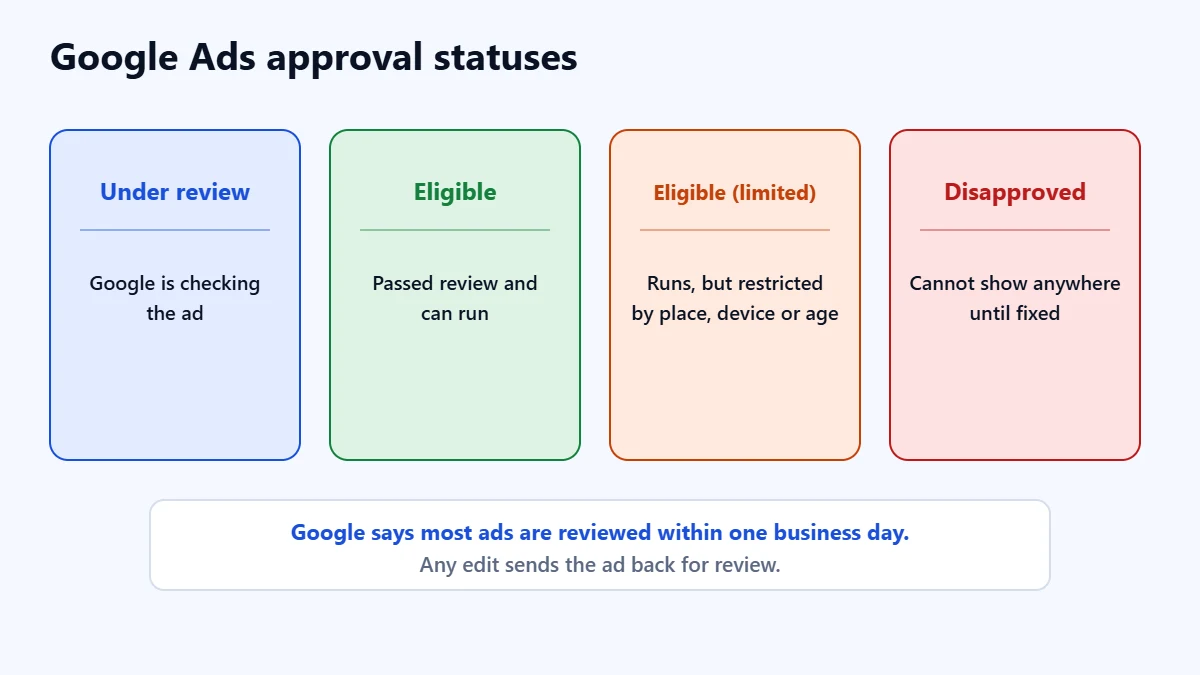
| Status | What it means |
|---|---|
| Under review | Google is checking the ad. Any edit restarts the review |
| Eligible | The ad passed review and can run |
| Eligible (limited) | The ad can run, but is restricted by location, device, age or your eligibility for a restricted category. This can apply to compliant ads too |
| Disapproved | The ad cannot show anywhere until the issue is fixed and it is reviewed again |
Google says most ads are reviewed within one business day, and some take longer. It suggests checking the status if an ad has been under review for more than two full business days, and contacting support after a week. If you have a launch date, submit ads several days in advance.
Step 1: find the reason
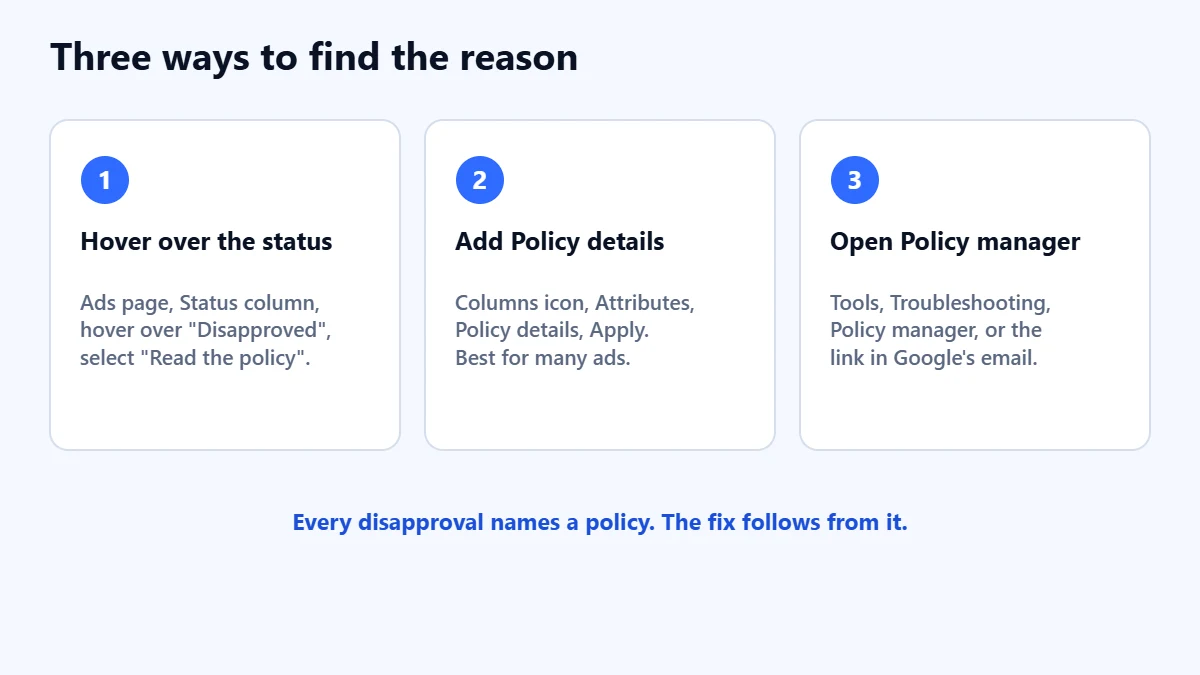
- Hover over the status. On the Ads page, hover over “Disapproved” in the Status column, then select “Read the policy”.
- Add the Policy details column. Select the columns icon above the table, expand Attributes, select Policy details and apply. This works on the Ads and Assets pages, and is useful when several ads are affected.
- Use Policy manager. From a disapproval email, select “View and fix policy issues”. You can also reach it from Tools, then Troubleshooting, then Policy manager.
Common causes and fixes
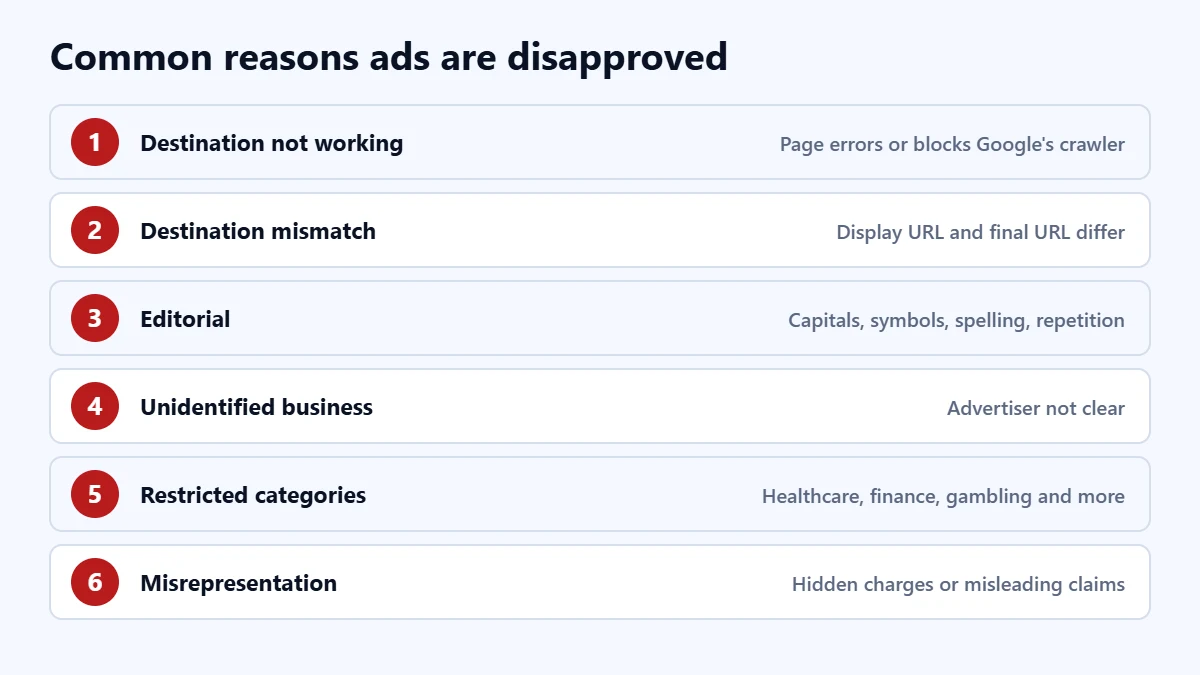
| Policy | What it usually means | What to check |
|---|---|---|
| Destination not working | The landing page does not load, returns an error, or fails for Google’s crawler on common devices | Open the final URL on mobile and desktop, check for errors, redirects and security tools blocking bots |
| Destination mismatch | The display URL domain does not match the final URL, or tracking redirects lead elsewhere | Make the display domain match the landing page domain, and test your tracking template |
| Editorial | Unusual capitalisation, repeated or gimmicky punctuation and symbols, spelling or spacing issues, or repetition | Rewrite in plain sentence or title case. Google gives “F-R-E-E” as an example of what not to do |
| Business name and unidentified business | The ad does not clearly show who is advertising | Use your domain, recognised business name or app name, with no promotional wording |
| Phone number in ad text | A phone number typed into a headline or description | Remove it and use a call asset instead |
| Restricted categories | Areas such as healthcare, financial products, gambling or alcohol | Check the specific policy. Some need certification or are limited by location |
| Misrepresentation | Missing or misleading information, such as hidden charges or unrealistic claims | Make offers, prices and terms clear on the ad and the landing page |
Google says its trademark policy applies only when a trademark owner has submitted a valid complaint. If you see a trademark restriction, the ad may be limited rather than disapproved, depending on the location.
In our experience, destination problems are the ones business owners most often miss, because the page loads fine for them. A firewall, a security plugin, a geo-block or a broken redirect can stop Google’s crawler while visitors see nothing wrong. Our guide to landing page best practices covers what a good destination needs.
Ads stuck in review or disapproved? Ask for a Free Growth Audit. We check your policy issues, landing pages and account setup, and tell you what to fix first.
Step 2: fix it or appeal
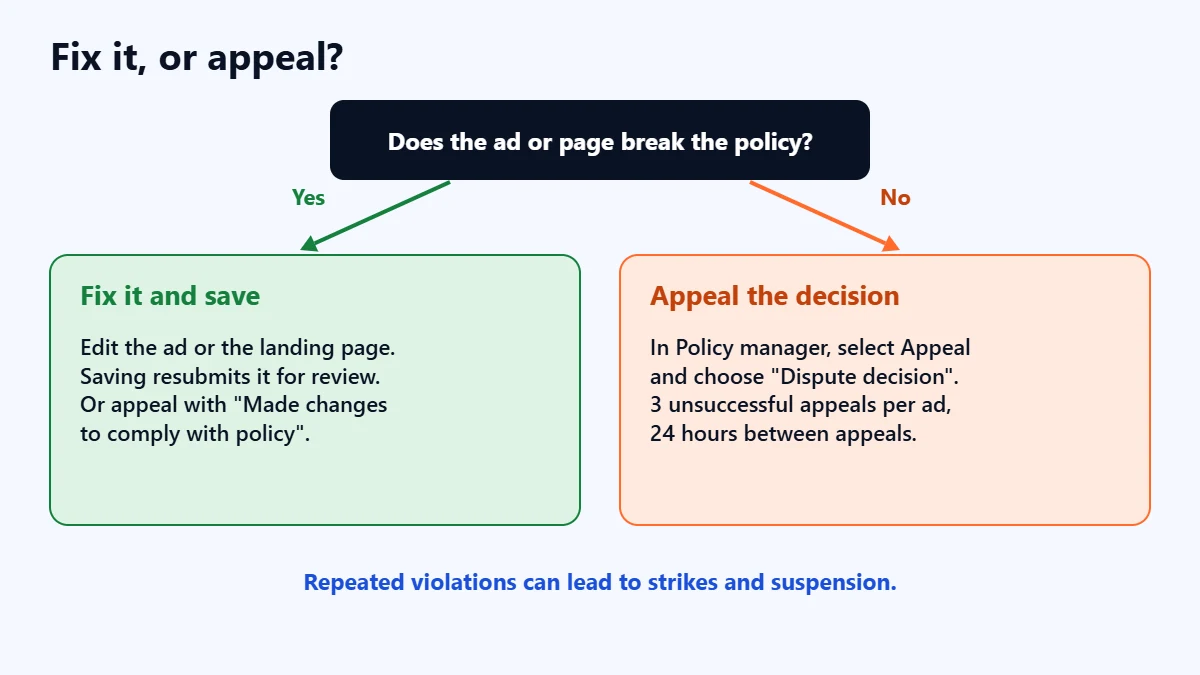
If the ad breaks the policy, edit it. On the Ads page, hover over the ad, select Edit, make the change and save. Google says saving resubmits the ad for review. If the problem is the landing page, fix the page, or point the ad to a page that complies.
If you have fixed it or believe the decision was wrong, appeal. In Policy manager, open the Policy issues tab, select Appeal on the ad, choose a reason and submit. Google offers two reasons: “Dispute decision”, when you think the review was wrong, and “Made changes to comply with policy”, when you have fixed it. You can track appeals in the Appeal history tab.
Google sets limits on appeals:
- Each ad gets three unsuccessful appeals, after which you need customer support.
- Wait at least 24 hours between appeals on the same ads.
- Appealing very large numbers of ads at once can slow the review.
- In-account appeals are not available for decisions more than six months old. Contact support for those.
If an appeal fails or is marked a duplicate, Google suggests not resubmitting it unchanged. Instead, make a small edit to the ad text or final URL and save it, which triggers a new review.
Strikes and suspension
Most disapprovals affect only the ad. Repeated violations are treated more seriously. Google issues strikes for repeated violations of certain policies, with penalties increasing with each strike up to account suspension, and a maximum of three strikes per policy. For egregious violations, which Google describes as unlawful or causing significant harm, it suspends accounts immediately without warning. For other suspensions it gives at least seven days’ warning first. A suspended account stops all ads, and related accounts can be suspended too.
In our judgement, that is the main reason not to keep resubmitting the same ad and hoping. Fix the underlying issue first. Our Google Ads audit checklist covers the rest of the account.
Frequently asked questions
How long does it take for Google to review an ad?
Google says most ads are reviewed within one business day, and some complex reviews take longer. It suggests contacting support if an ad has been under review for more than a week.
My ad was approved before. Why is it disapproved now?
Google says it can re-review ads that were already approved, and that editing an ad sends it back for review. In our experience, a changed landing page is another common trigger. Check the policy reason and the landing page.
What does “Eligible (limited)” mean?
The ad can run, but not everywhere or to everyone, because of a policy that restricts it by location, device, age or category. It is not a disapproval.
My ads are approved but not showing. Is that a policy problem?
Not necessarily. Budget, bids, targeting and keywords can also stop ads showing. Our guide to Google Ads not getting impressions covers those checks.
Get your Free Growth Audit and Quote. We review your Google Ads account, policy issues and landing pages, then send a plain-English list of what we would fix first.
No obligation and no guaranteed results. Prefer to talk first? Contact us or see our Google Ads management service.