
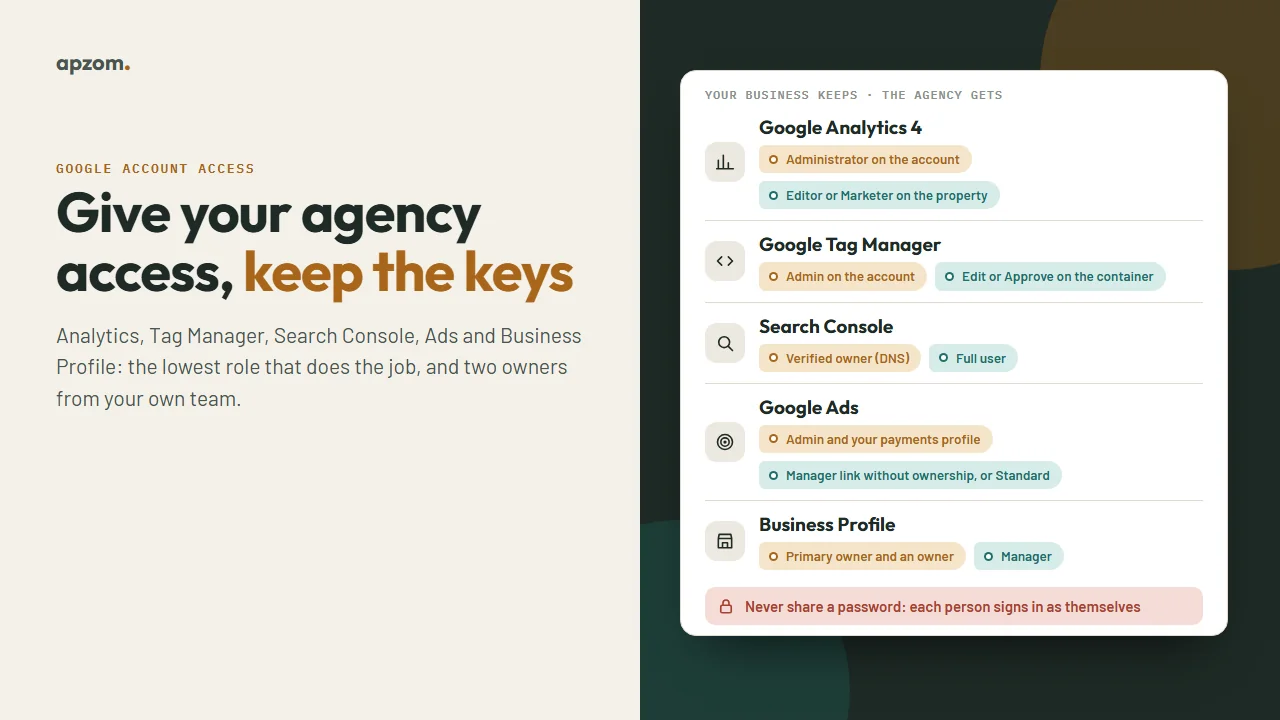
The short answer: To give an agency access to Google Analytics and your other Google marketing accounts without losing control, keep every account in a Google account your business owns, then invite the agency’s own email addresses at the lowest role that lets it do the work. In practice that means Editor or Marketer on your GA4 property, Edit or Approve on your Tag Manager container, Full user in Search Console, a manager account link without ownership (or Standard access) in Google Ads, and Manager on your Business Profile. Keep the top role on each platform (Administrator, Admin, Owner, primary owner) with at least two people inside your business, keep Google Ads billing in your business’s name, and never share a password.
This guide is for business owners and marketing managers anywhere in the world who are hiring an agency or freelancer, or checking that an existing set-up leaves them in charge. It covers Google Analytics 4, Google Tag Manager, Search Console, Google Ads and Google Business Profile on one page: the role to give, the role to keep, the menu names and what to do when you part ways. We checked the roles, menu names and rules against Google’s own help centres on 21 November 2026. Google renames menus from time to time, so look for the nearest match.
The rule behind all five platforms: you own, the agency is a guest
On every Google marketing product, access is given to a Google account (an email address), not to a company, and whoever holds the top role can add and remove everyone else. So settle four questions before you invite anyone.
- Who holds the top role? At least two people inside your business, signed in with Google accounts your business controls (a Google account can use a work email address). If one person’s personal account is the only owner and that person leaves, so does your access.
- Does the agency sign in as itself? Each agency staff member, or the agency’s manager account in Google Ads, should have its own access. Never give an agency your password. A shared login hides who changed what, and you cannot remove one person without changing it for everyone.
- Is each role the lowest one that does the job? Google Ads Help puts it plainly: “Grant the minimum access needed for each user”. The same principle applies to every product here.
- Can you remove the agency in one sitting? If that depends on the agency co-operating, the set-up is wrong.
These are the same principles as our guide to giving an agency access to your Meta business portfolio, where the agency is a partner, not an owner. Google has no single partner screen, so you repeat the check on each product.
The least-privilege map: what to give on each platform
The sections below explain each line.
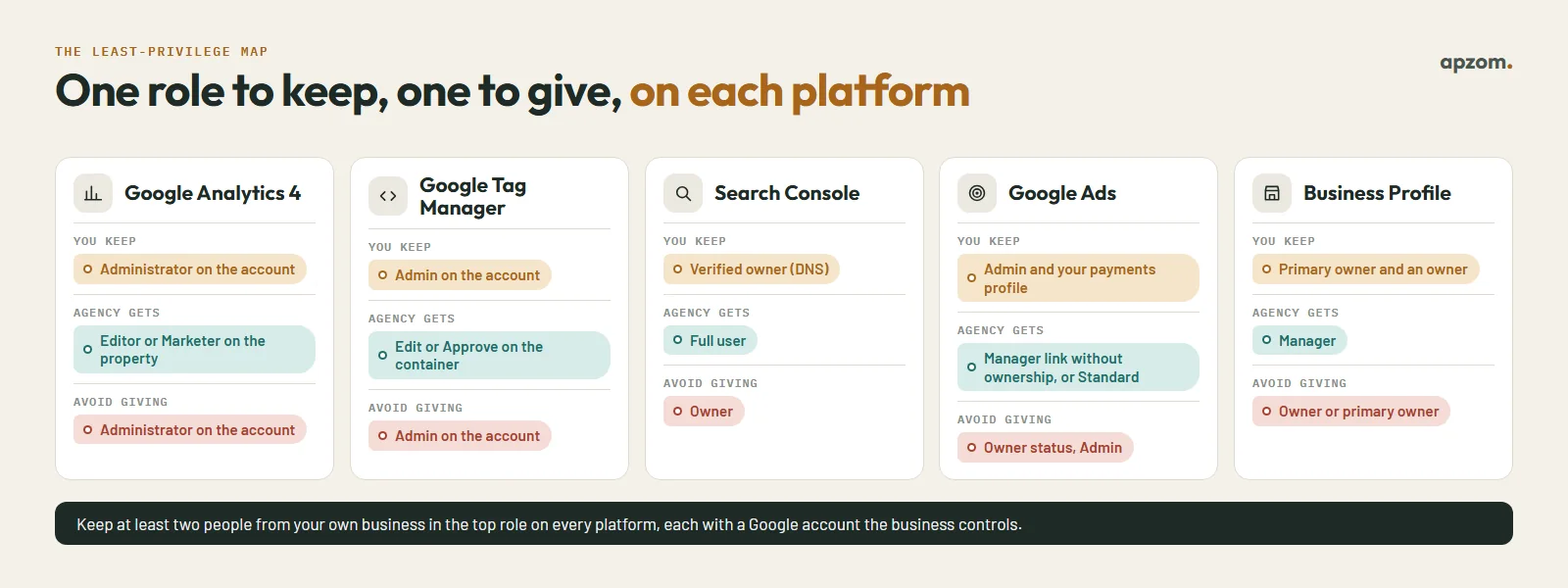
| Platform | Your business keeps | Usually give the agency | Avoid giving |
|---|---|---|---|
| Google Analytics 4 | Administrator on the account (two people) | Editor or Marketer on the property | Administrator on the account |
| Google Tag Manager | Admin on the account (two people) | Edit or Approve on the container, Publish only if it runs your tracking end to end | Admin on the account |
| Search Console | Verified owner, ideally on a Domain property verified through DNS | Full user | Owner |
| Google Ads | Admin access and a payments profile in your business’s name | A link from its manager account without ownership, or Standard access | Owner status for its manager account, Admin access |
| Google Business Profile | Primary owner and a second owner | Manager | Owner or primary owner |
Write down who has what in a one-page access register (platform, person, email, role, date added, date to review); it makes parting ways easier. That register is our rule of thumb, not a Google requirement.
Google Analytics 4: account vs property, roles and data restrictions
GA4 has two levels where you can add people: the account (usually one per business) and the property (usually one per website or app). According to Google Analytics Help, adding someone at the account level gives them access to every property in that account with the same permissions, while adding them at the property level gives access only to that property. Roles are inherited downwards, and a person’s effective role is the most permissive one they hold at any level. You cannot give someone less access on a property than they already have on the account.
So an agency usually belongs on the property it works on, not the account.
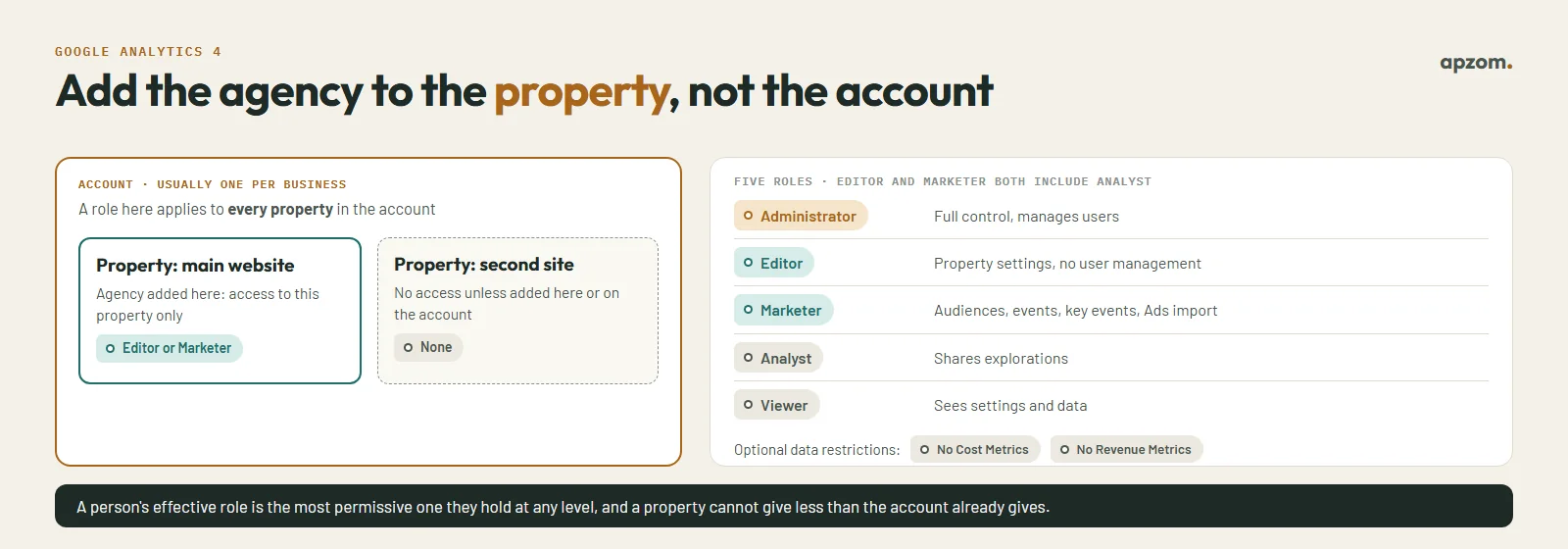
The five GA4 roles
| Role | What Google says it can do | Give it to |
|---|---|---|
| Administrator | “Full control of Analytics”, including adding and deleting users and assigning any role | Two people inside your business |
| Editor | “Full control of settings at the property level”, but cannot manage users | An agency that configures the property: data streams, retention, filters, links |
| Marketer | Can create, edit and delete audiences, events and key events, and import key events into Google Ads | An agency that runs ads and audiences but should not change property settings |
| Analyst | Everything a Viewer can do, plus sharing explorations with other users of the property | A consultant who only analyses and shares reports |
| Viewer | “Can see settings and data”, and build its own explorations | An auditor, a board member, a reporting tool |
Roles build on each other, but not in a straight line: Editor and Marketer each include everything an Analyst can do, Analyst includes Viewer, and Administrator includes Editor. Marketer does not include Editor’s property settings. Anyone with no role on a property shows as None there. Editor on the property suits most agencies doing set-up or tracking work; Marketer often suits one that only runs Google Ads. Keep Administrator in-house: an Administrator can remove you.
Data restrictions: hide cost and revenue
GA4 offers two data restrictions you can add on top of a role: No Cost Metrics (“Cannot see metrics related to cost”) and No Revenue Metrics (“Cannot see metrics related to revenue”). They suit a freelancer who needs traffic data but not sales figures. Google’s caveat: people may not be subject to them if their Analytics permissions come from another Google product linked to Analytics.
How to add an agency to GA4
- In GA4, open Admin. Under Property, choose Property access management (or under Account, choose Account access management if you really need account-level access). Some help pages call both screens “Access management”.
- Click the + button, then Add users.
- Enter the agency person’s Google account email address. Google can only add an email that is registered as a Google account.
- Tick Notify new users by email if you want Google to tell them.
- Choose the role and any data restriction, then click Add.
Deleting a user needs the Administrator role at the account level. Our guide to setting up Google Analytics 4 covers the rest of the property settings.
If the agency created your GA4 property in its own account
Google lets you move a property to another account, but the person moving it needs the Administrator and Editor roles on both accounts. Create your own GA4 account, then either you or the agency (with the right roles on both) uses Admin, Property details, Move property. Choose to replace the existing property permissions with your account’s permissions if you want the agency’s old users gone. A property linked to Google Ad Manager must be unlinked first.
Google Tag Manager: account and container permissions
- Account permissions are either User (the default, which can view basic account information) or Admin (which can create containers and change account and container permissions).
- Container permissions control what someone can do inside one container: No access, Read (view tags, triggers and variables), Edit (create workspaces and make edits, but not create versions or publish), Approve (create versions too, but not publish) and Publish (everything, including publishing to your live site).
For an agency, the usual answer is account User plus container Edit or Approve, so that someone at your business presses Publish after checking the change in Preview mode. If the agency is responsible for your tracking end to end and you have no one to review changes, Publish is reasonable, but keep account Admin in-house either way. An account Admin can change everyone’s permissions, including yours.
To add someone, go to Admin, then User Management: use the one in the Account column for account access, or the one in the Container column for container access. Google’s Tag Manager Help asks you to “Make sure that there are at least 2 active administrator accounts”: Tag Manager will not let you remove every admin, but cannot stop you losing the only one if that Google account is deleted.
If your container lives in the agency’s Tag Manager account, ask for one of your people to be made an Admin of that account. Otherwise rebuild from a copy: Admin, then Export Container in the agency’s account downloads a version as a file; Admin, then Import Container loads it into a new container in your own account. Then swap the container code on your website. Our Google Tag Manager for beginners guide explains installing a container and the Preview and Publish workflow.
Not sure who owns your Google accounts? Ask for a Free Growth Audit. We check who holds the top role in your GA4, Tag Manager, Search Console, Google Ads and Business Profile, who else has access and at what level, and tell you what to fix first.
Search Console: owners, full users and restricted users
Google’s Search Console Help defines three permission levels:
- Owner: “Has full control over properties in Search Console”, including adding and removing users, configuring settings and using all tools. Only owners can add users or link a Google Analytics property.
- Full user: “Has view rights to all data and can take some actions”, such as submitting sitemaps, validating fixes and requesting removals.
- Restricted user: “Has simple view rights on most data”, with view-only access to most tools.
There are two kinds of owner.
- A verified owner proved ownership with a verification token: a DNS record, an HTML file or tag on the site, or the site’s Google Analytics or Tag Manager code. The token is tied to that person’s Google account.
- A delegated owner was given owner status by another owner, without a token of their own.
For an agency, Full user is almost always enough: it can see every report and do the day-to-day work. Make it an owner only if it must add users or change settings, and never let the agency be the only verified owner. If every verified owner loses verification, Google says all remaining users and delegated owners lose access after a grace period.
Set up your own verified ownership first
The safest set-up is a Domain property verified by someone at your business through a DNS record at your domain registrar. Google says DNS “is the only way to verify a Domain property”, and a Domain property gathers data for all subdomains and protocols of your domain. Google also checks verification periodically, so the record must stay in place: “To stay verified, don’t remove the DNS record from your provider, even after verification succeeds.” If several people verify, each has their own token, so do not overwrite another owner’s token when you add yours.
How to add the agency
- Open the property, then Settings, then Users and permissions. Only owners see this screen.
- Click Add user, enter the agency person’s Google account email, choose Full or Restricted, and save.
- To change a level later, open the More settings menu (three dots) next to the person and choose Change permissions. If that option is greyed out, the person is a verified owner, whose access you can remove but not downgrade.
See our guide to using Google Search Console for the reports.
Google Ads: manager account link vs inviting users
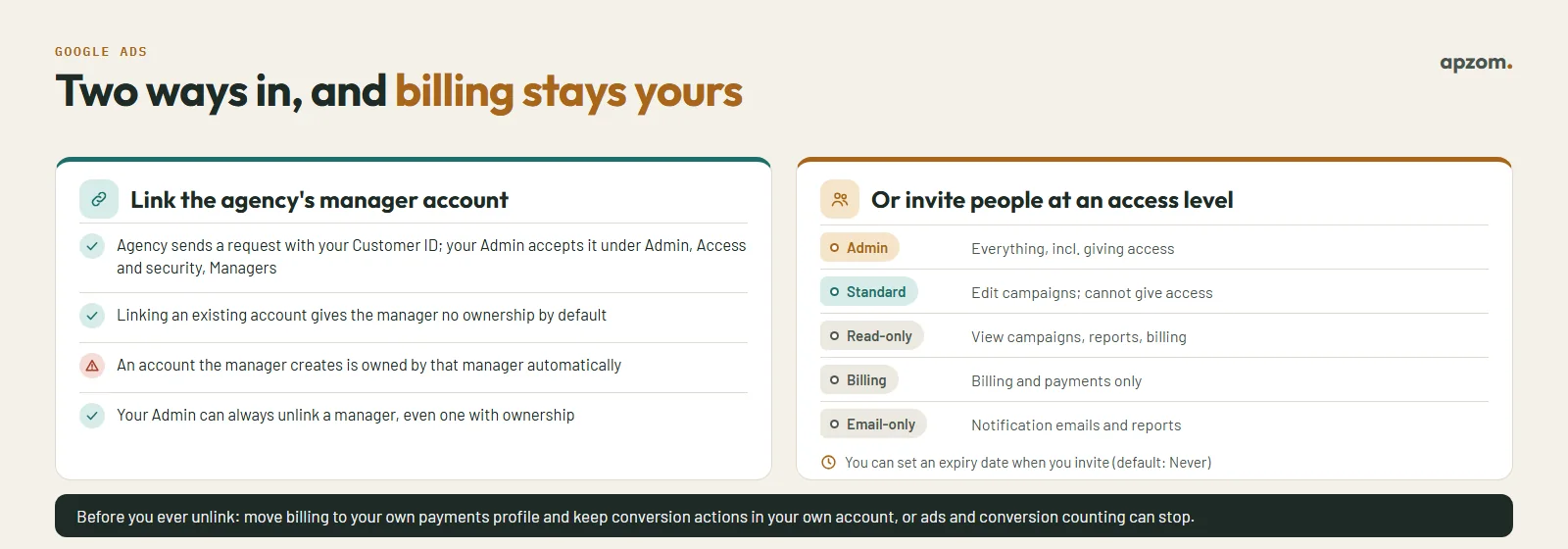
| Question | Link to the agency’s manager account | Invite agency staff as users |
|---|---|---|
| What happens | The agency sends a link request from its manager account; your Admin accepts it | You invite each person by email at an access level |
| Ownership | None by default for an existing account; you can choose to make the manager the owner | Not applicable |
| Ending it | Unlink the manager account | Remove each person |
| Best for | Agencies that manage several clients | Freelancers and in-house staff |
Linking to a manager account
A manager account is the agency’s own account for managing clients. To link, the agency signs in to its manager account, opens Accounts, then Sub-account settings, clicks the + button, chooses Link existing account and enters your Customer ID. You accept in your own account under Admin, then Access and security, then the Managers tab, where the Actions column lets you accept or decline.
Ownership is the detail to watch. Google Ads Help says that if a manager links an existing account, “it won’t have ownership of that newly linked client account by default”, but “If a manager creates a new account, the manager will automatically become the owner of that account.” An owner manager gets full administrative access and can remove users from your account and unlink other managers. A client account can only have one owner. You can see and change this in the Owner column on the Managers tab.
So: create the Google Ads account yourself, from your business’s Google account, and then accept the agency’s link request. Leave the Owner column at No unless you have a specific reason. If the agency’s manager account already owns your account, Google says client account users “can always unlink a manager with ownership”, provided someone at your business has Admin access.
The five Google Ads access levels
| Access level | What it can do | Typical use |
|---|---|---|
| Admin | Everything, including giving access, changing access levels, managing product links and accepting manager link requests | Two people inside your business |
| Standard | Edit campaigns and billing information, create conversions from Google Analytics key events; cannot give access or manage product links | An agency or freelancer running the campaigns |
| Read-only | View campaigns, reports and billing, use planning tools; no edits | An auditor or a second-opinion review |
| Billing | View and edit billing information, add or edit forms of payment, edit the payments profile; no campaign access | Your finance team |
| Email-only | Receive notification emails and reports | A manager who wants the monthly report |
To invite someone, go to Admin, then Access and security, click the + button, enter the email address, choose an access level and click Send invitation. Google also lets you set an expiry date when you invite someone (the default is “Never”), which suits a one-off audit or a short project; the person is removed automatically when the date passes.
Who owns billing
Google Ads billing runs through a payments profile, which names “the person or company legally responsible for the profile”. Make sure that is your business, with your payment method. Some agencies pay clients’ bills through their manager account on monthly invoicing; Google Ads Help warns that if the agency’s manager is the paying manager and you unlink it, your account stops serving. Move billing to your own payments profile before you ever unlink. Our Google Ads audit checklist includes ownership and billing checks you can run today.
Check where your conversions are counted
If the agency set up conversion tracking in its manager account rather than in yours (cross-account conversion tracking), Google says the tag stops recording conversions from new clicks once you unlink, and remarketing lists that rely on the manager’s shared tag stop filling. Ask now where your conversion actions live, and have them created in your own account before you part ways.
Google Business Profile: owners, managers and primary ownership
A Business Profile can have several owners and managers, but only one primary owner. Google Business Profile Help describes the difference like this:
- Owners have full control: they can add or remove users, manage all profile information and remove the profile.
- Managers can edit business information, post, add photos and reply to reviews, but cannot add or remove users or remove the profile.
An agency doing local SEO or review replies needs Manager, nothing more. Keep primary ownership with your business.
How to add a manager
- Sign in at business.google.com and open your Business Profile.
- Select More, then Business Profile settings, then People and access.
- Select Add, enter the email address, choose Manager under Access, and select Invite.
New owners and managers wait seven days before some features open up: during that time they cannot delete the profile, remove other owners or managers, or transfer primary ownership. So add your own second owner at least a week before you need to change anything.
Transferring primary ownership
Only the primary owner can transfer primary ownership, and only to someone who is already an owner or manager. Open People and access, select the person, select Edit next to Access, choose Primary owner and select Save. A primary owner cannot remove themselves until they have transferred primary ownership.
If an old agency holds primary ownership and will not hand it back, go to business.google.com/add, find your business, select Request Access and complete the form. Google says the current owner has three days to respond; after that you may be able to claim the profile, though not always. Our Business Profile optimisation checklist covers the profile itself.
The data your agency sees is still your responsibility
These accounts can hold personal data about your customers, and an agency with access usually processes it on your behalf. In the EU and UK, Article 28(3) of the GDPR and the UK GDPR says processing by a processor “shall be governed by a contract or other legal act”, which in practice means a written data processing agreement. The US, Canada, Australia, the UAE and India have their own privacy laws, so check what applies to you. This is general information, not legal advice.
When you part ways: the offboarding order
Remove access in the right order, or you can switch off your own ads or tracking by accident.
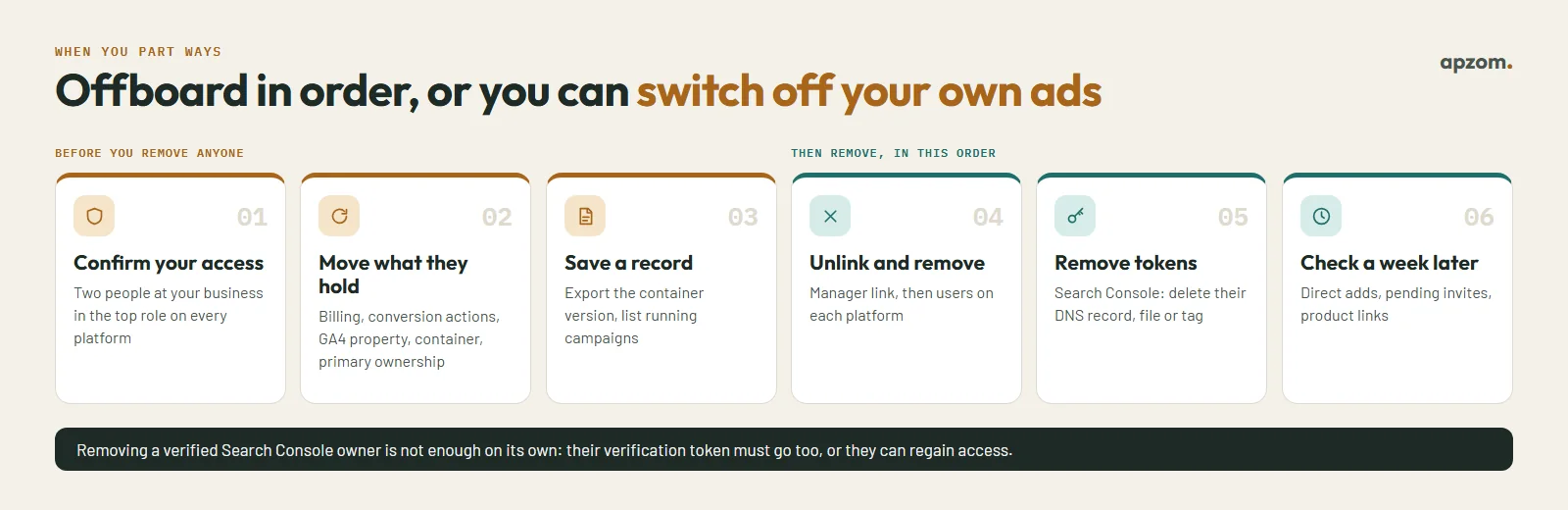
- Confirm your own access first. Check that two people at your business hold the top role on every platform: Administrator in GA4, Admin in Tag Manager and Google Ads, verified owner in Search Console, primary owner and owner in Business Profile.
- Move anything the agency holds. Billing to your payments profile, conversion actions into your Google Ads account, the GA4 property into your account, the Tag Manager container into your account, primary ownership of the Business Profile to your business.
- Save a record. Export the current Tag Manager container version, note the campaigns that are running and decide which should keep running.
- Unlink and remove. In Google Ads, Admin, Access and security, Managers, then Remove access and confirm Unlink; remove invited agency users with Remove access in the same screen. In GA4, Property access management (and Account access management, if the agency was added there), tick the agency’s users and click Remove. In Tag Manager, User Management, then Remove for each agency user. In Search Console, Users and permissions, then Remove access. In Business Profile, People and access, select the person, then Remove person.
- Remove verification tokens. In Search Console, removing a verified owner is not enough on its own: delete their DNS record, HTML file or tag too, or they can regain access.
- Check again a week later. Look for anyone added directly, for pending invitations, and for product links (such as GA4 to Google Ads) that point to the agency’s accounts.
Common mistakes
| Mistake | Why it hurts | Fix |
|---|---|---|
| The agency created your Google Ads account from its manager account | Its manager account owns your account automatically | With Admin access at your business, ask the agency to turn ownership off, or unlink its manager account |
| Agency given Administrator on the GA4 account | It can remove your users and sees every property | Downgrade to Editor or Marketer on the one property it works on |
| The agency is the only verified owner in Search Console | If its token goes, everyone loses access after a grace period | Verify a Domain property yourself through DNS |
| Billing through the agency’s manager account | Ads stop when you unlink | Move billing to your own payments profile first |
| Removing access before moving conversion tracking | New conversions stop being counted in your account | Create conversion actions in your own account, then unlink |
How Apzom can help
Apzom Digital works inside accounts our clients own. We ask to be added at the lowest role the work needs, and to link Google Ads through our manager account without ownership, so you can remove our access at any time. We have not published an account-access or onboarding case study yet, so we will not show you figures we cannot prove. If your set-up is unclear, we can map who owns and who can access each account. See our digital marketing services and Google Ads management pages for how we work. We work with clients worldwide, remotely, from our base in Ahmedabad, India.
Get a Free Growth Audit and Quote. Tell us which Google accounts your business uses and who manages them today. We send back a plain-English access map: what your business owns, what each agency or freelancer can do, what should move into your name, and the safest order to change it.
No obligation, and you stay the owner throughout. Prefer to talk first? Contact us or see our Google Ads audit checklist.
Frequently asked questions
What access does an agency need in Google Analytics 4?
Usually Editor on the property it works on, or Marketer if it only manages audiences, key events and their import into Google Ads. Add it under Admin, then Property access management. Keep Administrator for at least two people at your business.
Can an agency own my Google Ads account?
It can if it created the account from its manager account, or if you set its manager account as the owner. A manager account that links to an existing account gets no ownership by default. Either way, someone at your business with Admin access can always unlink the manager account.
How do I give temporary access for an audit?
In Google Ads, invite the auditor at Read-only access with an expiry date. In GA4, give Viewer on the property, with No Cost Metrics or No Revenue Metrics if needed. In Search Console, add a Restricted user. Remove them when the audit ends.