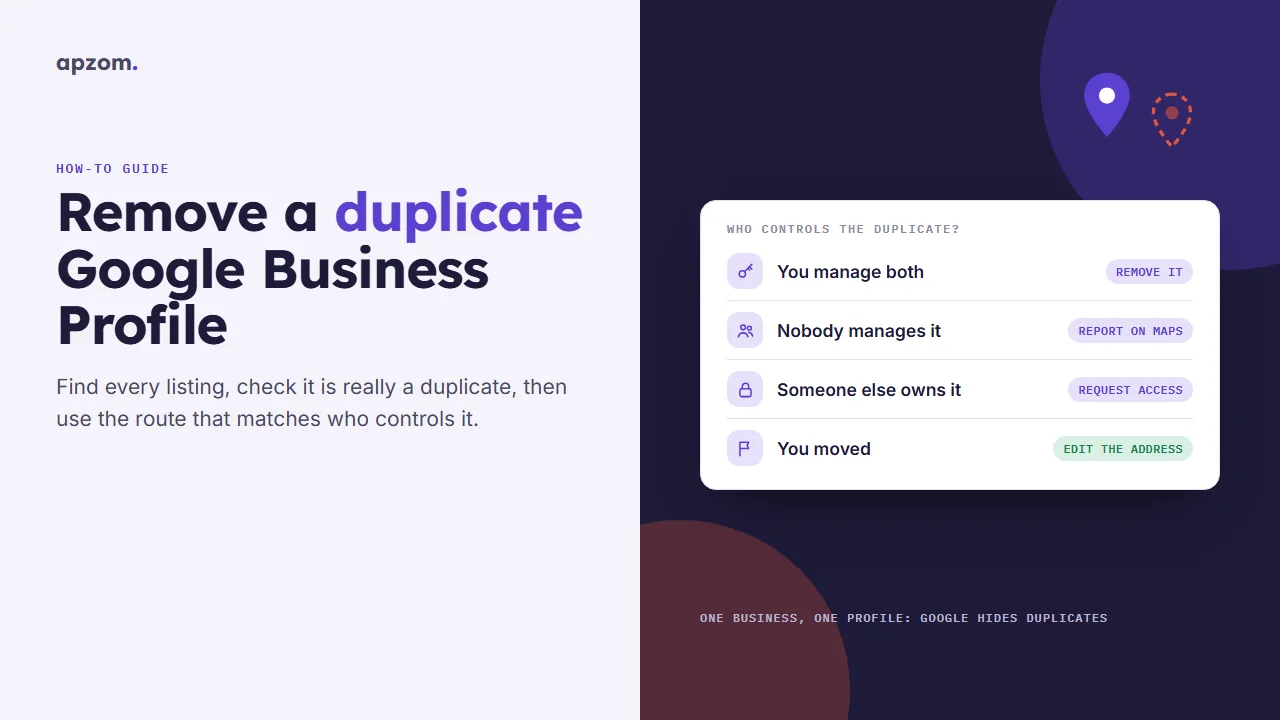
The short answer: How you fix a duplicate Google Business Profile depends on who controls the extra listing. If you manage both profiles, remove the duplicate from your account (this ends your management, but it may stay on Maps) and keep the verified one. If nobody manages the duplicate, open it on Google Maps, select Suggest an edit > Place closed or not here > Duplicate of another place, and Google will review a merge. If someone else owns it, use Request Access first. And if you moved, never create a new profile: edit the address on the one you have. Google says each business can have only one profile, and a profile it treats as a duplicate won’t show on Search or Maps.
This guide is for owners, managers and agencies anywhere in the world who have found two (or more) Google listings for one business or one location. It follows Google’s Business Profile Help pages and guidelines as we checked them on 16 November 2026, including “Resolve duplicate profiles & ownership issues”, which is now Google’s main page on the subject. Google changes button labels from time to time, so if one differs slightly, look for the nearest match.
Why a duplicate listing is worth fixing
A second listing for the same business causes problems on both sides:
- The duplicate can be the one people see. An old listing with a previous phone number or address can sit on Maps while your verified profile does the work, and customers call the wrong number or drive to the wrong place.
- Your reviews and activity are split. Reviews left on the extra listing stay on that listing. Google can combine reviews when it merges duplicates, but only through a merge request it accepts.
- Google may hide one of them. Google’s page says a profile it treats as a duplicate “won’t show on Google Search or Maps”. You want that to be the extra listing, not your verified profile.
- It breaks Google’s rules. The guidelines for representing your business say: do not create more than one page for each location, “either in a single account or multiple accounts”.
Step 1: find every listing for your business
Before you remove anything, list every version Google holds. Duplicates often have a slightly different name or an old address, so searching by name alone misses some.
- Search Google Maps for your business name, then your name plus your city.
- Search Maps for your phone number, including any old numbers the business has used.
- Search for your street address, and any previous addresses.
- If nobody can sign in to the account that verified the business, use Google’s Accounts troubleshooter first.
- Check your own Business Profile account for profiles you or a colleague created by mistake. In Business Profile Manager, an agency or multi-location account may hold profiles in business groups (Google’s current name for shared groups of profiles).
- For each listing you find, copy its Google Maps link into a short table: name, address, phone, number of reviews, and whether it shows a Claim this business link (in our experience, a common sign that nobody manages it).
Pick the keeper: normally the verified profile with the correct name, address and phone number. If the duplicate has more reviews but wrong details, still keep the correct, verified profile and ask Google to merge the other one into it (Step 3, route B), because a merge is the only route Google describes that combines reviews.
Step 2: check it is really a duplicate
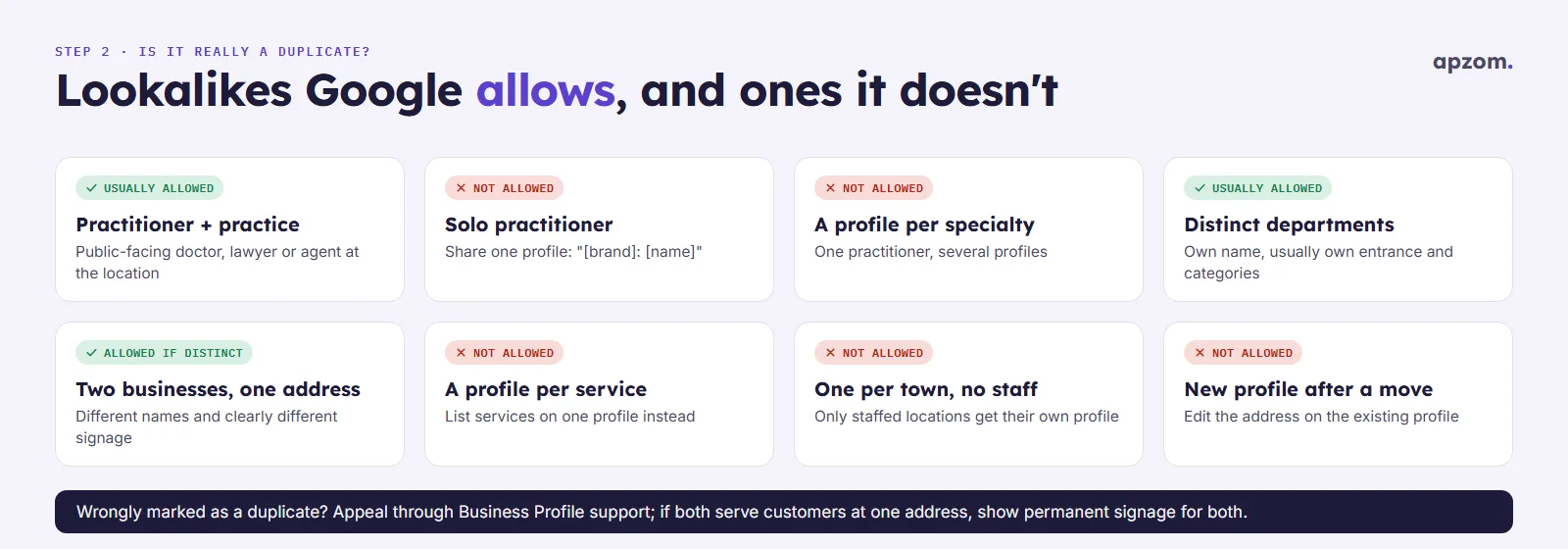
Some listings look like duplicates but are allowed. Removing or reporting one of these can take down a listing that belongs there. Google’s guidelines allow these:
| What you see | Allowed? | What Google’s guidelines say |
|---|---|---|
| A practice profile and a profile for each doctor, lawyer or agent | Usually yes | Public-facing practitioners who can be contacted at the location during its hours may have their own profile. Support staff should not. |
| A practice profile and a profile for its only practitioner | No, share one | A solo practitioner who represents a brand should share one profile, named “[brand]: [practitioner name]”, for example “Allstate: Joe Miller”. |
| One practitioner with a profile per specialty | No | A practitioner shouldn’t have several profiles to cover their specialties. |
| Separate departments (a hospital department, a car dealer’s service centre) | Often yes | Departments that operate as distinct entities can have their own profile with a different name, usually their own entrance and categories. Car dealers may have sales, parts and service profiles; only new-car dealers may add one per brand. |
| Two different businesses at one address (a restaurant inside a hotel) | Yes | Each needs a different name and clearly different signage, and each must be eligible. |
| One profile per service (“Plumbing”, “Drain cleaning”) | No | List the services on one profile. Google names this as a reason a profile is marked duplicate. |
| A service-area business with one profile per town | No, unless staffed | One profile per separate location that has its own staff and service area is allowed. Extra profiles just to cover more areas are not. |
| A new profile created after the business moved | No | Google says not to create a new profile after a move: update the address on the existing one. |
If a listing is not really a duplicate but Google has marked yours as one, Google’s page says you can contact Business Profile support to appeal. Both businesses must be eligible and distinct, and if both serve customers at the same location, you need evidence of permanent signage for both.
Step 3: choose your route by who controls the duplicate
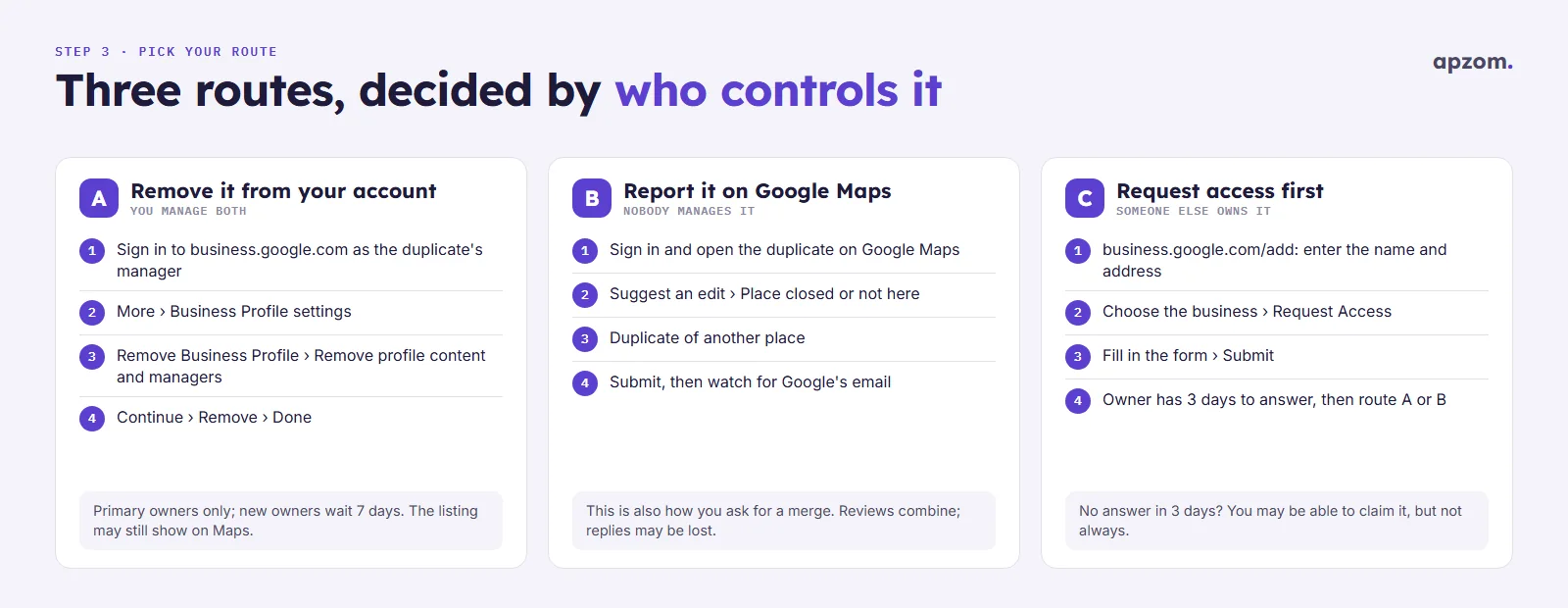
Everything depends on one question: who manages the extra listing?
Route A: you manage both profiles
If the duplicate has reviews you want to keep, do not start with removal: use route B to ask Google to merge it into your verified profile instead.
Otherwise, this is the easiest case. Google says that if you verified one profile and created a duplicate by mistake, you can remove the duplicate without affecting the verified listing. On a computer:
- Go to business.google.com and sign in with the account that manages the duplicate.
- Open the duplicate profile and select the More icon > Business Profile settings.
- Select Remove Business Profile > Remove profile content and managers.
- Select Continue > Remove > Done.
Before you start, check three rules from Google’s page on removing a profile:
- Only a primary owner can do this. If you were made an owner recently, Google says new owners and managers must wait 7 days before they can remove profile content or managers.
- It deletes the owner’s content. Posts, photos, videos and review replies added by owners and managers are permanently deleted for everyone, and cannot be recovered. Customer reviews and other user content stay.
- It does not take the place off Maps. Google says that after removal, the business “may still appear on Search and Maps” unless it is ineligible. Removing the profile from your account takes away management, not the listing. To get it off Maps as well, follow route B.
Managing many locations? Google’s page also describes a bulk path in Business Profile Manager: select the profiles > Actions > Remove businesses > Remove. And if you only want to step away yourself, you can remove just your own access without deleting the profile’s content or other managers; a primary owner should transfer primary ownership first.
Not sure which listing to keep, or who controls the duplicate? Ask for a Free Growth Audit. We find every Google listing for your business, check which ones Google’s guidelines allow, and tell you which route to use for each before anything is removed.
Route B: nobody manages the duplicate
If no one manages the extra listing, report it on Google Maps. Google’s Maps Help gives one set of steps for the website and the app:
- Sign in to your Google Account and open Google Maps.
- Search for the duplicate listing and open it.
- Select Suggest an edit > Place closed or not here.
- Choose Duplicate of another place.
- Select Submit.
Google’s duplicate page says this Maps report is also how you ask to merge duplicate profiles. Google reviews every merge request, and the two listings must represent the same business with the same information. When Google merges them, reviews are combined, but replies to reviews may be lost. Google’s removal-request page says it may email you about the status or with follow-up questions.
The other options in the same menu are for other situations:
- Moved to a new location: the business is real but has moved. You choose the new location on the map.
- Doesn’t exist here: there is no such business at that spot.
- Permanently closed or Temporarily closed: the business has stopped trading, for good or for now. Google says not to use these because of a place’s hours. If a listing was wrongly marked closed, Google’s Maps Help gives a reopen path: Suggest an edit > Operating status changed > Reopen > Submit.
Google’s duplicate page also offers a second option for an unmanaged duplicate: claim and verify it yourself, then remove it from your account as in route A. Bear in mind route A’s limit: removing it from your account does not take it off Maps, so you may still need the Maps report.
If you own or manage the business, Google’s Maps Help says to make changes to your own profile through your business tools rather than Suggest an edit. Use Suggest an edit for the listing you don’t control.
Route C: someone else owns the duplicate
This is common when a previous owner, a former employee or an earlier agency created a listing and still controls it. You need ownership before you can remove it, so request access:
- Go to business.google.com/add and enter the business name and address.
- Choose the business. You will see “Someone else may manage this Business Profile”.
- Select Request Access, fill in the form and select Submit.
Google says the current owner has 3 days to respond:
- Approved: you get an email and can manage the profile. Then follow route A or B.
- Denied: you get an email. Google says you can appeal, and you can still suggest an edit on Google Maps (route B).
- No response after 3 days: Google says you “may be able to claim” the profile from the confirmation email (View request > Verify) or with a Claim or Verify button when signed in. This option isn’t always available.
Service-area businesses without a storefront use a different path: Google’s help says to go to Business Profile support, type “Transfer ownership of listing” in “Tell us what we can help with”, then select Transfer ownership of listing. Accounts that are bulk-verified can request ownership of existing profiles with the bulk upload spreadsheet.
If an agency created the duplicate, ask it to transfer ownership to the business’s own Google Account first. We recommend the business owns its profile, with agencies added as managers.
What removing, closing and reporting each actually do
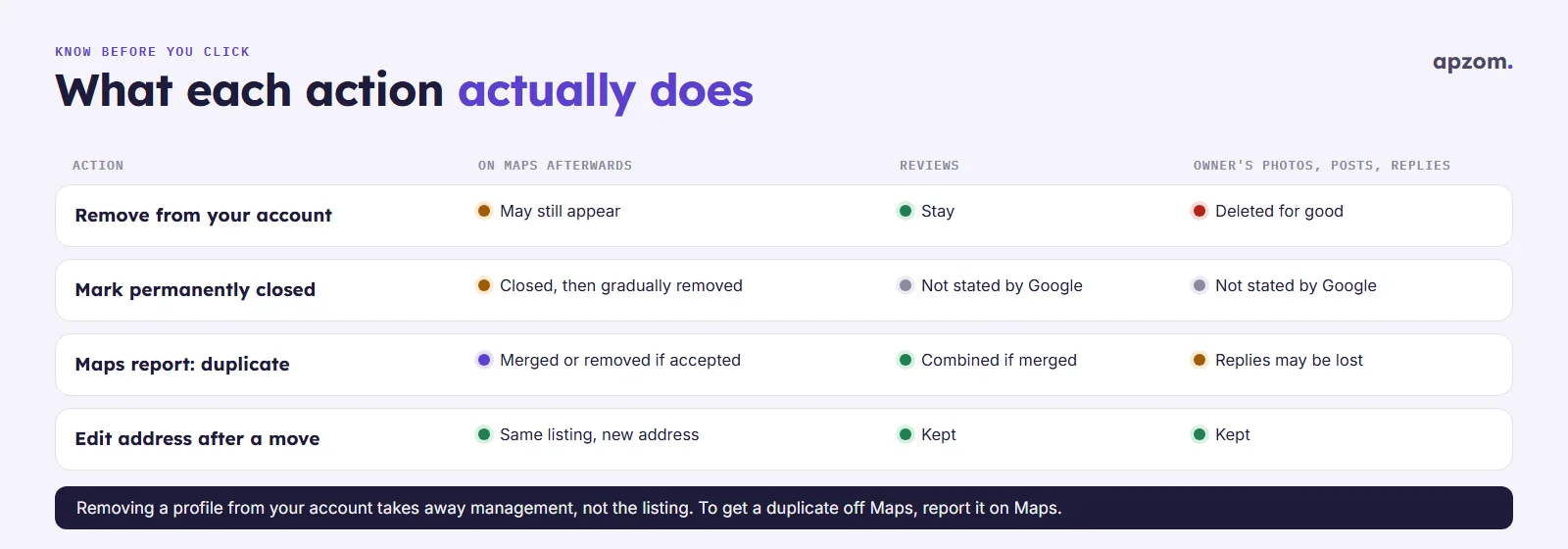
These options are easy to mix up, and they have very different effects:
| Action (who can do it) | Listing on Maps afterwards | Reviews | Owner’s photos, posts, replies |
|---|---|---|---|
| Remove Business Profile from your account (primary owner; new owners wait 7 days) | May still appear | Stay | Deleted permanently |
| Mark as permanently closed (an option during removal) | Shown as closed, then gradually removed | Not stated by Google | Not stated by Google |
| Maps report: Duplicate of another place (any signed-in user) | Reviewed by Google; merged or removed if accepted | Combined if merged | Replies may be lost on a merge |
| Maps report: Moved to a new location (any signed-in user) | Reviewed by Google | Not stated by Google | Not stated by Google |
| Edit the address on your own profile after a move (owner or manager) | The same listing, at the new address | Kept, as it’s the same profile | Kept |
The last row is the one most businesses need after a move. Google’s guidance is clear: update the address on the existing profile instead of creating a new one. Google also says moving after verification means verifying again, so plan for that. Our guide to verifying your Google Business Profile explains the methods.
If you already created a new profile after moving, keep one (normally the older verified profile with the reviews), update its address, and ask Google to merge the other through route B.
How long it takes and how to check the result
Google gives a timeline for only one of these. For edits to your own profile, its page on edits says they “usually take up to 10 minutes to review, but sometimes it can take up to 30 days”. Google gives no timeline for Maps reports, merge requests or duplicate appeals, so be wary of anyone who promises one.
To check progress:
- Look for Google’s emails about your report. Google says it may send a status update or ask follow-up questions.
- Search again by name, phone number and address, exactly as in Step 1. A merged or removed duplicate should stop appearing.
- Check your own profile’s status in Business Profile Manager after any change, and compare its review count with your notes. If the reviews from the extra listing appear on yours, the merge went through.
- Keep your table. If the duplicate is still there after a few weeks (our rule of thumb; Google gives no timeline), contact Business Profile support with the Maps links for both listings, your business details and photos of your signage.
If a listing has false or fraudulent details, such as someone else’s phone number on your business name, that is a different problem. Google’s Business Redressal Complaint Form is for misleading information or fraud in a business’s name, phone number or website. It is not a duplicate tool, and Google says it cannot guarantee any action or send status updates.
Common mistakes
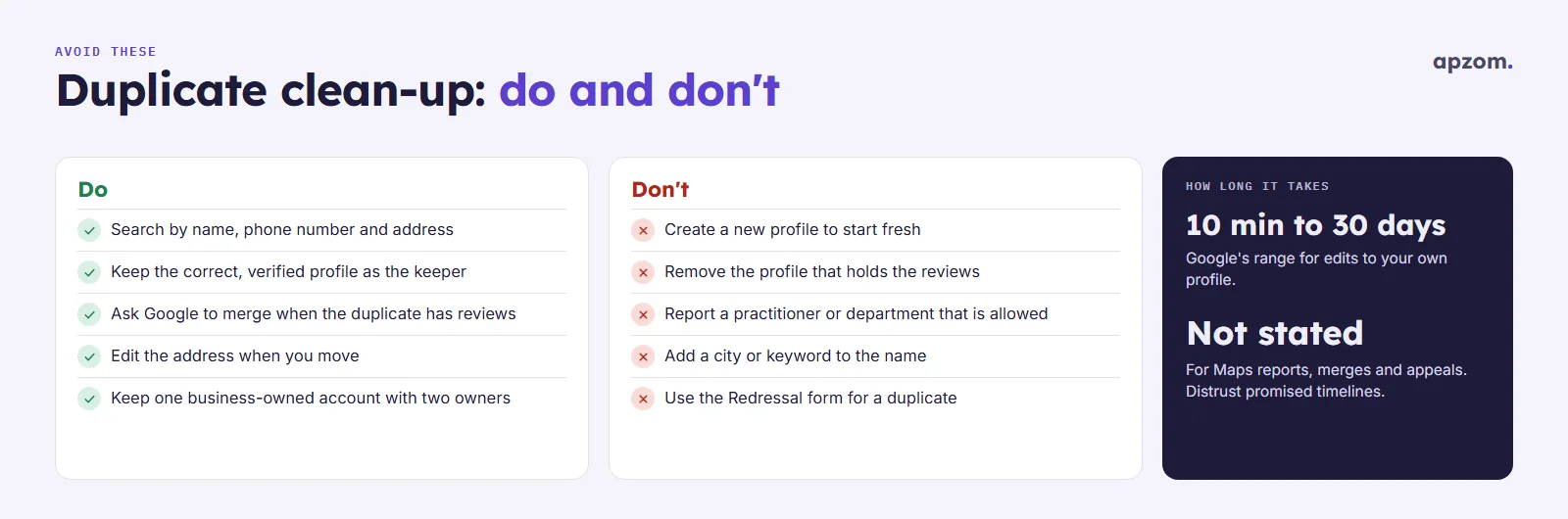
- Creating a new profile to “start fresh”. It adds another duplicate, and Google’s guidelines say not to. If the old profile was suspended, our guide to a suspended Google Business Profile explains what to do instead of starting again.
- Removing the profile with the reviews. Removal from your account can’t move reviews. Ask Google to merge, keeping the correct verified profile as the keeper.
- Expecting removal to take the listing off Maps. It removes your management. The listing may stay until Google accepts a Maps report.
- Reporting a legitimate listing. A practitioner, a department or a separate business at your address may be allowed. Check the table in Step 2 first.
- Putting a city or keyword in the duplicate’s name to tell them apart. Renaming a listing doesn’t make it a separate business, so it is still a duplicate.
- Reporting the same listing again and again. Google gives no sign that repeated reports speed up a review. Wait, check your email, then contact support.
- Changing several key details at once while a report is pending. We suggest changing the name, address or category one at a time, so each review is easy to follow.
How to stop duplicates coming back
In our experience, duplicates usually follow a change: a move, a rebrand, a new phone number, a new agency or a staff member creating a listing. A short routine prevents most of them:
- One owner account the business controls, with a second owner from the business, so nobody needs to create a new listing because they lost access.
- Edit, don’t recreate. For a move, a new phone number or new hours, edit the existing profile. Our guide to changing your business hours on Google covers the edits that don’t need a new listing.
- Search for duplicates once a year, by name, phone and address, and after any move or rebrand.
- Keep details identical everywhere, including Apple Maps and Bing Places, so data sources don’t contradict your profile.
If your business is missing from Maps rather than doubled, start with our checklist on why a business isn’t showing on Google Maps. Once only one profile remains, our Google Business Profile optimization checklist and local SEO checklist help it earn its place.
How Apzom can help
Our local SEO services include Business Profile clean-ups: we find every listing for your business, check which are allowed under Google’s guidelines, and work through the right route for each, with you as the owner so the profile stays in your business’s Google Account. We can’t make Google accept a merge or a removal, and nobody can. What we do is prepare the request properly and follow it up.
We work with clients worldwide, remotely, from our base in Ahmedabad, India.
Get your Free Growth Audit and Quote. We review your Google Business Profile: duplicates and lookalike listings, ownership and access, name, address and category rules, reviews, and how it matches Apple Maps, Bing and your website. You get a prioritised list of fixes, and a quote if you want us to make them, working with you as the owner.
No obligation, and no guaranteed outcome from Google. Prefer to talk first? Contact us or see our local SEO services.
Frequently asked questions
Can I delete a duplicate Google Business Profile myself?
You can remove a profile you manage from your account, which deletes your posts, photos and replies. But Google says the business may still appear on Search and Maps afterwards. To take a listing off Maps, report it with Suggest an edit > Place closed or not here, and Google reviews the request.
Can Google merge two listings and keep the reviews?
Yes, if Google accepts the request. Google’s duplicate page says to report the duplicate on Google Maps to ask for a merge. The profiles must be the same business with the same information. Reviews are combined, but replies to reviews may be lost.
What if the duplicate belongs to a previous owner or an old agency?
Request access with Request Access on business.google.com/add. Google says the owner has 3 days to respond. If they don’t, you may be able to claim the profile, though this isn’t always available. If access is denied, you can appeal or report the listing on Maps.
Should a doctor or lawyer have a separate listing from the practice?
Often yes, if they are public-facing and can be contacted at the location during its hours. A solo practitioner who represents a brand should share one profile, named like “Allstate: Joe Miller”. A practitioner shouldn’t have a separate profile per specialty.
I moved. Should I create a new profile?
No. Google says to update the address on your existing profile instead of creating a new one. Moving after verification means verifying again.
How long does Google take to remove a duplicate?
Google doesn’t say. It gives a time only for edits to your own profile: usually up to 10 minutes, sometimes up to 30 days. Check your email and search for the listing again before you contact support.
Is the Business Redressal Complaint Form the right way to report a duplicate?
No. Google’s form is for misleading or fraudulent information in a business’s name, phone number or website. Use the Maps report for duplicates.