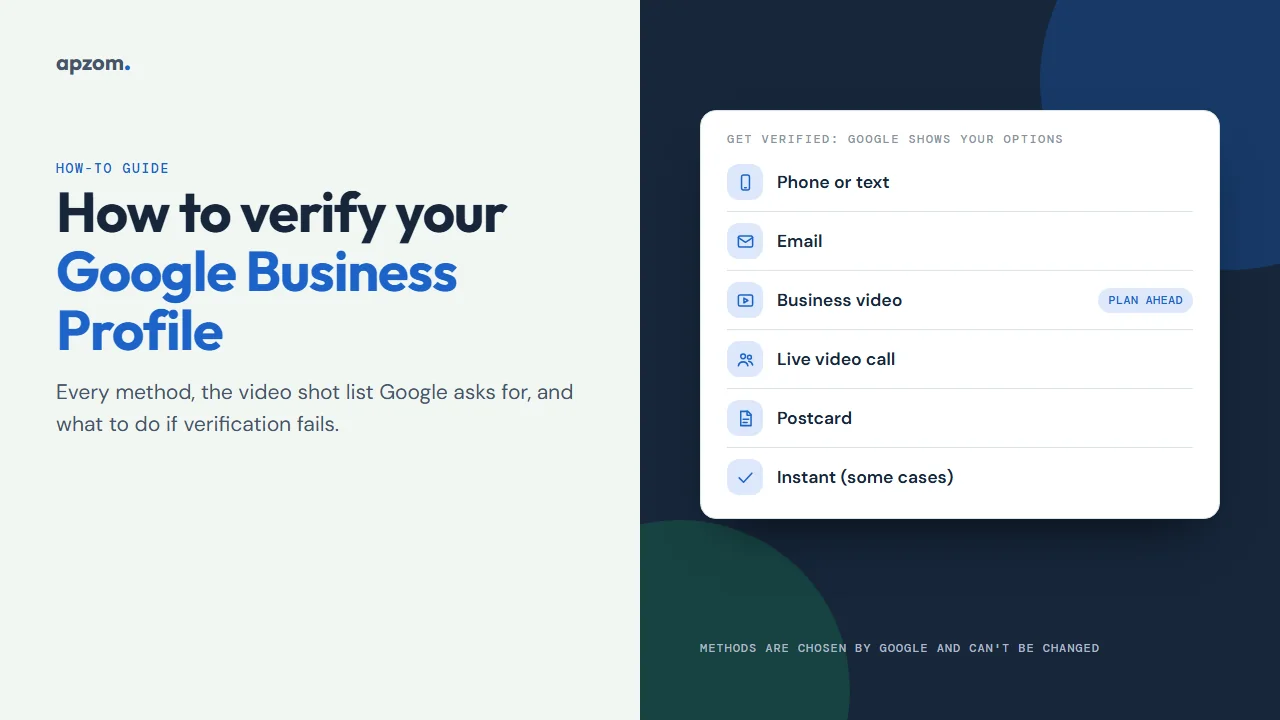
The short answer: To verify your Google Business Profile, sign in to the Google Account that manages it, find your profile on Google Search (search “my business”) or in the Google Maps app (tap Business), and select Get verified. Google then shows the methods your profile can use, such as a phone call or text, email, a recorded Business video, a live video call or a postcard. You cannot choose or change them. For video verification, record one unedited clip of at least 30 seconds, live, from your phone inside the Business Profile flow, showing where you are, proof the business exists, and proof that you manage it. Google says reviews take up to 5 business days, and occasionally longer.
This guide is for owners and managers of local businesses in any country who need to verify a new profile, claim an existing one, or work out why verification failed. It follows Google’s Business Profile help pages as we checked them on 7 November 2026. Google changes button labels from time to time, so if one differs slightly, look for the nearest match.
Why verification matters
An unverified profile is only half there. Google’s help pages say that only verified businesses can show their business info on Maps and Search, and several features are locked until you verify:
- Replying to reviews. Google says you must verify before you can reply.
- Photos and videos. Your photos and videos show on Google only after you verify.
- Performance data. The Performance report, with searches, calls, website clicks and direction requests, is available only for verified profiles.
- Full editing. Before verification you can edit some details, such as name, category, address, hours, phone number and website. To edit everything, you must verify.
Verification is free. Google says you can add or claim a profile at no charge, so treat anyone offering to “fast-track” verification for a fee with suspicion. No one, including an agency like ours, can speed up Google’s review.
Before you start: check you are eligible
Some verification problems are really eligibility problems. Check these first, using Google’s guidelines for representing your business:
- You meet customers in person. Google says a business “must make in-person contact with customers during its stated hours”. Online-only businesses, such as ecommerce shops with no in-person service, are not eligible and cannot be verified. Lead-generation companies are also ineligible.
- The address is real and you operate there. Virtual offices (a rented mailing address you do not work from) and P.O. boxes or mailboxes in remote locations are not accepted.
- Coworking spaces need more. An office at a coworking space only qualifies if it has clear signage, receives customers there during business hours and is staffed by your own team during those hours.
- There is permanent signage, if you show your address to customers. Google expects “permanent fixed signage of their business name at the address”.
- The name is your real-world name. Adding keywords, your city, taglines or phone numbers to the name is not allowed and can lead to suspension. The name in a verification video must match the name on your profile.
- There is only one profile for the business. Google allows one Business Profile per business. If a profile already exists, claim it or request access instead of creating another one.
If you run an agency or are helping a client, Google’s rules say representatives must never claim a profile without the owner’s express consent and should work directly with the owner to complete verification.
Step 1: find your profile and select Get verified
- Sign in to the Google Account that should own the profile. We recommend a business account the business controls, not a staff member’s personal account.
- Open your profile. On Google Search, search for your business name and city, or my business. In the Google Maps app, tap Business at the bottom right.
- If the profile is new, or you have just claimed it, you will see Get verified. Select it.
- Google may ask for a phone number before showing the methods.
If your business already appears on Maps but no one manages it, select Claim this business > Manage now on Maps, then choose a verification option. If someone else already manages it, see the ownership section further down.
Step 2: understand the method Google offers you
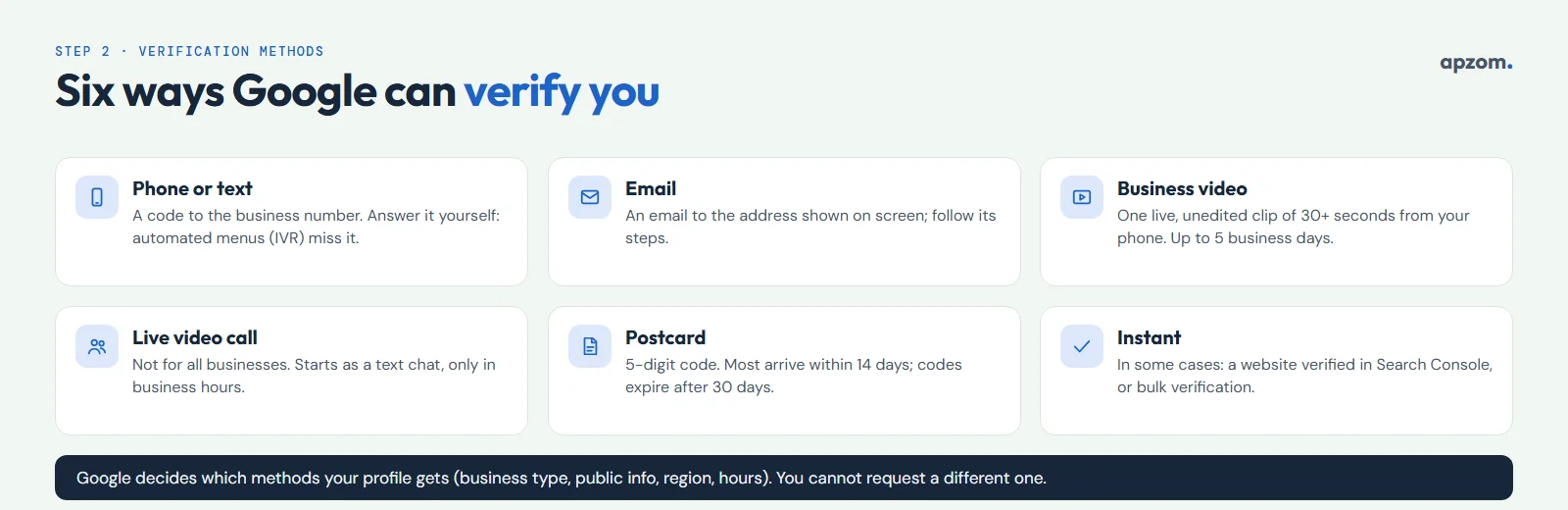
Google says verification methods “are automatically determined by Google and can’t be changed”. What you are offered depends on your business type, public information, region and business hours, and sometimes Google asks for more than one method.
| Method | How it works | What to know |
|---|---|---|
| Phone or text | Google calls or texts the business number with a code | Answer the business phone yourself: automated phone menus (IVR systems) will not receive the code |
| Google sends an email; follow the steps in it | You must be able to use the email address shown on the screen | |
| Business video | You record a short video of your business on your phone | Google recommends it when your business is eligible; reviewed in up to 5 business days |
| Live video call | A support representative checks your business with you on a video call | Not available for all businesses; starts as a text chat; only during your location’s business hours |
| Postcard | Google posts a 5-digit code to the address | Not available for all businesses; most codes arrive within 14 days and expire after 30 days |
| Instant | Google verifies without a separate step | Can happen in some cases if your website is verified in Google Search Console, or through bulk verification |
You cannot ask Google for a different method. If your profile shows more than one option, try another one if the first fails.
Step 3: record your verification video
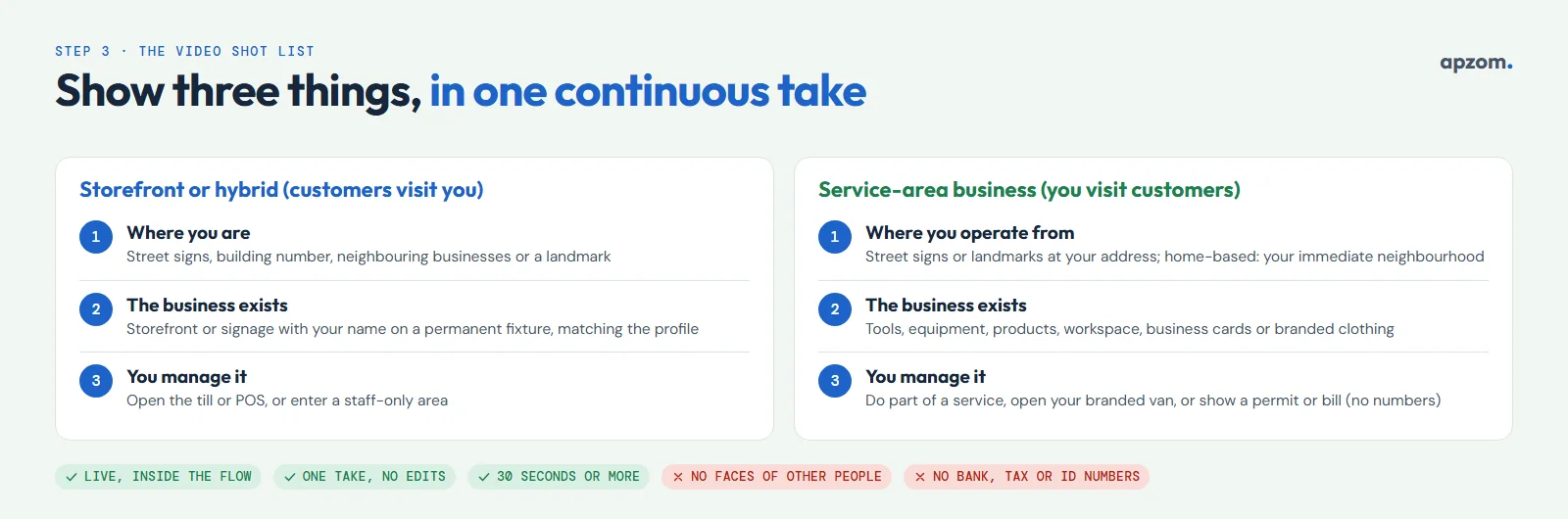
Google recommends the recorded video when your business is eligible for it. In our view, it also needs the most preparation, because the reviewer can only judge what is in the frame. Google’s video verification page sets out the rules.
The rules for the video
- Recorded live in the flow. Google says pre-recorded videos are not allowed, and you cannot record offline and upload later. You record inside your Business Profile on a mobile device.
- One continuous take. It must be “an unedited, unique, and complete recording with no breaks”. No cuts, no pausing and resuming.
- At least 30 seconds. Google’s page gives a minimum length and no maximum. Take as long as you need to show everything clearly, without rushing.
- Nothing sensitive. Do not show bank account, tax or ID numbers, private information, or other people’s faces. Plan your route so customers and staff are not in the shot.
What to show: a shot list
Plan the walk before you press record. Google asks for three things, and what counts depends on how your business works.
Storefront or hybrid business (customers visit you):
- Where you are. Start outside with street signs, the building number, neighbouring businesses or a well-known landmark.
- That the business exists. Show your storefront, showroom or signage, with your business name clearly on a permanent fixture. The name must match your profile.
- That you manage it. Show something only staff can access: open a cash register or point-of-sale system, or walk into the kitchen, storage room or another staff-only area.
Service-area business (you visit customers):
- Where you operate from. Film street signs, nearby landmarks or other identifiers at your business address. Avoid empty land or places without clear markers. If you work from home, Google allows landmarks and signs in your immediate neighbourhood.
- That the business exists. Show your professional tools, equipment, products, workspace, business cards or branded clothing.
- That you manage it. Record yourself doing part of a service, or opening a van with your business branding. Google also accepts a business permit, invoice or utility bill showing the name on your profile, but keep any account, tax or ID numbers out of the frame.
Recording and uploading, step by step
- On your phone, go to your Business Profile and tap Get verified.
- Enter your phone number if asked, then tap Next.
- Tap Business video > Next, and read the requirements.
- Allow location, camera and microphone access if asked.
- Tap Next > Start recording, tap the record icon, and tap again to stop.
- Watch the video back. If anything is missing or blurred, tap Try again.
- Tap Upload video. If the upload fails on the first try, Google says to upload it again.
You can delete your verification video at any time under Business Profile settings > Advanced settings > Delete videos; otherwise Google deletes it later.
Some practical tips of our own, beyond Google’s requirements: record in daylight or good light so signs are readable, hold the phone steady, and move slowly between the three parts so the reviewer can follow the route. A strong mobile signal helps the upload.
Verification keeps failing, or someone else controls your profile? Ask for a Free Growth Audit. We check your Business Profile’s eligibility, name, address and ownership against Google’s rules and tell you what to change before you try again.
Step 4: wait for the review, and do not change key details
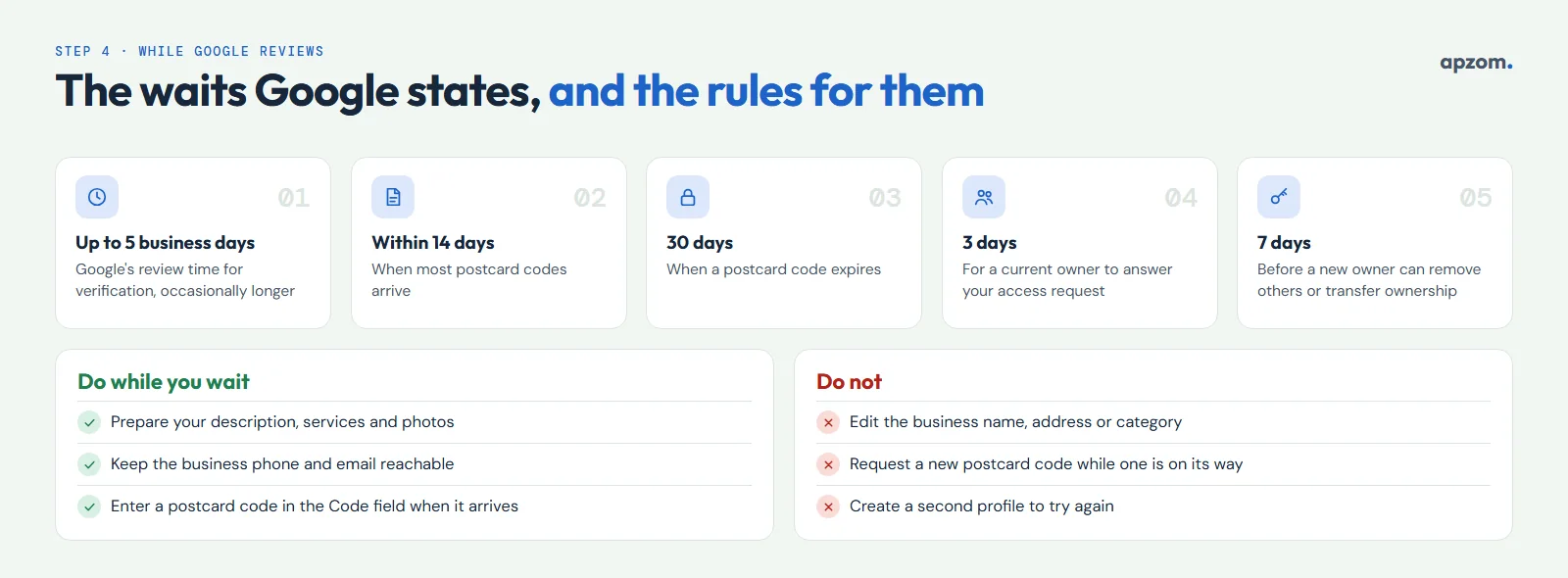
Google says verification reviews take up to 5 business days, and that on rare occasions they take longer. When you are verified, you get a confirmation email.
While you wait:
- Do not edit your business name, address or category. Google states this rule for postcard codes, where an edit stops the code from working. It is sensible advice for every method, because changing the details under review gives the reviewer a moving target.
- Do not request a new postcard code while one is on its way. Google says a new request invalidates the code in the post.
- Keep the business phone and email reachable (our advice), so you do not miss a code or a message from Google.
- Do not create a second profile to “try again”. Duplicates are hidden from Search and Maps.
- Prepare the rest of the profile. Write your description, list your services and choose your photos, so you can publish them as soon as verification is through.
If you are waiting for a postcard, enter the 5-digit code in the Code field and select Submit when it arrives. Google says it will never ask you for your verification code, so never share it with anyone who calls asking for it.
If your verification video is rejected
If your video is not accepted, you see a Review issues notification. Tap it to see why. Google’s examples include “Business name not visible on storefront”, “No nearby area shown” and “Missing proof of authorization to operate the business”.
Then record a new video. Google says the new one must include everything from the first video plus the missing information, not just the missing part. Google publishes no limit on the number of attempts, but each new video is reviewed again, so check the shot list before you record again.
If the Get verified button reappears, Google could not completely verify your business. Try again, or use another method if your profile now shows more than one. If none works, contact Google Business Profile support from the help centre; Google says trying the available methods first makes it easier for its team to help.
Common problems and how to fix them
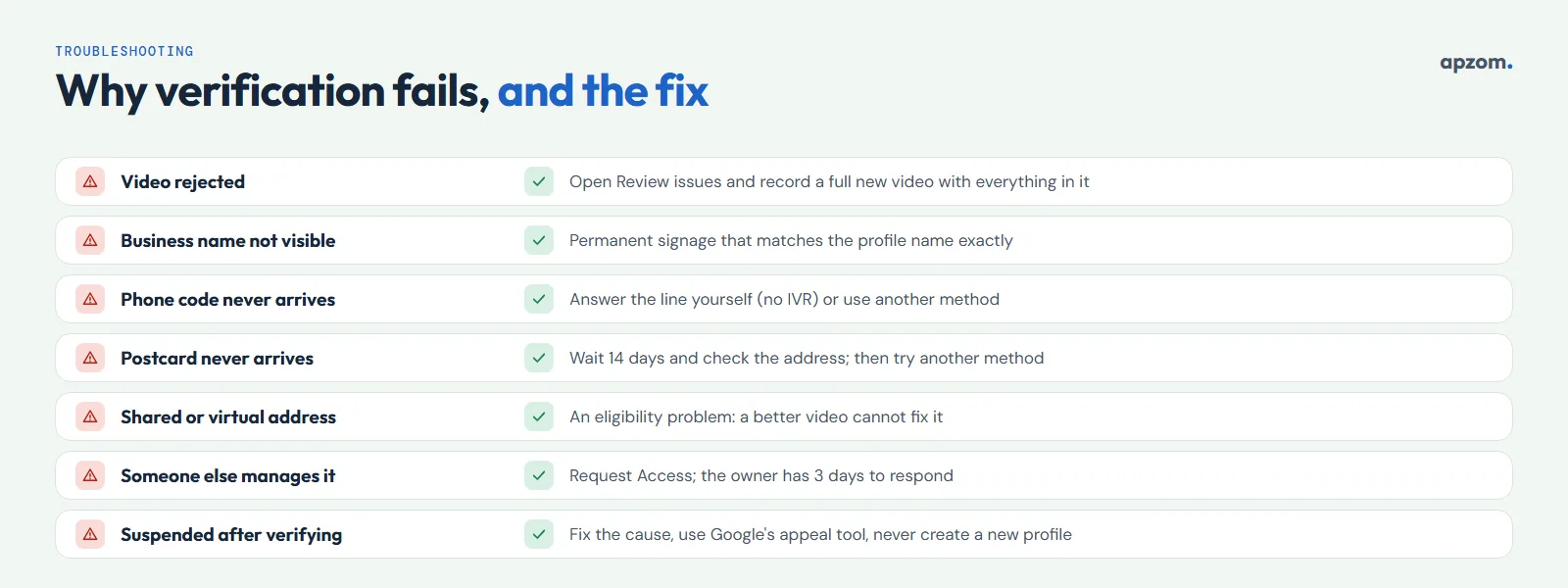
| Problem | Likely cause | What to do |
|---|---|---|
| Video rejected | Name, location or proof of management missing or unclear | Open Review issues and record a full new video with everything in it |
| Business name not visible | Temporary or no signage, or the profile name differs from the sign | Add permanent signage and make sure the profile name matches it exactly |
| Phone code never arrives | Calls go to an automated menu (IVR), or the number is wrong | Answer the line yourself or use a direct number; try text or another method |
| Postcard never arrives | Post delays or an address Google cannot find | Wait 14 days, check the address format, and do not request a new code too early; if it still has not come, try another method your profile shows or contact support (codes expire after 30 days) |
| Verification keeps failing at a shared address | Virtual office, P.O. box or a coworking desk without signage or staff | The address must meet Google’s eligibility rules; this cannot be fixed with a better video |
| “Someone else may manage this Business Profile” | A previous owner, employee or agency verified it | Request access (see below) |
| Profile suspended after verification | A guideline problem, for example keywords in the name or an ineligible address | Fix the cause, then use Google’s appeal tool; do not create a new profile |
Phone number checks (India and some other regions): Google says it may double-check your phone number after an edit; you confirm it by submitting an appeal.
If someone else already manages your profile
A former employee, previous owner or old agency may still control your profile. To get it back:
- Go to business.google.com/add, enter your business name and address, and choose your business.
- When you see “Someone else may manage this Business Profile”, select Request Access, fill in the form and select Submit.
- Google emails the current owner, who has 3 days to respond.
- If they do not respond, you may be able to claim the profile through View request > Verify. Google says this option is not always available.
- If they deny the request, you can still suggest an edit or try to appeal the decision.
Google’s help pages give a separate route for service-area businesses without a storefront: contact Google support and choose “Transfer ownership of listing”.
Once you become an owner or manager, Google makes you wait 7 days before you can delete the profile, remove other owners or managers, or transfer primary ownership. Plan around that wait if you are replacing an old agency’s access.
Service-area businesses: verify with an address, then hide it
If you visit customers rather than receiving them, you still verify from a real address that Google can find. The video shows identifiers at that address, or your immediate neighbourhood if you work from home. After verification, hide the address so customers do not see it:
- Go to your Business Profile and select Edit profile > Location.
- Next to “Business location”, select Edit.
- Turn off Show business address to customers and select Save.
Google says you should hide your address only if you are a service-area business. Set your service areas realistically: Google’s guidelines say a service area should generally not extend farther than about 2 hours of driving time from where you are based, though larger areas can suit some businesses. Our local SEO checklist explains when a service-area or a storefront profile suits your business.
Ten or more locations: bulk verification
Businesses with 10 or more locations of the same business can apply for bulk verification in Business Profile Manager, under Verifications > Chain > Start, on a computer. Google’s conditions include:
- the spreadsheet holds 10 or more profiles of the same business, and duplicate, suspended or disabled profiles do not count towards the 10;
- service-area businesses are not eligible;
- agencies with more than one business in one account cannot bulk verify;
- uploading a spreadsheet does not send a verification request on its own.
Google may still ask for video verification, with an authorised representative at a location, and it gives no processing time. It also says it may de-verify bulk accounts that do not actively manage their profiles.
When you may have to verify again
Verification is not permanent. Google says:
- Moving address: if you move after verification, you must verify again. Do not create a new profile for the new location.
- Changing the business name: you might need to verify again.
- Other changes: Google says changes to your business information may require re-verification, and that a request to re-verify usually follows a recent update to your details.
Keep the account that verified the profile active and add a second owner from the business, so access does not depend on one person. Our guide to changing your business hours on Google covers edits that do not need re-verification.
After verification: what to do first
Once you have the confirmation email:
- Complete the profile. Categories, services, description, hours, photos and booking or contact links. Our Google Business Profile optimization checklist takes you through each section.
- Reply to existing reviews and set up a fair way to ask every customer for one. Our guide on getting more Google reviews shows how to do it within Google’s rules.
- Check the Performance report after a few weeks. Google says rankings for new businesses can take up to a month to appear.
- Make the same details match elsewhere, for example on Apple Maps and Bing Places.
How Apzom can help
Our local SEO services include Business Profile setup, clean-up and verification support, working with you as the owner so the profile stays in your business’s Google Account. If verification keeps failing, we review the eligibility, the name, the address and your video plan against Google’s requirements and tell you what to change before you try again.
We work with clients worldwide, remotely, from our base in Ahmedabad, India.
Frequently asked questions
How long does Google Business Profile verification take?
Google says verification reviews take up to 5 business days, and on rare occasions longer. Google says most postcard codes arrive within 14 days, and that in some cases, such as a website verified in Search Console, a profile can be verified instantly.
Can I verify my Google Business Profile without a video?
Only if Google offers you another method. Google decides the methods and says they cannot be changed. If your profile shows several options, you can choose between them.
Can I upload a video I recorded earlier?
No. Google says pre-recorded videos are not allowed. You must record live inside the Business Profile flow on a mobile device, in one continuous take.
How long should the verification video be?
At least 30 seconds. Google’s page gives no maximum, so take the time you need to show your location, your business and proof that you manage it.
Can I verify a business that has no physical address?
A service-area business can, using a real address that Google can find, and then hide the address from customers. Online-only businesses with no in-person contact with customers are not eligible.
Can I use a coworking space or virtual office address?
A virtual office is not eligible. A coworking office qualifies only if it has clear signage, receives customers during business hours and is staffed by your own team then.
Why does my profile ask me to verify again?
Usually because key details changed. Moving address always requires re-verification, and changing the name might. Google can also ask for more information after other recent updates.
Get your Free Growth Audit and Quote. We review your Google Business Profile: verification status, ownership and access, name and address rules, categories, reviews and photos, and how it matches Apple Maps, Bing and your website. You get a prioritised list of fixes, or we make them for you, working with you as the owner.
No obligation and no guaranteed rankings. Prefer to talk first? Contact us or see our local SEO services.