The short answer: If your Google Business Profile is suspended, do not create a new profile and do not appeal straight away. Open Google’s Business Profile appeals tool to read the reason and the policy Google says you broke. Check whether the problem is the profile or the Google account that manages it, and fix the cause. Then submit one appeal with documents whose business name and address match the profile exactly. Google says reviews can take up to five business days, and you only get one appeal per decision, so the preparation matters more than the speed.
This guide is for owners, managers and marketers of local businesses whose profile has been suspended or disabled, or who have been warned that it might be. It follows Google Business Profile Help as checked in November 2026, and Google changes these screens often. Apzom Digital sells local SEO work, so read this knowing we have an interest. Everything below can be done by the profile owner without an agency, and nobody outside Google can guarantee a reinstatement.

What to take from this guide
- Read the decision before you do anything. The appeals tool shows the reason, the policy and whether the decision can be appealed at all.
- Fix first, appeal second. An appeal can only be submitted once, so an appeal sent before the cause is fixed wastes it.
- Your evidence must match the profile. Google asks that the name and address on your documents match the profile you are appealing for.
- Never start again with a new profile. Google says not to create a new Business Profile for the same business.
What a suspension means
Google says it may suspend or disable profiles that do not follow its guidelines. When a profile is removed, the public cannot see it and the owner and managers cannot act on it. For a business that gets most of its calls from Maps, that can mean the phone goes quiet overnight, which is why it is tempting to rush. Rushing is the mistake to avoid.
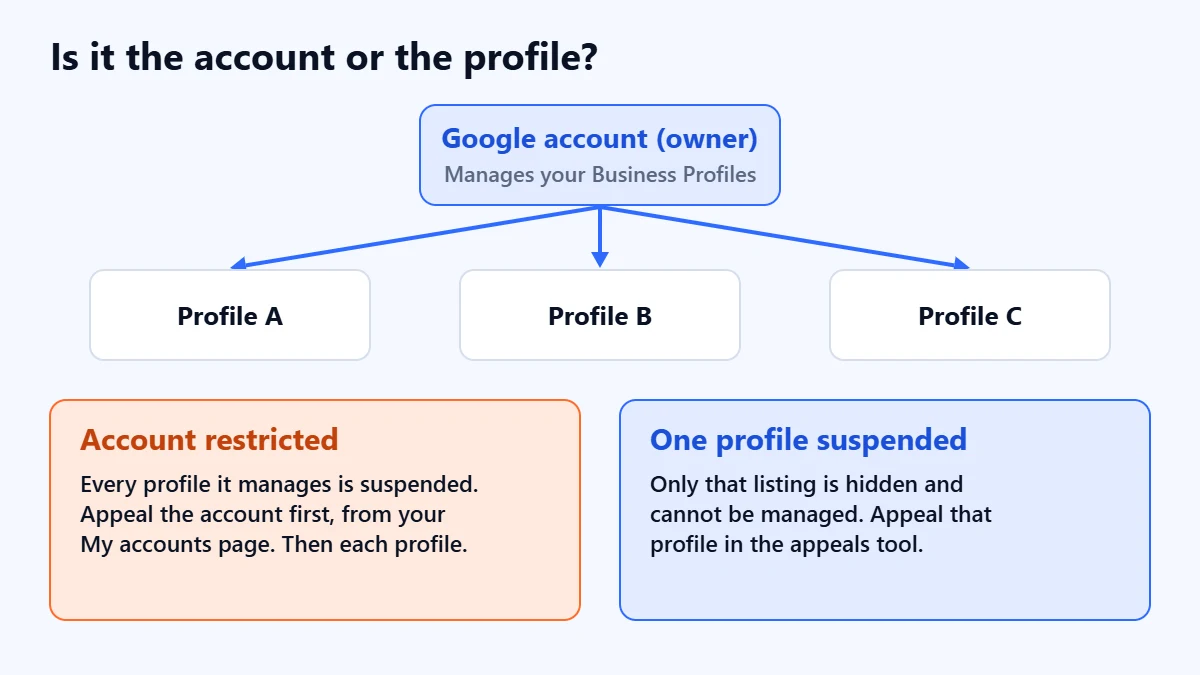
It also helps to know which level the problem is at, because Google treats them differently:
| What was acted on | What Google says happens | What to appeal |
|---|---|---|
| One profile | The profile is hidden and cannot be managed | That profile, in the appeals tool |
| Your Google account is restricted | Every profile it manages is suspended, and you cannot create or claim others | The account first, from your My accounts page, then each profile |
| The owner’s account is removed | All locations owned by that user are removed | The owner’s account. Reinstating it reinstates its locations |
| A manager’s account is removed | That manager loses access. The locations are not affected | The manager’s account, if that person still needs access |
The six steps, in order
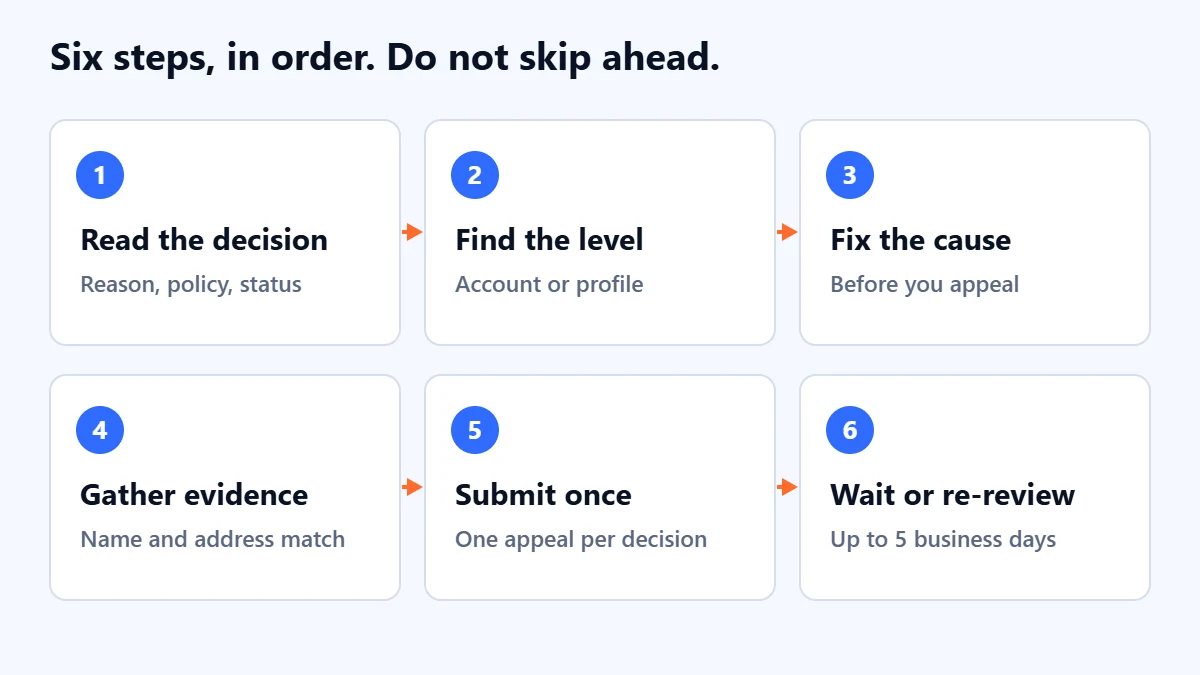
Step 1: read the decision in the appeals tool
Sign in with the Google account that owns or manages the profile and open the Google Business Profile appeals tool. Select the profile, then the decision. Google says the tool shows the date of the decision, the reason, a link to the policy that was broken, whether the decision can be appealed, and its current status. Write all of that down before going further.
The status will be one of these: Eligible for appeal, Submitted, Approved, Not approved, or Can’t be appealed. If it says the decision can’t be appealed, a new profile is still not the answer, because Google is clear that you should not create one for the same business.
Step 2: check whether it is the account or the profile
If every profile you manage was suspended at once, look at the account itself. Google says that when an account is restricted, you appeal it from your My accounts page and track it there. You can appeal the profile suspensions only after the account restriction is lifted. If profiles you manage are suspended, you will also need their reinstatement before you can appeal any content decisions on them, such as rejected edits or photos.
Step 3: find and fix the cause
The policy link in the tool is your starting point. The table below maps the guideline areas that most often matter for a suspension to what Google’s guidelines actually require. It is our summary, not Google’s list of suspension reasons, so always go by the reason Google gave you.
| Area | What Google’s guidelines say | What to check |
|---|---|---|
| Business name | The name should reflect the real-world name used on your storefront, website and stationery | Remove added keywords, locations or taglines that are not part of the real name |
| Address | P.O. boxes and mailboxes at remote locations are not acceptable. The location must serve customers in person and be staffed during business hours | Use your real, staffed location. Google also expects permanent signage with your name at the address |
| Service area | Service-area businesses should have one profile for the central office, with a service area. They cannot list a virtual office unless it is staffed during business hours | One profile, a real base, and your address hidden if customers do not visit you |
| Duplicates | Do not create more than one page for each location, in one account or several | Search for old or second profiles created by staff, agencies or previous owners |
| Categories | Use as few as possible, and do not use them as keywords | Keep the primary category to what you mainly do |
| Restricted products | Businesses whose products need a minimum age, such as alcohol, cannabis or weapons, cannot be service-area businesses without a storefront | Check whether your business model is eligible as it is set up |
Reviews are a separate matter. Google publishes a policy on restrictions for fake or incentivised reviews, and our guide to getting more Google reviews without breaking the rules covers what is and is not allowed. Our Business Profile optimisation checklist walks through the name, category and description rules in more detail.
Step 4: gather evidence that matches the profile
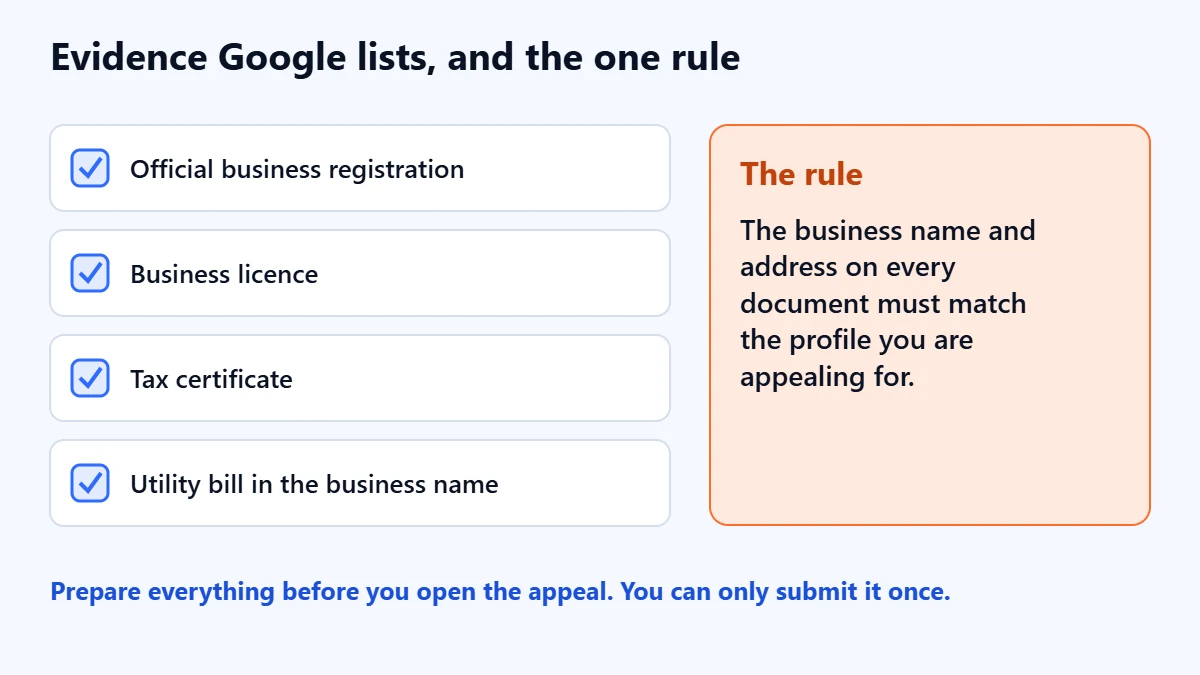
Evidence is optional, but it is your chance to show the business is real and as described. Google lists these examples:
- Official business registration
- A business licence
- Tax certificates
- Utility bills for the business, such as electricity, phone, water or internet
Google’s tip is to make sure the business name and address on every document match the profile you are appealing for. If they do not, fix the profile or find documents that do, before you submit. Google also recommends having your documents ready before you open the appeal.
Not sure what triggered the suspension? Ask for a Free Growth Audit. We review the profile against Google’s guidelines, look for duplicates and ownership problems, and tell you what to fix before you use your one appeal.
Step 5: submit one appeal, and only once
In the appeals tool, attach your files, add a short explanation in the text box, tick the box confirming your evidence is attached, and submit. Google notes that appeals can only be submitted once, and asks you not to send several appeals for the same issue before you hear back.
For the explanation, in our judgement, shorter is better. Say what the business is, where it serves customers, what you changed to meet the guidelines, and which documents prove it. Leave out frustration, history and comparisons with competitors. A reviewer needs facts they can check against your documents.
Step 6: wait, then request an additional review if needed
Google says appeal reviews and decisions can take up to five business days, and it sends the decision by email. You can also check the status in the appeals tool. If your request is denied, Google says it may be able to carry out an additional review, where you can add evidence you did not include the first time. Use that only when you genuinely have something new.
If you are in the UK or European Economic Area
Google handles appeals differently for businesses located or operating in the UK or EEA. There, the appeals tool also covers rejected edits to business information and restricted media such as posts, photos and videos. Elsewhere, those go through Google’s contact form instead. Google also says businesses in an EEA member state may be able to refer an appeal to an out-of-court dispute settlement body under the EU Digital Services Act.
If you manage many locations
For more than 10 suspended profiles, the appeals tool asks whether you are requesting bulk reinstatement. You then attach a spreadsheet with the Business Profile ID of each suspended location, plus supporting documents. Two details are easy to miss. Google says the names and addresses on documents must exactly match the registration, and the tool only updates the status of the profile you selected, with a single email for that profile, so keep your own record of which locations were included.
How to make a suspension less likely
None of this guarantees a profile will never be suspended, but in our judgement these habits remove the most common avoidable problems:
- Keep one owner, and make it the business. Give staff and agencies manager access rather than ownership. Our guide to verifying a Google Business Profile explains the roles.
- Make the name match the sign. If you want a different name on Google, change it everywhere in the real world first.
- Change your name, address or category rarely, and deliberately. Do it one at a time, and keep a note of what changed and when.
- Check for duplicates once a year. Search Maps for your business name, phone number and address.
- Keep your evidence file current. Registration, licence and a recent utility bill in the business name and address.
- Never buy reviews or reward people for them. It is not worth the risk to the profile.
Common mistakes
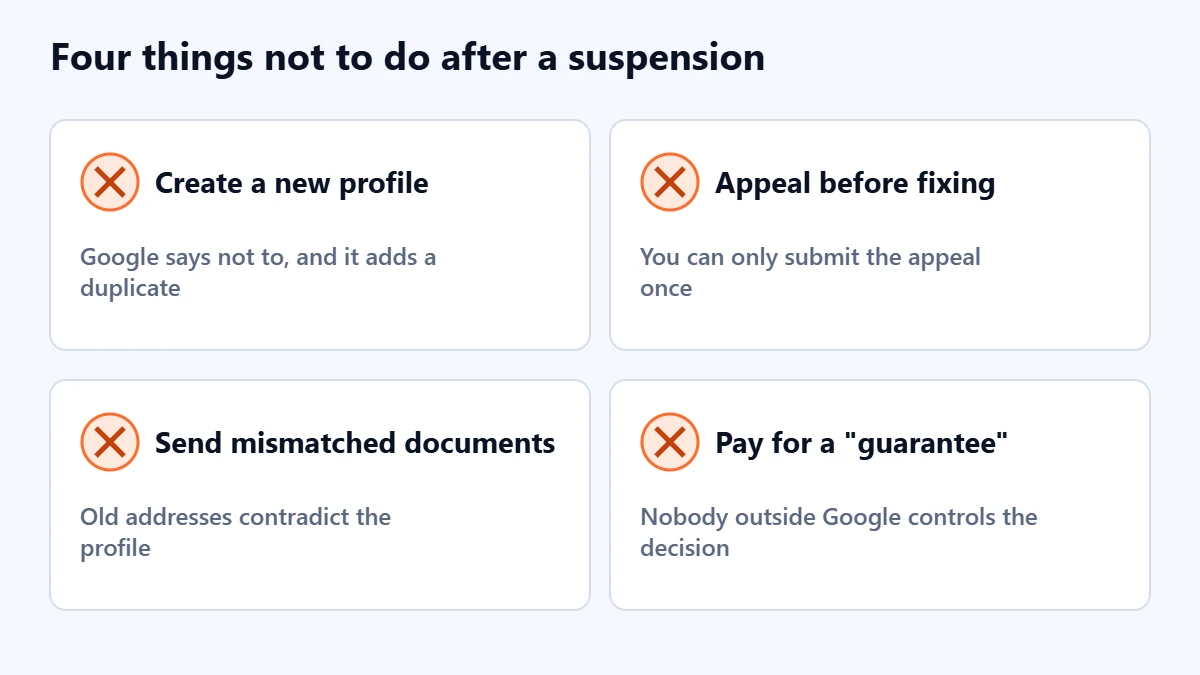
- Creating a new profile. Google says not to, and it adds a duplicate to the problem.
- Appealing before fixing. You can only submit once, so you would be appealing with the problem still in place.
- Sending documents with an old address or trading name. They contradict the profile instead of supporting it.
- Appealing a profile while the account is restricted. The account comes first.
- Paying someone who promises a guaranteed reinstatement. No one outside Google controls the decision, so treat that promise as a warning sign.
Frequently asked questions
How long does it take to get a suspended Google Business Profile back?
Google says appeal reviews can take up to five business days. That is the review time, not a promise of reinstatement, and an additional review after a denial adds more time. Preparing properly before you submit is the best way to avoid going round twice.
Why was my Google Business Profile suspended without warning?
Google says it may suspend profiles that do not follow its guidelines, and the appeals tool shows the reason it recorded and the policy involved. Start there rather than guessing. If several profiles were suspended together, check whether your Google account has been restricted.
Can an agency appeal for me?
The appeal is submitted from the Google account related to the profile, so it needs to be done by the owner or a manager signed in to that account. An agency with manager access can prepare it with you, but you stay in control of the decision and the documents.
Will my reviews come back if the profile is reinstated?
Google’s help page says that reinstating a profile reinstates the profile and its owner and managers. It does not say anything specific about reviews, and we do not want to guess. Check the profile carefully once it is back.
My appeal was denied. What now?
Read the email for the reason, fix anything still outstanding, and use the additional review option only if you have evidence you did not send the first time. Do not create a new profile for the same business.
Get your Free Growth Audit and Quote. We check your Business Profile setup, ownership, duplicates and wider local visibility, and send a plain-English list of what to fix first. We will ask for manager access; you stay the owner.
No obligation and no guaranteed results. Prefer to talk first? Contact us or see our local SEO service.