
The short answer: In Google Tag Manager, create a Click – Just Links trigger that fires when the Click URL matches your WhatsApp link patterns (wa.me, api.whatsapp.com/send and whatsapp://), attach a GA4 event tag with a clear name such as whatsapp_click, publish, and mark that event as a key event in GA4. Without Tag Manager, GA4’s enhanced measurement already records most wa.me taps as outbound “click” events with a link_url parameter, and a create-event rule can turn those into their own key event. For Google Ads, either import the GA4 key event or fire a Google Ads conversion tag on the same trigger, count “One” per click, and keep it secondary until you can send back the chats that became real leads. A tap on a WhatsApp button only means someone opened the app; it is not yet a lead.
This guide is for owners, marketers and developers running websites with WhatsApp buttons, links or chat widgets, anywhere in the world. It covers link formats, Tag Manager, the no-Tag-Manager route, widgets triggers cannot see, Google Ads conversions, a better signal than the click, testing and double counting. We checked WhatsApp’s, Google Analytics’, Tag Manager’s and Google Ads’ help pages against official sources on 25 November 2026.
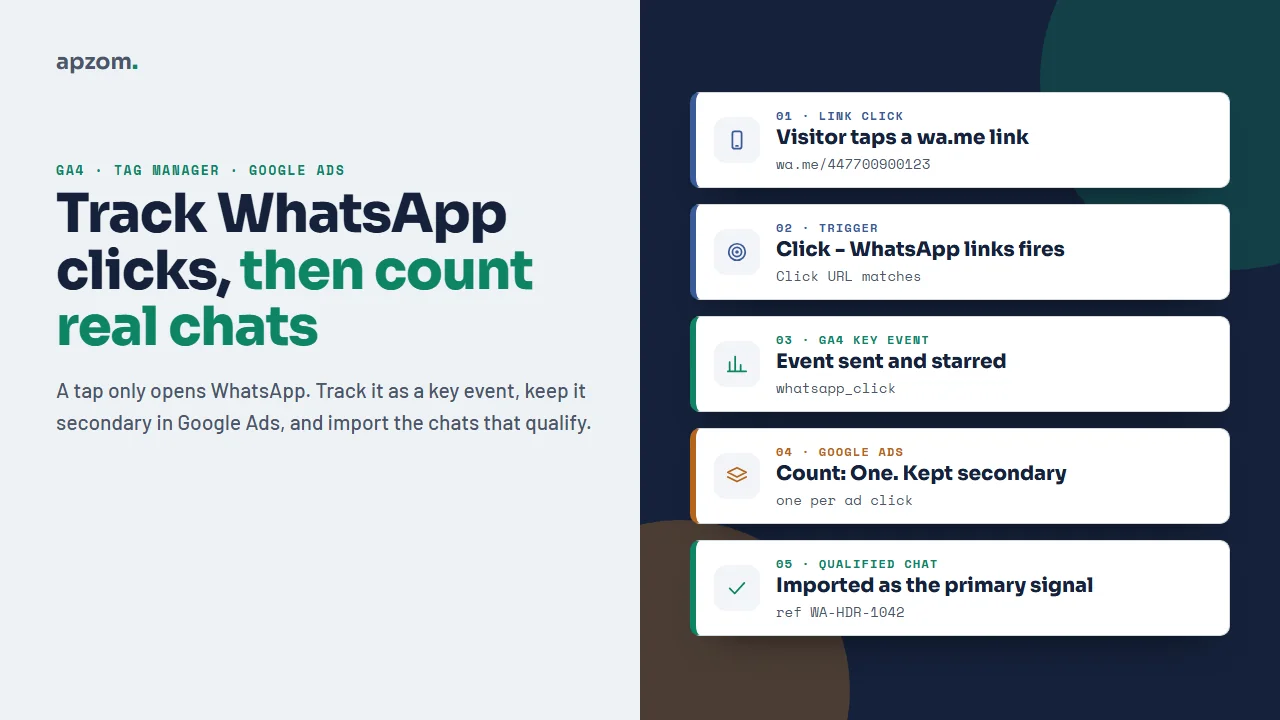
What you are actually measuring
When a visitor taps a WhatsApp button, the browser follows a link that opens WhatsApp (or WhatsApp Web on a computer) with a chat to your number ready to start. Your website sees the tap. It does not see whether the person typed anything, pressed send, or ever heard back from you.
So a WhatsApp click is a good signal of interest, useful for comparing pages, buttons and campaigns, but a weak one for bidding: some people tap out of curiosity, tap twice, or close WhatsApp without writing. An account that bids on clicks alone will find more people who tap, not more who buy.
This guide is about WhatsApp buttons on your own website. If your ads open WhatsApp straight from Facebook or Instagram, the set-up lives in Meta’s tools instead; our guide to click-to-WhatsApp ads covers those ads, the chat workflow and Meta’s Conversions API for Business Messaging.
Know your WhatsApp link formats first
Every method below matches on the link’s address, so first right-click each WhatsApp button (floating widget, header, footer, contact page) and copy the link.
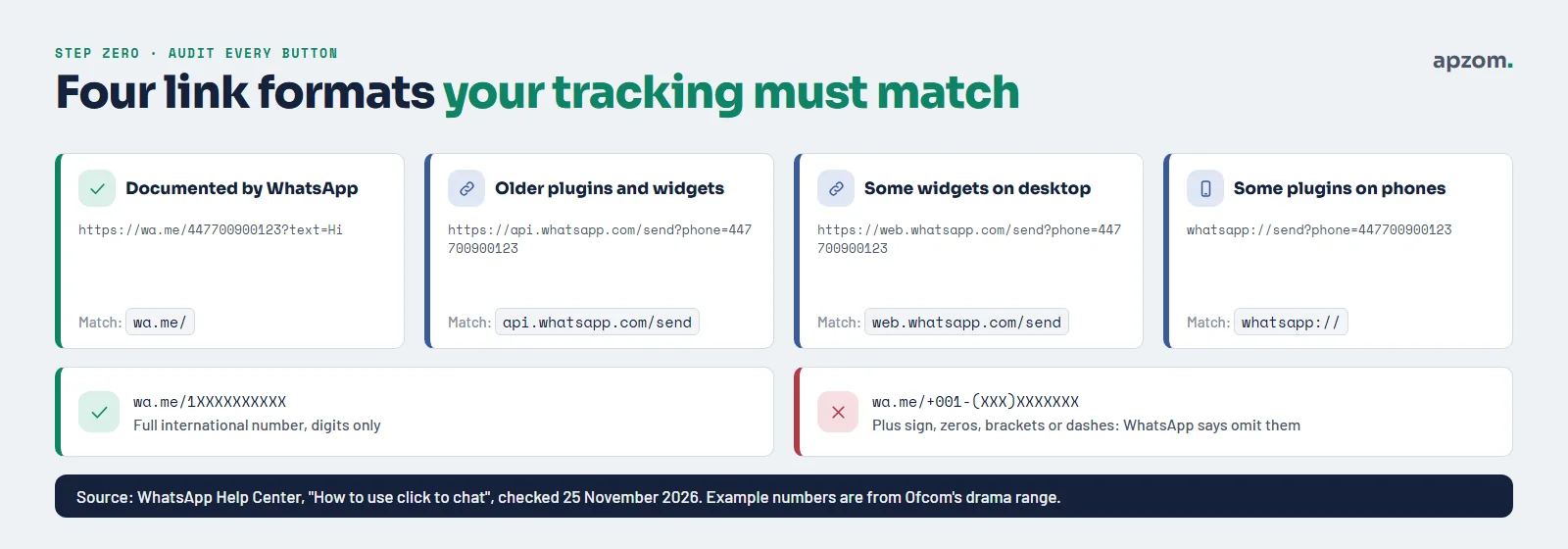
WhatsApp’s “How to use click to chat” help page gives the format as https://wa.me/ followed by the full phone number in international format, and says to “omit any zeroes, brackets, or dashes”. Its valid example is wa.me/1XXXXXXXXXX, and it lists wa.me/+001-(XXX)XXXXXXX as one that will not work. For a pre-filled message, the same page uses wa.me/<number>?text= followed by URL-encoded text, so spaces become %20. A link with ?text= and no number shows the person a contact list to choose from, which is no use for a business button.
| Format you may find | Where it comes from | Match it with |
|---|---|---|
https://wa.me/447700900123?text=Hi | WhatsApp’s documented click-to-chat format | wa.me/ |
https://api.whatsapp.com/send?phone=447700900123 | Older links still produced by many themes, plugins and widgets | api.whatsapp.com/send |
https://web.whatsapp.com/send?phone=447700900123 | Some widgets switch to this on desktop | web.whatsapp.com/send |
whatsapp://send?phone=447700900123 | Some plugins open the app directly on phones | whatsapp:// |
The numbers are illustrative, from a UK range Ofcom reserves for drama. Group invite links on chat.whatsapp.com are not business chats, so leave them out of your matching rule. While checking, fix any number with a leading zero, plus sign or brackets in the path: you get a tracked click and a chat that may never open.
Track WhatsApp clicks with Google Tag Manager
Tag Manager is the most flexible route: you choose the event name, the parameters and exactly which links count. If it is not installed yet, start with our guide to Google Tag Manager for beginners. The steps below assume GA4 already receives page views through Tag Manager.
Step 1: turn on the click variables
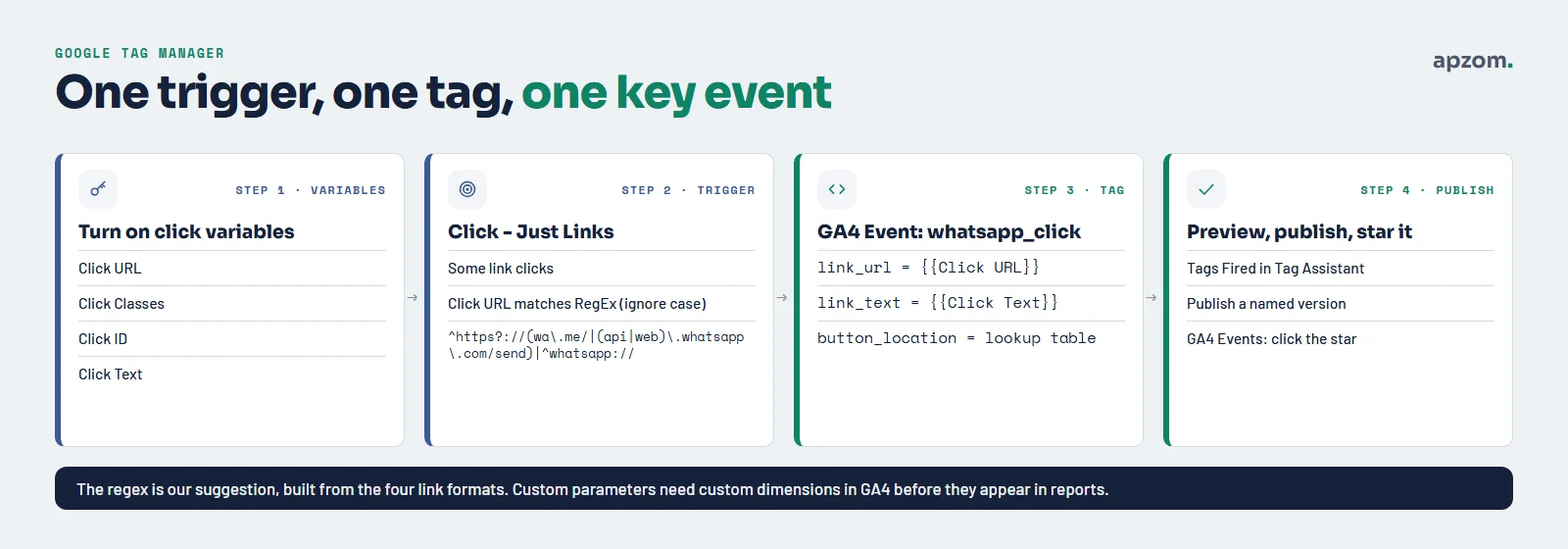
Open Variables and, under built-in variables, click Configure. Tick Click URL, Click Classes, Click ID and Click Text. Google’s built-in variables reference says these read keys “set by Click triggers” (Click URL reads gtm.elementUrl), so they stay empty until a click trigger runs.
Step 2: create the WhatsApp trigger
Go to Triggers, click New and choose Click – Just Links. Google’s trigger reference says this type tracks “clicks only on HTML links that use the a element”, which is what most WhatsApp buttons are.
- Set it to fire on some clicks (the option may read “Some Link Clicks”), not all.
- Add the condition Click URL matches RegEx (ignore case):
^https?://(wa\.me/|(api|web)\.whatsapp\.com/send)|^whatsapp:// - Leave Check Validation ticked unless testing shows the trigger never fires. Google says it fires tags only “when the link click is considered a valid action”.
- Tick Wait for Tags if WhatsApp opens in the same tab. Google says this waits “until all tags have fired, or the specified timeout has elapsed”, giving tags time to send before the page leaves.
- Name it “Click – WhatsApp links” and save.
The pattern is our suggestion, built from the four formats above; the anchors stop it matching a domain that merely ends in “wa.me”. If your site only uses wa.me, Click URL starts with https://wa.me/ does the same job.
Step 3: create the GA4 event tag
Go to Tags, click New, choose Google Analytics: GA4 Event and enter your measurement ID (it starts with G-). Then choose the event name.
GA4’s recommended lead event is generate_lead, which Google’s recommended events page ties to a visitor who “submits a form online or submits information offline”. A WhatsApp tap does neither: no details reach you until the person sends a message. Our recommendation is a custom event, whatsapp_click, for the tap, with generate_lead kept for real enquiries such as a form submission.
Add a few parameters so you can tell buttons apart:
- link_url: {{Click URL}}, to see which number and pre-filled message was used.
- link_text: {{Click Text}}, useful when buttons have different labels.
- button_location: a value such as header, floating or contact_page, set from a lookup table on {{Click Classes}} or {{Click ID}}. Your developer can give each button its own class or ID.
Attach the “Click – WhatsApp links” trigger and save. To report on custom parameters, register them as custom dimensions on the Custom definitions page in GA4’s Admin; Google says reporting can start “after 24-48 hours”, and a standard property allows 50 event-scoped custom dimensions.
Step 4: preview, publish, mark the key event
Preview and test (see the testing section below), then submit and publish the container with a version name such as “WhatsApp click tracking”.
GA4 calls important actions “key events”; Google Ads calls them conversions. Once whatsapp_click has arrived, go to Admin > Data display > Events and click the star icon next to it, as Google’s “Mark events as key events” page describes. To set it up before data arrives, the same page says you can click Create event, enter the exact name and switch on “Mark as key event”. A standard property allows up to 30 key events, so keep the list short. Our GA4 set-up guide covers the settings to fix first, including internal traffic filters so your own test taps stay out of the numbers.
Not sure your WhatsApp buttons are being counted, or counted twice? Ask for a Free Growth Audit. We check every WhatsApp link format on your site, what GA4 and Google Ads record for each tap, which conversions are primary and what fires twice, then send a plain-English fix list.
Without Tag Manager: use GA4 enhanced measurement
If your site has only the GA4 tag, it may already record WhatsApp taps. Google’s enhanced measurement page says the outbound clicks option logs an event called click “each time a user clicks a link that leads away from the current domain and to another website”, with the parameters link_classes, link_domain, link_id, link_url and outbound. A wa.me or api.whatsapp.com link leads to another domain, so it qualifies. Check the option is on under Admin > Data collection and modification > Data streams > your web stream > Enhanced measurement.
Google’s page does not mention whatsapp:// links, and we have not verified whether they are recorded, so test them in DebugView or switch those buttons to wa.me links.
Turn WhatsApp taps into their own key event
The click event covers every outbound link, so marking it as a key event would count taps on social icons and partner sites too. Create a new event from it instead:
- Go to Admin > Data display > Events, click Create event and choose to create it without code.
- Name it whatsapp_click.
- Add the matching conditions event_name equals click and link_url contains wa.me (add a second rule for api.whatsapp.com if you use both).
- Leave “Copy parameters from the source event” on, so link_url carries over.
- Save, then mark whatsapp_click as a key event.
Google’s “Create and modify events” page says these rules “are calculated client side (before data is sent to Analytics)”, “do not apply to historical data”, and are limited to 50 created events per property. So the new event counts only from the day you create it. This route is quicker, but you cannot add parameters such as button_location. If Tag Manager already sends whatsapp_click, do not add this rule as well, or every tap arrives twice.
When click triggers do not fire: widgets, iframes and scripts
If the trigger stays silent, the cause is usually one of three things, each with a different fix.
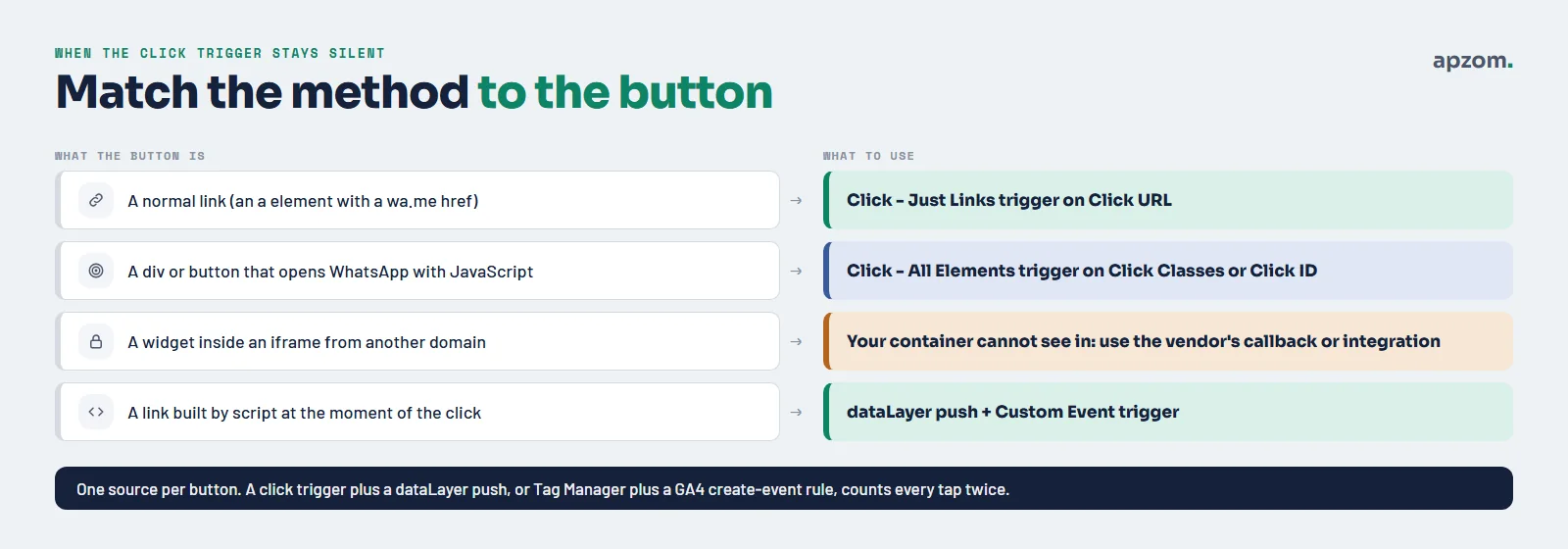
The button is not a link. Some widgets use a div or button element and open WhatsApp with JavaScript, so a Just Links trigger never fires. Try a Click – All Elements trigger, which Google describes as tracking “clicks on any element on a page”, with a condition on the button’s Click Classes or Click ID. Test carefully: a click on an icon inside the button can report the icon’s classes instead.
The widget sits inside an iframe from another domain. Many hosted chat widgets load in an iframe from the vendor’s domain. MDN’s same-origin policy documentation says scripts get “very limited access” to a document from another origin, and points to window.postMessage for communication between them, so your container cannot see clicks in there. Look in the vendor’s documentation for a JavaScript callback, a page event or a built-in GA4 integration.
The link is built at the moment of the click. If a script creates the wa.me address only when the button is pressed, the trigger may see an empty or different URL. In this case and the last, the dependable fix is a data layer push at the moment WhatsApp opens.
The dataLayer push option
Google’s data layer documentation gives the pattern: create the data layer with window.dataLayer = window.dataLayer || [], push an object with an event key, and “listen for that event name with a Custom Event trigger”. A developer would add something like this to the code that opens WhatsApp:
window.dataLayer = window.dataLayer || [];
window.dataLayer.push({event: 'whatsapp_click', button_location: 'floating_widget', link_url: whatsappUrl});
This is illustrative: whatsappUrl stands for whatever holds the link in your widget’s code. In Tag Manager, create a Custom Event trigger for whatsapp_click, Data Layer Variables for button_location and link_url, and fire the same GA4 tag from it. Use either the click trigger or the push for a given button, never both.
Send WhatsApp clicks to Google Ads
There are two ways to give Google Ads a WhatsApp conversion. Use one as the counted conversion, not both. Our guide to tracking phone calls from Google Ads follows the same logic for call buttons.
| Question | Import the GA4 key event | Google Ads conversion tag on the click |
|---|---|---|
| Set-up | Link GA4 and Google Ads, then import whatsapp_click | Create a website conversion action, then fire its tag from the WhatsApp trigger |
| Where you manage it | GA4 defines the event; Google Ads sets counting and goals | Google Ads and Tag Manager |
| Primary or secondary | May be set to secondary; check and change it in Google Ads | You choose |
| Good for | Sites without Tag Manager, or one definition kept in GA4 | Teams already running Google Ads tags in Tag Manager |
Option 1: import the GA4 key event
Google Ads Help gives the steps: click the Goals icon, open Conversions, click New conversion action, select Import, click Google Analytics properties, then Web, tick the whatsapp_click key event and click Import and continue. The accounts must be linked and auto-tagging switched on. You can also start in GA4’s Advertising section, under Tools, at Conversion management.
Google’s help on GA4-based conversions says Google Ads marks a conversion as secondary “when your Google Ads account already has goals from an Analytics property”, and that actions created through the Analytics interface are set to secondary “to prevent counting the same event twice for bidding”. Google’s import steps do not state a default, so check the action optimization setting after import and change it in Google Ads, not GA4.
Option 2: a Google Ads conversion tag on the click
Google Ads Help says you can track “when someone clicks a button or link on your website” with a conversion action. Create a website conversion action for WhatsApp clicks, open its tag set-up, choose Google Tag Manager, and copy the Conversion ID and Conversion Label. In Tag Manager, create a Google Ads Conversion Tracking tag, paste both values, and attach the WhatsApp trigger (or the Custom Event trigger, if you used a push).
Google’s Conversion Linker page says a container that loads a Google tag or a Destination tag on every page “does not also need a conversion linker tag”; if yours has neither on every page, add a Conversion Linker tag on All Pages so ad click details are stored.
Count “One”, not “Every”
Set Count to One. Google’s counting page says “One” counts “only one conversion per ad click” and suits you when you care “whether or not a certain kind of lead was generated”, while “Every” suits sales. Three taps after one ad click are still one possible lead.
Primary or secondary?
Google says primary actions appear in the “Conversions” column and are “used for bidding” when their goal is used for bidding, while secondary actions appear in “All conversions” for reporting only. Our working rule:
- Keep WhatsApp clicks secondary when you also track forms, calls or qualified leads. You still see which campaigns drive taps.
- Make them primary only when WhatsApp is the main way customers contact you and you have no better signal yet. Expect bidding to find people who tap, and review lead quality by campaign every month; our guide to improving Google Ads lead quality shows how.
- Never make both the GA4 import and the Ads tag primary for the same tap. That counts each tap twice.
Why a click is not a lead, and what to measure instead
The better signal is a chat your team has judged worth pursuing. Getting there takes two pieces: a way to tell which website visit a chat came from, and a way to send the outcome back to Google Ads.
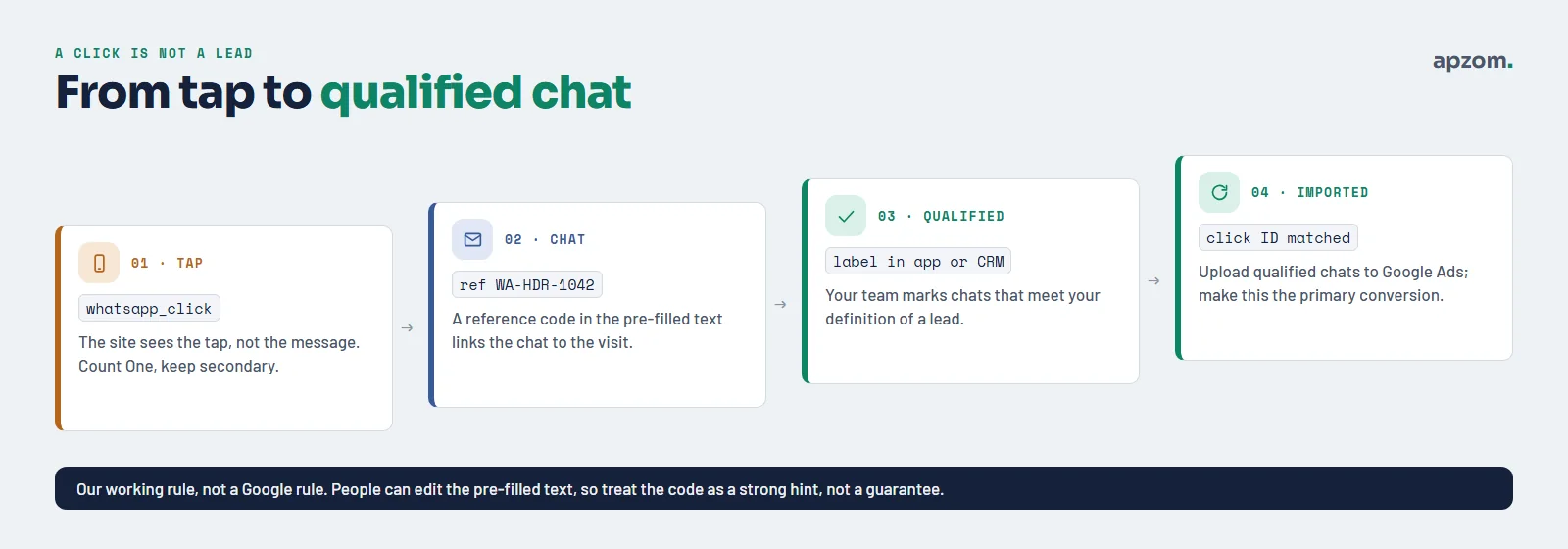
Put a reference code in the pre-filled message
Add a short reference to the pre-filled text, for example “Hi, I’d like a quote (ref WA-HDR-1042)”. A fixed code per button or page (WA-HDR for the header, WA-PRC for the pricing page) is easy and already tells your team where a chat came from. A unique code per visit takes a developer: a script generates the code, adds it to every wa.me link’s text, and stores it with the ad click identifiers (gclid, gbraid or wbraid) and the time in your CRM or a database. People can edit the pre-filled text before sending, so treat the code as a strong hint, not a guarantee.
Our guide to importing offline conversions into Google Ads shows how to capture those click identifiers from the landing page URL, with an illustrative script. Here the stored values are keyed by the reference code instead of a form submission.
Mark qualified chats and import them
When a chat meets your definition of a qualified lead (for example: in your service area, a real need, a timeframe), your team labels it with its reference code in the WhatsApp Business app or your CRM. A regular process looks up the code, finds the stored click identifier and uploads a “Qualified WhatsApp lead” conversion. The import guide covers the upload format, timing and diagnostics.
Enhanced conversions for leads matches on email or phone details captured by your website tag when a lead is submitted. A WhatsApp tap captures no details on your site, so the click identifier route is the practical one for chats. Once qualified chats arrive in reasonable volume, make that conversion primary and move the raw click to secondary. In GA4, the recommended event qualify_lead (a lead “marked as fitting the criteria to become a qualified lead”) is the matching name if you send outcomes there too.
None of this helps if chats wait hours for an answer. Our guide to speed to lead covers response targets and routing for WhatsApp and other channels.
Test before you trust the numbers
Test on the live site after publishing, on a phone as well as a computer, because some widgets change their link on mobile.
- Tag Assistant. In Tag Manager, click Preview and connect to your site. Tap each WhatsApp button, find the Link Click event (or your custom event) and check that your GA4 tag and any Google Ads tag appear under Tags Fired. If one shows under Tags Not Fired, open it to see which condition failed; usually the Click URL did not match. If the page leaves for WhatsApp too quickly, open the link in a new tab.
- Variables tab. Check the Click URL value for each click. This is where you find the api.whatsapp.com or whatsapp:// links you did not know about.
- GA4 DebugView. Google’s DebugView page says Tag Assistant “adds a parameter to your website address to enable debug mode”. Open Admin > Data display > DebugView and confirm whatsapp_click arrives with link_url and button_location filled. Without Tag Manager, connect through the Tag Assistant site and look for the click event, then your whatsapp_click event.
- Google Ads. After real ad traffic, check the conversion action’s status under Goals > Conversions. Only taps after an ad click count there, so your own test taps will not appear; Tag Assistant is what proves the tag fires.
Consent and privacy, briefly
Google’s consent mode documentation describes four signals (ad_storage, analytics_storage, ad_user_data and ad_personalization) and two set-ups: in basic mode “you prevent Google tags from loading until a user interacts with a consent banner”, while in advanced mode tags load straight away and adjust to the visitor’s choices. Either way, expect GA4 and Google Ads to show fewer taps than really happened.
Our Google Tag Manager guide explains consent mode for beginners. The reference-code method stores data about visitors, so make sure your privacy notice covers it in each market you serve, for example under the GDPR in the EU, the UK GDPR, and the Digital Personal Data Protection Act in India. This is a pointer, not legal advice.
Common mistakes
- Counting a tap as a lead. Compare WhatsApp clicks with chats actually received for a week before you rely on the number.
- Tracking only one link format. The header uses wa.me, the widget uses api.whatsapp.com, and half the taps go missing.
- Using generate_lead for every tap. Lead reports then mix taps with real form submissions.
- Double counting. Enhanced measurement, a Tag Manager event, a GA4 create-event rule, a widget’s own integration and a data layer push can all record the same tap. Choose one source per button.
- Marking the generic click event as a key event. That counts every outbound link.
- Counting “Every”. Use “One” for leads.
- No owner for the chats. Tracking is wasted if nobody answers quickly and labels which chats were qualified.
How Apzom can help
We set up and audit tracking for WhatsApp buttons, calls and forms as part of our Google Ads management and performance marketing work: Tag Manager triggers that match every link format, GA4 key events, Google Ads conversions with the right counting and primary settings, and, where it is worth the effort, reference codes and offline imports for qualified chats. Apzom manages Google Ads, so read this guide knowing we have an interest; everything above can be done in-house. We have not published a WhatsApp tracking case study yet, so we will not quote results; we will show you what your own account is counting. We work with clients worldwide, remotely, from our base in Ahmedabad, India.
Get a Free Growth Audit of your WhatsApp and lead tracking. Send us your website and tell us how enquiries reach you (WhatsApp, calls, forms). We send back a written plan: the triggers and key events to set up, the Google Ads counting and primary settings, whether reference codes and offline imports are worth it for you, and a quote if you want us to do the work.
No obligation, and no promised results. Prefer to talk first? Contact us or read our guide to importing offline conversions into Google Ads.
Frequently asked questions
Does GA4 track WhatsApp clicks automatically?
Often, yes. With enhanced measurement’s outbound clicks on, GA4 records taps on wa.me and api.whatsapp.com links as click events with a link_url parameter. It does not separate them from other outbound links, so create a whatsapp_click event from them and test it in DebugView.
Should I use generate_lead or a custom event for WhatsApp clicks?
Google ties generate_lead to a visitor submitting a form or information, and a WhatsApp tap does not do that. Use a custom event such as whatsapp_click for the tap, and keep generate_lead and qualify_lead for real enquiries and qualified chats.
Why is my WhatsApp click trigger not firing?
Usually the link format does not match your condition, the widget button is not an a element, or the widget sits in an iframe from another domain. Check the Click URL in Tag Assistant’s Variables tab, try an All Elements trigger, or ask for a data layer push.
Can I track whether the person actually sent a message?
Not from your website, which only sees the tap. To count real chats, add a reference code to the pre-filled message, label qualified chats with it and import them as offline conversions.
Do I need the WhatsApp Business Platform for this?
No. Website click tracking works with any WhatsApp number, including one on the WhatsApp Business app. The Platform matters for ads that open WhatsApp from Meta and for sending events back to Meta, which our click-to-WhatsApp ads guide covers.