
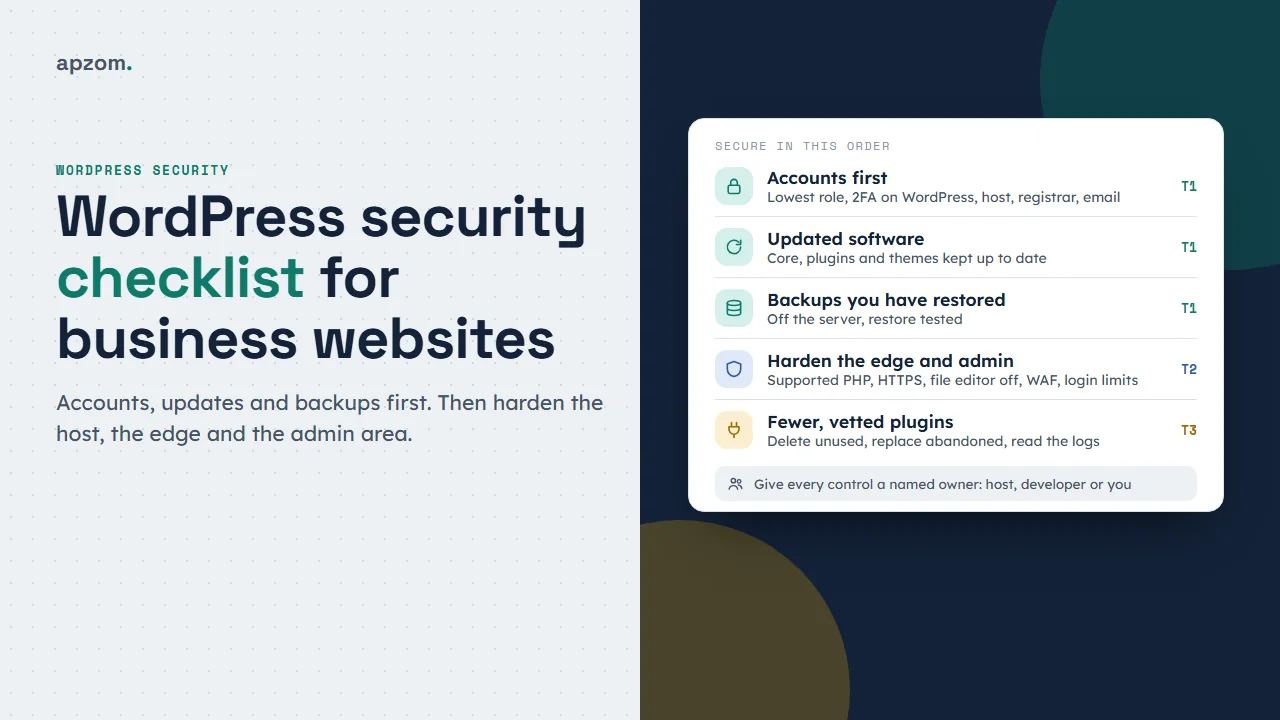
The short answer: Secure a business WordPress site in this order. First lock down the accounts: give everyone the lowest role that lets them do their job, and turn on two-factor authentication for WordPress, the hosting panel, the domain registrar and the admin email. Next, keep WordPress core, plugins, themes and PHP on supported versions, and keep off-site backups you have actually restored. Then harden: disable the dashboard file editor, force HTTPS, put a web application firewall (WAF) or CDN in front of the site, throttle logins, and delete or replace unused and abandoned plugins. Some of these controls belong to your host, some to WordPress and some to the people who log in, so give each one a named owner.
This guide is for owners, marketing managers and in-house web leads at businesses anywhere in the world whose website runs on self-hosted WordPress, often built by a freelancer or agency. It covers who owns each control, a prioritised checklist, what to do after a hack, legal security duties by country and a monthly routine. We checked every rule here against WordPress.org, php.net, Google and government sources on 21 November 2026.
Hosting-level vs plugin-level controls: who does what
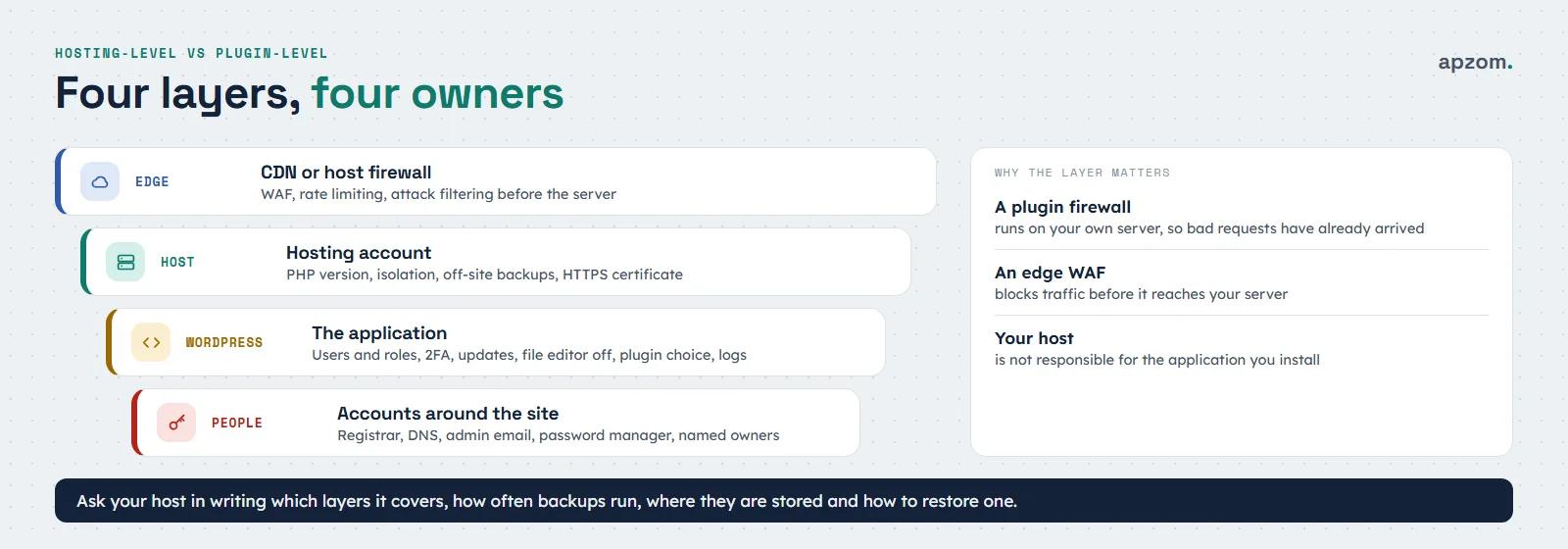
A security plugin runs inside WordPress, after the request has reached your server, and many controls work better, or only work, at a lower layer. WordPress’s Hardening WordPress handbook makes the split plain: hosts look after the infrastructure, but “they are not responsible for the application you choose to install.” WordPress, its plugins, its theme and its user accounts are yours to look after, or your developer’s. The same handbook warns that on shared hosting your site can be compromised “even if you follow everything in this guide”, because you share a server with other sites.
| Control | Best layer | Who usually owns it |
|---|---|---|
| Server software, PHP version, isolation from other sites | Host | Host, with you choosing the PHP version in the panel |
| WAF, rate limiting, attack filtering | Edge (CDN or host firewall) | Host or CDN, set up by your developer |
| Off-site backups and restores | Host or backup service, stored away from the server | You or your developer, checked by you |
| HTTPS certificate | Host or CDN | Host, often free |
| User accounts, roles, 2FA | WordPress | You |
| Core, plugin and theme updates | WordPress | You or your developer |
| File editing, unused add-ons, plugin choice | WordPress | Your developer, agreed with you |
| Logs and alerts | Host, CDN and WordPress | Shared: someone must read them |
| Domain, DNS and admin email accounts | Registrar and email provider | You |
Ask your host in writing which host rows it handles, and how often backups run, where they are stored and how you restore one. Each WordPress row needs a named person. Our guide to choosing a web design company covers the maintenance and ownership questions to ask, and WordPress vs website builders explains which of these jobs a hosted builder takes off your hands.
The WordPress security checklist, in priority order
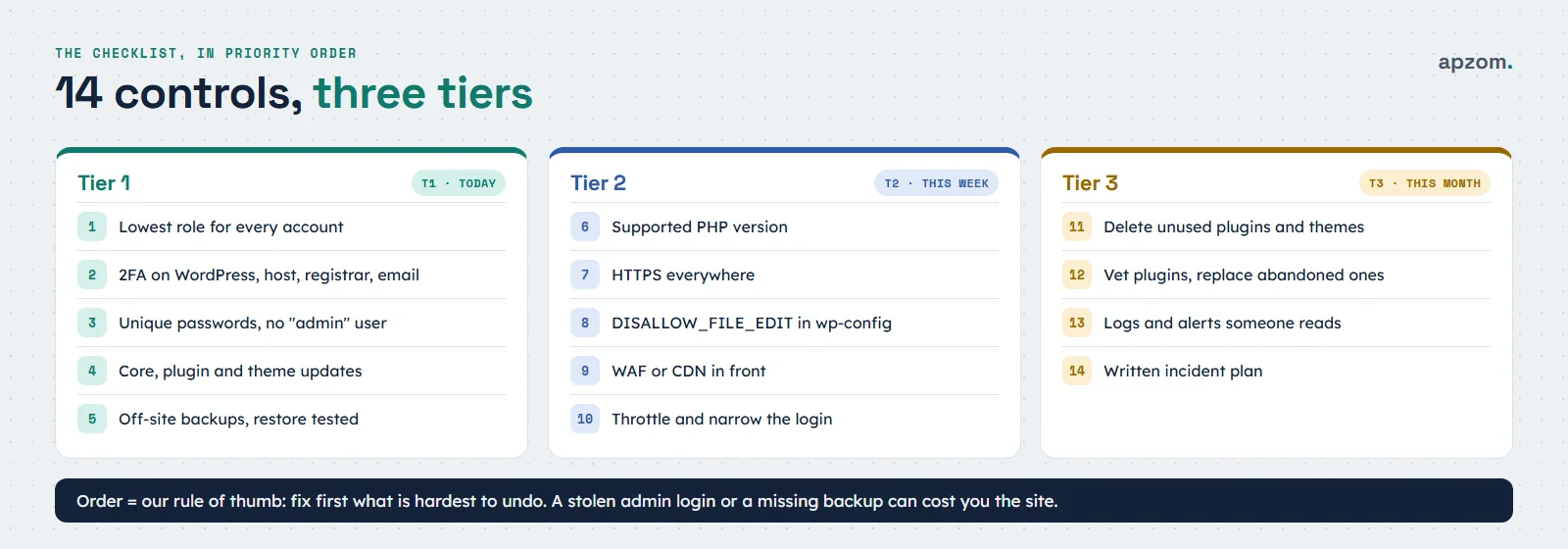
Do tier one today, tier two this week and tier three this month. The order is our rule of thumb, based on which failures are hardest to undo: a stolen admin login or a missing backup can cost you the site, while a missing log only slows the clean-up.
Tier one, today: accounts and logins
1. Give every account the lowest role that works. According to WordPress’s Roles and Capabilities documentation, an Administrator has “access to all the administration features within a single site”, an Editor can publish and manage everyone’s posts, an Author publishes and manages only their own, a Contributor can write “but cannot publish them”, and a Subscriber can only manage their profile. Go to Users and check every account:
- Only people who install plugins, change settings or manage users need Administrator. A marketer who edits pages needs Editor.
- On a single site, Administrators and Editors both have the
unfiltered_htmlcapability, which lets them add scripts to content, so treat Editor as a trusted role too. - Delete or downgrade accounts for former staff, freelancers and agencies, reassigning their content when WordPress asks.
- Never share a login. Each person gets their own account, so you can remove one without changing everyone’s password.
- In Settings > General, keep “Anyone can register” off unless you need public sign-ups, and set the New User Default Role to Subscriber, never Administrator.
On the same screen, check the Administration Email Address. WordPress’s documentation says that if a developer or agency set up the site, “verify that the Administration Email Address points to an address your organization can access”. Recovery-mode and critical-error emails go there.
2. Turn on two-factor authentication (2FA) everywhere that can change the site. WordPress core does not include 2FA; the WordPress Brute Force Attacks handbook page says to “Enable 2FA for all administrators and privileged users”, using a reputable plugin or your identity provider. Before you rely on it, make sure each person saves their backup codes somewhere safe, so a lost phone does not lock them out. Also turn it on for the hosting panel, registrar, DNS or CDN account and the email that receives password resets: whoever controls one of those can take the site. The UK’s National Cyber Security Centre calls 2-step verification “one of the most effective ways to protect your online accounts from cyber criminals.” For administrators, we prefer an authenticator app or a security key over SMS codes; the US Cybersecurity and Infrastructure Security Agency (CISA) names phishing-resistant FIDO/WebAuthn authentication, such as a security key, as the standard to aim for.
3. Use long, unique passwords from a password manager. The Brute Force page says not to use the username admin and to encourage “unique, long passwords (or passphrases) and the use of password managers.” If an account is still called admin, create a new administrator, log in as it, then delete the old account and attribute its content to the new one.
Tier one, today: updates and backups
4. Keep core, plugins and themes updated. WordPress’s security page says “only the latest version of WordPress is officially supported”, with fixes backported to older versions only “as a courtesy”. What updates by itself depends on the site:
- Core. WordPress’s Upgrading documentation says minor and security releases update automatically on most sites. Sites first installed on WordPress 5.6 or later also get major releases automatically by default; older installs stay minor-only unless an administrator turns major updates on in Dashboard > Updates.
- Plugins and themes. Since WordPress 5.5, administrators opt in “plugin by plugin” in the Automatic update column on the Plugins screen, and theme by theme under Appearance > Themes. WordPress runs these updates twice a day and emails the site owner after each attempt, successful or failed. If the controls are missing on WordPress 5.5 or later, WordPress says your host or a plugin has probably switched them off.
Our rule of thumb: auto-update small, well-maintained plugins and any plugin with a published security fix. Update the ones your revenue depends on, such as page builders, forms and WooCommerce, by hand after a backup, ideally on staging first. Auto-updates rely on WordPress’s scheduled tasks, so check Tools > Site Health if they stop arriving.
Why plugins matter most: in its State of WordPress Security in 2026 report, Patchstack, a WordPress security company, counted 11,334 new vulnerabilities in the WordPress ecosystem in 2025: 91% in plugins, 9% in themes and 6 low-priority ones in core. For the most heavily exploited flaws, it reports a weighted median time to first exploit of 5 hours. One vendor’s figures, but they explain why plugin updates should not wait.
5. Keep backups off the server, and test a restore. WordPress’s Backups page says a backup has two parts, the database and the files, and “You need both to be able to fully restore a typical WordPress site.” It suggests weekly backups for small sites and daily ones for busy sites, stored “in different places and on different mediums”. A backup kept only on the same server can be lost or infected with the site, so keep at least one copy with a separate provider or account.
WordPress’s upgrade guide says to “Verify the backups you created are there and usable. This is essential.” The quarterly restore test we recommend:
- Pick the latest backup and note its date and size.
- Restore it to a staging site or temporary subdomain, never over the live site.
- Log in, open the home page, a service page and a form, and check the latest post and form entry are there.
- Record how long it took and who did it.
- Delete the test copy, or block it from search engines, when you finish.
Tier two, this week: platform, HTTPS and file editing
6. Run a supported PHP version. PHP is the language WordPress runs on, and your host lets you choose the version. WordPress’s Requirements page recommends PHP 8.3 or greater and warns that older versions it still runs on “have reached their official End Of Life and may expose your site to security vulnerabilities.” php.net’s support table on 21 November 2026:
| PHP branch | Active support until | Security fixes until |
|---|---|---|
| 8.1 and older | Ended | Ended (end of life) |
| 8.2 | Ended 31 Dec 2024 | 31 Dec 2026 |
| 8.3 | Ended 31 Dec 2025 | 31 Dec 2027 |
| 8.4 | 31 Dec 2026 | 31 Dec 2028 |
| 8.5 | 31 Dec 2027 | 31 Dec 2029 |
| 8.6 (released 19 Nov 2026) | 31 Dec 2028 | 31 Dec 2030 |
Newest is not automatically safe: on 21 November 2026, WordPress’s PHP Compatibility page listed support up to PHP 8.5, not 8.6, so wait for WordPress and your main plugins before moving to 8.6. PHP 8.4 or 8.5 gives the longest security support WordPress currently lists, if your theme and plugins work on it. On PHP 8.2 or older, switch on a staging copy first, click through the site, then switch the live site. If your theme or a plugin breaks on supported PHP and its maker has gone, read our guide to the signs your website needs a redesign, which explains when that becomes a rebuild rather than maintenance.
7. Serve everything over HTTPS. Most hosts and CDNs issue free certificates. Once the certificate works at https:// and you have host or SFTP access in case you need to undo a change, set WordPress Address (URL) and Site Address (URL) in Settings > General to the https:// address, and redirect http:// to https:// at the host or CDN. The Hardening handbook says to “require an HTTPS SSL encrypted connection for administration”; the wp-config constant FORCE_SSL_ADMIN forces logins and admin sessions over HTTPS. Behind a CDN or proxy that handles HTTPS, WordPress’s HTTPS documentation warns these settings can cause an infinite redirect loop, so have your developer configure the proxy first. Tools > Site Health confirms it with “Your website is using an active HTTPS connection”.
8. Disable the dashboard file editor. WordPress lets administrators edit theme and plugin code from the dashboard, so a stolen admin login can plant code in seconds. The wp-config documentation gives the constant:
define( 'DISALLOW_FILE_EDIT', true );Back up wp-config.php (in the site root), then add the line between the comment /* Add any custom values between this line and the "stop editing" line. */ and /* That's all, stop editing! Happy publishing. */ (older files may only have the “stop editing” line, and some say “Happy blogging”; put the constant just above it). Search the file first: if DISALLOW_FILE_EDIT is already defined, change its value instead, because PHP keeps a constant’s first definition. Upload over SFTP, not plain FTP; the Hardening handbook notes that with SFTP your password “is never sent in the clear”. Then check that Theme File Editor and Plugin File Editor have gone from the Appearance, Plugins or Tools menus. The related DISALLOW_FILE_MODS also blocks dashboard installs and updates, so use it only if updates run another way, such as a deployment process.
Not sure which of these controls your site already has? Ask for a Free Growth Audit of your WordPress site. We check users and roles, 2FA, update settings, PHP version, backups, file editing, HTTPS and the plugin list, and tell you which fixes to make first and who should own each one.
Tier two, this week: firewall and login protection
9. Put a WAF or CDN in front of the site. The Hardening handbook recommends a WAF “to filter content before it is processed by WordPress”, and the Brute Force page notes that with a managed WAF at the edge, bad “traffic is blocked before reaching your server.” That is the hosting-level advantage: a plugin firewall runs on your own server, so every bad request has already arrived and used resources before it is blocked. A plugin firewall is still a useful second layer.
10. Throttle and narrow the login. The Brute Force page says the host or CDN can rate-limit logins at the edge, and if not, “a security plugin can throttle login attempts”. It describes password-protecting the whole /wp-admin folder as older guidance that is unreliable or can break plugins that use AJAX, and says to scope server-level blocks narrowly, for example to /wp-login.php and /xmlrpc.php. It also says to disable XML-RPC if you do not use it, but ask your developer first, because some mobile apps and connection tools rely on it.
Tier three, this month: add-ons, vetting and logs
11. Delete plugins and themes you do not use. Deactivated files still sit on the server. WordPress’s Site Health screen warns that “Inactive plugins are tempting targets for attackers.” For themes, keep the active theme, its parent if it has one, and one default WordPress theme as a fallback, and delete the rest.
12. Vet every plugin, and replace abandoned ones. Patchstack’s 2026 report says 46% of the vulnerabilities it tracked in 2025 “did not receive a fix from the developer in time for public disclosure.” Before installing, and each quarter for what you already run, check:
- Directory warnings. WordPress.org shows “This plugin hasn’t been tested with the latest 3 major releases of WordPress” on plugins whose authors have not kept up, and the notice warns such a plugin “may no longer be maintained or supported”. A closed plugin “has been closed and is no longer available for download”, and closure reasons include a security issue. Replace closed plugins promptly.
- Recent updates and support replies. Check the last update date and whether the author answers support threads.
- Source. Install only from WordPress.org or the developer’s own site, never “nulled” copies of paid plugins; the Hardening handbook warns against untrusted sources.
- Overlap and licences. Keep one plugin per job, and hold paid licences in your business’s name so updates keep coming.
13. Turn on logs and alerts, and make sure someone reads them. The Hardening handbook says “Logs are your best friend when it comes to understanding what is happening with your website.” Use host logs, WAF or CDN security events and an activity-log plugin for logins, user and plugin changes. Add an uptime monitor, and verify the site in Google Search Console, whose Security issues report flags “any content placed on your site without your permission”, malware and deceptive pages. Our Search Console guide shows where it sits.
14. Write down the incident plan. Use the next section, add names and phone numbers, and store it off the website.
Renaming the login URL or changing the table prefix is left out on purpose: it can cut bot noise, but the Hardening handbook calls security through obscurity “generally an unsound primary strategy.”
What to do if your WordPress site is hacked
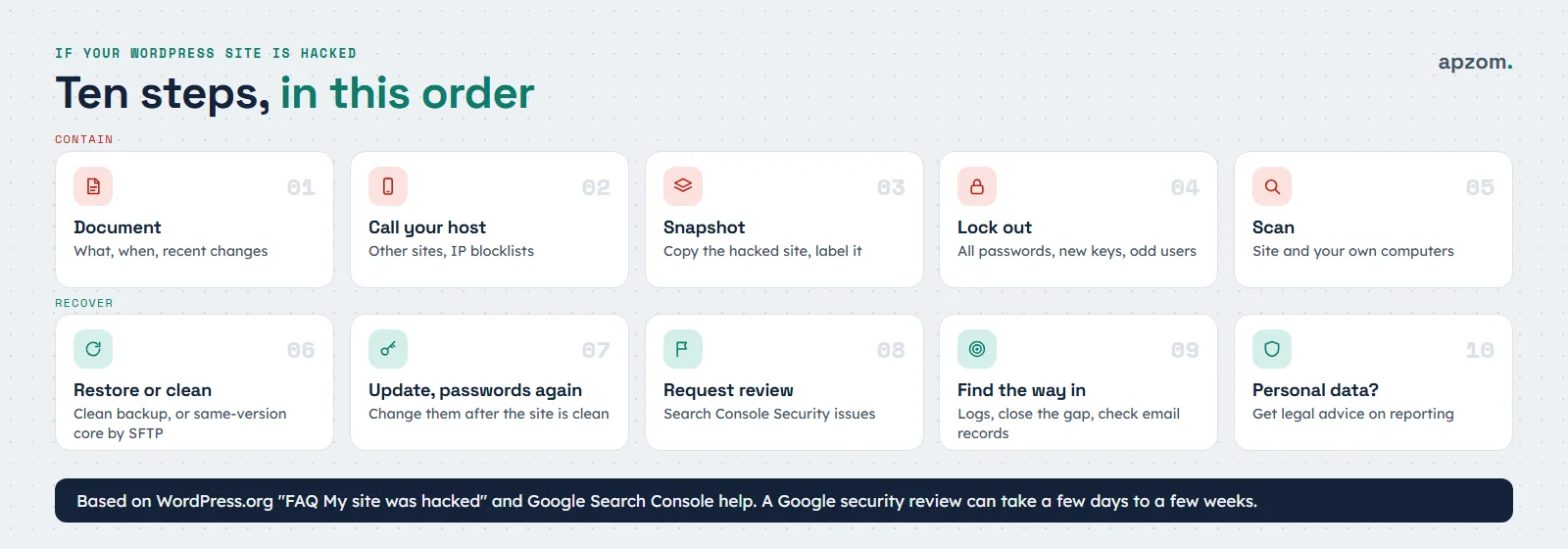
Signs include pages or links you did not add, redirects, new admin users, or a warning from your host, browser or Search Console. Work through these steps in order, based on WordPress.org’s “FAQ My site was hacked” and Google’s Search Console help.
- Document first. The FAQ says “The first actionable step you should take post-compromise is documentation”: what you see, when you noticed it (with time zone), and what changed recently, such as a new plugin.
- Call your host. It can check other sites on the server and whether its IP address is blocklisted for spam.
- Snapshot the hacked site. Back it up before cleaning so you can investigate later, and label it clearly so nobody restores it by mistake.
- Lock out the attacker. Change every access point (WordPress, SFTP, hosting panel, database) for every user, force a password reset, replace the secret keys in wp-config.php to log everyone out, and remove users you do not recognise.
- Scan the site and your own computers. Use a plugin scanner and an external scanner; the FAQ notes infections often start on a local computer that leaked a password.
- Restore or clean. Restore a clean pre-hack backup if you have one. If not, reinstall the same WordPress version by SFTP, not the dashboard reinstall, replacing /wp-admin and /wp-includes; then check wp-content, .htaccess and theme files for code you did not add, and reinstall plugins and themes from their original sources.
- Update, then change passwords again. The FAQ says to change them “after making sure your site is clean”, because the first change may have happened while the attacker was still inside.
- Ask Google for a review. Fix every listed issue on every affected page, then choose Request Review in Search Console’s Security issues report and explain what you fixed. Google says a security review “can take from a few days to a few weeks to complete”. Spam penalties are separate; see our guide to Google manual actions.
- Find the way in. Check logs for the first sign of the attack and close that gap. If the site sent spam, check your email domain records too; our guide to SPF, DKIM and DMARC explains them.
- Check whether personal data was exposed. If form entries, accounts or orders could have been read, you may have a legal duty to report the breach, sometimes within a short deadline. Get legal advice quickly.
If steps 5 to 9 are beyond your time or skills, hire a professional incident response or malware-removal service.
Security duties by country
If your site collects personal data, such as form entries or customer accounts, data protection law in many markets expects reasonable security. Checked on 21 November 2026; this is not legal advice.
| Market | Law | What it asks for, in short |
|---|---|---|
| EU | GDPR, Article 32 | “Appropriate technical and organisational measures”, including restoring data “in a timely manner” after an incident and regularly testing the measures |
| UK | UK GDPR (ICO guidance) | The same security principle: “appropriate technical and organisational measures” |
| Australia | Privacy Act 1988, APP 11 (OAIC) | Reasonable steps to protect personal information from misuse, interference, loss and unauthorised access; applies to most businesses with annual turnover over A$3 million and some smaller ones, such as health service providers |
| Canada | PIPEDA safeguards principle (OPC) | Protect personal information “in a way that is appropriate to how sensitive it is” |
| India, UAE, US | National, state or sector rules | India has the Digital Personal Data Protection Act, 2023; the UAE and US have their own rules. Ask a local lawyer which apply |
The EU wording on restoring and testing maps straight onto the restore test above, so keep a record of each one.
A recommended monthly routine
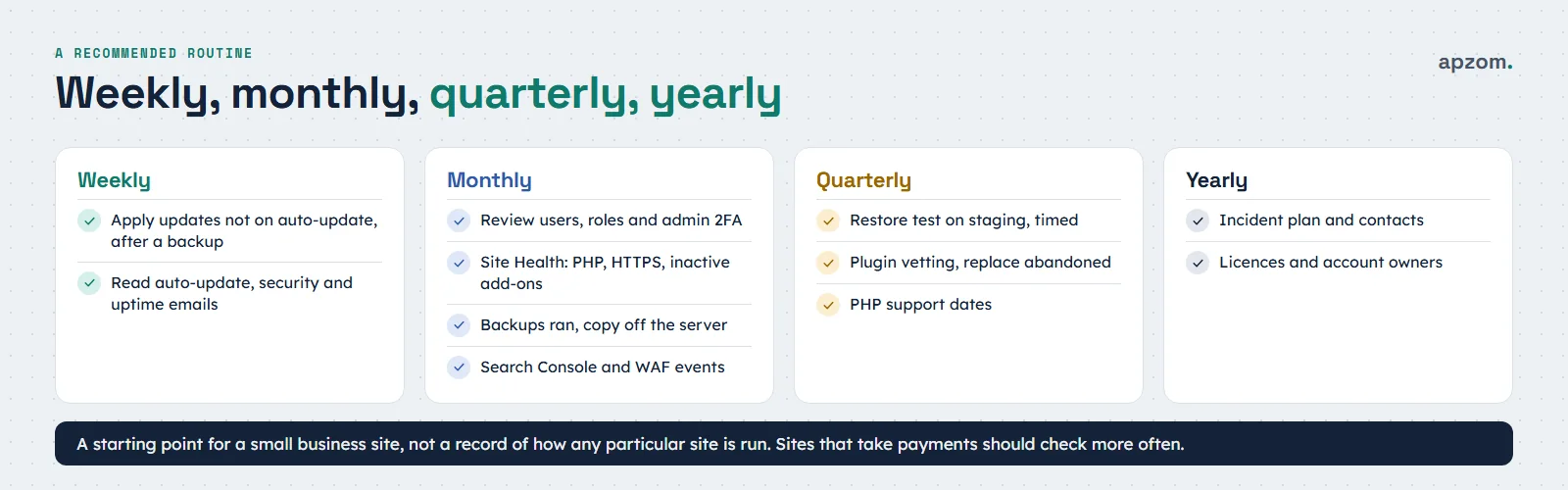
A starting point for a small business site, not a record of how any particular site is run; sites that take payments should check more often.
| When | Task | Done when |
|---|---|---|
| Weekly | Apply updates not set to auto-update, after a fresh backup | Dashboard > Updates shows nothing pending |
| Weekly | Read auto-update, security and uptime emails | No unexplained failures |
| Monthly | Review users, roles and 2FA on every administrator | Every account has a named owner |
| Monthly | Check Tools > Site Health for PHP, HTTPS, inactive plugin and theme warnings | No critical issues |
| Monthly | Confirm backups ran and a copy exists off the server | Latest backup is within your schedule |
| Monthly | Check Search Console security issues and WAF or CDN events | Nothing new, or a ticket raised |
| Quarterly | Restore test to staging; plugin vetting; PHP support dates | Restore timed and recorded; abandoned plugins replaced |
| Yearly | Review the incident plan, contacts, licences and account owners | Plan updated and stored off the site |
Common mistakes
- Never testing a restore. An untested backup may be missing the database, and you find out on the worst day.
- Giving everyone Administrator. Every extra administrator is another login an attacker can steal.
- Leaving old agency or freelancer accounts active. Remove access when the work ends, and keep the admin email in your business’s hands.
- Auto-updating everything, or nothing. One can break a checkout without warning; the other leaves known holes open for weeks.
How Apzom can help
Apzom Digital builds and looks after business websites, including WordPress sites. For an existing site, we can review the hosting and WordPress layers against this checklist and give you a written list of fixes in priority order, then set up and run the monthly routine if you want. We have not published a WordPress security case study yet, so we will not quote results we cannot prove, and we will tell you plainly when a specialist incident response service is the better choice for a hacked site. See our website development services. We work with clients worldwide, remotely, from our base in Ahmedabad, India.
Get a Free Growth Audit and Quote for your WordPress site. Send us your website address and what you know about your hosting. We send back a written list of security and maintenance fixes in priority order, split into host, WordPress and account tasks, and a quote if you want us to do the work or run the monthly routine.
No obligation, and no promise that any site can be made unhackable. Prefer to talk first? Contact us or see our website development services.
Frequently asked questions
Is WordPress secure enough for a business website?
Yes, if someone maintains it. Patchstack’s 2026 report found 6 low-priority core vulnerabilities in 2025 against thousands in plugins and themes, so most risk comes from add-ons, old software and weak logins. If nobody will maintain the site, a hosted platform may suit you better; our Shopify vs WooCommerce guide compares that trade-off for stores.
Do I need a security plugin?
It helps with 2FA, login throttling, malware scans and activity logs, but it does not replace off-site backups, an edge WAF, supported PHP or 2FA on your hosting and registrar accounts. Pick one well-maintained security plugin, not several.
Should I turn on auto-updates for all plugins?
Not by default. Auto-update small, well-maintained plugins and security fixes; update the ones that run forms, checkout or page layouts by hand after a backup, and read WordPress’s auto-update emails.
How do I know if my WordPress site has been hacked?
Look for pages or links you did not add, redirects, new admin users, warnings from your host or browser, or a message in Search Console’s Security issues report. A regular technical SEO audit also tends to surface strange URLs early.