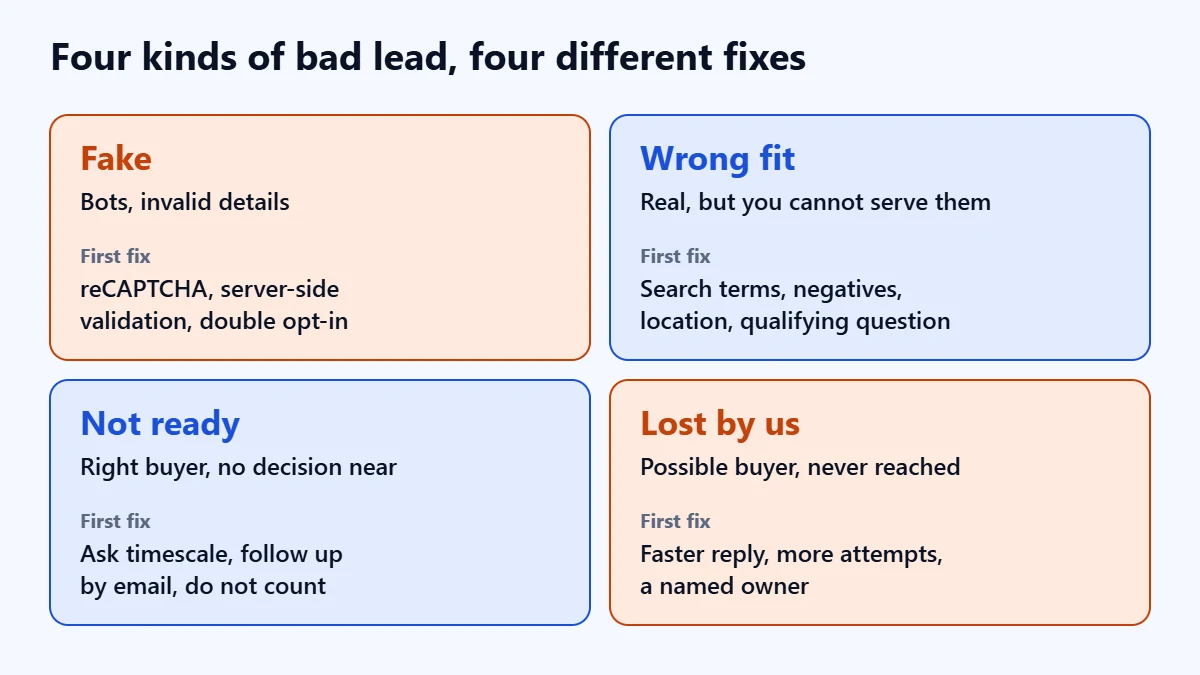
The short answer: Google Ads lead quality improves when you stop treating every form fill as a success. Write down what a qualified lead means for your business, label your last 50 to 100 leads, and work out whether your problem is fake leads, wrong-fit leads, leads who are not ready yet, or good leads lost in follow-up. Each has a different fix. Once the obvious waste is gone, send your qualified outcomes back to Google Ads so automated bidding learns to find more of those people, rather than more form fills.
This guide is for businesses that use Google Ads to win enquiries, calls or quote requests, whether you manage the account yourself or pay someone to. It is not written for online stores, where the sale happens on the website and quality is easier to see. Menu names and limits follow Google Ads Help as checked in November 2026, and Google changes them often. We are an agency that manages Google Ads, so read this knowing we have an interest. Every step works just as well if you do it yourself.

What to take from this guide
- Bad leads are not one problem. A bot, a job seeker, a buyer six months away and a good lead nobody called all look like a bad lead in a report. They need four different fixes.
- Judge campaigns on cost per qualified lead. A cheaper lead can be the more expensive one once you count how many were real.
- Clean up before you feed back. Sending outcomes to Google Ads helps most after spam is blocked and your labels are consistent.
- Volume decides your bidding options. Google asks for at least 15 conversions in 30 days for a goal it will bid to, so many smaller accounts need a staged approach.
Why Google Ads can send you more leads and worse leads at the same time
Automated bidding pursues whatever you count as a conversion. If every form submission counts the same, then a fake enquiry and a signed contract look identical to the system, and it will look for more of whatever is cheapest to get. Google makes the same point in its Performance Max guidance for lead generation: your inputs, especially conversion data, control what the campaign produces.
So a rising lead count is not evidence that a campaign is working, and the account can be doing exactly what it was asked while your sales team complains. The fault is often in the instruction rather than the execution.
The number to watch: cost per qualified lead
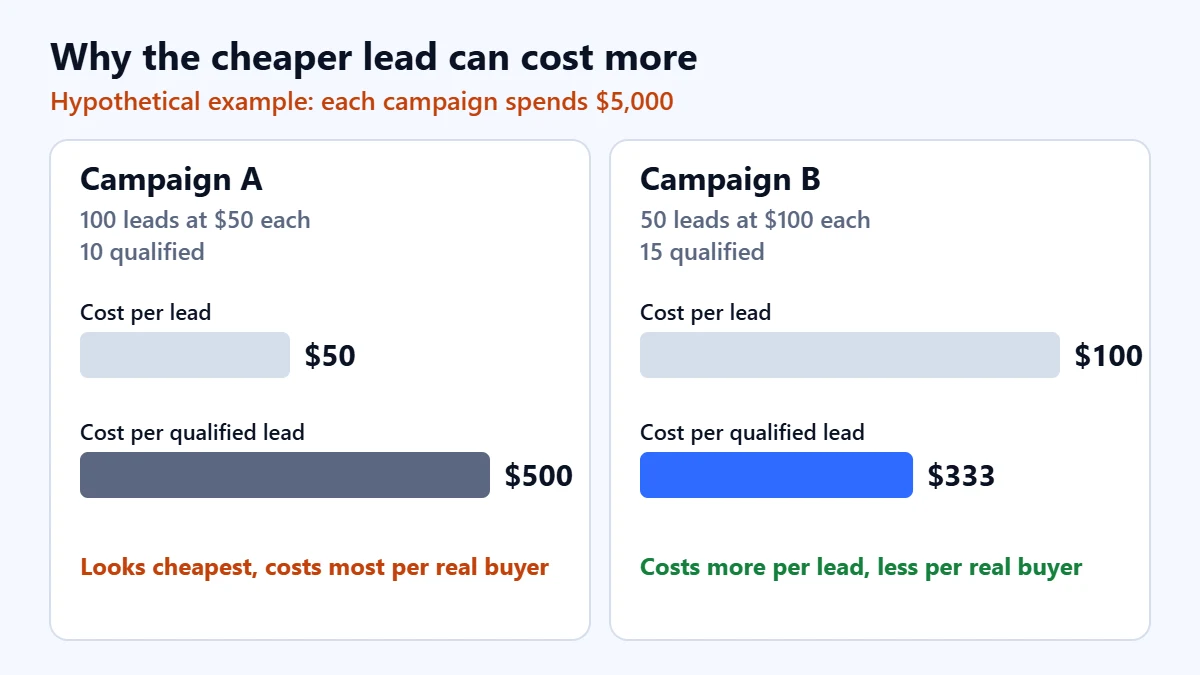
Cost per lead rewards volume. Cost per qualified lead rewards the thing you are paying for. The example below is hypothetical, with round numbers chosen to show the arithmetic. Campaign A looks twice as efficient until you divide by the leads your sales team would actually pursue.
We apply the same caution to our own published work. Our HillTown Group case study reports more than 600 leads a month from Meta ads for 12 months, and it states plainly that we do not hold figures for how many became site visits or bookings. That is a lead volume result. It is not a lead quality result, and it is a different platform. The distinction is the point of this guide.
Step 1: write down what qualified means
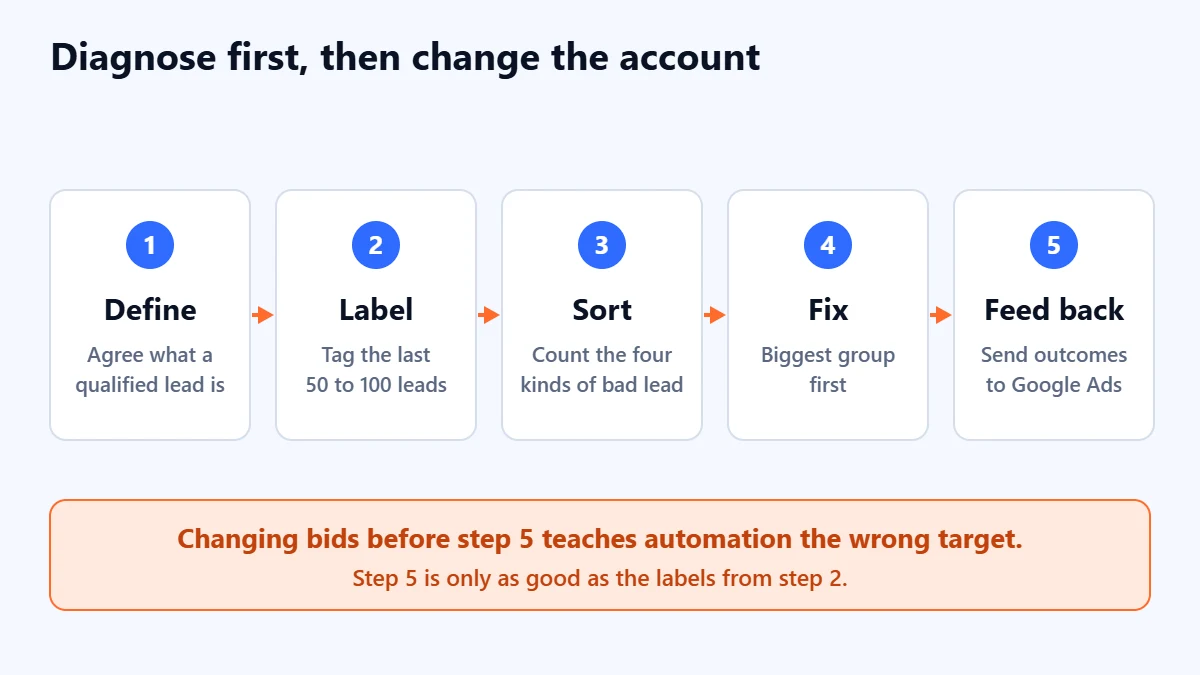
Agree this with whoever takes the calls, because marketing and sales often hold different definitions without realising it. Keep it short enough to apply in ten seconds. Most service businesses can do it with four questions:
- Can we reach them? The name, phone number or email belongs to a real person who answers.
- Do they want something we sell? Not a job, not a supplier pitch, not a service you stopped offering.
- Can we serve them? Right location, right size of job, right kind of customer.
- Could they plausibly buy? A budget and a timescale that are not obviously impossible.
A lead that passes all four is qualified. It does not have to buy. If you score leads on whether they bought, a long sales cycle will make every recent campaign look like a failure.
Step 2: label your last 50 to 100 leads
This is the step most advice skips, and it takes an afternoon. Export your recent leads into a spreadsheet and give each one a single label. If you have fewer than 50 from the last month, go back three months. With fewer than about 20, treat the pattern as a hint rather than a finding.
| Label | Use it when | Example |
|---|---|---|
| Qualified | Passes all four questions, whatever happened next | Homeowner in your area asks for a quote this month |
| Fake | Not a real person or not a usable contact | Random text in the name field, a number that does not exist |
| Wrong fit | Real person, but you cannot or would not serve them | Job applicant, supplier, outside your service area |
| Not ready | Right kind of buyer, but no decision is near | Comparing options for next year |
| Lost by us | Might have been qualified, but we never properly reached them | One unanswered call, then no further attempt |
Add three columns if you can: the campaign, the search term or keyword, and how many hours passed before your first contact attempt. Those columns turn a complaint about lead quality into something you can act on.
Want someone to read this data with you? Ask for a Free Growth Audit. We look at your lead labels, conversion tracking and search terms, then tell you which of the four problems to fix first.
Step 3: read the pattern and fix the biggest group
Count your labels. Whichever group is largest is where to start, because the four groups have almost nothing in common. Bidding changes will not stop a bot, and negative keywords will not make your team call back faster.
If most of your bad leads are fake
Do not assume Google has this covered. Its guidance on preventing invalid leads says traffic filters do not stop invalid leads on their own, because most checks happen after the ad has served, and calls lead quality a shared responsibility. It recommends three safeguards on your own forms:
- reCAPTCHA on web forms.
- Server-side validation, so your server checks that email domains are valid and phone numbers match real regional formats before accepting a submission. Bots can bypass checks that run only in the browser.
- Double opt-in, where someone counts as a valid lead only after clicking a link sent to their email.
Also move your conversion goal to a lead-specific one such as Qualified lead, Converted lead, Book appointment or Request quote. Google says in its lead generation best practices that these trigger invalid traffic protections built for lead campaigns. If you use Google’s own lead form assets on Search, you can add SMS phone verification.
Then check where your conversion fires. If it counts a button click rather than a submission your server accepted, spam is teaching your bidding what to look for. Double opt-in in particular will lose some genuine people, so use it where fake leads are costing more than the lost enquiries would be worth.
If most of your bad leads are the wrong fit
These are real people you attracted by accident, so the fix is in targeting and in what you say.
- Read the search terms report against your labels. Look for the words that appear on wrong-fit leads: “jobs”, “salary”, “free”, “course”, or a service you do not offer. Google omits some low-volume terms for privacy, so the report is never complete.
- Add negative keywords with care. Unlike normal keywords, negative keywords do not match close variants, so you need to add singular and plural forms yourself.
- Check your location setting. Google’s location targeting help describes “Presence or Interest” as broad targeting and recommends it for Search. If you can only serve a fixed area and your labels show out-of-area leads, test the narrower “Presence” option.
- Say who you are not for. A minimum job size, a service area or “for businesses only” in the ad and on the page puts off the wrong people before they click or enquire.
- Ask one qualifying question on the form. On lead form assets, qualifying responses tag submissions that choose answers you specify. They are available for Search campaigns only and must be required. On your own site, a required budget or service-area field does a similar job.
Expect fewer leads and a higher cost per lead when you do this. That is the intended result, and it is why cost per qualified lead has to be the number you judge it by. Our landing page guide covers how to balance a form’s friction against the people it filters.
One place we differ from Google’s defaults. Its best practices encourage broad match with Smart Bidding to reach a wider range of queries. That can work once the account has a reliable qualified-lead signal. In our judgement, broad match on an account still optimising for raw form fills widens the door without telling the system who to let in, so fix the signal first.
If most of your leads are not ready
These are often the right people at the wrong time, so do not block them. Check whether your ads promise an immediate commitment you do not actually need, or whether your keywords lean towards research terms such as “ideas”, “examples” or “how much does it cost”. Ask about timescale on the form, then send later buyers into a follow-up sequence rather than the sales queue. Our email marketing guide covers how to set one up. Keep them out of your qualified count, or your bidding will learn to chase browsers.
If your best leads are being lost by you
Now the ad account is not the problem, and no setting inside it will help. Look at your hours-to-first-contact column and how many attempts each lead received. Nielsen Norman Group’s 2019 research with business professionals, a small qualitative study, found most people expect a reply to a form within 24 hours.
If you use lead form assets, watch the delivery too. Google stores those leads for only 60 days and CSV downloads reach back just 30, and it recommends a webhook or CRM integration for fast follow-up.
Step 4: send your outcomes back to Google Ads
Once your labels are reliable, you can give Google Ads the information it has been missing. You do not need a sophisticated system. Google’s offline conversion FAQ says any system that captures lead information can be adapted, including a Google spreadsheet.
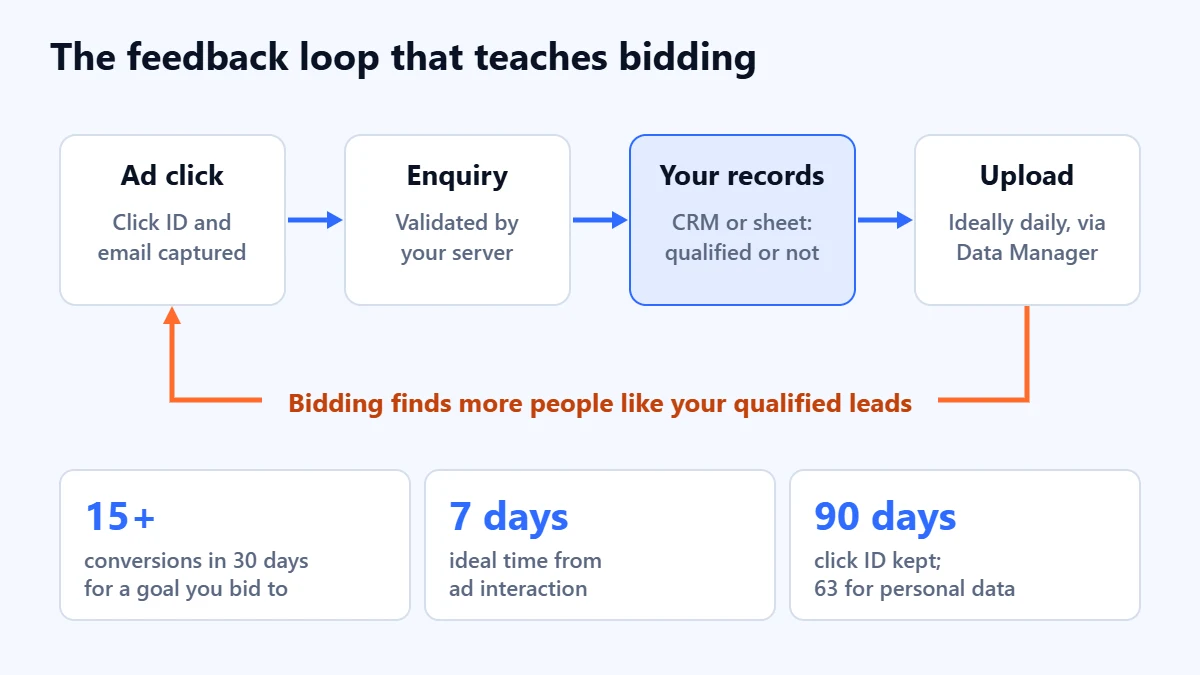
- Start with enhanced conversions for leads. If you have not adopted offline conversion imports already, Google recommends this instead. It matches hashed customer details such as email or phone rather than relying only on the click ID.
- Keep capturing the click ID anyway. Google advises including the GCLID whenever you have it.
- Create one conversion action per stage. Google’s FAQ calls this best practice, and says you would usually bid to only one stage.
- Upload often, ideally daily. Google says it keeps the GCLID for 90 days, and its FAQ gives 63 days for conversions uploaded with personal data for enhanced conversions. For long sales cycles, upload an earlier stage that happens inside those windows.
- Check any custom script. From 15 June 2026, Google says these uploads moved to the Data Manager API, with the old route blocked in the Google Ads API. A script nobody has looked at since then may have stopped working.
- Handle the data properly. You are sending customer information to Google, even hashed. You will be asked to accept Google’s customer data terms, and your privacy notice and consent process need to cover it under the law where your customers are. Take advice if you are unsure.
Which stage should you bid to?
Google’s lead generation guidance suggests a goal with at least 15 conversions in the last 30 days at account level, ideally happening within 7 days of the ad interaction. That gives a practical ladder. The rungs below are our reading of those numbers, not a Google rule.
| Your situation | Bid to | Use qualified data for |
|---|---|---|
| Fewer than 15 qualified leads in 30 days | Validated form submissions and calls, with spam blocked | Reporting and manual decisions on keywords and budgets |
| 15 or more qualified in 30 days, usually within about a week of the click | Qualified lead, with target CPA if you cannot give leads different values | Bidding, with earlier stages kept for observation |
| Enough volume, and some leads are worth clearly more than others | Conversion value, using Maximize conversion value or target ROAS | Bidding, with values set per stage or per lead type |
Give changes time. For Performance Max, Google suggests allowing 1 to 2 weeks after setup before major changes, and up to 6 weeks for complex setups or low conversion volume. Judge the result on cost per qualified lead over a period long enough for your leads to have been worked.
Common mistakes
- Changing bidding first. A smarter strategy aimed at a polluted signal gets better at finding the wrong thing.
- Marking leads qualified to make a report look better. Your labels are now training data, so inflation has a direct cost.
- Uploading administrative status changes. A lead moved between stages for internal reasons should not become a bidding target.
- Counting several stages in one bidding goal. Google warns that bidding to multiple stages in one target CPA strategy can be duplicative.
- Setting a target CPA from your old cost per lead. A qualified lead costs more than a raw lead. Set the target close to the most you can accept per qualified lead.
- Blaming the channel too soon. Our Google Ads audit checklist covers ownership, tracking and waste, and is worth running first if nobody has checked the account recently.
When better settings will not solve it
Some lead quality problems are really offer or market problems. If your labels show plenty of real, relevant people who go quiet once they hear the price, the ads may be working and the proposition may not be. And in a small market with few searches, tight targeting may leave too little volume to run automated bidding at all. In that case, manual decisions from your labels are a legitimate way to run the account, and it may be worth comparing channels. Our guides on Google Ads versus Facebook Ads and measuring marketing ROI can help with that decision.
A 30-day checklist
- Week 1: agree the four-question definition of a qualified lead with sales.
- Week 1: label the last 50 to 100 leads, with campaign, search term and response time.
- Week 2: fix the largest group first, starting with spam protection if fake leads are significant.
- Week 2: confirm your conversion fires only on an accepted submission or a real call.
- Week 3: start recording a qualified or not-qualified status on every new lead.
- Week 3: turn on enhanced conversions for leads and test an upload.
- Week 4: compare cost per qualified lead by campaign, and decide your rung on the bidding ladder.
Frequently asked questions
Why am I getting so many spam leads from Google Ads?
Google says its traffic filters do not stop fake form submissions on their own, because bots and people can still reach your site and submit forms. Add reCAPTCHA and server-side validation, and make sure your conversion counts only submissions your server accepts. We do not quote a figure for how common this is, because we have not found a reliable published one.
Do I need a CRM to improve lead quality?
No. Google says a spreadsheet can work for offline conversion data. You need a consistent status for each lead and someone responsible for keeping it up to date.
Will improving lead quality raise my cost per lead?
Usually, yes. Filtering people out means fewer leads for similar spend. That is fine if your cost per qualified lead falls. If it does not, the filter may be too tight or the problem may lie elsewhere.
How long does it take to see a difference?
Blocking spam can show in your lead list almost immediately. Changes to automated bidding take longer, and there is no fixed timeline. It depends on your volume and on how long your leads take to qualify. We cannot promise an outcome, and neither can anyone else.
Are Google’s lead form assets lower quality than a website form?
We do not know of reliable evidence either way. They reduce effort for the person enquiring, which can raise volume and lower intent, and Google offers qualifying responses and phone verification to counter that on Search. Test them against your own form and compare cost per qualified lead.
Get your Free Growth Audit and Quote. We review your conversion setup, search terms, targeting and lead handling, then send a plain-English list of what to fix first. We will ask for read-only or standard access to your account; you stay the owner.
No obligation and no guaranteed results. Prefer to talk first? Contact us or see our Google Ads management service.