
The short answer: To change your business hours on Google, sign in to the Google Account that manages your Business Profile, search Google for your business name and city (or “my business”), and select Edit profile > Hours. Next to “Hours”, select the pencil, choose Open with main hours, set your days and times, and select Save. In the Google Maps app, tap Business at the bottom right, then Edit profile. For a public holiday or any change of up to 6 days, do not touch your regular hours: add Special hours instead. Google usually reviews an edit within 10 minutes, but it can take up to 30 days.
This guide is for owners and managers of local businesses in any country who need to change opening hours on Google, set holiday hours before a closure, or work out why Google shows hours they did not set. It follows Google’s Business Profile help pages as we checked them on 24 October 2026. Google renames buttons from time to time, so if a label differs slightly, look for the nearest match.
Before you start
You need three things:
- Access to the profile. You must be signed in to a Google Account that is an owner or manager of the Business Profile. If you are not sure which account that is, search “my business” on Google while signed in: if your profile appears with editing options, you are in the right account.
- Your real customer-facing hours. Google’s guidelines ask for your “regular customer-facing hours of operation” for a normal week, not the hours staff are in the building.
- Your holiday dates for the coming months, including any day you open late, close early or close completely.
Google does not list hours among the edits that can lead to verifying again. It names name and address changes, although Google can ask any profile to verify again.
Choose the right hours tool first
Most mistakes with hours come from using the wrong tool. Someone closes for Christmas week by changing their regular hours, forgets to change them back, and the profile shows “Closed” every Monday until a customer complains. Five settings cover almost every situation, and each one fits a different job.
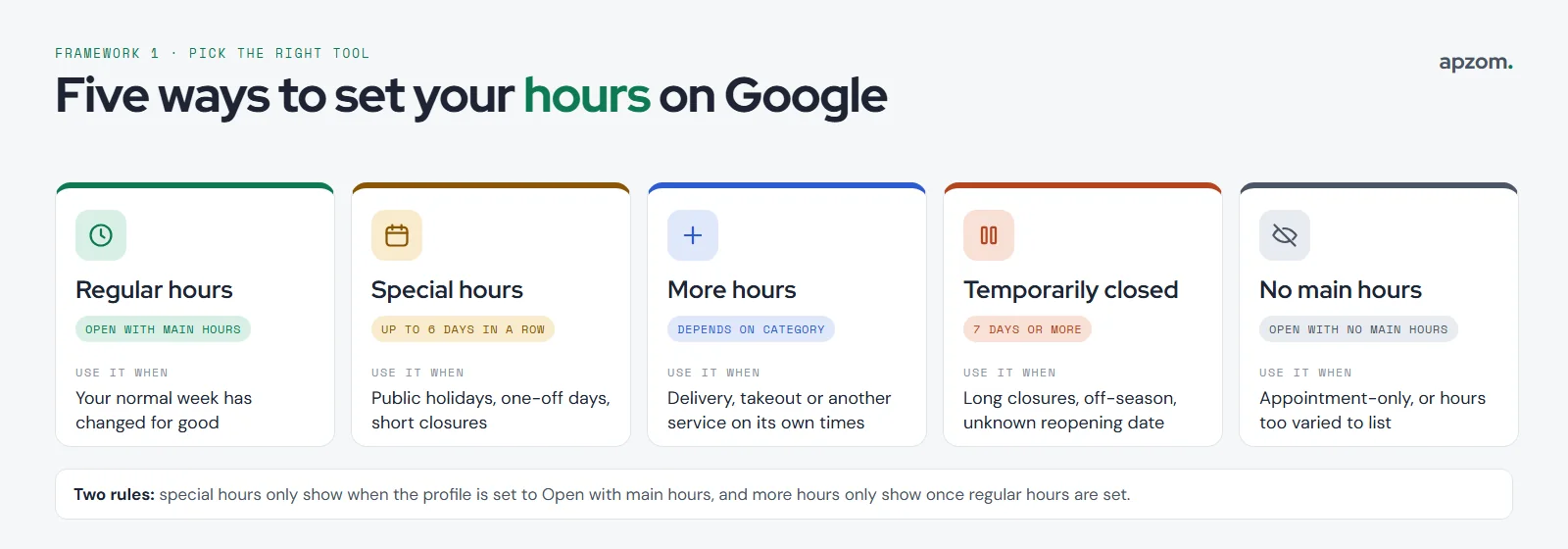
| Your situation | Use this | Why |
|---|---|---|
| Your normal weekly hours have changed for good | Regular hours (Open with main hours) | These are your hours “for a normal week” |
| A public holiday, a one-off event or a closure of up to 6 days in a row | Special hours | Overrides your regular hours for those dates only, then your normal week returns by itself |
| Some services run at different times, such as delivery or takeout | More hours | Shows a separate set of hours for that service |
| You are closed for 7 days or more, closed off-season, or you do not know when you will reopen | Temporarily closed | Google says to use this instead of special hours for longer closures |
| You open only by appointment, or your hours vary too much to list | Open with no main hours | Google says these businesses should not show hours |
| The business has closed for good | Permanently closed | The profile can still appear in search, clearly marked as closed |
Two rules from Google’s help pages are worth knowing before you edit:
- Special hours only show if your profile is set to “Open with main hours”. If you chose “Open with no main hours”, holiday hours will not appear.
- More hours do not appear until your regular hours are set, and Google’s guidelines say More hours should generally fall within your main hours.
How to change your regular hours on Google Search
This works in a computer browser, a phone browser or the Google app.
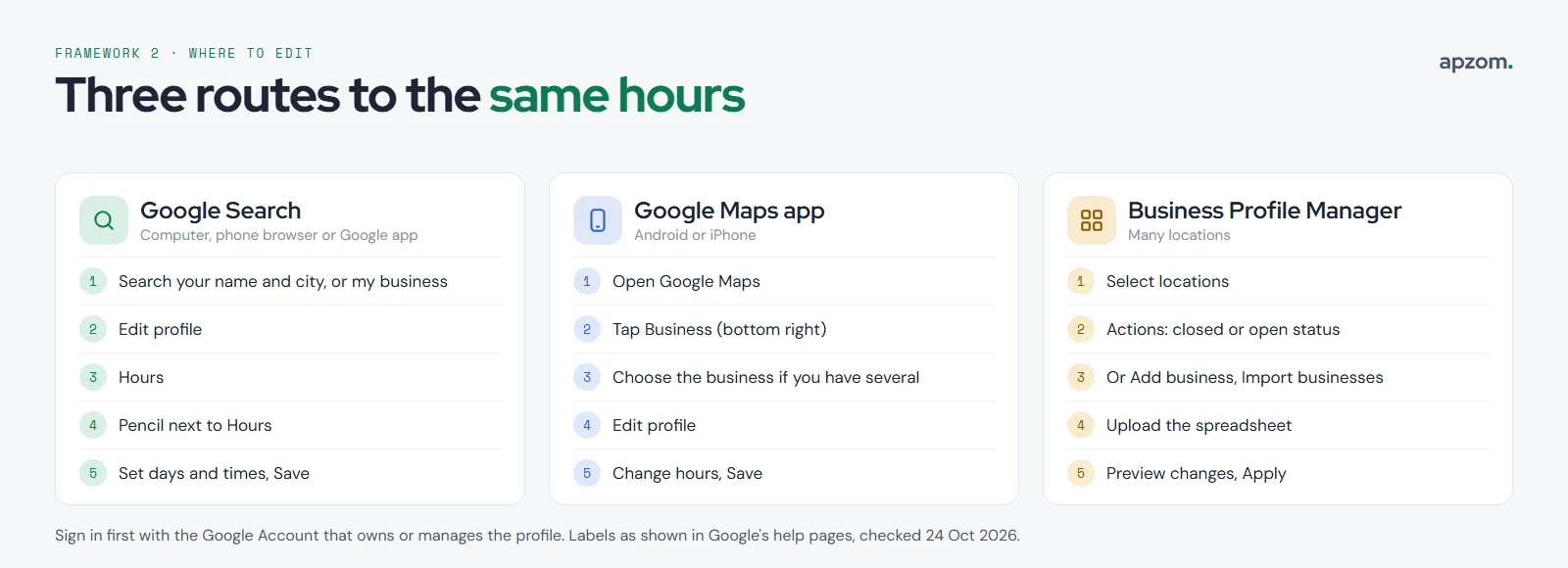
- Sign in to the Google Account that manages your profile.
- Search Google for your business name and city, or search my business.
- On your Business Profile, select Edit profile, then Hours.
- In the “Business hours” section, next to “Hours”, select the pencil (edit) icon.
- Choose Open with main hours.
- Tick each day you are open and set the opening and closing times from the dropdowns.
- Select Save.
Google shows a confirmation message, and your change also appears as a post on your profile’s Updates tab, which you can edit or delete.
Lunch breaks and split shifts
If you close in the middle of the day, add two sets of hours for that day. Set the first “Opens at” and “Closes at” times, select Add hours, add the second set, then select Save. For example, a clinic open 09:00 to 13:00 and 15:00 to 19:00 has two sets on each weekday.
Open 24 hours
For each day you never close, select “Opens at” and choose 24 hours, then Save. The profile then shows “Open 24 hours” for that day.
How to change your hours in the Google Maps app
- Open the Google Maps app on your Android phone or iPhone, signed in with the account that manages the profile.
- At the bottom right, tap Business.
- If you manage more than one business, tap the down arrow at the top and choose the right one.
- Tap Edit profile, then change your hours.
- Tap Save.
Google’s help describes the same Edit profile flow as on Search, although labels in the app can differ slightly.
How to add holiday hours (special hours)
Special hours change your hours for specific dates without touching your normal week. Use them for public holidays, early closing on a festival eve, stocktaking days, a staff training day or a local event.
- Go to your Business Profile and select Edit profile > Hours.
- In “Business hours”, next to “Special hours”, select the pencil (edit) icon.
- Pick a date: to accept a holiday Google suggests, select Review; to set any other date, select Add a date and enter it.
- If you are closed all day, leave Closed ticked.
- If you are open, untick Closed and enter your opening and closing times. To add a second set of hours that day, select More, then Add hours +.
- Select Save.
Your saved dates then appear under “Special hours” in the editor. To remove one, select the Trash (bin) icon next to a closed date, or for an open date select More > Remove day.
Confirm public holidays even if you are open as normal
Google keeps a list of public holidays by country, and for some countries by state or province. On those dates, Google says a warning may appear on your profile telling searchers that your hours “might differ”, unless you have set special hours. Google’s own advice is to confirm your hours for official holidays even when they are the same as usual. Confirming them removes the doubt for a customer deciding whether to make the trip.
Hours past midnight on a special date
A set of special hours cannot run longer than 24 hours, so a late-night opening that crosses midnight needs two sets: one ending at 00:00 on the first date and one starting at 00:00 on the next. Google then ignores your regular hours for that second date, so add that day’s normal hours as special hours too.
Holidays to check in your market
Google’s holiday list covers many countries. As a starting point, these are the kinds of dates businesses in our main markets usually need to check. They are examples, not a full list, and some move each year.
| Market | Dates to check |
|---|---|
| US | Thanksgiving, Christmas Day, New Year’s Day, Memorial Day, Independence Day, Labor Day |
| UK | Christmas Day, Boxing Day, New Year’s Day, Easter, bank holidays (which differ in Scotland and Northern Ireland) |
| EU | Christmas, New Year, Easter and national days, which differ by country |
| Australia and Canada | Christmas Day, Boxing Day, New Year’s Day, plus state, territory and provincial holidays |
| UAE | Eid al-Fitr and Eid al-Adha (set by moon sighting), National Day, New Year’s Day; working hours during Ramadan often change too |
| India | Diwali, Holi, Eid, Christmas and national holidays, plus state holidays that differ by state |
For festivals set by the moon, the exact date may only be confirmed shortly before. Add your best estimate early, and check it again once the date is announced.
More hours: delivery, takeout and other services
If part of your business runs on a different schedule, such as a kitchen that stops taking delivery orders an hour before closing, use More hours.
- Go to Edit profile > Hours.
- Under Add more hours, choose a type.
- Set the days and hours for that type, then select Save.
The types you can choose depend on your business category. Google’s help pages mention examples such as delivery, takeout, drive-through, pickup, happy hours and senior hours. If the type you want is missing, your primary category probably does not offer it.
Temporary closures, reopening and opening dates
Closed for a week or more
For a closure of 7 days or more, an off-season break, renovation or an unknown period, go to Edit profile > Hours, select the pencil next to “Hours”, choose Temporarily closed and select Save. Your profile then shows “Temporarily closed” on Search and Maps.
Know the trade-off before you use it. Google says that “for broad queries, temporarily-closed businesses can rank after open businesses.” That is the right price to pay when you really are closed, but it is a reason not to use this setting for a two-day closure.
Reopening
Go to Edit profile > Hours, select the pencil next to “Hours”, choose Open with main hours, set your days and times and select Save. If you closed because you moved or changed your business name, do not reopen the old profile: Google’s help says to add the business again, which then needs verification.
Seasonal businesses
Google’s guidelines are clear: set your regular hours while you are open for the season, mark the business temporarily closed during the off-season, and set your regular hours again when you reopen. You can also say in your business description that you open only for a certain season.
Opening soon
A new business can add an opening date from Edit profile, up to one year ahead. Google says a verified profile can then appear 90 days before that date, and a “Recently opened” label shows for 90 days after it.
Hours keep changing back, or edits stuck on Pending? A Business Profile Health Check finds out why and gives you a list of fixes for your hours, special hours and the rest of your profile.
Why your new hours are not showing
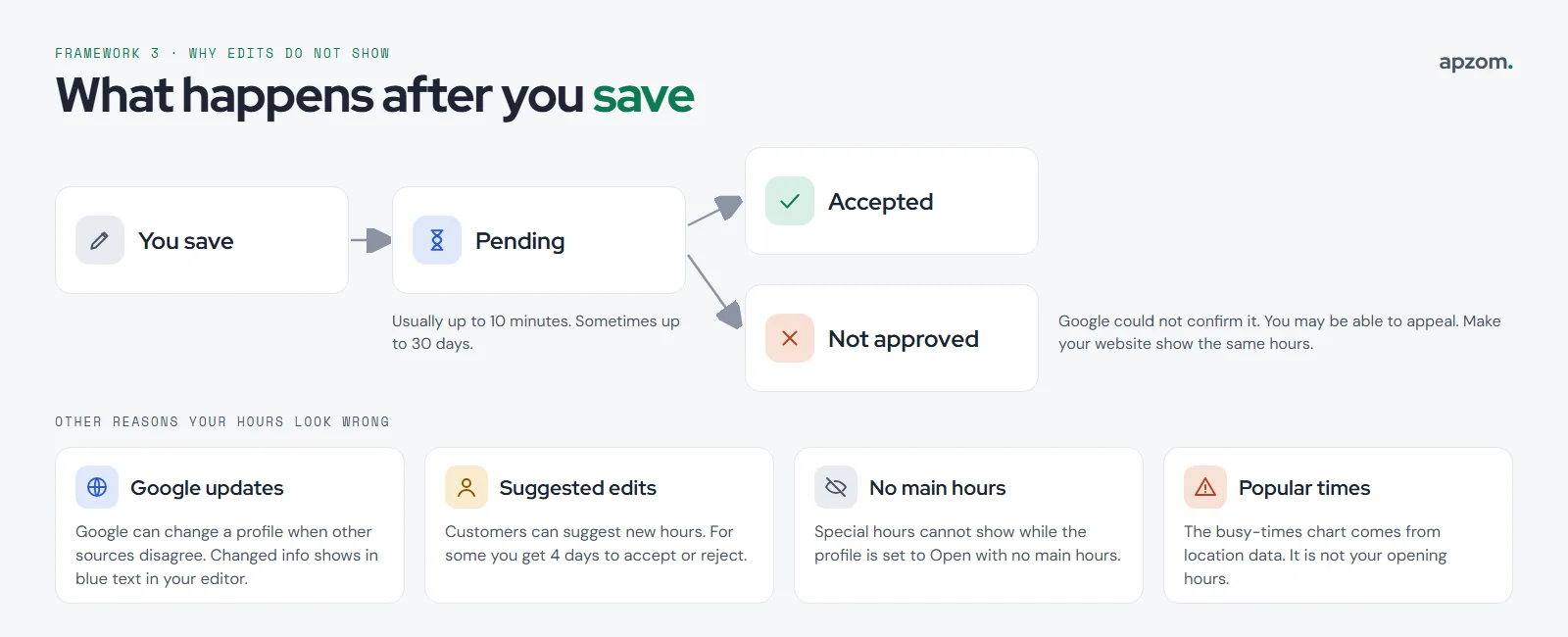
You saved your hours, but Google still shows the old ones. These are the usual reasons, in the order worth checking:
- The edit is still under review. Google says edits “usually take up to 10 minutes to review, but sometimes it can take up to 30 days”. Your edit has one of three statuses: Accepted, Pending or Not approved; Google’s “Check your edit status” help page shows where to see it.
- The edit was not approved. Google’s stated reason is that it “can’t confirm its accuracy”, and you may be able to appeal. In practice, it helps when your website, door sign and other listings show the same hours as your profile.
- Google changed them. Google may update a profile when user reports or other sources suggest the information is out of date. Information Google has changed shows in blue text in your profile editor, with a notification at the top.
- A customer suggested an edit. Anyone can suggest new hours through Suggest an edit in Google Maps. For some suggested edits, you get 4 days to accept or reject them. If you do not respond, Google may publish the edit when other public information, such as your website, supports it. In the US, people can also report hours through Google’s newer conversational “Tell Maps” feature.
- Your profile is set to “Open with no main hours”, so special hours cannot appear.
- You are looking at popular times, not opening hours. The busy-times chart comes from anonymised location data. It is not something you set and you cannot edit it.
There is no setting to stop Google updates or suggested edits altogether, so the fix is to look at your profile regularly and keep your website hours matching your profile.
Changing hours for many locations
If you manage several branches, you have two options.
- Change the status of many locations at once: in Business Profile Manager, select the locations, then Actions > Mark as temporarily closed, Mark as permanently closed or Open.
- Change the hours of many locations: use a bulk spreadsheet. In Business Profile Manager, select Add business > Import businesses > Select file, then Preview changes and Apply. Use Google’s template for your first upload.
Spreadsheet rules from Google’s help that save a lot of trouble:
- Each location needs a unique store code, and you cannot change a store code by spreadsheet. Spreadsheet apps can strip leading zeros from codes, which creates duplicates, so format that column as text.
- Each day has its own column. Write hours in 24-hour form such as 09:00-17:30, separate two sets with a comma, and use X or leave the cell empty for closed. Hours that run past midnight go in the column for the day they start.
- Special hours have their own column, with the date followed by the hours.
- Do not include empty columns. Google warns that a column with a heading and no data deletes the existing information in that field. To change only hours, include just the store code and the hours columns.
Developers can also set `regularHours`, `specialHours` and `moreHours` through Google’s Business Profile APIs.
Keep your hours the same everywhere
Customers also see your hours on Apple Maps, Bing, your website and booking sites. If they disagree, people do not know which to trust, and Google says it may publish a customer’s suggested edit when other public information, such as your website, supports it. Apple Business (formerly Apple Business Connect) has normal hours and special hours for holidays, and Bing Places lets you edit your business hours. Our guides on adding your business to Apple Maps and Bing Places show where to change them.
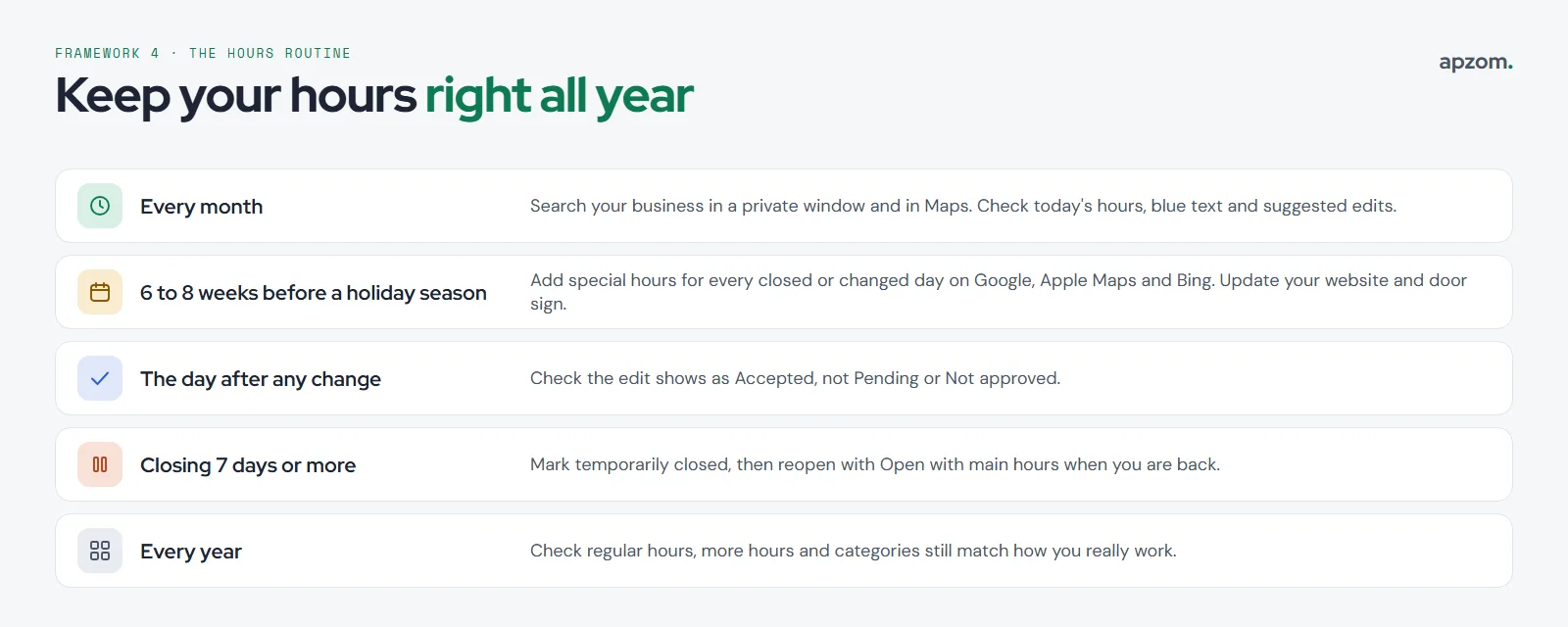
A simple routine works for most businesses:
- Every month: search your business in a private browser window and in Google Maps, check today’s hours and look in your editor for blue text (information Google changed) and for suggested edits.
- Six to eight weeks before each holiday season, or as soon as your dates are fixed: add special hours for every closure and changed day, on Google and on your other listings, and update your website and door sign.
- The day after a change: check that the edit shows as Accepted.
- Every year: check that your regular hours, More hours and categories still match how you actually work.
Planning a busy season? Our holiday marketing checklist covers the rest of the preparation, from ad review times to email deadlines.
How Apzom can help
Hours are one field in your profile, and they work best when the rest of it is right too. Our Google Business Profile checklist and local SEO checklist cover the other fields, and our local SEO services team can manage profiles, special hours and listings across Google, Apple Maps and Bing for single and multi-location businesses. We can also help when suggested edits or Google updates keep changing your hours back. We work with clients worldwide, remotely, from our base in Ahmedabad, India.
Request a Business Profile Health Check. We review your Google Business Profile for every location: regular, special and more hours, closure settings, Google updates and suggested edits, categories and photos, and check that Apple Maps, Bing and your website match. You get a prioritised list of fixes, or we make them for you.
No obligation and no guaranteed rankings. Prefer to talk first? Contact us or see all our services.
Frequently asked questions
How do I change my business hours on Google?
Sign in to the account that manages your profile, search for your business name and city or “my business”, then select Edit profile > Hours, edit the hours next to “Hours” and select Save. In the Google Maps app, tap Business > Edit profile.
How do I add holiday hours on Google?
Go to Edit profile > Hours, select the pencil next to “Special hours”, then Review a suggested holiday or Add a date. Leave Closed ticked to close all day, or untick it and enter hours. Select Save.
How long does it take for Google to update business hours?
Google says edits usually take up to 10 minutes to review, but can take up to 30 days. Check whether your edit shows as Accepted, Pending or Not approved.
Why does Google keep changing my business hours?
Google can update a profile when other sources suggest the information is out of date, and customers can suggest edits. Look for blue text and notifications in your editor, respond to suggested edits within the 4 days Google allows, and make sure your website shows the same hours.
Should I mark my business temporarily closed for the holidays?
Only if you close for 7 days or more. For shorter closures, use special hours. Google says temporarily closed businesses can rank after open ones for broad searches.
Do I need to verify my business again after changing hours?
Google does not list hours as an edit that needs new verification. Name and address changes can lead to verifying again.
Can I change the hours of many locations at once?
Yes. Use the bulk spreadsheet in Business Profile Manager for hours, and the Actions menu to mark several locations closed or open.
Can Apzom manage business hours for businesses outside India?
Yes. We manage Google Business Profiles and other listings for clients worldwide, remotely, from Ahmedabad.