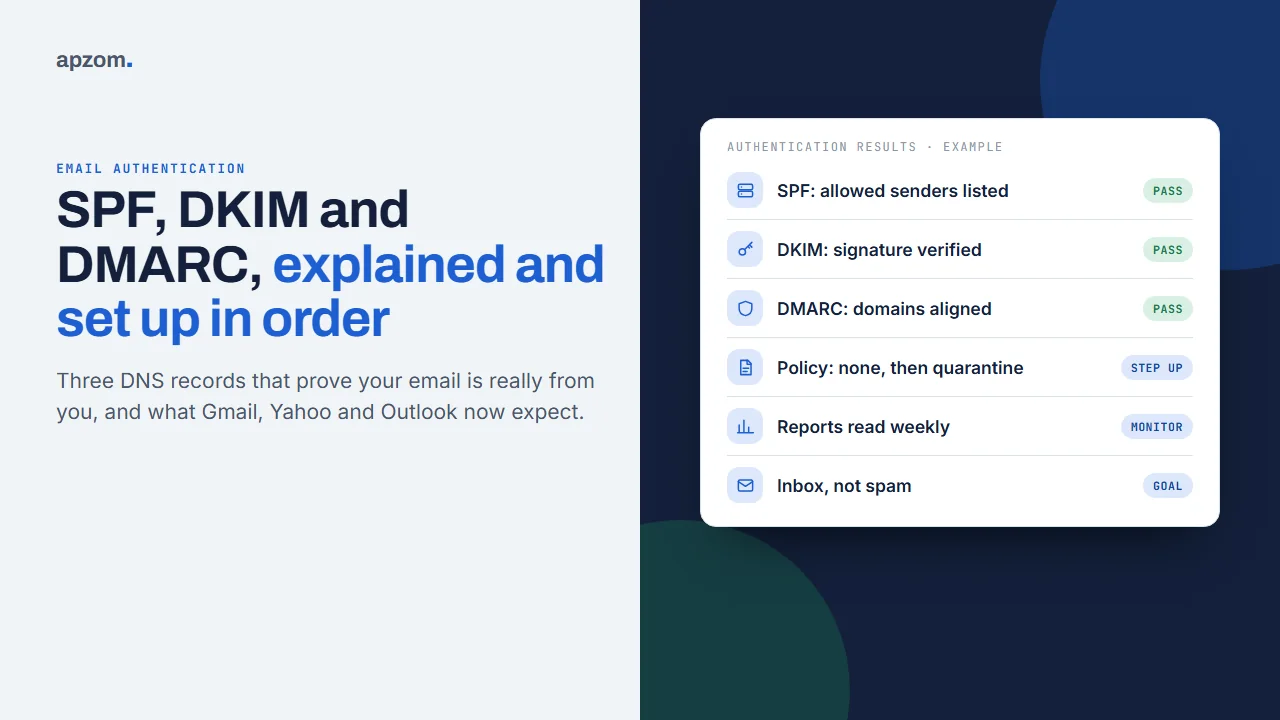
The short answer: SPF, DKIM and DMARC are three DNS records that prove your emails really come from your domain. SPF lists the services allowed to send email for your domain, DKIM adds a digital signature that receiving servers can check, and DMARC tells them what to do when a message fails those checks and sends you reports about it. To give your email the best chance of reaching the inbox, publish one SPF record that includes every service whose set-up page asks for an SPF include, turn on DKIM signing in each of those services, then add a DMARC record that starts at p=none, read the reports, and move towards p=quarantine or p=reject once all your real email passes. Gmail, Yahoo and Outlook.com now require all three from bulk senders, and Gmail and Yahoo expect at least SPF or DKIM from every sender.
This guide is for small business owners, marketers and website managers anywhere in the world whose emails land in spam, who use an email platform for newsletters, or who have been told they need “email authentication”. It explains what each record does in plain language, shows example records, walks through setting them up in the right order, explains how to check that they work, and lists common mistakes that break them. You will need access to your domain’s DNS settings, usually at your domain registrar or hosting company.
Before you start: list everything that sends email for you
A common reason authentication fails is that a business forgot a service that sends email using its domain. Before you touch DNS, list every one of them:
- Your mailbox provider (for example Google Workspace or Microsoft 365).
- Your email marketing platform.
- Your website, if its forms send notification or confirmation emails.
- Your CRM, help desk, booking system, invoicing or accounting software.
- Any other tool that sends as you@yourdomain.
For each one, find its help page on “authenticate your domain” or “SPF and DKIM”. Those pages give you the exact values to publish.
You will also need to log in to wherever your domain’s DNS is managed. Where to add records at common DNS hosts:
- Cloudflare: DNS > Records > Add record, then Save.
- Namecheap: Domain List > Manage > Advanced DNS > Add New Record, then Save all changes.
- GoDaddy: your domain’s DNS settings (Edit DNS) > Add > TXT.
- Hostinger: the DNS Zone Editor in hPanel (DNS / Nameservers > DNS records). This only works if your domain uses Hostinger’s nameservers.
If your domain’s nameservers point somewhere else (for example to Cloudflare), add the records there, not at the registrar. DNS changes can take time to spread, so allow a while before testing.
Framework 1: what each record does
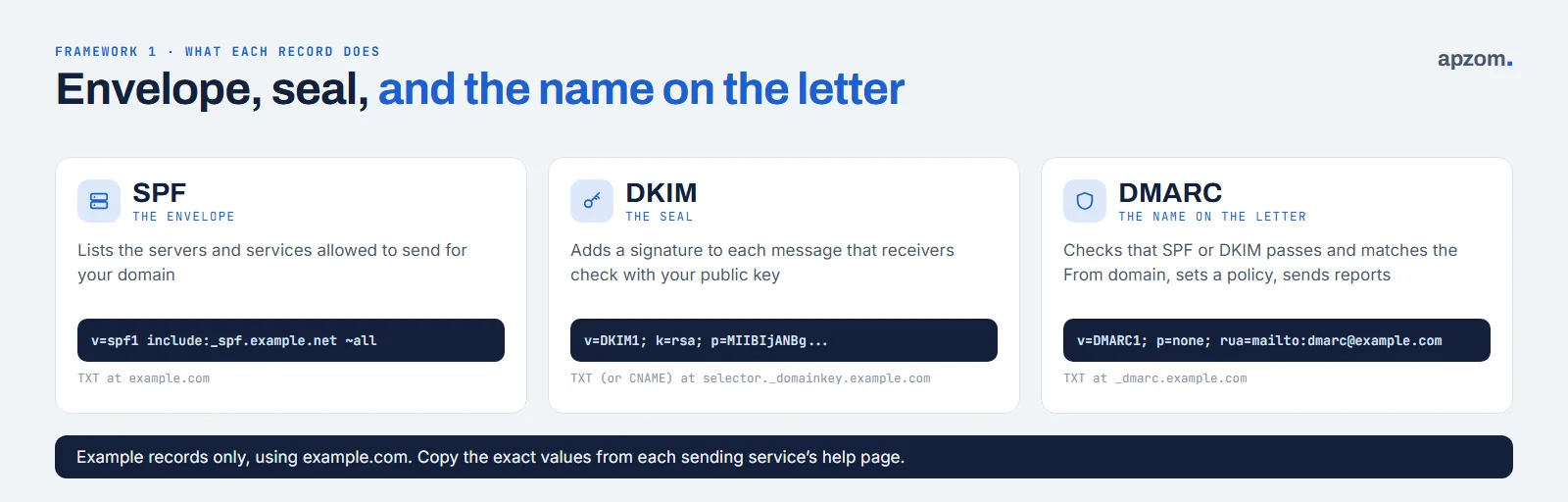
| Record | What it checks | Where it lives | Example (example.com) |
|---|---|---|---|
| SPF | Whether the server that sent the message is allowed to send for the domain in the envelope (“Return-Path” or MAIL FROM) address | A TXT record on your domain | v=spf1 include:_spf.google.com ~all |
| DKIM | Whether the message carries a valid signature from a domain, made with a private key that matches a public key in DNS | A TXT record (or CNAME pointing to one) at selector._domainkey | v=DKIM1; k=rsa; p=... (a long key) |
| DMARC | Whether SPF or DKIM passed for a domain that matches the visible From address, and what to do if not | A TXT record at _dmarc | v=DMARC1; p=none; rua=mailto:dmarc-reports@example.com |
A useful way to remember it: SPF checks the envelope, DKIM checks the seal, and DMARC checks that both match the name on the letter, then tells the receiver what to do if they do not.
Step 1: publish one SPF record
SPF (Sender Policy Framework, defined in RFC 7208) is a single TXT record on your domain that lists who may send for it. It starts with v=spf1, then lists your senders, usually with include: entries supplied by each service, and ends with an “all” rule for everyone else.
Examples from the providers’ own help pages:
- Google Workspace:
v=spf1 include:_spf.google.com ~all - Microsoft 365:
v=spf1 include:spf.protection.outlook.com -all - A domain that never sends email:
v=spf1 -all
If you use more than one service, combine them into one record, for example v=spf1 include:_spf.google.com include:[your email platform's include] ~all. Use the exact include value from each service’s help page. Some platforms, such as Mailchimp, do not ask for an SPF include at all, because they send from their own return address; for them, DKIM on your domain is what makes DMARC pass.
The ending matters. -all (fail) tells receivers that anything not listed is not allowed; ~all (softfail) says it is probably not allowed; ?all (neutral) says nothing either way. Google’s help recommends ~all and Microsoft’s recommends -all. Both work well once DKIM signing and DMARC are in place. Microsoft notes that with ~all, DMARC may not act on mail that fails SPF and has no DKIM signature, which is one more reason to turn on DKIM everywhere.
Three rules commonly break SPF:
- Only one SPF record per domain. Two records starting with
v=spf1make SPF fail with a “permerror”. Merge them. - No more than 10 DNS lookups. RFC 7208 limits SPF to 10 lookups in total, and each
include:counts, including the includes inside other includes. Go over and SPF fails with a permerror. Remove services you no longer use before adding new ones. - Long records must be split correctly. A single TXT string can be at most 255 characters; longer records are split into several strings that receivers join without spaces. Most DNS hosts do this for you.
SPF has a weakness: it checks the hidden envelope address, not the From address people see, and it often breaks when mail is forwarded. That is why you need DKIM and DMARC too.
Step 2: turn on DKIM for every sending service
DKIM (DomainKeys Identified Mail, RFC 6376) adds a digital signature to every message. The sending service signs with a private key; your DNS publishes the matching public key under a “selector”, at selector._domainkey.yourdomain.com. The signature names the signing domain in its d= tag, and that is the domain DMARC compares with your From address.
You cannot write a DKIM record yourself; each service generates it. Turn it on in every service that sends for you:
- Google Workspace: Admin console > Menu > Apps > Google Workspace > Gmail > Authenticate email. Generate a new record, add it as a TXT record at
google._domainkey, then click Start authentication. - Microsoft 365: Microsoft Defender portal > Email & collaboration > Policies & rules > Threat policies > Email authentication settings > DKIM. Select your domain, click Create DKIM keys, add the two CNAME records it shows (at
selector1._domainkeyandselector2._domainkey), then turn on “Sign messages for this domain with DKIM signatures”. Copy the target values exactly as the portal shows them; Microsoft has changed their format for newer domains. - Email marketing platforms: most give you two or three records to add, often CNAMEs plus a DMARC TXT record. Your domain can have only one DMARC record: if you already have one, keep it and do not add a second. Brevo’s automatic set-up may replace an existing record, so set it up manually in that case. Mailchimp starts this under Account & billing > Domains > Start authentication; Brevo asks for a Brevo code TXT record, a DKIM record and a DMARC record.
Use a key of at least 1024 bits; RFC 8301 sets 1024 as the minimum and recommends 2048 bits where your DNS host supports it. If a service sends with its own domain in the signature (for example d= their domain rather than yours), DKIM can pass but will not help your DMARC, so complete its “authenticate your domain” step.
Emails still landing in spam? Ask for a Free Growth Audit. We check your SPF, DKIM and DMARC records, list the services sending for your domain, and tell you what to fix first.
Step 3: add DMARC, starting with p=none
DMARC (Domain-based Message Authentication, Reporting and Conformance) connects the other two to the address people see. A message passes DMARC if either SPF or DKIM passes and the domain it passed for matches (aligns with) the domain in the From address. By default the match is “relaxed”, so a subdomain such as mail.yourdomain.com counts.
The DMARC record is a TXT record at _dmarc.yourdomain.com. Start with monitoring only:
v=DMARC1; p=none; rua=mailto:dmarc-reports@yourdomain.comp=noneasks receivers to take no action but to send reports.rua=is the address that receives aggregate reports, usually daily (XML files). A free or paid DMARC report reader makes them readable, and many email platforms offer one.
Then follow this order:
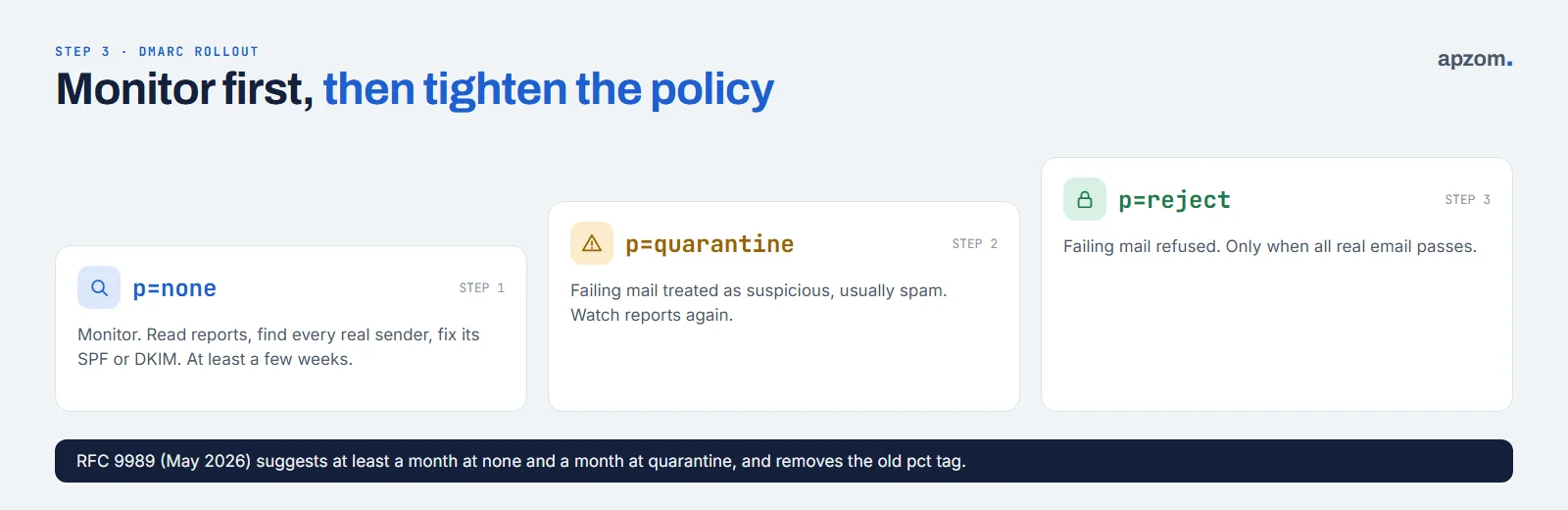
- Monitor with p=none for at least a few weeks. Read the reports and find every legitimate service that is failing; fix its SPF or DKIM.
- Move to p=quarantine, which asks receivers to treat failing mail as suspicious (usually the spam folder). Watch the reports again.
- Move to p=reject when you are confident all your real email passes. Failing mail is then refused.
The DMARC standard was updated in May 2026: RFC 9989 replaced RFC 7489. Records still start with v=DMARC1. The new version removes the old pct tag (which applied a policy to a percentage of mail) and adds a test flag, t=y, for trying a stricter policy. Some providers’ help pages still show pct, and receivers may treat it differently during the transition, so do not rely on pct to soften a policy. RFC 9989 also recommends at least a month at p=none and a month at p=quarantine before reject, and advises that domains whose users post to mailing lists should not use p=reject. It also says domains at p=reject must not rely on SPF alone and must DKIM-sign their mail, because forwarding often breaks SPF.
What Gmail, Yahoo and Outlook now require
The big mailbox providers now make authentication a condition of delivery:
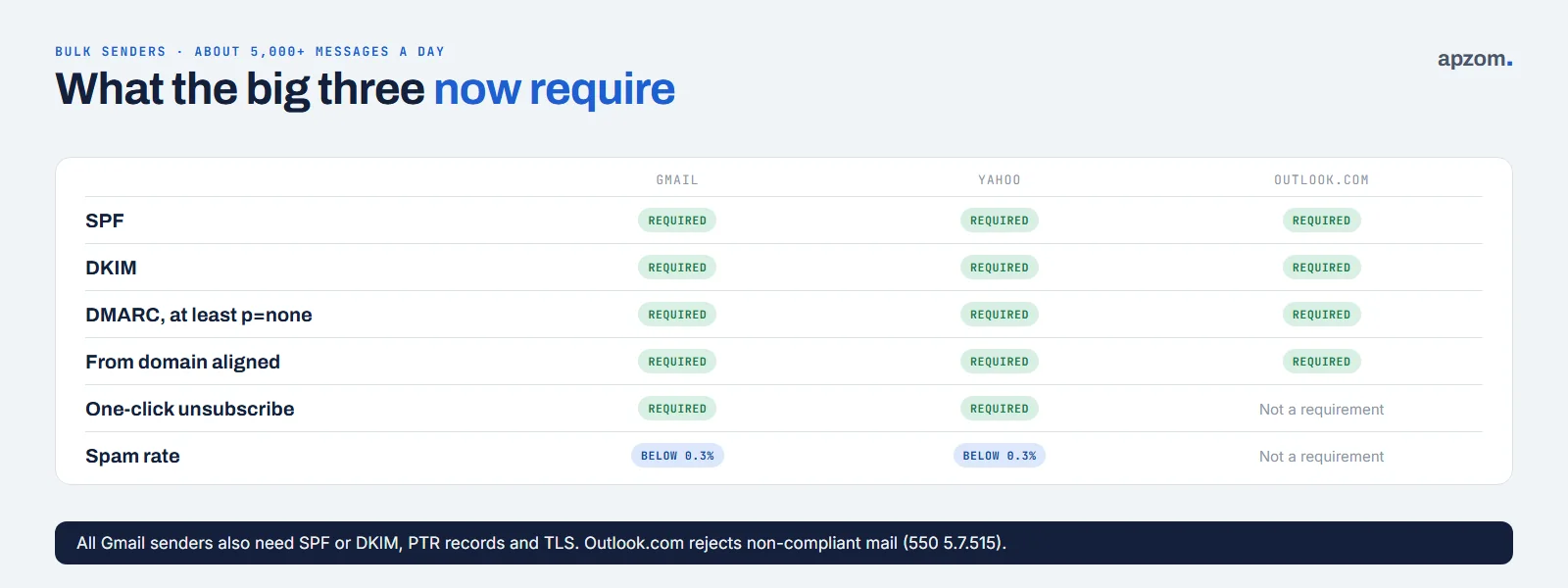
| Provider | Applies to | What is required |
|---|---|---|
| Gmail (Google) | All senders | SPF or DKIM, valid forward and reverse DNS (PTR) for sending servers, TLS, and low spam rates |
| Gmail (Google) | Bulk senders: about 5,000 or more messages a day to personal Gmail accounts | SPF and DKIM, DMARC with at least p=none, From domain aligned with SPF or DKIM, one-click unsubscribe for marketing mail, spam rate below 0.3% (Google recommends below 0.1%) |
| Yahoo | Bulk senders | SPF and DKIM, DMARC with at least p=none, aligned From domain, one-click unsubscribe honoured within 2 days, spam rate below 0.3% |
| Outlook.com (Microsoft) | Senders of 5,000 or more messages a day to Outlook.com, Hotmail and Live addresses | SPF and DKIM both passing, DMARC with at least p=none aligned with one of them |
Google’s FAQ says that since November 2025 non-compliant mail faces temporary and permanent rejections. Microsoft began enforcing its rules on 5 May 2025, first routing non-compliant mail to Junk; its support page now describes rejecting it with the error “550 5.7.515”.
Even if you send far less than 5,000 messages a day, meeting the bulk-sender rules is a sensible target: the same practices help every sender.
BIMI, the standard that can show your logo next to your emails in some inboxes, needs DMARC at p=quarantine or p=reject first, plus a VMC or CMC certificate for your logo, which Gmail requires. Treat it as a later step, not a fix for spam.
How to check your records work
- Look at a real message. Send an email from each service to a Gmail address, open it, and choose More (the three dots) > Show original. In the full headers, look for the Authentication-Results line, which normally shows pass or fail for SPF, DKIM and DMARC. You can also paste the headers into Google’s Messageheader tool (below) to read them more easily.
- Check the DNS. Google’s free Admin Toolbox has Check MX (which checks your domain’s set-up), Messageheader (which reads the headers you copied from “Show original”) and Dig (which shows any DNS record).
- Read your DMARC reports weekly at first. They show every source sending as your domain and whether it passed.
- Watch your reputation. Google Postmaster Tools shows a Compliance status for bulk-sender rules (Compliant, Needs work or No data found) and your spam rate, once you verify your domain. Microsoft’s SNDS shows reputation data for your sending IP addresses, mainly useful if you run your own mail servers.
Common mistakes and how to fix them
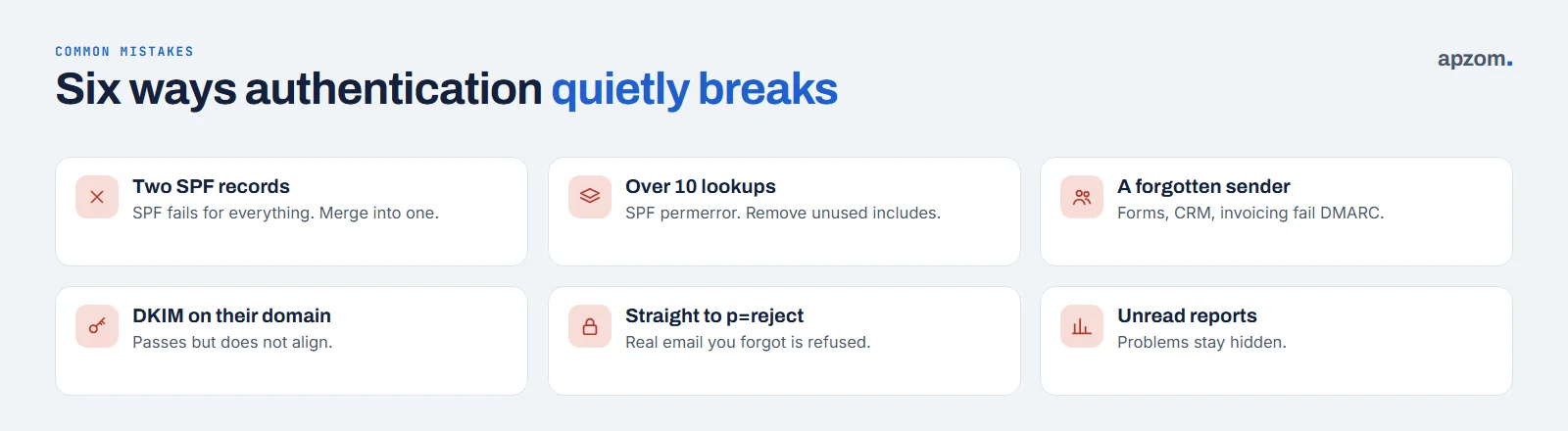
| Mistake | What happens | Fix |
|---|---|---|
| Two SPF records | SPF fails for all mail (permerror) | Merge them into one record |
| More than 10 lookups in SPF | SPF fails (permerror) | Remove unused services; ask your providers whether one include covers several products |
| Forgetting a sender (website forms, CRM, invoicing) | Its mail fails DMARC and lands in spam or is rejected once you enforce | List every service first; check DMARC reports |
| DKIM left on the service’s own domain | DKIM passes but does not align, so it does not help DMARC | Complete each service’s “authenticate your domain” step |
| Jumping straight to p=reject | Real email you forgot about is refused | Spend weeks at p=none, then p=quarantine |
| Relying on pct to soften a policy | RFC 9989 removed pct; receivers may ignore it | Use p=none or quarantine while you fix issues |
| Never reading DMARC reports | Problems stay hidden | Use a report reader and check weekly at first |
| Sending from a free mailbox address through a platform | The From domain cannot be authenticated by you | Send from an address on your own domain |
Also check subdomains. DMARC on your main domain applies to subdomains unless you set a separate policy with the sp= tag; if a subdomain is used by a service (for example news.yourdomain.com), make sure it is authenticated too. Microsoft also suggests sending marketing email from a subdomain such as news.yourdomain.com, which keeps its reputation separate from your main domain and gives it its own SPF record and lookup budget.
How Apzom can help
Apzom Digital sets up domain authentication as part of our email marketing work: we list every service that sends for your domain, publish SPF, DKIM and DMARC in your own DNS account, read the DMARC reports, and move your policy towards enforcement once your real email passes. Our guide to email marketing for small businesses covers what to send once your emails reach the inbox.
We work with clients worldwide, remotely, from our base in Ahmedabad, India.
Frequently asked questions
Do I need SPF, DKIM and DMARC if I only send a few emails?
Yes. Gmail requires every sender to use at least SPF or DKIM, and all three together are the most reliable way to stay out of spam. They cost nothing to publish.
Will DMARC stop all spoofing of my domain?
Only at p=quarantine or p=reject, and only at receivers that check DMARC. At p=none it only reports. DMARC also protects only your exact domain, not look-alike domains.
Should my SPF record end in ~all or -all?
Both work well once DKIM and DMARC are in place, though Microsoft notes that with ~all, DMARC may not act on SPF failures that have no DKIM signature. Google’s help recommends ~all and Microsoft’s recommends -all. Use -all for a domain that never sends email.
Why do my emails still go to spam after setting this up?
Authentication proves who you are; it does not make people want your email. Spam complaints, sending to old or bought lists, misleading subject lines and sudden jumps in volume can still send you to spam. Our guide to email marketing for small businesses covers list and content practices.
How long does it take for DNS changes to work?
Usually minutes to a few hours, depending on your DNS host and the record’s time-to-live (TTL). Google says Workspace DKIM can take up to 48 hours to start working, and that you should wait 24 to 72 hours after turning on Gmail before generating the key. Test again before assuming something is wrong.
Do I need a DMARC service?
Not to publish the record. A report reader is useful because the raw aggregate reports are XML files that are hard to read by hand.
Get your Free Growth Audit and Quote. We review your domain authentication, DMARC reports and email platform set-up, and send a plain-English plan to get your email authenticated and moving towards enforcement, with DNS kept in your own account.
No obligation and no guaranteed inbox placement. Prefer to talk first? Contact us or see our email marketing service.